
1. Konfiguracja
1.1 Rozpakowanie i wstępna inspekcja
Carefully remove the NuPhy Node75 keyboard and all accessories from the packaging. Inspect for any visible damage. The package should contain:
- 1 x Node75 Keyboard (Low-Profile)
- Odbiornik 1 x 2.4G
- 1 x kabel USB-C do USB-C
- 1 x adapter USB-C do USB-A
- Other accessories and Quick Start Guide
Video: NuPhy Node75 Low Profile Keyboard Unboxing and Overview. This video demonstrates the unboxing process and provides a general overview of the keyboard's features and accessories.
1.2 Tryby łączności
The Node75 supports three connectivity modes: Bluetooth, 2.4GHz wireless, and USB-C wired. Use the switch on the back of the keyboard to select your desired mode.
- Tryb przewodowy USB-C: Connect the keyboard directly to your device using the provided USB-C to USB-C cable or USB-C to USB-A adapter. This mode offers plug-and-play functionality.
- Tryb bezprzewodowy Bluetooth: Slide the switch to Bluetooth mode. Pair with up to 5 devices simultaneously and switch between them using dedicated shortcut keys (FN + 1/2/3).
- Tryb bezprzewodowy 2.4 GHz: Slide the switch to 2.4GHz mode. Insert the 2.4G receiver into your device's USB port. Use FN + 4 to activate this mode.
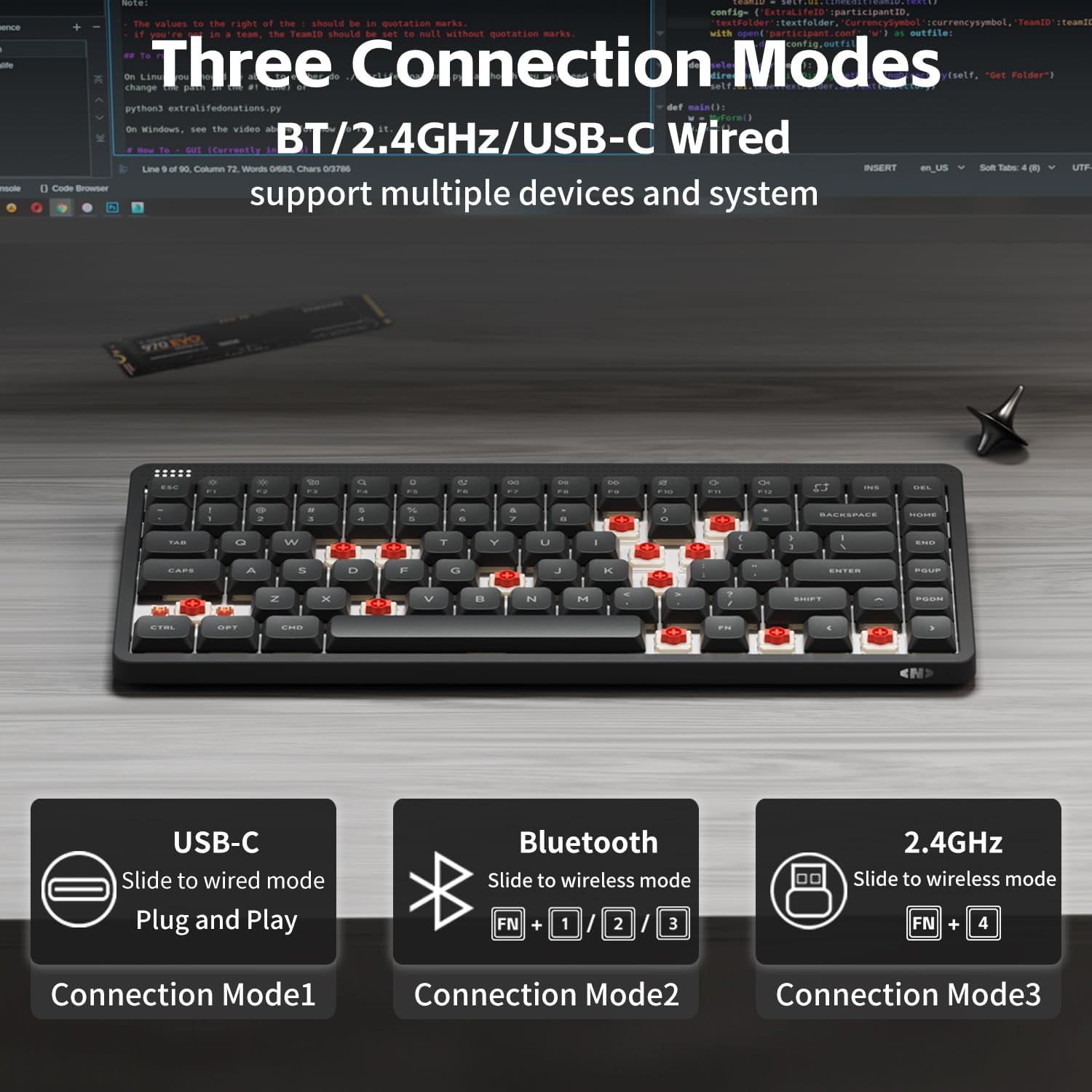
Image: The NuPhy Node75 keyboard illustrating its three connection modes: USB-C wired, Bluetooth wireless, and 2.4GHz wireless, along with their respective activation methods.
1.3 Zgodność z systemem operacyjnym
The Node75 keyboard is compatible with Windows, macOS, Android, and iOS systems. Use the dedicated switch on the back of the keyboard to select between WIN and MAC layouts.
2. Instrukcja obsługi
2.1 Gesture Touch Area
The Node75 features a touch area at the top of the keyboard for intuitive control. This area replaces traditional volume knobs and allows for adjustments by sliding your finger.
- Regulacja głośności: Slide your finger across the touch area to adjust the system volume.
- Kontrola jasności: Slide your finger across the touch area to adjust screen brightness.
- Podświetlenie klawiatury: Adjust keyboard backlight settings via the touch area.
These functions can be further configured and customized using the NuPhyIO software.

Obraz: szczegółowy view of the Node75's touch-sensitive area, highlighting its functionality for intuitive interaction and efficient experience.
2.2 Podświetlenie RGB
The keyboard features customizable RGB backlighting. Personalize vibrant lighting effects and animations that react to your keystrokes through the NuPhyIO software.

Image: The NuPhy Node75 keyboard in a workspace, demonstrating its compatibility with NuPhyIO programmable software for customizing RGB lighting and other settings.
2.3 Doświadczenie pisania
The Node75 is designed with a gasket-mounted structure and internal damping materials to provide a soft, quiet, and consistent typing experience. This design reduces vibrations, noise, and hollow echoes.
Video: NuPhy Node75 Mechanical Keyboard Typing Sound. This video demonstrates the sound profile of the keyboard during typing, showcasing its quiet and satisfying acoustics.
3. Konserwacja
3.1 Czyszczenie klawiatury
To maintain optimal performance and appearance, regularly clean your Node75 keyboard.
- Użyj miękkiej, niestrzępiącej się ściereczki, lekko wyczyśćampPrzetrzyj klawisze i powierzchnię klawiatury wodą lub łagodnym środkiem czyszczącym.
- Do usuwania kurzu i zanieczyszczeń spomiędzy klawiszy należy użyć sprężonego powietrza.
- Unikaj stosowania silnych środków chemicznych, ściernych środków czyszczących i nadmiernej wilgoci, ponieważ mogą one uszkodzić klawiaturę.
3.2 Wymiana nakładek klawiszy i przełączników
The Node75 features hot-swappable switches, allowing for easy replacement without soldering. Use the included keycap puller and switch puller for safe removal and installation.
- Gently pull keycaps straight up using the keycap puller.
- Use the switch puller to carefully remove switches by pressing the clips on the top and bottom of the switch.
- Align new switches with the PCB sockets and press firmly until they click into place.
4. Rozwiązywanie Problemów
4.1 Problemy z łącznością
- Klawiatura nie łączy się przez Bluetooth/2.4 GHz: Ensure the keyboard is charged and the correct mode (Bluetooth or 2.4GHz) is selected via the switch on the back. For Bluetooth, ensure your device's Bluetooth is on and the keyboard is in pairing mode. For 2.4GHz, ensure the receiver is properly inserted and the keyboard is set to 2.4GHz mode.
- Opóźnienie lub przerywane połączenie: Try moving the keyboard closer to your device or 2.4G receiver. Ensure there are no strong interference sources nearby.
- Połączenie przewodowe nie działa: Check the USB-C cable and adapter for damage. Try connecting to a different USB port on your device.
4.2 Kluczowe funkcjonalności
- Klawisze nie reagują: Ensure the keyboard is powered on and connected. If hot-swappable switches were recently changed, ensure they are fully seated in their sockets.
- Nieprawidłowy wynik klucza: Verify the operating system switch (WIN/MAC) on the back of the keyboard is set correctly for your system.
4.3 Problemy z podświetleniem
- Podświetlenie nie działa: Check if the backlight is turned off or set to a very low brightness level. Adjust using the touch area or NuPhyIO software. Ensure the keyboard has sufficient battery charge.
If issues persist after attempting these steps, please refer to the Warranty & Support section for further assistance.
5. Specyfikacje
| Funkcja | Szczegół |
|---|---|
| Układ | ANSI 75% |
| Number of Keys (Low-Profile) | 84 |
| Number of Keys (High-Profile) | 82 |
| Typ stabilizatora | Plate Mounted |
| Typ mocowania | Uszczelka |
| Hot-swappable Support | Tak |
| N-key Rollover Support | Tak |
| Zgodny system | macOS/Windows/Android/iOS |
| 2.4GHz Polling Rate | 1000 Hz |
| Częstotliwość odpytywania przewodowego | 1000 Hz |
| Bluetooth 5.0 Polling Rate | 125 Hz |
| Wymiary produktu | 12.48 x 5.39 x 0.55 cala |
| Waga przedmiotu | 2.03 funta |
| Tworzywo | Acrylonitrile Butadiene Styrene, Polybutylene Terephthalate, Polycarbonate |
| Pojemność baterii | 3000mAh (up to 1000 hours runtime) |
5.1 Wymiary fizyczne

Image: Technical drawing illustrating the dimensions of the low-profile Node75 keyboard.

Image: Technical drawing illustrating the dimensions of the high-profile Node75 keyboard.
5.2 Typy przełączników
The Node75 keyboard is available with various switch types, each offering a distinct typing feel:
- Red Max Switch: 45gf Linear Switch.
- Red Nano Switch: 45gf Linear Switch.
- Blush Max Switch: 42gf Linear Switch.
- Blush Nano Switch: 42gf Linear Switch.
- Brown Max Switch: 50gf Tactile Switch.
- Brown Nano Switch: 50gf Tactile Switch.
6. Gwarancja i pomoc techniczna
6.1 Informacje o gwarancji
For specific warranty details, please refer to the documentation included with your product or visit the official NuPhy website. Warranty coverage typically includes manufacturing defects under normal use.
6.2 Obsługa klienta
If you encounter any issues or have questions regarding your NuPhy Node75 keyboard, please contact NuPhy customer support through their official website or the seller's contact information. You can also utilize the NuPhyIO software for advanced configuration and troubleshooting resources.