
Wstęp
The Collective Minds STRIKEPACK HORIZON™ VISTA is an advanced back button adapter designed to enhance your gaming experience on PlayStation 5 and PC (Windows 10 or higher). It provides programmable back buttons and access to various GamePack features without requiring internal modifications to your controller. This manual provides essential information for setup, operation, and maintenance.

Image: The STRIKEPACK HORIZON™ VISTA attached to a PlayStation 5 DualSense controller.
Organizować coś
1. Firmware Update Requirement
Before initial use, ensure your STRIKEPACK HORIZON™ VISTA is updated to firmware version 1.2.3 or higher. Firmware updates require a Chrome browser on a device running iOS 15+ or Android 9+. iOS-based devices do not support Chrome browser updating for this product.
2. PS5 Communication Method Configuration
For the STRIKEPACK to function correctly as a wired-only device, the PlayStation 5 console's controller communication method must be set to 'Use USB Cable'.
- Włącz konsolę PS5.
- Przejdź do Ustawienia.
- Wybierać Akcesoria.
- Wybierać Controller (General).
- Ustawić Metoda komunikacji Do Użyj kabla USB.
3. Attaching the STRIKEPACK HORIZON™ VISTA
Ensure your DualSense controller is powered off before attaching the STRIKEPACK. If the controller is on, hold the PS button until it turns off.
Video: Demonstrates the correct method for attaching the STRIKEPACK HORIZON™ VISTA to a PS5 DualSense controller.
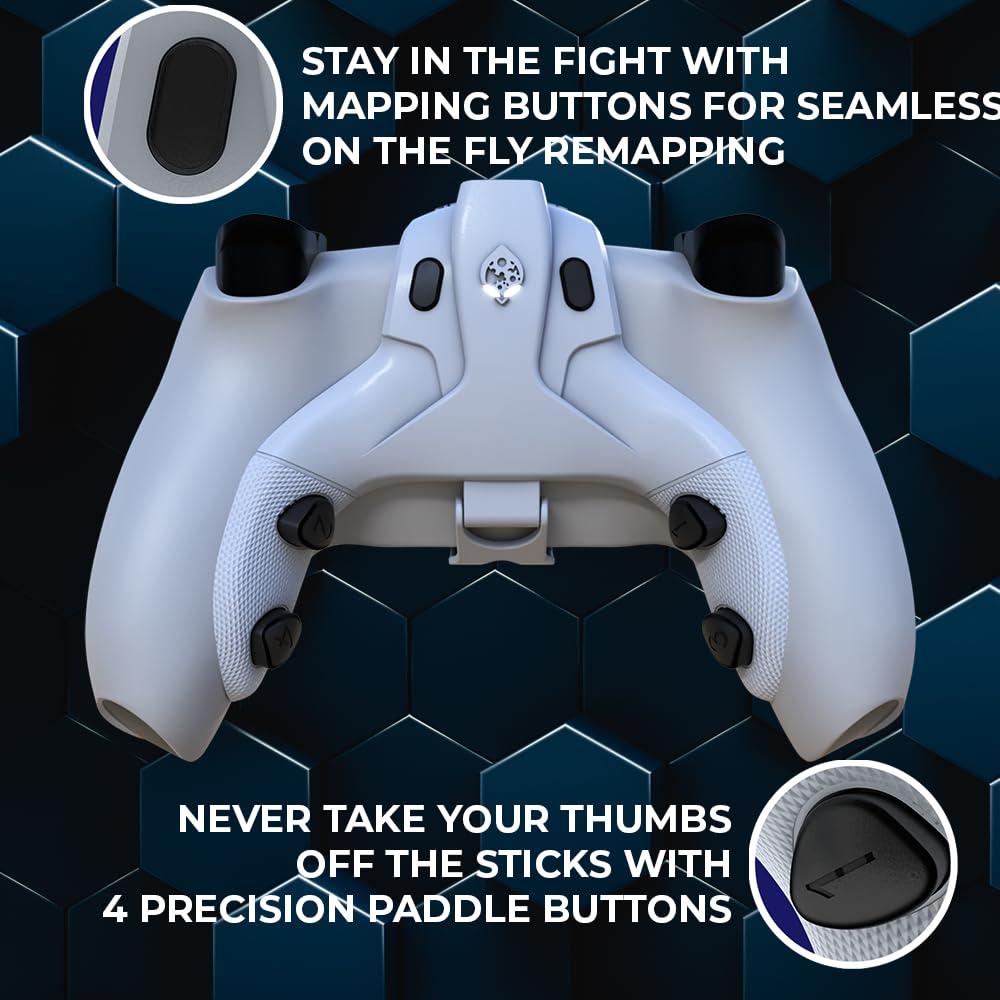
Image: Close-up of the STRIKEPACK HORIZON™ VISTA being attached to a DualSense controller.
4. Connecting to STRIKEPACK CENTRAL App
The STRIKEPACK CENTRAL app allows for customization and management of your device.
- Plug your STRIKEPACK-enabled controller into your console using a USB-C cable. Ensure you are not holding the touchpad during connection.
- The STRIKEPACK LED will turn red upon successful connection.
- Open the STRIKEPACK CENTRAL app on your smartphone or tablet.
- The app will automatically detect your STRIKEPACK. This may take up to 60 seconds.
- When prompted, tap 'Connect' to accept the connection.
- Once detected, the STRIKEPACK LED will turn white, indicating it is ready for use.
Video: A quick setup guide for connecting the STRIKEPACK HORIZON™ VISTA to a PS5 console and the STRIKEPACK CENTRAL app.

Image: The STRIKEPACK CENTRAL app interface on a smartphone, showing available GamePacks.
Działanie
1. Programowalne przyciski wstecz
The STRIKEPACK HORIZON™ VISTA features 4 programmable precision back buttons (paddles) that allow for seamless on-the-fly remapping. This enables you to keep your thumbs on the analog sticks for improved control.
2. GamePack Features
Utilize the STRIKEPACK CENTRAL app to access an extensive library of GamePacks and M.O.D. (Macros On Demand) combinations. These include features like advanced recoil assist, aim assist, auto weapon detection, stick drift calibrator, and game-specific macros tailored to various titles.

Image: Detailed GamePack setup within the STRIKEPACK CENTRAL app.
3. Połączenie przewodowe
The device operates via a wired USB-C connection, ensuring lag-free input for competitive gaming. Indicator LEDs on the STRIKEPACK provide key information regarding its current mode of operation.

Image: The STRIKEPACK HORIZON™ VISTA connected to a DualSense controller via USB-C, showing LED indicators.
Konserwacja
The STRIKEPACK HORIZON™ VISTA requires no specific user maintenance. Keep the device clean and free from dust. Avoid exposing it to extreme temperatures or moisture. Do not attempt to open or modify the device, as this will void any warranty.
Rozwiązywanie problemów
Controller Unresponsive After Connection
If your controller becomes unresponsive after connecting the STRIKEPACK, this may be a one-time timeout issue. To resolve this:
- Simply unplug the USB cable from your STRIKEPACK.
- Plug it back in. The STRIKEPACK LED should turn white, and the controller should become responsive.
Specyfikacje
| ASIN | B0G1QQLQ36 |
| Producent | Umysły zbiorowe |
| Waga przedmiotu | 8.8 uncji |
| Wymiary opakowania | 6.73 x 5.35 x 1.89 cala |
| Zgodność | Standard PS5 DualSense Controllers, PC (Windows 10 or higher) |
| Typ połączenia | Przewodowy USB-C |
| Zgodność aplikacji | Smartphone with iOS 15+ or Android 9+ |
Gwarancja i wsparcie
For warranty information and technical support, please visit the official Collective Minds webOdwiedź witrynę lub skontaktuj się z działem obsługi klienta. Zachowaj dowód zakupu na wypadek roszczeń gwarancyjnych.
Oficjalny sklep marki: Sklep Collective Minds na Amazonie