
1. Wprowadzenie
This manual provides detailed instructions for the setup, operation, maintenance, and troubleshooting of your SOLAKAKA A99 Pro Mechanical Keyboard. Please read this manual thoroughly to ensure proper use and to maximize your keyboard's features.
2. Zawartość opakowania
- SOLAKAKA A99 Pro Mechanical Keyboard
- Ściągacz nasadek klawiszy
- Kabel USB (USB-C do USB-A)
- Instrukcja obsługi
3. Koniec produktuview
The SOLAKAKA A99 Pro is a 96% layout mechanical keyboard featuring 97 keys, an LCD screen, and a multifunctional metal knob. It supports tri-mode connectivity (Bluetooth 5.0, 2.4GHz wireless, and USB-C wired) and is compatible with Windows, iOS, Mac, and Android systems. The keyboard includes RGB backlighting, hot-swappable switches, and PBT keycaps.
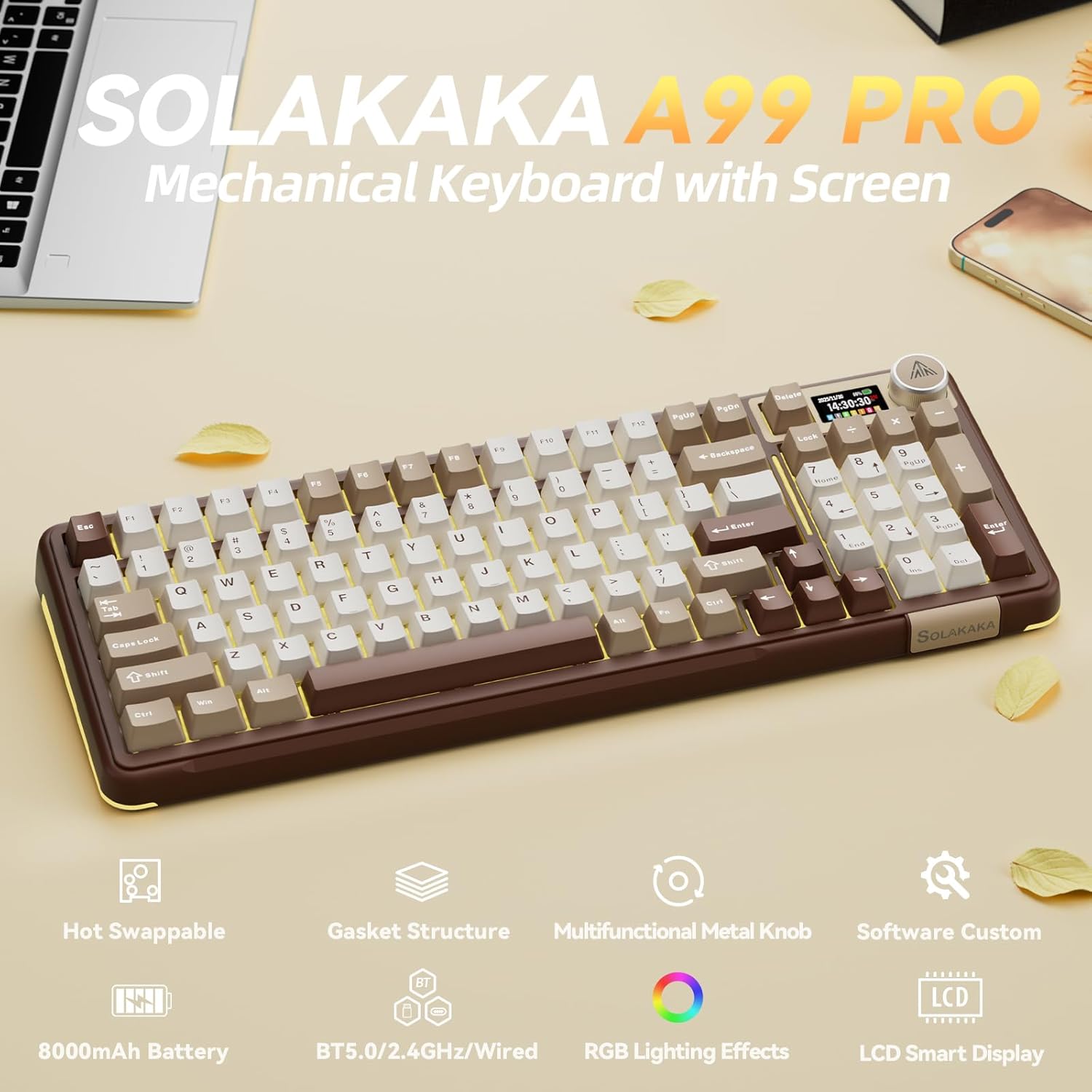
Image: SOLAKAKA A99 Pro Mechanical Keyboard, showcasing its layout, LCD screen, and metal knob.
4. Konfiguracja i połączenie
4.1. Włączanie/wyłączanie zasilania
Locate the power switch on the side or back of the keyboard to turn it on or off.
4.2. Łączność trójmodowa
The keyboard supports three connection modes: USB-C wired, 2.4GHz wireless, and Bluetooth 5.0. A switch on the keyboard allows selection between these modes.
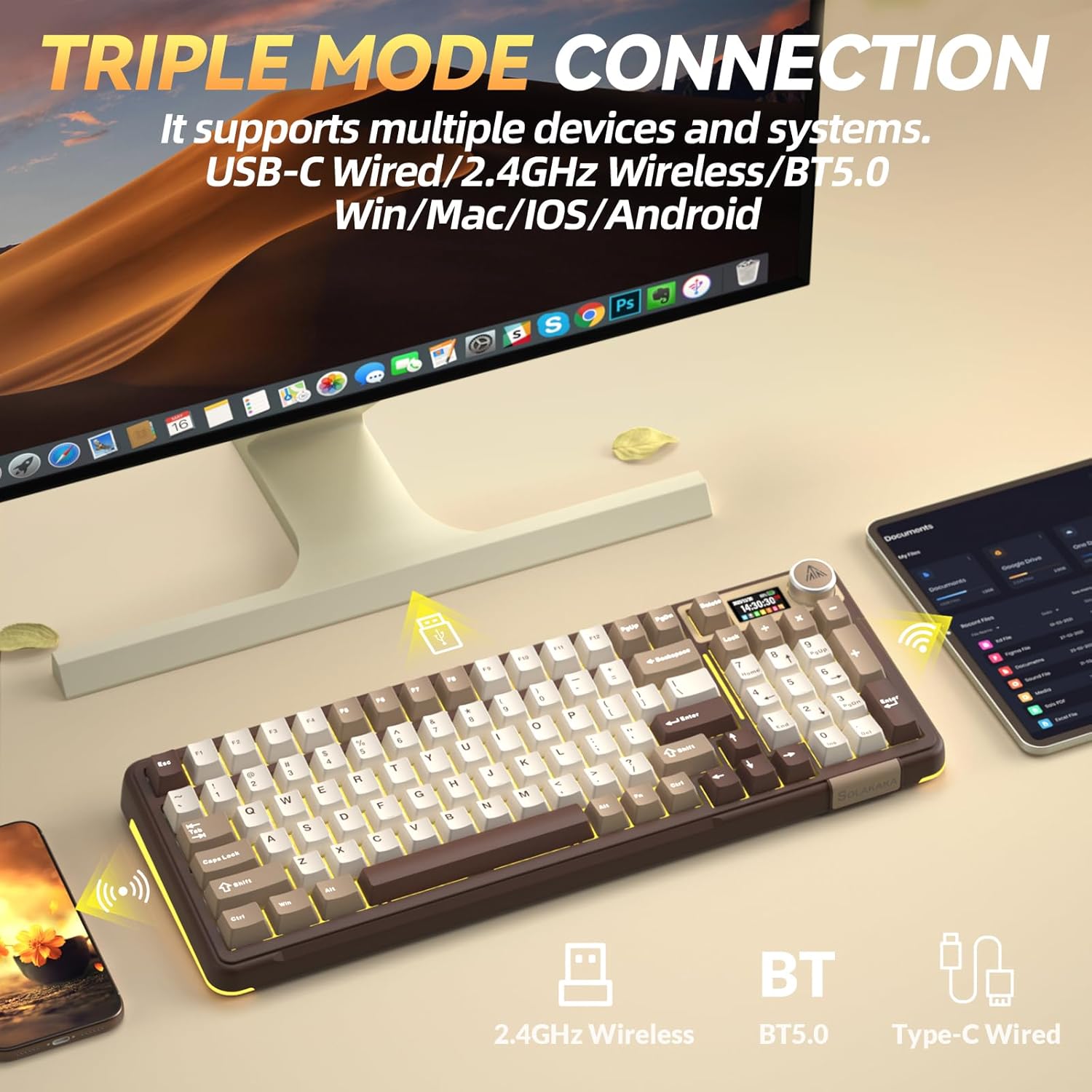
Image: The SOLAKAKA A99 Pro keyboard connected to a desktop and a tablet, illustrating its triple-mode connectivity.
4.2.1. Połączenie bezprzewodowe 2.4 GHz
- Locate the 2.4GHz USB receiver, typically stored in a slot on the keyboard.
- Podłącz odbiornik USB do wolnego portu USB w komputerze lub urządzeniu.
- Switch the keyboard to 2.4GHz mode using the selector switch. The keyboard should automatically connect.
Video: Demonstrates the various connection modes and features of the SOLAKAKA A99 Pro Mechanical Keyboard, including the 2.4GHz wireless connection.
4.2.2. Połączenie Bluetooth 5.0
- Switch the keyboard to Bluetooth mode using the selector switch.
- Na swoim urządzeniu (komputerze, tablecie, telefonie) włącz Bluetooth i wyszukaj nowe urządzenia.
- Select "SOLAKAKA A99 Pro" (or similar) from the list of available devices to pair.
- The keyboard can save up to 5 devices. Refer to the LCD screen for pairing indicators (B1, B2, A1, etc.).
4.2.3. Połączenie przewodowe USB-C
- Podłącz dołączony kabel USB-C do portu USB-C klawiatury.
- Connect the other end of the cable (USB-A) to your computer or device.
- Klawiatura automatycznie przełączy się na tryb przewodowy i rozpocznie ładowanie, jeśli zajdzie taka potrzeba.
4.3. Ładowanie klawiatury
Connect the keyboard via the USB-C cable to a powered USB port. The LCD screen will display the battery level. The keyboard features an 8000mAh rechargeable battery.

Image: The SOLAKAKA A99 Pro keyboard highlighting its 8000mAh battery capacity and estimated usage times.
5. Instrukcja obsługi
5.1. LCD Smart Display and Multifunctional Knob
The LCD screen displays essential information such as date, time, battery level, connected system, and connection mode. The metal knob allows for quick adjustments.
- Obrót: Adjusts volume, lighting brightness, or navigates menu options.
- Krótkie naciśnięcie: Confirms selection or switches between modes/settings.
- Długie naciśnięcie: Accesses advanced settings or specific functions.

Obraz: Szczegółowy view of the LCD screen and multifunctional knob, showing various display options like home screen, system connection, lighting modes, colors, brightness, speed, volume, language, time, and GIF display.
Video: Demonstrates how to switch between different operating systems (Windows/Mac) and adjust lighting effects using the keyboard's knob and function keys.
Video: Shows the process of setting up custom GIF images on the keyboard's LCD screen using the driver software.
5.2. Przełączanie systemów
The keyboard is compatible with Windows, iOS, Mac, and Android systems. You can switch between Windows and Mac modes using the LCD screen or shortcut keys.
- Via LCD Screen: Rotate the knob to navigate to "System" settings, then short press to confirm and select "WIN" or "MAC".
- Klawisze skrótu:
- Naciskać Fn + W aby przełączyć się do trybu Windows.
- Naciskać fn+m to switch to Mac mode.
5.3. Podświetlenie RGB
The keyboard features 16 RGB lighting modes for the main keys and 5 modes for the side lights. South-facing LEDs enhance light transmission.
- Zmień tryb podświetlenia: Naciskać Fn + \
- Dostosuj jasność podświetlenia: Naciskać Fn + F5 / F6
- Zmień kolor podświetlenia: Naciskać Fn + D
- Change Side Backlight Lighting Effects: Naciskać Fn + P
- Adjust Side Backlight Brightness: Naciskać Fn + ↑ / ↓
- Change Side Backlight Color: Naciskać Fn + Tab

Image: The RGB backlit keyboard showing various function key combinations for controlling backlight modes, brightness, and colors for both main keys and side lights.
5.4. Oprogramowanie programowalne
Customize your keyboard functions using the dedicated driver software. This software is compatible with Windows systems only and requires a wired connection for operation.
- Set sleep time, key mapping, and sensitivity.
- Optimize key bounce.
- Add GIF images to the LCD screen.
- Switch lighting modes and colors.
- Add music rhythm backlighting.
- Nagraj makro files.
Pobierz oprogramowanie z: solakakadriver.com

Image: Screenshot of the SOLAKAKA A99 Pro's programmable software, showing options for adjusting lighting effects, setting shortcut keys, recording macros, and managing GIF images.
6. Konserwacja
Aby zapewnić długowieczność i optymalną wydajność klawiatury, należy przestrzegać poniższych wskazówek dotyczących konserwacji:
- Czyszczenie: Use a soft, dry cloth to wipe the keyboard surface. For deeper cleaning, use a keycap puller to remove keycaps and clean underneath with compressed air or a small brush. Avoid using harsh chemicals or abrasive materials.
- Składowanie: Przechowuj klawiaturę w chłodnym, suchym miejscu, z dala od bezpośredniego światła słonecznego i ekstremalnych temperatur.
- Wymiana przełącznika: The keyboard is hot-swappable, allowing for easy replacement of 3/5-pin switches without soldering. Use the provided keycap puller and switch puller (if included) for safe removal and installation.

Image: A close-up of the SOLAKAKA A99 Pro keyboard demonstrating its full hot-swappable feature, showing switches being removed and the underlying PCB with south-facing LEDs.
7. Rozwiązywanie Problemów
- Klawiatura nie odpowiada:
- Sprawdź, czy klawiatura jest włączona.
- Sprawdź tryb połączenia (2.4 GHz, Bluetooth lub przewodowy) i upewnij się, że odpowiada on trybowi połączenia Twojego urządzenia.
- W przypadku częstotliwości 2.4 GHz należy upewnić się, że odbiornik USB jest prawidłowo podłączony.
- W przypadku technologii Bluetooth upewnij się, że klawiatura jest sparowana i wybrana na Twoim urządzeniu.
- Spróbuj podłączyć się za pomocą kabla USB-C, aby wykluczyć problemy z łącznością bezprzewodową.
- Sprawdź, czy akumulator jest naładowany.
- LCD screen issues (e.g., detached):
- If the screen appears loose or detached, gently press it back into place. If the issue persists, contact customer support.
- Oświetlenie nie działa lub jest nieprawidłowe:
- Upewnij się, że klawiatura jest włączona i nie znajduje się w stanie niskiego poboru mocy.
- Use the Fn key combinations or the multifunctional knob to cycle through lighting modes and adjust brightness/color.
- If using programmable software, ensure settings are correctly applied.
- Oprogramowanie nie wykrywa klawiatury:
- Ensure the keyboard is connected via USB-C wired mode. The software only supports Windows systems and requires a wired connection.
- Uruchom ponownie oprogramowanie i/lub komputer.
- Reinstall the driver software from solakakadriver.com.
8. Specyfikacje
| Funkcja | Szczegół |
|---|---|
| Model | A99 Pro |
| Układ | 96% (97 klawiszy) |
| Łączność | Bluetooth 5.0, bezprzewodowy 2.4 GHz, przewodowy USB-C |
| Przełączniki | LEOBOG Star Vector Switches, Full Hot-Swappable (3/5-pin) |
| Klawisze | Double-shot PBT, OEM Height |
| Podświetlenie | RGB (16 modes main, 5 modes side), South-facing LEDs |
| Pojemność baterii | 8000mAh |
| Cechy specjalne | LCD Screen, Multifunctional Metal Knob, Gasket Structure, Programmable Software |
| Kompatybilne urządzenia | Laptop, komputer stacjonarny, tablet |
| Systemy operacyjne | Windows, iOS, Mac, Android |
| Waga przedmiotu | 2.99 funta |
| Wymiary opakowania | 16.61 x 7.2 x 2.28 cala |

Image: An exploded diagram illustrating the multi-layer gasket structure of the SOLAKAKA A99 Pro keyboard, detailing components like the multifunctional knob, PBT keycaps, switches, positioning plate, and various sound-damppodkładki ening.
9. Gwarancja i wsparcie
For warranty information, technical support, or any product-related inquiries, please refer to the official SOLAKAKA webOdwiedź stronę internetową lub skontaktuj się bezpośrednio z działem obsługi klienta. Zachowaj paragon zakupu na wypadek reklamacji.