
1. Konfiguracja
1.1 Rozpakowanie i zawartość opakowania
Ostrożnie wyjmij wszystkie elementy z opakowania. Przed przystąpieniem do instalacji upewnij się, że wszystkie elementy są obecne.
- Roku Select Series 55" 4K TV
- Stands and screws
- Zdalne sterowanie
- Instrukcja obsługi

Figure 1: Contents of the Roku Select Series 55-inch TV package.
1.2 Fizyczna instalacja
The Roku Select Series TV can be installed using the included stands for table mounting or by using a compatible VESA wall mount (200 x 100 mm, sold separately).
Table Mount Installation:
- Aby zapobiec porysowaniu telewizora, należy go położyć ekranem do dołu na miękkiej i czystej powierzchni.
- Attach the two TV stands to the designated slots on the bottom of the TV using the provided screws. Ensure they are securely fastened.
- Ostrożnie podnieś telewizor i umieść go na stabilnej, równej powierzchni.
Instalacja na ścianie:
For wall mounting, refer to the instructions provided with your VESA 200 x 100 mm compatible wall mount kit. Ensure the wall can support the weight of the television (approximately 20.1 pounds without stand).

Figure 2: TV dimensions and package contents overview.
1.3 Podłączanie urządzeń peryferyjnych
The TV features multiple ports for connecting external devices. Refer to the back panel diagram for port locations.

Figure 3: Rear panel connections including HDMI, USB, and network ports.
- HDMI Ports (3 total): Connect gaming consoles, Blu-ray players, soundbars, or other HDMI-enabled devices.
- USB Port (1 total): Podłącz urządzenia pamięci masowej USB w celu odtwarzania multimediów.
- Port Ethernet (LAN): Do przewodowego połączenia internetowego.
- Wejście antenowe/kablowe: Podłącz antenę do transmisji naziemnej lub do łącza telewizji kablowej.
- Optical (S/PDIF) Output: Do cyfrowego wyjścia audio do systemu dźwiękowego.
1.4 Pierwsze włączenie zasilania i połączenie sieciowe
- Podłącz przewód zasilający do telewizora i gniazdka elektrycznego.
- Naciśnij przycisk zasilania na pilocie, aby włączyć telewizor.
- Follow the on-screen instructions to complete the initial setup, including language selection (English, Spanish, French, Portuguese are supported).
- Select your preferred network connection:
- Wi-Fi: Wybierz swoją sieć Wi-Fi z listy i wpisz hasło.
- Ethernet: If an Ethernet cable is connected, the TV will automatically attempt to establish a wired connection.
- The TV will guide you through linking to a Roku account, which is necessary to access streaming channels and features.
2. Instrukcja obsługi
2.1 Funkcje zdalnego sterowania
The included voice remote provides intuitive control over your TV. It operates via Bluetooth, eliminating the need for direct line-of-sight.

Figure 4: Roku Voice Remote layout and key functions.
- Przycisk zasilania: Włącza lub wyłącza telewizor.
- Directional Pad (OK button in center): Umożliwia nawigację po menu i wybieranie elementów.
- Zwiększanie/zmniejszanie głośności: Reguluje głośność telewizora.
- Przycisk wyciszenia: Mutes or unmutes TV audio.
- Przycisk głosowy: Activates voice search and control.
- Natychmiastowa odpowiedź: Cofa odtwarzanie wideo o kilka sekund.
- Przycisk telewizji na żywo: Accesses the live TV channel guide.
- Quick Launch Buttons: Dedicated buttons for popular streaming apps (e.g., Netflix, Disney+, Apple TV, Prime Video). These can be customized for your favorite apps.
- Lost Remote Finder: If the remote is misplaced, use the Roku mobile app to activate an audible alert from the remote.
2.2 Home Screen Navigation and Streaming
The Roku home screen provides quick access to all your streaming channels, inputs, and settings.
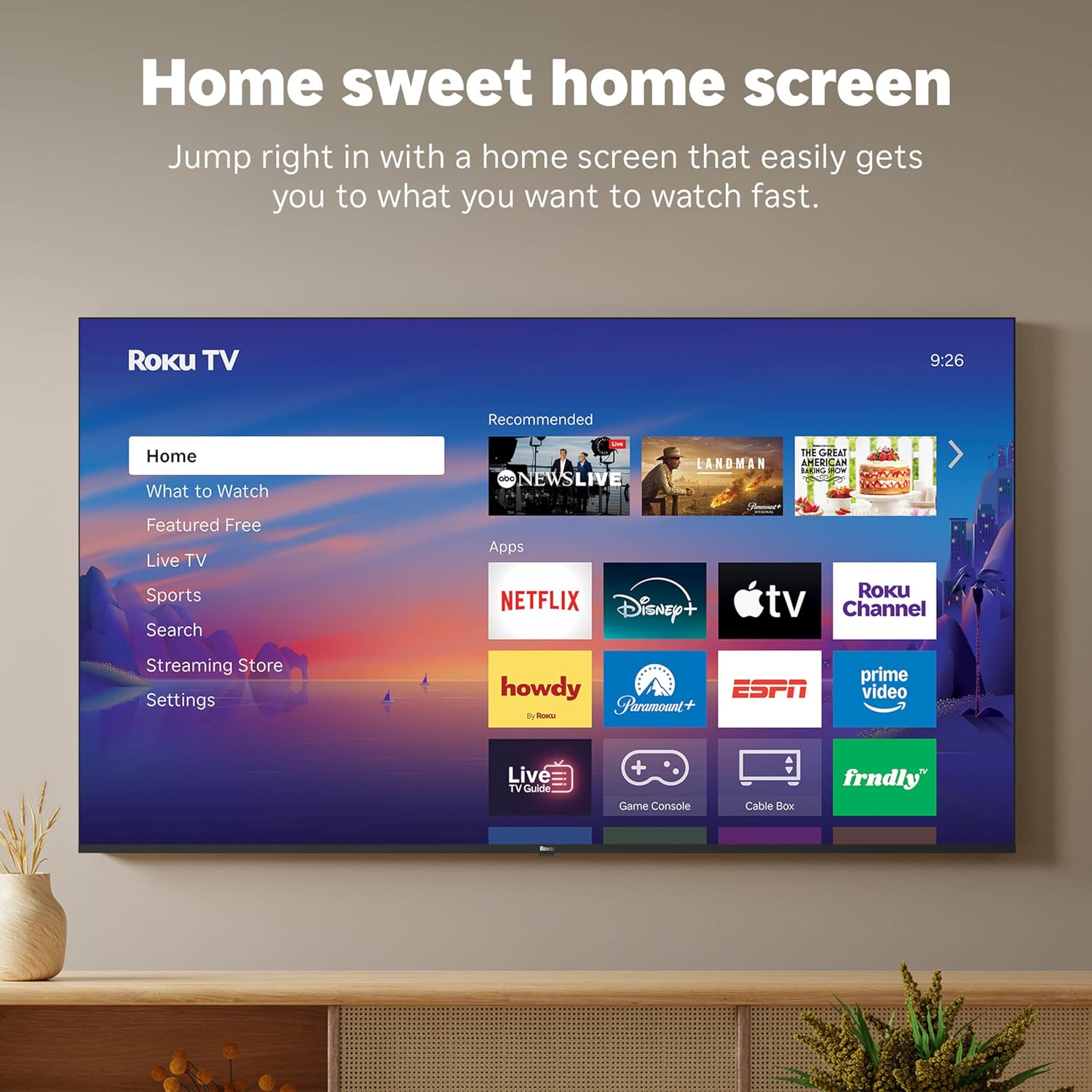
Figure 5: The Roku TV home screen interface.
- Use the directional pad on your remote to navigate through the menu options on the left side of the screen (Home, What to Watch, Live TV, Sports, Search, Streaming Store, Settings).
- Select an app icon from the main grid to launch your desired streaming service.
- The TV's fast Wi-Fi and optimized app launch ensure quick access to entertainment.
2.3 Ustawienia obrazu i dźwięku
The Roku Select Series TV offers advanced picture and sound technologies for an enhanced viewzdobywania doświadczenia.
- Wyświetlacz QLED 4K: Provides sharp 4K resolution and accurate colors.
- Obsługa HDR10: Enhances contrast and color depth for compatible content.
- Inteligentny obraz Roku: Automatically optimizes incoming TV signals and selects the appropriate picture mode for content.
- Dźwięk Dolby: Delivers clear speech and enhanced sound quality through the integrated 2.1 channel speakers (20 Watts maximum output power).
- Bluetooth Headphone Mode: Connect Bluetooth headphones for private listening without disturbing others.
2.4 Sterowanie głosowe i integracja z inteligentnym domem
Control your TV and integrate it into your smart home ecosystem.

Figure 6: Roku TV's smart home compatibility.
- Roku Voice: Use the voice button on your remote to search for content, launch apps, or control playback.
- Zgodność z inteligentnym asystentem: The TV is compatible with Siri, Alexa, and Google Assistant for voice control through external smart devices.
- Apple AirPlay: Share videos, photos, music, and more from your Apple devices directly to your TV.
2.5 Live TV Access
Access live television channels directly from the home screen.

Figure 7: Live TV channel guide interface.
- Connect an antenna to the TV's Antenna/Cable input.
- Use the 'Live TV' option on the home screen or the dedicated button on the remote to access the channel guide.
- The TV supports ATSC tuner type for digital broadcasts.
3. Konserwacja
3.1 Czyszczenie telewizora
- Zawsze odłączaj telewizor od zasilania przed czyszczeniem.
- Do delikatnego przecierania ekranu i obudowy używaj miękkiej, suchej i niepozostawiającej włókien ściereczki.
- W przypadku uporczywych plam delikatnieampPrzetrzyj ściereczkę wodą lub delikatnym, nieściernym środkiem do czyszczenia ekranów. Nie rozpylaj środka czyszczącego bezpośrednio na ekran.
- Avoid using harsh chemicals, abrasive pads, or solvents as they can damage the TV's finish.
3.2 Aktualizacje oprogramowania
The Roku TV receives automatic software updates to provide new features and improvements. Ensure your TV is connected to the internet to receive these updates.
4. Rozwiązywanie Problemów
If you encounter issues with your Roku TV, consider the following basic troubleshooting steps:
- Brak zasilania: Upewnij się, że przewód zasilający jest prawidłowo podłączony zarówno do telewizora, jak i do sprawnego gniazdka elektrycznego. Spróbuj użyć innego gniazdka.
- Brak obrazu/dźwięku: Verify that the correct input source is selected. Check all cable connections (HDMI, antenna, etc.) for looseness.
- Pilot nie odpowiada: Replace the AAA batteries in the remote control. Ensure there are no obstructions between the remote and the TV (though Bluetooth reduces this issue). Re-pair the remote if necessary (refer to Roku support documentation).
- Problemy z połączeniem sieciowym: Idź do Ustawienia > Sieć > Sprawdź połączenie to diagnose network problems. Restart your router and modem.
- Aplikacja nie ładuje się/zawiesza się: Try restarting the app. If the issue persists, remove the app and reinstall it from the Streaming Store.
- Słaba jakość obrazu: Check your internet speed for streaming content. For broadcast TV, adjust your antenna. Ensure the TV's picture settings are appropriate for the content being viewwyd.
For more detailed troubleshooting or persistent issues, visit the Roku support website or consult the full User Manual PDF available online.
5. Specyfikacje
| Funkcja | Szczegół |
|---|---|
| Nazwa modelu | Roku 55" Select Series 4K |
| Numer modelu | 55R5D5 |
| Rozmiar ekranu | 55 cali |
| Technologia wyświetlania | 4K UHD, LED, QLED |
| Rezolucja | 4K (3840x2160) |
| Częstotliwość odświeżania | 60 Hz |
| Obsługiwany format HDR | HDR10, HDR10+, HLG |
| Picture Quality Enhancement | 4K, Roku Smart Picture |
| Moc wyjściowa audio | 20 watów |
| Integrated Surround Sound | Dźwięk Dolby |
| Technologia łączności | Bluetooth, Ethernet, USB C, Wi-Fi |
| Porty HDMI | 3 |
| Porty USB | 1 |
| System operacyjny | Roku OS |
| Sterowanie głosowe | Roku Voice, Siri, Alexa, Google Assistant |
| Dublowanie ekranu | AirPlay 2, Miracast |
| Wymiary produktu (Gł. x Szer. x Wys.) | 12.7" gł. x 48.3" szer. x 30.5" wys. |
| Waga przedmiotu | 20.5 funtów |
| Standard mocowania VESA | 200x100mm |
| Pobór mocy | 160 watów |
| UPC | 829610009322 |
6. Gwarancja i wsparcie
6.1 Ograniczona gwarancja
Roku warrants the hardware of this device against defects in materials and workmanship under normal use for a period of jeden (1) rok from the date of purchase (“Warranty Period”), provided it is used in accordance with the provided documentation.
If Roku determines that the device’s hardware is defective during the Warranty Period, Roku’s sole obligation, and your exclusive remedy, will be to either repair or replace the unit with either a new or rebuilt device, at its option.
Important information about warranty returns and replacements is available on the Roku support site.
6.2 Product Returns
You may return a device for any reason, subject to the terms of the applicable return policy:
- Within thirty (30) days from the date of purchase from Roku.
- Within the applicable return period if purchased from an authorized reseller or distributor.
Additional details regarding product returns can be found on the Roku support site.
6.3 Dodatkowe wsparcie
For further assistance, including detailed guides and FAQs, please refer to the official Roku support website. A downloadable PDF version of the User Manual is also available for reference: Instrukcja obsługi (PDF).