
Wstęp
This manual provides detailed instructions for the installation, operation, maintenance, and troubleshooting of your JOYING Android 13 Car Radio (Model JY-TT193N8). This unit is specifically designed for Toyota Camry models from 2015 to 2017, offering advanced features such as wireless CarPlay, Android Auto, GPS navigation, and 4G connectivity. Please read this manual thoroughly before using the product to ensure proper function and safety.
Cechy produktu
- Bezprzewodowy CarPlay i Android Auto: Seamless integration with your smartphone for navigation, music, calls, and messaging without physical connections.
- Instalacja Plug & Play: Custom-designed for 2015-2017 Toyota Camry, including all necessary cables for a straightforward installation process.
- Wyjście cyfrowe światłowodowe i koncentryczne: Provides high-quality audio output for connection to external amplifiers with compatible digital inputs.
- Wbudowany moduł 4G: Insert a SIM card for internet access. Supports FDD-LTE (B2/B4/B5/B7/B12/B13/B14/B17/B25/B26/B38/B66/B71) and TDD-LTE (B41) bands. Note: This module does not support phone calls or SMS.
- Nawigacja GPS: Equipped with precise GPS engines and an included GPS antenna for accurate real-time navigation. Supports offline maps in areas where data download is available.
- 10.1-calowy ekran dotykowy IPS: Large, responsive display for clear visuals and easy interaction.
- 8 GB pamięci RAM + 128 GB pamięci masowej: Ample memory and storage for smooth operation and app installation.
Konfiguracja i instalacja
The JOYING Android 13 Car Radio is designed for a plug-and-play installation in compatible Toyota Camry models. Ensure the vehicle's ignition is off and the battery is disconnected before beginning installation.
Zawartość opakowania:
- 10.1" Radio Unit
- Single Din Cage
- Lewy i prawy nawias
- Antena WiFi
- Antena GPS
- 4G Antennas (x2)
- Mikrofon zewnętrzny
- Kable USB (x2)
- AR Cable
- Screen Ribbon Cable
- Kabel zasilający
- Instrukcja obsługi
Kroki instalacji:
- Carefully remove the factory radio unit and trim from your Toyota Camry dashboard. Refer to your vehicle's service manual for specific instructions on trim removal.
- Connect the provided power cable harness to the vehicle's wiring and the new head unit. Ensure all connections are secure.
- Connect the GPS antenna, WiFi antenna, and 4G antennas to their respective ports on the back of the head unit. Position the antennas in a location that provides optimal signal reception, away from metal obstructions.
- Connect any additional accessories such as the external microphone, USB cables, and AR cable as needed.
- Mount the new JOYING head unit into the dashboard opening using the provided brackets and single DIN cage. Ensure a secure fit.
- Podłącz ponownie akumulator pojazdu i włącz zapłon, aby przetestować urządzenie.
- Reinstall the dashboard trim panels.
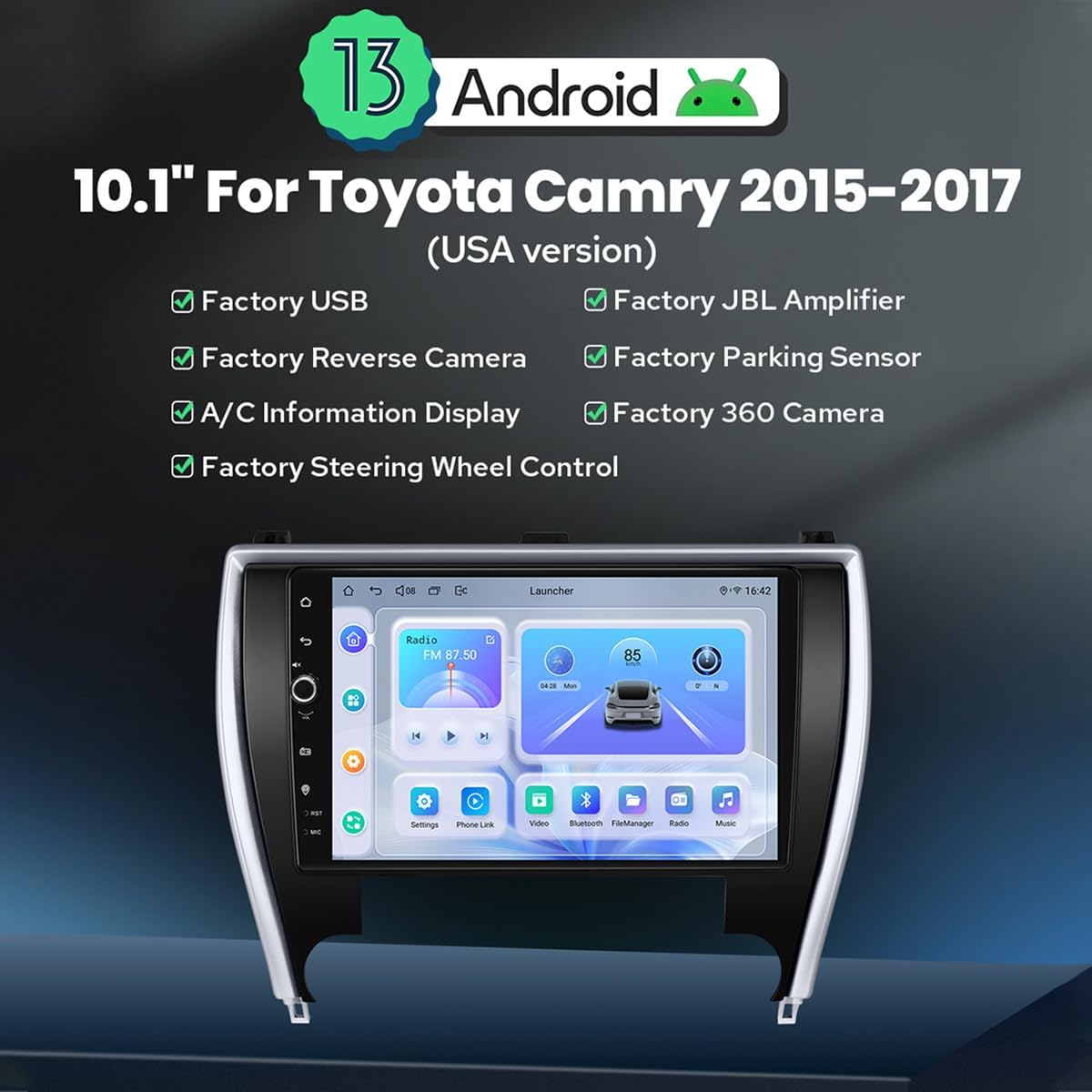
Image: The JOYING Android 13 Car Radio seamlessly integrated into a Toyota Camry dashboard, demonstrating its factory-look design and fitment.

Image: The main unit of the JOYING Android 13 Car Radio, featuring its 10.1-inch display and indicating Android 13 compatibility.
Instrukcja obsługi
Początkowe ustawienia:
Upon first power-on, the system will guide you through initial setup steps, including language selection, time zone, and network configuration. Follow the on-screen prompts.
Bezprzewodowy CarPlay / Android Auto:
- Upewnij się, że w smartfonie są włączone Bluetooth i Wi-Fi.
- On the car radio, navigate to the CarPlay or Android Auto application.
- Follow the on-screen instructions to pair your phone via Bluetooth. Once paired, the system will automatically establish a Wi-Fi connection for wireless CarPlay or Android Auto.
Nawigacja GPS:
The unit comes with pre-installed navigation software. You can also download additional navigation apps from the Google Play Store. For offline maps, ensure you download the necessary map data while connected to Wi-Fi. The included GPS antenna enhances signal reception for accurate positioning.
Łączność 4G:
To use 4G internet, insert a compatible SIM card into the designated slot on the unit. The system will automatically detect the network. Note that this feature is for data connectivity only and does not support voice calls or SMS.
Audio Settings and Output:
The unit features a TDA7851 DSP chip and a 48-band graphic equalizer for sound customization. Adjust settings via the audio application. For enhanced sound quality with external amplifiers, utilize the Optical Fiber or Coaxial Digital Output ports if your amplifier supports them.

Image: Illustration of the car radio's advanced audio features, including support for aftermarket amplifiers via multiple output options like optical fiber and coaxial digital.
Wyjście HDMI:
The unit provides an HDMI output for connecting external displays, such as headrest monitors. This allows passengers to view content from the main unit in 1080p resolution without delay. An HDMI cable is not included and must be purchased separately.

Image: The HDMI output functionality, enabling connection to external screens for synchronized video playback for passengers.
Wielozadaniowość na podzielonym ekranie:
The Android 13 operating system supports split-screen functionality, allowing you to run two applications simultaneously. For example, you can have navigation on one side and music on the other.
- Tap the recent apps icon (usually a square or three vertical lines).
- Find the app you want to run in split-screen, then tap its icon to bring up the split-screen button. Tap this button.
- The first app will display on the left side. Choose the second app from the recent apps list to display on the right.

Image: Visual guide on how to activate and use the split-screen multitasking feature on the car radio.
Konserwacja
- Czyszczenie ekranu: Użyj miękkiej, niestrzępiącej się ściereczki, lekko wyczyśćampCzyścić wodą lub płynem do czyszczenia ekranów. Unikać silnych środków chemicznych i materiałów ściernych.
- Aktualizacje oprogramowania: Periodically check for software updates through the system settings or the JOYING official webwitrynę, aby zapewnić optymalną wydajność i dostęp do nowych funkcji.
- Opieka ogólna: Keep the unit free from dust and extreme temperatures. Avoid spilling liquids on the device.
Rozwiązywanie problemów
- Brak zasilania:
- Sprawdź wszystkie połączenia zasilania i bezpieczniki. Upewnij się, że akumulator pojazdu jest prawidłowo podłączony i naładowany.
- Brak dźwięku:
- Verify speaker connections. Check volume levels and audio output settings. If using an external amplifier, ensure it is powered on and correctly connected.
- Problemy z sygnałem GPS:
- Upewnij się, że antena GPS jest bezpiecznie podłączona i umieszczona w miejscu zapewniającym swobodny dostęp. view nieba. Unikaj umieszczania go pod metalowymi przedmiotami.
- Brak połączenia z CarPlay/Android Auto bezprzewodowym:
- Confirm Bluetooth and Wi-Fi are enabled on your phone and the car radio. Try forgetting the device on both ends and re-pairing. Ensure your phone's operating system is up to date.
- Poor Fitment in Dashboard (e.g., 2016 Camry LE):
- While designed for 2015-2017 Toyota Camry, some specific sub-models or trim levels may experience minor gaps. Double-check the installation and ensure all mounting points are correctly aligned. If significant gaps persist, consult with a professional installer or contact JOYING support.
- System Freezes or Slow Performance:
- Try restarting the unit. Close unnecessary background applications. If the issue persists, consider performing a factory reset (note: this will erase all user data and settings).
Specyfikacje
| Funkcja | Specyfikacja |
|---|---|
| Marka | RADOŚĆ |
| Numer modelu | JY-TT193N8 |
| Rozmiar ekranu | 10.1 cali |
| System operacyjny | Android 13, iOS (przez CarPlay) |
| Pojemność pamięci masowej | 128 GB |
| BARAN | 8 GB |
| Technologia łączności | Bluetooth, Ethernet, USB, Wi-Fi, 4G |
| Cechy specjalne | Bluetooth, Touchscreen, Wireless CarPlay, Android Auto, GPS Navigation, 4G Module, Optical/Coaxial Digital Output |
| Typ mapy | North America (pre-installed, others downloadable) |
| Tryb wyjścia audio | Stereofoniczny |
| Typ montażu | W desce rozdzielczej |
| Typ wyświetlacza | LED, Capacitive Touch Screen |
| Kompatybilne urządzenia | Aparat, smartfon |
| Obsługiwany system nawigacji satelitarnej | BeiDou (and others via GPS) |
| Wymiary produktu (dł. x szer. x wys.) | 33Dł. x 15.2Sz. x 33Wys. centymetrów |
Gwarancja i wsparcie
JOYING products typically come with a standard manufacturer's warranty. Please refer to the warranty card included with your product or visit the official JOYING webSzczegółowe warunki gwarancji można znaleźć na naszej stronie.
For technical support, troubleshooting assistance, or warranty claims, please contact JOYING customer service through their official website or the contact information provided in your product packaging. When contacting support, please have your model number (JY-TT193N8) and purchase details ready.