
1. Wprowadzenie
Thank you for choosing the Pisichen 27-inch 4K UHD Touchscreen Monitor with Webcam. This manual provides essential information for the safe and efficient operation of your new monitor. Please read it thoroughly before use and retain it for future reference.
2. Informacje dotyczące bezpieczeństwa
- Źródło zasilania: Use only the power adapter supplied with the monitor. Ensure the power outlet meets the voltagi wymagania.
- Wentylacja: Nie blokuj otworów wentylacyjnych. Zachowaj odpowiednią ilość miejsca wokół monitora, aby zapewnić prawidłowy przepływ powietrza.
- Ekspozycja na płyny: Trzymaj monitor z dala od płynów. Nie wystawiaj go na działanie deszczu ani wilgoci.
- Czyszczenie: Disconnect the power cable before cleaning. Use a soft, dry cloth. Avoid abrasive cleaners.
- Umieszczenie: Aby zapobiec jego upadkowi, ustaw monitor na stabilnej, płaskiej powierzchni.
- Serwisowanie: Nie próbuj samodzielnie naprawiać monitora. Wszelkie prace serwisowe zleć wykwalifikowanemu personelowi.
3. Zawartość opakowania
Proszę sprawdzić zawartość opakowania po rozpakowaniu. Jeśli brakuje któregokolwiek elementu lub jest on uszkodzony, prosimy o kontakt ze sprzedawcą.
- Pisichen 27-inch 4K UHD Touchscreen Monitor
- Stojak na monitor (podstawa i ramię)
- Zasilacz
- Kabel HDMI
- USB-B to USB-A Cable (for Touch Function)
- Instrukcja obsługi
4. Koniec produktuview
4.1 Główne cechy
- Ultra HD 4K Touchscreen Display: 27-inch 4K Ultra HD screen with vibrant colors, sharp details, and wide viewing angles. Features a responsive 10-point touchscreen for intuitive control.
- Built-in High-Definition Webkrzywka: Zintegrowany webcam for video calls, online meetings, and streaming, reducing desk clutter.
- Wszechstronna łączność: Multiple ports including HDMI, DisplayPort, and USB-C for easy connections to various devices. Supports both touch and traditional input.
- Optimized for Productivity and Creativity: Large 4K touch display for precise control and streamlined workflows, ideal for graphic designers, content creators, and multitasking.
- Sleek and Functional Design: Modern design with an adjustable stand for optimal viewing angles and comfort during extended use.
4.2 Porty monitora
The monitor features various ports for connecting to your devices. Refer to the image below for port identification.
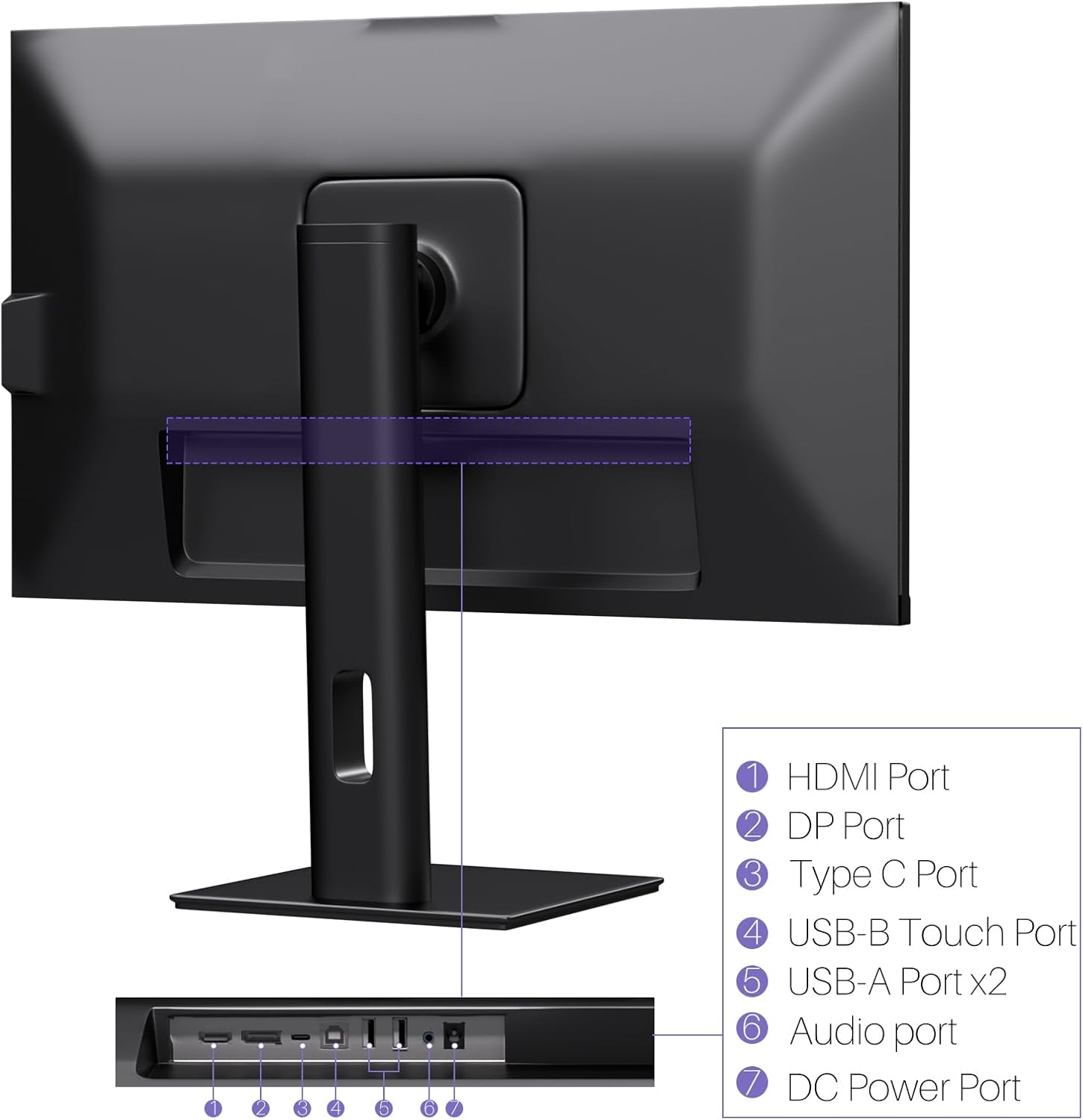
Obraz: Tył view of the monitor displaying the HDMI, DP, Type-C, USB-B Touch, USB-A, Audio, and DC Power ports.
- Port HDMI: Connects to devices via HDMI cable for video and audio input.
- Port DP: Connects to devices via DisplayPort cable for video and audio input.
- Port typu C: Connects to devices via USB-C cable for video, audio, and power delivery. (Requires USB-C port on signal device to support DisplayPort Alternate Mode for touch functionality).
- USB-B Touch Port: Connects to your computer via USB-B to USB-A cable to enable touchscreen functionality.
- Port USB-A (x2): Do podłączania urządzeń peryferyjnych USB.
- Port audio: Do podłączania zewnętrznych urządzeń audio.
- Port zasilania prądem stałym: Łączy się z zasilaczem.
5. Instrukcje konfiguracji
5.1 Montaż stojaka
- Ostrożnie wyjmij monitor i elementy stojaka z opakowania.
- Attach the stand arm to the monitor's VESA mounting points.
- Secure the stand base to the arm using the provided screws.
- Ensure all connections are tight and the monitor is stable.
5.2 Podłączanie do urządzenia
The monitor supports various connection types. Choose the appropriate cable for your device.

Image: Connection diagrams illustrating how to connect the monitor as a secondary display (HDMI/DP + DC), a touchscreen monitor (HDMI/DP + USB-B + DC), or via USB-C (USB-C + DC).
- For Video and Audio (Non-Touch): Connect an HDMI or DisplayPort cable from your computer to the corresponding port on the monitor.
- For Video, Audio, and Touch (Windows PC): Connect an HDMI or DisplayPort cable for video/audio. Additionally, connect the USB-B to USB-A cable from the monitor's USB-B Touch Port to a USB-A port on your computer.
- For Video, Audio, and Touch (USB-C Compatible Device): Connect a USB-C cable from your device to the monitor's Type-C port. Ensure your device's USB-C port supports DisplayPort Alternate Mode for touch functionality.
5.3 Połączenie zasilania
- Connect the power adapter to the monitor's DC Power Port.
- Podłącz zasilacz do gniazdka ściennego.
6. Instrukcja obsługi
6.1 Włączanie/wyłączanie zasilania
Naciśnij przycisk zasilania znajdujący się na monitorze, aby go włączyć lub wyłączyć.
6.2 Menu ekranowe (OSD)
Use the control buttons (typically located on the back or bottom of the monitor) to navigate the OSD menu. This menu allows you to adjust settings such as brightness, contrast, color temperature, input source, and other display parameters.
6.3 Funkcjonalność ekranu dotykowego
The monitor features a 10-point multi-touch screen. Ensure the USB-B to USB-A cable (or USB-C cable for compatible devices) is connected to enable touch functionality.

Image: A user's hand interacting with the monitor screen, highlighting the responsive 10-point touch experience.
- Podstawowy dotyk: Tap to click, swipe to scroll.
- Gesty wielodotykowe: Use two fingers to zoom in/out, rotate, or pan, depending on the application.
- Touch Calibration (Windows Only): If the cursor does not align with your touch, calibration may be required. Go to Control Panel > Hardware and Sound > Tablet PC Settings > Calibrate. Follow the on-screen prompts.
6.4 Using the Built-in Webkrzywka
Zintegrowany webcam is automatically detected by most operating systems and video conferencing applications. No additional drivers are typically required.

Image: The monitor displaying a video conference call, showcasing its integrated webcam for seamless communication.
- Otwórz preferowany program do wideokonferencji (np. Zoom, Microsoft Teams, Skype).
- Select the integrated webcam as your video input device in the application's settings.
6.5 Adjusting Display Resolution
To set the resolution of the monitor (Windows):
- Right-click on your desktop and select "Display Settings."
- Find your monitor (if multiple displays are connected).
- Under "Display resolution," select the recommended resolution of 3840 x 2160.
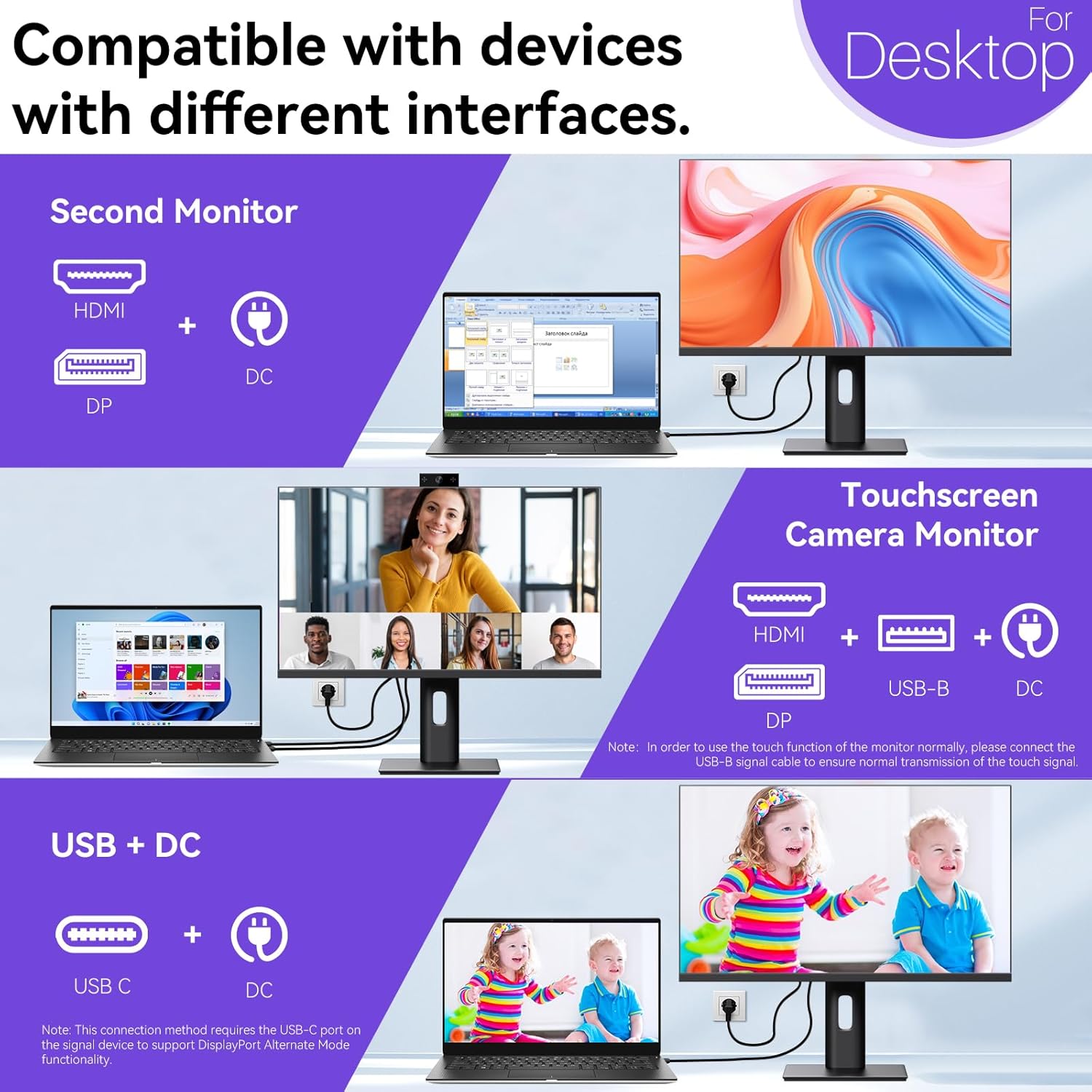
Image: A visual comparison demonstrating the superior clarity of 4K UHD (3840x2160) compared to FHD (1920x1080) and QHD (2560x1440) resolutions.
7. Konserwacja
- Czyszczenie ekranu: Delikatnie przetrzyj ekran miękką, niepozostawiającą włókien ściereczką. W przypadku uporczywych zabrudzeń delikatnie przetrzyj.ampPrzetrzyj ściereczkę wodą lub specjalnym środkiem czyszczącym do ekranów. Nie rozpylaj płynu bezpośrednio na ekran.
- Czyszczenie Casing: Do czyszczenia monitora należy używać miękkiej, suchej ściereczki.asing.
- Składowanie: Jeśli monitor będzie przechowywany przez dłuższy okres czasu, należy odłączyć go od zasilania, zapakować do oryginalnego opakowania i przechowywać w chłodnym, suchym miejscu.
8. Rozwiązywanie Problemów
If you encounter issues with your monitor, refer to the following troubleshooting guide. For problems not listed, please contact customer support.
| Problem | Możliwa przyczyna | Rozwiązanie |
|---|---|---|
| Brak obrazu na ekranie | Odłączony kabel zasilający; Odłączony kabel wideo; Wybrano nieprawidłowe źródło sygnału wejściowego. | Ensure power cable is securely connected. Check video cable (HDMI/DP/USB-C) connections. Select correct input source via OSD menu. |
| Ekran dotykowy nie reaguje | USB-B cable not connected; USB-C port not supporting DisplayPort Alternate Mode; Device incompatibility (e.g., iPhone). | Ensure the USB-B to USB-A cable is connected from the monitor to your computer. If using USB-C, verify your device's USB-C port supports DisplayPort Alternate Mode. Note: Touch function is not supported when connected to an iPhone due to iOS system restrictions. |
| Cursor moves incorrectly (Windows) | Touchscreen calibration required. | Perform touchscreen calibration: Go to Control Panel > Hardware and Sound > Tablet PC Settings > Calibrate. |
| Webkamera nie została wykryta | USB connection issue; Software settings. | Ensure all necessary USB cables are connected. Check your application's settings to select the correct webkamera |
9. Specyfikacje
| Funkcja | Szczegół |
|---|---|
| Marka | Pisichen |
| Numer modelu | 27INTSCMR-4K |
| Rozmiar ekranu | 27 cali |
| Rezolucja | 3840 x 2160 pikseli (4K UHD 2160p) |
| Proporcje obrazu | 16:9 |
| Jasność obrazu | 400 XNUMX kandeli |
| Opis powierzchni ekranu | Lśniący |
| Wymiary produktu | 14.37 x 24.21 x 16.54 cala |
| Waga przedmiotu | 16.59 funta |
| Producent | Shenzhen Konowa Electronics Co., LTD |
| Łączność | HDMI, DisplayPort, USB-C, USB-B (for touch), USB-A (x2), Audio Port |
10. Gwarancja i wsparcie
This product comes with a manufacturer's warranty. Please refer to the warranty card included in your package for specific terms and conditions. For technical support or inquiries, please contact Pisichen customer service at wsparcie_2308@163.com. When contacting support, please provide your model number and a detailed description of the issue, including any relevant pictures or videos.