
Wstęp
This manual provides detailed instructions for the setup, operation, and maintenance of your UGREEN FineCam Pro 2K Webcam. Please read this manual thoroughly before using the product to ensure proper functionality and to avoid damage.
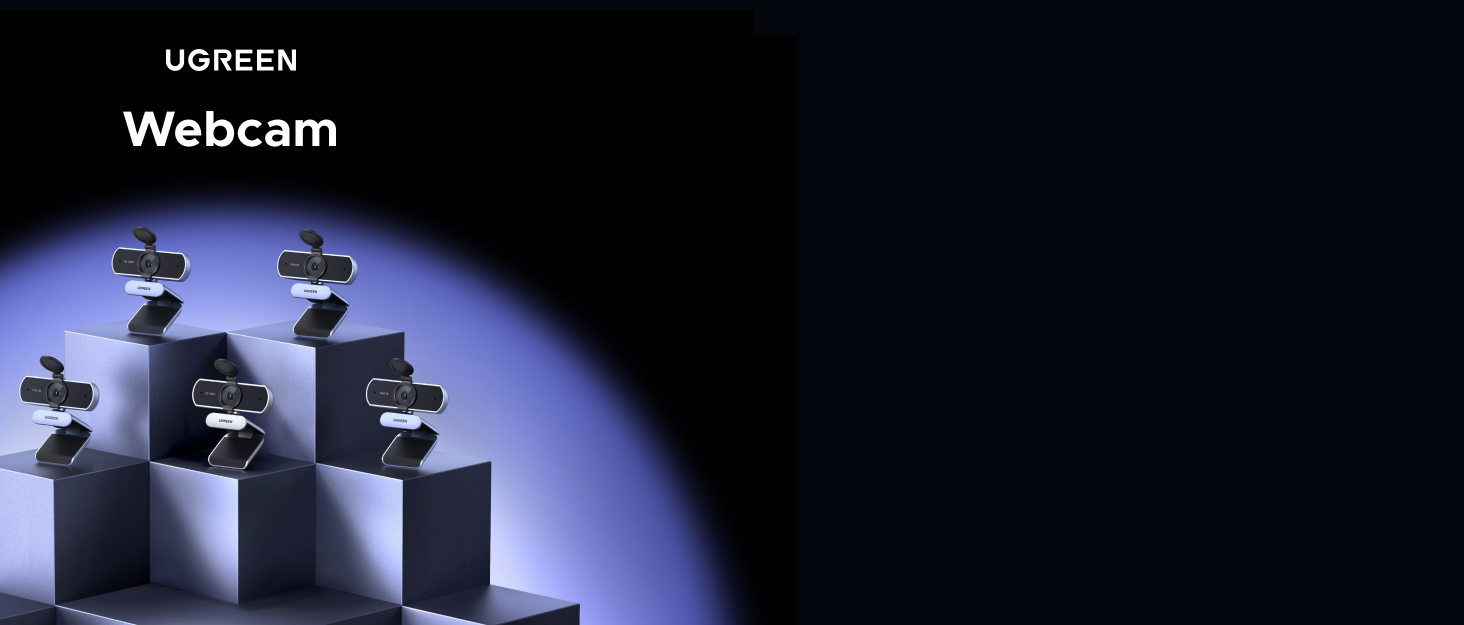
Image: UGREEN FineCam Pro 2K Webcam overview, pokażasinjego projekt i kluczowe cechy.
Zawartość opakowania
Sprawdź, czy w przesyłce znajdują się wszystkie elementy wymienione poniżej:
- UGREEN FineCam Pro 2K Webcam (x1)
- Kabel USB-C (x1)
- USB-C to USB-A Adapter (x1)
- Extendable Tripod (x1)
- Instrukcja obsługi (x1)
Organizować coś
The UGREEN FineCam Pro 2K Webcam is designed for plug-and-play operation, requiring no driver installation for most operating systems.
- Montaż Webkrzywka:
Dołącz webcam to your monitor using the integrated clip or mount it on the included extendable tripod for desktop placement. The camera magnetically snaps into place on the clip.

Image: The UGREEN FineCam Pro 2K Webcam attached to the top of a laptop screen.
- Łączenie się z komputerem:
Podłącz kabel USB-C do webcam and then to an available USB-C port on your computer. If your computer only has USB-A ports, use the provided USB-C to USB-A adapter.

Image: Diagram showing USB-C to USB-A adapter connection for the webkamera
- Rozpoznawanie systemu:
Your operating system (Windows 11/10/8, macOS, Linux) should automatically recognize the webcam. You can then select it as your video and audio input device in your preferred video conferencing or streaming application (e.g., Zoom, Microsoft Teams, Skype, OBS, Twitch, FaceTime, YouTube).
Instrukcja obsługi
2K Visual Experience
The FineCam Pro captures video at 2K resolution (2560x1440) at 30 frames per second (FPS) or 1080P at 60 FPS, providing clear and detailed images. It features a 1/2.55" Sony sensor for enhanced light capture.

Image: Visual comparison demonstrating the clarity of 2K resolution from the webkamera
Auto Focus and Face AE
Ten webcam features instant auto-focus to keep your image sharp. Face AE (Auto Exposure) automatically adjusts lighting to ensure your face is well-lit, even in challenging lighting conditions like backlighting.
Notatka: Advanced camera settings such as brightness, contrast, and white balance can be adjusted using third-party software like OBS or PotPlayer for a personalized experience.
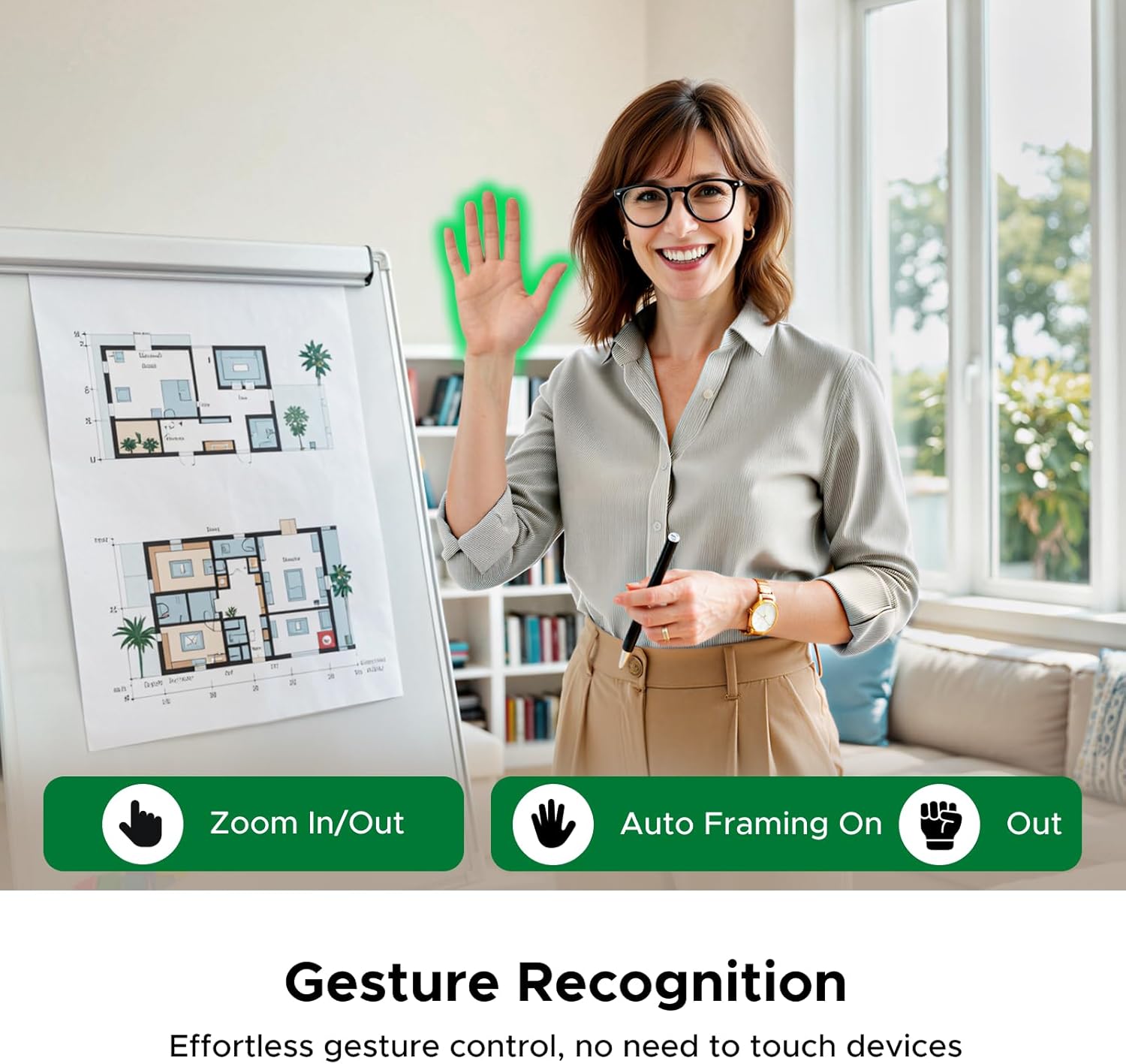
Image: A person holding lipstick, with a focus box around their face, illustrating the auto-focus feature.
Automatyczne kadrowanie
The auto framing feature automatically adjusts the camera's composition and zoom to keep all participants centered in the frame during group discussions or when you move within the shot.

Image: A "Before" and "After" comparison showing how AI auto framing centers multiple individuals in a video call.
Rozpoznawanie gestów
Control certain camera functions using intuitive hand gestures. This allows for touch-free control, such as enabling AI Framing or zooming in/out.
Notatka: If gesture control is difficult to use, you can double-click the button on top of the webcam to toggle AI features on or off.

Image: Two individuals demonstrating hand gestures for "Zoom In/Out" and "Auto Framing On/Out" with the webkamera
Podwójne mikrofony z redukcją szumów
Ten webcam integrates a dual-microphone array with AI noise reduction to capture clear audio within a 360-degree range, minimizing background noise for reliable voice transmission.

Image: A person using the webcam with a visual representation of sound waves, highlighting the clear audio from the dual AI mics.
7 Filters and Portrait Mode
Ten webcam includes 7 built-in filter modes, accessible via a dial, to digitally replicate various photographic tones. It also supports 2K 9:16 portrait mode by rotating the camera 90 degrees, optimizing it for mobile live streams.
Notatka: Switching to portrait mode may take approximately 5 seconds as the camera reconnects. It is recommended to set your preferred orientation before starting a stream or recording.

Obraz: webcam set up in portrait mode on a tripod, showing a live stream interface on a laptop.

Obraz: Zbliżenie webcam's filter dial, showing different filter options and their visual effects.
Ochrona prywatności
An integrated privacy cover allows you to physically block the camera lens with a single press, ensuring your privacy when the webkrzywka nie jest używana.

Obraz: Porównanie pokazujące webcam with its privacy cover open (camera active) and closed (camera blocked).
Rozwiązywanie problemów
- Stan diody LED: When powered on, the LED glows blue. It turns green when you activate AI features like Auto-Framing or Zoom In/Out via hand gestures.
- Gesture Control Range: For best results, use gesture control at a distance of 1 to 3 meters. Ensure your hand does not block your face while gesturing.
- Switching Between Landscape and Portrait Mode: The default aspect ratio is 16:9 (landscape). To switch to 9:16 (portrait), press the mode button. The camera will briefly restart to apply the new orientation. This process takes a few seconds, so it is recommended to set your preferred layout before starting a stream or recording.
- Changing Filter Effects: Rotate the dial on the webcam to switch between the 7 custom filters (labeled 0 through 7). Filter 0 is the standard mode.
- Dostosowywanie ustawień kamery: For fine-tuning brightness, contrast, and white balance, use third-party software such as OBS or PotPlayer.
Specyfikacje
| Marka | ZIELONY |
| Numer modelu | 75725A |
| Typ złącza | USB typu C |
| Technologia łączności | USB |
| Kompatybilne urządzenia | Laptopy, PC |
| Cechy specjalne | Auto Framing, Face AE, Filters Switch, Gesture Recognition, Omnidirectional Noise Reduction |
| Kolor | Szary |
| Współczynnik kształtu | Kompaktowy |
Gwarancja i wsparcie
Ten produkt jest dostarczany z 24 Months Warranty Service by UGREEN. For technical support or warranty claims, please contact UGREEN customer service through their official webwitrynę lub sprzedawcę, u którego zakupiono produkt.
Aby uzyskać dalszą pomoc, odwiedź stronę Sklep UGREEN na Amazon.