
1. Wprowadzenie
This manual provides detailed instructions for the installation, operation, and maintenance of your SENTKENG Y05009 Indoor Camera. Please read this manual thoroughly before using the product to ensure proper function and safety. The SENTKENG Y05009 is a 1080P WiFi camera designed for indoor monitoring, featuring pan/tilt capabilities, two-way audio, IR night vision, and motion detection.
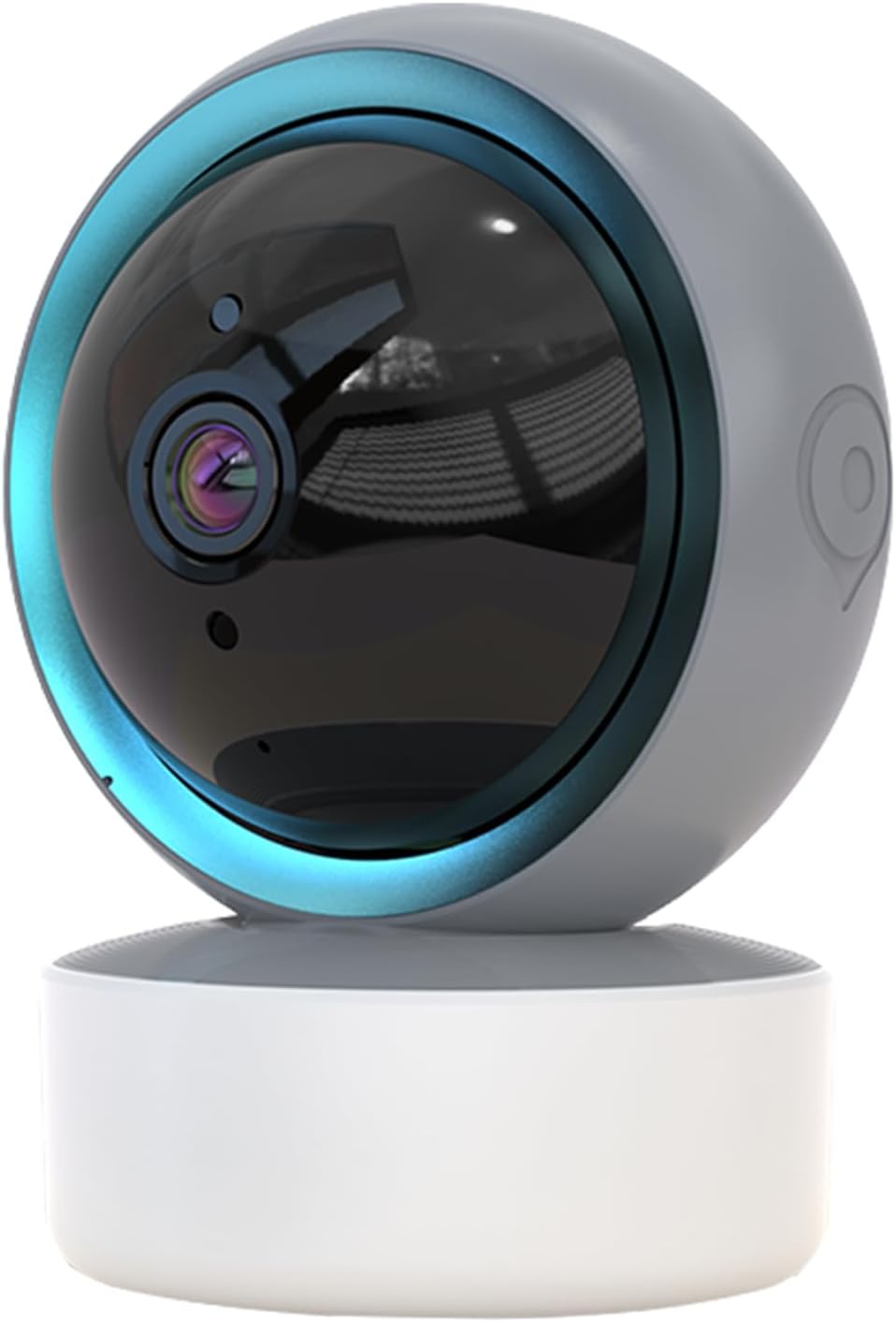
Image 1.1: SENTKENG Y05009 Indoor Camera. This image displays the compact, spherical design of the camera with its lens and base.
2. Zawartość opakowania
Sprawdź, czy w przesyłce znajdują się wszystkie elementy:
- SENTKENG Y05009 Indoor Camera
- Kabel zasilający USB
- Power Adapter (not explicitly listed but implied for a plug-in device)
- Wspornik montażowy i śruby
- Instrukcja obsługi

Image 2.1: Package Contents. This image shows the camera, USB cable, mounting accessories, and the user manual included in the box.
3. Koniec produktuview
The SENTKENG Y05009 camera features a compact design with essential components for effective indoor monitoring.
3.1 Komponenty kamery
- Obiektyw: Nagrywa wideo w rozdzielczości 1080P.
- Diody podczerwieni: Zapewniają możliwość widzenia w nocy.
- Mikrofon: Do wprowadzania danych audio i rozmów dwukierunkowych.
- Głośnik: Do wyjścia audio i rozmów dwukierunkowych.
- Gniazdo kart microSD: Obsługuje pamięć lokalną do 128 GB (karta nie jest dołączona).
- Przycisk resetowania: Służy do przywracania ustawień fabrycznych lub przełączania w tryb parowania.
- Port zasilania: USB port for connecting the power cable.
Image 3.1: Camera Component Details. This image highlights the speaker, microSD card slot, reset button, and power port on the camera.
4. Konfiguracja
Follow these steps to set up your SENTKENG Y05009 Indoor Camera.
4.1 Włączanie
- Podłącz kabel zasilający USB do portu zasilania aparatu.
- Podłącz drugi koniec kabla USB do dostarczonego zasilacza.
- Podłącz zasilacz do standardowego gniazdka elektrycznego. Kamera włączy się i rozpocznie sekwencję startową.
4.2 Instalacja aplikacji i tworzenie konta
- Pobierz InstaVision aplikację ze sklepu z aplikacjami na Twoim smartfonie (iOS lub Android).
- Open the InstaVision app and create a new account or log in if you already have one.

Image 4.1: InstaVision App Interface. This image shows the 'Welcome to InstaVision' screen on a smartphone, illustrating the initial app setup.
4.3 Łączenie z Wi-Fi
The camera supports 2.4GHz Wi-Fi networks only.
- In the InstaVision app, tap 'Add Device' or the '+' icon.
- Select your camera model or 'Smart Camera'.
- Follow the on-screen instructions to connect the camera to your 2.4GHz Wi-Fi network. This typically involves scanning a QR code generated by the app with the camera's lens or listening for an audio prompt.
- Once connected, the camera's indicator light will change, and you will receive a confirmation in the app.
4.4 Umieszczenie i montaż
The camera can be placed on a flat surface or mounted to a ceiling.
- Montaż na blacie: Place the camera on a stable, flat surface such as a table or shelf.
- Instalacja sufitowa: Use the provided mounting bracket and screws to secure the camera to the ceiling. Ensure the camera is oriented correctly for optimal viewing.
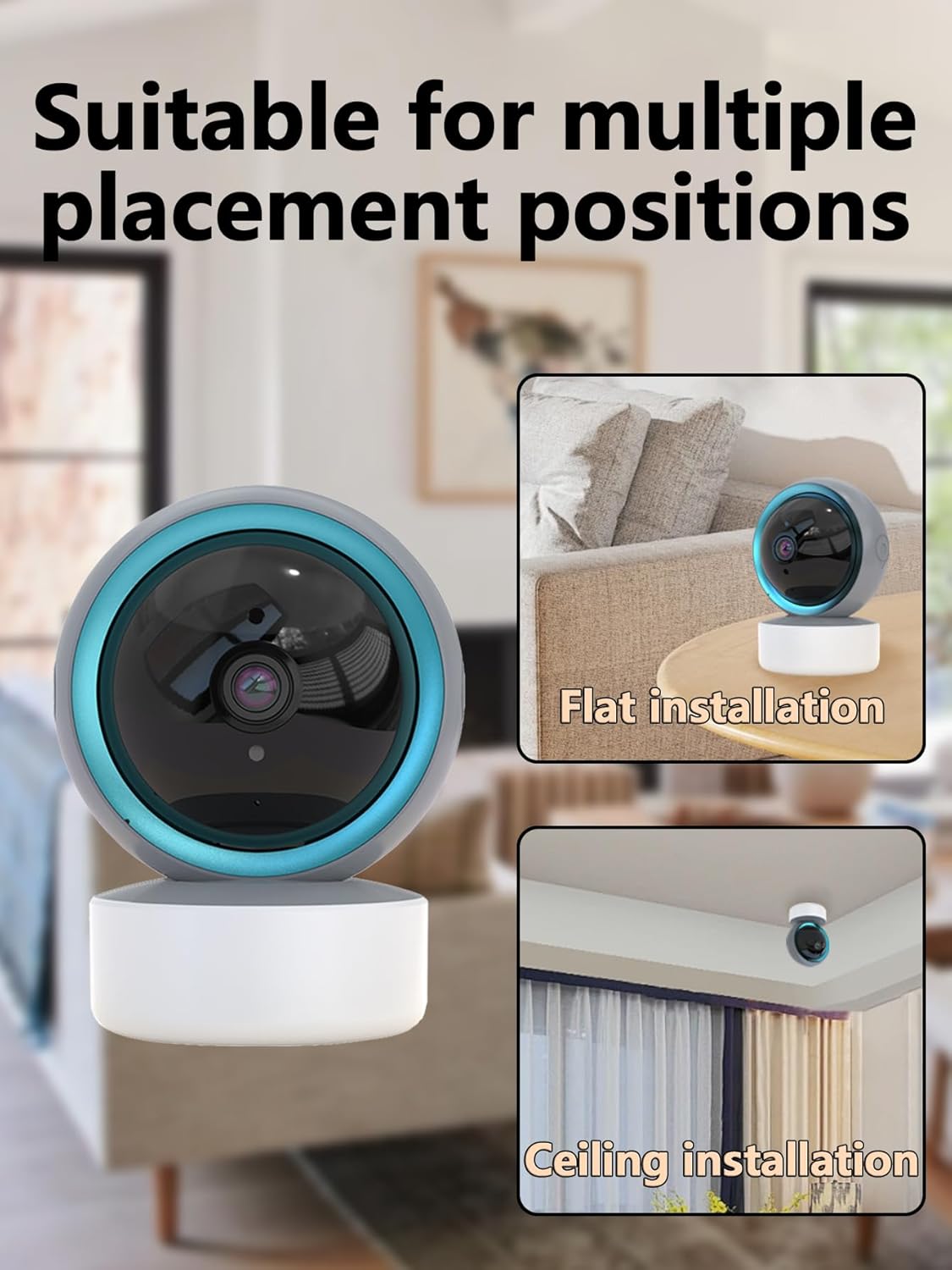
Image 4.2: Multiple Placement Positions. This image illustrates the camera placed on a flat surface and mounted on a ceiling.
5. Instrukcja obsługi
Learn how to use the various features of your SENTKENG Y05009 camera.
5.1 Na żywo View i sterowanie obrotem/pochyleniem
- Open the InstaVision app and select your camera from the device list.
- Zobaczysz transmisję wideo na żywo.
- Use the directional controls within the app to remotely rotate the camera lens: 355° poziomo I 90° w pionie.

Image 5.1: Multi-Angle Rotation. This image demonstrates the camera's ability to rotate 355 degrees horizontally and 90 degrees vertically.
5.2 Dźwięk dwukierunkowy
The camera features a built-in microphone and speaker for real-time communication.
- Na żywo view, dotknij ikony mikrofonu w aplikacji.
- Speak into your phone to transmit audio through the camera's speaker.
- The camera's microphone will capture audio from its surroundings, which you can hear through your phone.
5.3 Detekcja ruchu i alerty
Kamera potrafi wykrywać ruch i wysyłać natychmiastowe powiadomienia na telefon.
- Enable motion detection in the InstaVision app settings for your camera.
- W razie potrzeby dostosuj poziom czułości.
- Gdy zostanie wykryty ruch, otrzymasz powiadomienie push na swoim smartfonie.
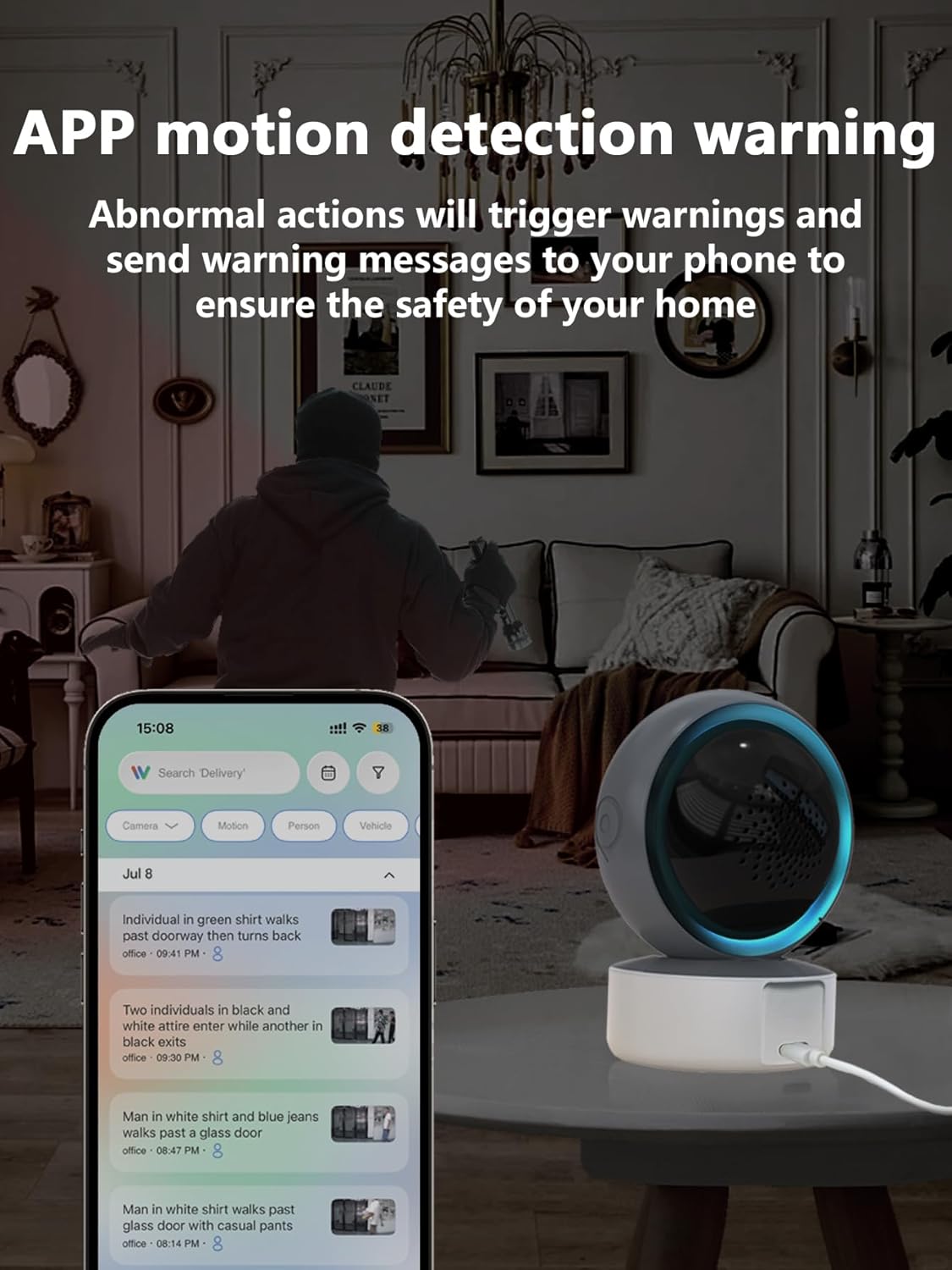
Image 5.2: APP Motion Detection Warning. This image shows a smartphone displaying motion detection alerts from the InstaVision app, with the camera monitoring a room.
5.4 Widzenie nocne IR
Kamera automatycznie przełącza się na noktowizję w podczerwieni w warunkach słabego oświetlenia.
- Infrared LEDs provide clear black-and-white images up to 8 meters in complete darkness.
- No manual activation is required; the camera adjusts automatically.

Image 5.3: Clear IR Night Vision. This image depicts the camera providing a clear view in a dark room, with a smartphone displaying the night vision feed.
5.5 Przechowywanie wideo
The camera offers two storage options for recorded footage:
- Karta MicroSD: Insert a microSD card (up to 128GB, not included) into the camera's slot for local storage. Recordings will be saved directly to the card.
- Usługa chmury: An optional cloud storage subscription is available through the InstaVision app for remote and secure storage of your video recordings.

Image 5.4: Video Playback & Storage Function. This image shows the camera, a microSD card, and a smartphone displaying cloud storage icons, illustrating the dual storage options.
5.6 AI Detection (Subscription)
Advanced AI-powered detection features are available with a paid InstaVision app subscription. These features may include:
- Wykrywanie osób
- Wykrywanie zwierząt
- Specific human action recognition
5.7 Wielu użytkowników Viewwchodzenie
The InstaVision app allows multiple users to view jednocześnie obraz z kamery.
- In the app, navigate to the camera settings and find the 'Share Device' option.
- Invite other users by entering their InstaVision account details.
- Shared users will receive an invitation and can then access the camera feed.

Image 5.5: Simultaneous Online Viewing by Multiple Users. This image shows several individuals viewing the camera feed on their smartphones, indicating the family share function.
6. Konserwacja
Regularna konserwacja pomaga zapewnić długowieczność i optymalną wydajność aparatu.
- Czyszczenie: Delikatnie przetrzyj obiektyw i korpus aparatu miękką, suchą ściereczką. Unikaj stosowania silnych środków chemicznych i materiałów ściernych.
- Aktualizacje oprogramowania: Periodically check the InstaVision app for firmware updates for your camera. Keeping the firmware updated ensures you have the latest features and security enhancements.
- Cykl zasilania: Jeśli wystąpią problemy z aparatem, spróbuj odłączyć go od źródła zasilania na 10 sekund, a następnie podłączyć ponownie.
7. Rozwiązywanie Problemów
If you encounter problems with your SENTKENG Y05009 camera, refer to the following common issues and solutions.
- Camera is offline:
- Ensure the camera is properly powered on and the power adapter is securely plugged in.
- Check your Wi-Fi network connection. Ensure the camera is within range of your 2.4GHz Wi-Fi router.
- Uruchom ponownie kamerę odłączając ją i podłączając ponownie.
- If the issue persists, try resetting the camera and re-pairing it with the app.
- Nie można połączyć się z Wi-Fi:
- Sprawdź, czy Twoja sieć Wi-Fi obsługuje częstotliwość 2.4 GHz. Kamera nie obsługuje sieci 5 GHz.
- Upewnij się, że wpisujesz prawidłowe hasło Wi-Fi.
- Move the camera closer to your Wi-Fi router during the setup process.
- Zresetuj kamerę i spróbuj ponownie nawiązać połączenie.
- Motion detection alerts are not received:
- Check the motion detection settings in the InstaVision app to ensure it is enabled and sensitivity is adjusted appropriately.
- Verify that your smartphone's notification settings allow alerts from the InstaVision app.
- Upewnij się, że kamera ma stabilne połączenie z internetem.
- Słaba jakość wideo:
- Upewnij się, że obiektyw aparatu jest czysty i nie ma na nim kurzu ani smug.
- Sprawdź siłę sygnału Wi-Fi. Słaby sygnał może wpływać na jakość przesyłania strumieniowego.
- Zadbaj o odpowiednie oświetlenie, aby nagrywać optymalne filmy w ciągu dnia.
8. Specyfikacje
| Funkcja | Specyfikacja |
|---|---|
| Nazwa modelu | Y05009 |
| Zastosowanie wewnątrz/na zewnątrz | Wnętrz |
| Rozdzielczość przechwytywania wideo | 1080p |
| Technologia łączności | Bezprzewodowa (Wi-Fi 2.4 GHz) |
| Źródło zasilania | Elektryczny przewodowy |
| Zakres obrotu/pochylenia | Poziomo 355°, Pionowo 90° |
| Zakres noktowizora | 8 metrów |
| Opcje przechowywania | MicroSD Card (up to 128GB), Cloud Storage (subscription) |
| Dwukierunkowy dźwięk | Tak |
| Wykrywanie ruchu | Tak |
| Funkcje AI | Optional (subscription required) |
| Kompatybilne urządzenia | Smartfon (iOS, Android) |
| Wymiary produktu | 3.58 x 2.97 x 4.69 cala |
| Waga przedmiotu | 9 uncji |
9. Informacje o pomocy technicznej
For further assistance or technical support, please refer to the contact information provided with your product packaging or visit the official SENTKENG webstrona.