
SOLAKAKA KI99 Pro
SOLAKAKA KI99 Pro Silent Wireless Mechanical Keyboard User Manual
Model: KI99 Pro
Wstęp
This manual provides detailed instructions for the setup, operation, maintenance, and troubleshooting of your SOLAKAKA KI99 Pro Silent Wireless Mechanical Keyboard. Please read this guide thoroughly to ensure optimal performance and longevity of your device.
Produkt ponadview
The SOLAKAKA KI99 Pro is a 96% layout mechanical keyboard designed for versatility and performance. It features triple-mode connectivity, hot-swappable silent switches, customizable RGB backlighting, and a durable gasket structure.
Główne cechy:
- Łączność w trzech trybach: Supports Bluetooth 5.0, 2.4GHz wireless, and Type-C wired connections.
- 96% Układ: Compact design with 96 keys, including a numeric keypad, to save desk space.
- Silent Mechanical Switches: Equipped with pre-lubricated, hot-swappable linear switches for a quiet and smooth typing experience.
- Struktura uszczelki: Advanced five-layer noise reduction design for enhanced typing feel and reduced sound.
- Nakładki na klawisze PBT: Durable, wear-resistant, and fade-resistant keycaps with clear legends.
- Konfigurowalne podświetlenie RGB: Per-key RGB lighting with side light bars, offering 16.8 million colors and various effects.
- Gałka wielofunkcyjna: Controls volume, media playback, and lighting brightness.
- Bateria o dużej pojemności: Integrated 10000mAh rechargeable battery for extended wireless use.
- Dostosowywanie oprogramowania: Dedicated software for key remapping, macro programming, and advanced RGB control.

Obraz: Ponadview of the SOLAKAKA KI99 Pro keyboard, showcasing its main features such as connectivity options, gasket structure, silent switches, RGB lighting, battery capacity, PBT keycaps, hot-swappable design, and operating system compatibility.
Organizować coś
1. Ładowanie klawiatury
Before initial use, fully charge the keyboard using the provided USB-C cable. Connect the cable to the keyboard's Type-C port and to a powered USB port on your computer or a USB wall adapter. The charging indicator will show the charging status.

Image: The keyboard's 10000mAh large capacity rechargeable battery, ensuring extended usage.
2. Podłączanie klawiatury
The KI99 Pro supports three connection modes: Bluetooth 5.0, 2.4GHz wireless, and wired (USB-C).

Image: The keyboard supports 2.4GHz wireless, Bluetooth 5.0, and Type-C wired connections for multiple devices and systems.
2.1. Połączenie bezprzewodowe 2.4 GHz:
- Znajdź odbiornik USB 2.4 GHz, zwykle przechowywany w schowku klawiatury.
- Podłącz odbiornik USB do dostępnego portu USB w komputerze.
- Flip the switch on the side of the keyboard to the "2.4G" position.
- Klawiatura powinna połączyć się automatycznie. Jeśli nie, naciśnij Fn + 4 to enter 2.4G pairing mode. The indicator light will flash blue.
2.2. Bluetooth 5.0 Connection:
- Flip the switch on the side of the keyboard to the "BT" position.
- Naciśnij i przytrzymaj Fn + 1, Fn + 2, Lub Fn + 3 for 3-5 seconds to enter pairing mode for the desired Bluetooth channel. The indicator light for the selected channel will flash blue rapidly.
- On your device (PC, laptop, smartphone, tablet), enable Bluetooth and search for "SOLAKAKA KI99 Pro".
- Wybierz klawiaturę, którą chcesz sparować. Po połączeniu kontrolka przestanie migać.
- You can switch between paired Bluetooth devices by pressing Fn + 1/2/3.
2.3. Type-C Wired Connection:
- Connect the USB-C cable to the keyboard's Type-C port and the other end to your computer's USB port.
- Flip the switch on the side of the keyboard to the "Wired" position (usually indicated by a cable icon or middle position).
- The keyboard will be recognized as a wired device and is ready for use.

Image: The side operation panel with the connectivity mode switch (BT, 2.4G, Wired), the metal knob, and the side RGB light strip.
Instrukcja obsługi
1. Podstawowe funkcje klawiszy
The KI99 Pro features a 96% layout. Standard key functions operate as expected. Some keys may have secondary functions accessed via the Fn klawisz.
2. Pokrętło wielofunkcyjne
The metal knob located on the top right of the keyboard provides quick control over several functions:
- Obracać: Adjusts system volume (clockwise to increase, counter-clockwise to decrease).
- Naciskać: Wycisza/włącza dźwięk.
- Fn + Obrót: Adjusts RGB lighting brightness.
- Fn + Naciśnij: Changes RGB lighting effects/modes.
3. Sterowanie oświetleniem RGB
The keyboard features extensive RGB backlighting with 16.8 million colors and various effects. You can control lighting via keyboard shortcuts or the dedicated software.
- Fn + \ (Backslash): Przełączaj się między różnymi efektami świetlnymi.
- Fn + klawisze strzałek: Adjust lighting speed and direction (specific combinations may vary, refer to software for full control).
- Fn + Knob: Dostosuj jasność.
4. Dostosowywanie oprogramowania
For advanced customization, download the SOLAKAKA KI99 Pro software from the official SOLAKAKA webwitryna. Oprogramowanie pozwala na:
- Zmień przypisanie poszczególnych klawiszy.
- Tworzenie i przypisywanie makr.
- Customize RGB lighting effects, colors, and patterns in detail.
- Zarządzaj profiledla różnych aplikacji i gier.

Image: The customization software interface for the KI99 Pro, enabling users to adjust RGB lighting, assign keys, program macros, and synchronize lighting with music.
Konserwacja
1. Czyszczenie klawiatury
- Przed czyszczeniem odłącz klawiaturę od wszystkich źródeł zasilania i urządzeń.
- Użyj miękkiej, niestrzępiącej się ściereczki, lekko wyczyśćampPrzetrzyj klawisze i obudowę wodą lub łagodnym środkiem czyszczącym.
- Do usuwania kurzu i zanieczyszczeń spomiędzy klawiszy należy użyć sprężonego powietrza.
- Unikaj stosowania silnych środków chemicznych, materiałów ściernych i rozpuszczalników.
2. Wymiana nasadek klawiszy i przełączników
The KI99 Pro features hot-swappable switches and PBT keycaps, allowing for easy customization and replacement.
- Nasadki klawiszy: Use the provided keycap puller to gently remove keycaps. Align new keycaps and press firmly until seated.
- Przełączniki: Use the provided switch puller to carefully remove switches. Ensure the new switch pins are straight before aligning them with the PCB sockets and pressing down gently until they click into place. The PCB supports 3-pin and 5-pin switches.
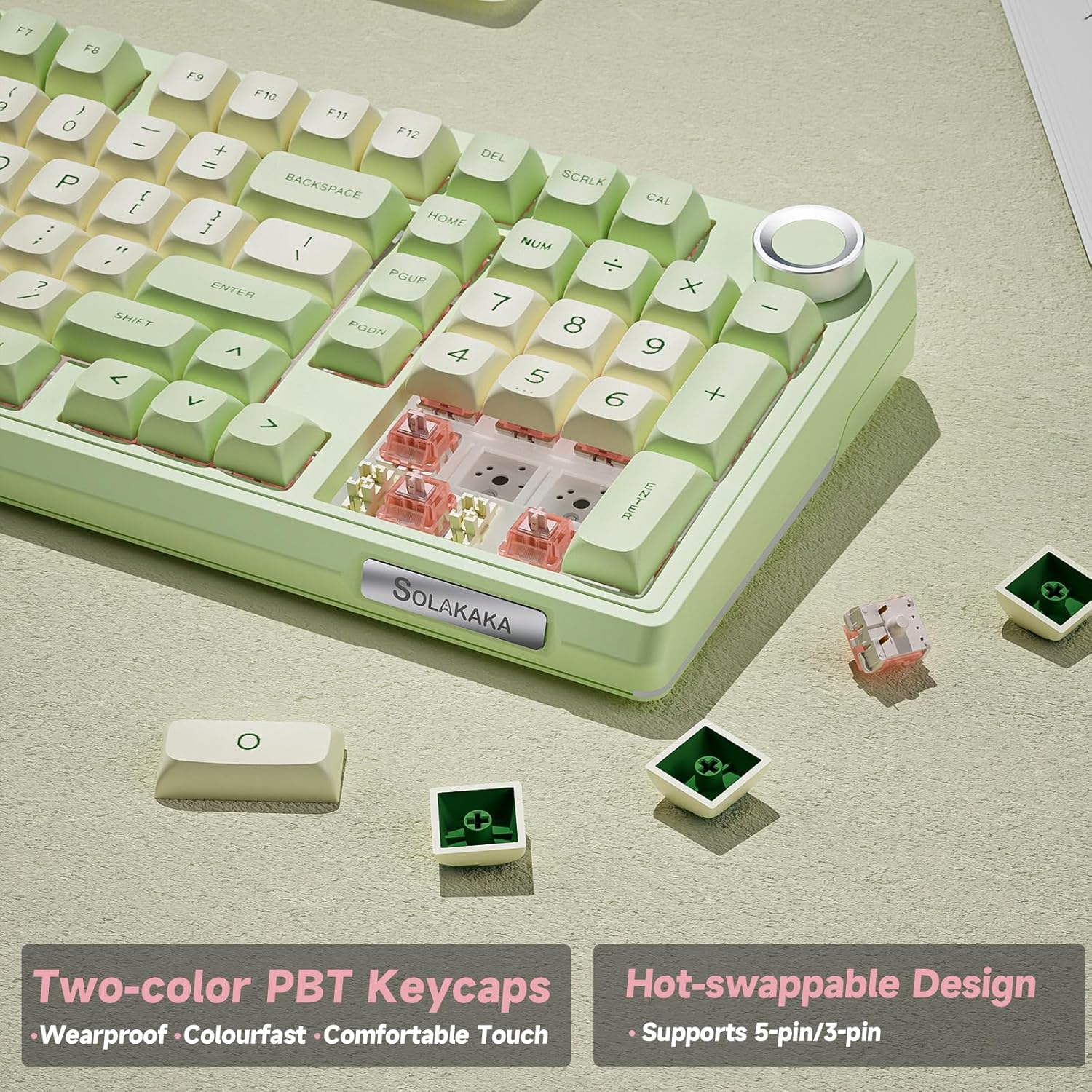
Image: The keyboard's two-color PBT keycaps and hot-swappable design, supporting both 3-pin and 5-pin switches for easy customization.

Image: Detailed specifications of the LEOBOG Silent Switch, including key stroke, pressure points, and mechanical lifespan.
Rozwiązywanie problemów
1. Keyboard Not Responding:
- Tryb przewodowy: Ensure the USB-C cable is securely connected to both the keyboard and the computer. Check if the mode switch is set to "Wired". Try a different USB port or cable.
- Łączność bezprzewodowa 2.4 GHz: Ensure the USB receiver is plugged in and the mode switch is set to "2.4G". Re-pair by pressing Fn + 4Sprawdź poziom naładowania baterii.
- Bluetooth: Ensure Bluetooth is enabled on your device and the mode switch is set to "BT". Re-pair by holding Fn + 1/2/3Sprawdź poziom naładowania baterii.
- Bateria: Connect the keyboard to a power source to charge. A low battery can cause connectivity issues.
2. Keys Not Registering or Double-Typing:
- Ensure switches are fully seated. Gently press down on the affected keycap.
- Jeśli konkretny przełącznik ulegnie uszkodzeniu, można go wymienić dzięki konstrukcji umożliwiającej wymianę w trakcie pracy.
- Wyczyść obszar wokół uszkodzonego klawisza, aby usunąć wszelkie zanieczyszczenia.
3. RGB Lighting Not Working or Incorrect:
- Check lighting brightness using Fn + pokrętło.
- Przełączaj się między efektami świetlnymi za pomocą Fn + \.
- Ensure the keyboard software is up-to-date and settings are correctly applied. Sometimes, software settings can override onboard controls.
- Perform a factory reset (refer to software or advanced key combinations if available, usually Fn + Esc for 3-5 seconds).
4. Software Not Detecting Keyboard:
- Ensure the keyboard is connected via USB-C cable and the mode switch is set to "Wired". Most customization software requires a wired connection for detection and firmware updates.
- Uruchom ponownie oprogramowanie i komputer.
- Reinstall the software from the official SOLAKAKA webstrona.
Specyfikacje
| Funkcja | Szczegół |
|---|---|
| Numer modelu | KI99PRO |
| Marka | SOLAKKA |
| Łączność | Bluetooth 5.0, bezprzewodowy 2.4 GHz, przewodowy USB-C |
| Układ klawiatury | 96% QWERTY |
| Liczba kluczy | 96 |
| Typ przełącznika | Linear (LEOBOG Silent Switch) |
| Możliwość wymiany podczas pracy | Yes (3-pin/5-pin switches) |
| Klawisze | PBT (Two-color) |
| Podświetlenie | RGB (16.8 million colors, side light bars) |
| Pojemność baterii | 10000mAh |
| Kompatybilne systemy operacyjne | Windows, macOS |
| Kompatybilne urządzenia | PC, Laptop, Smartfon, Tablet, Konsola do gier |
| Tworzywo | Plastikowy |
| Cechy specjalne | Metal Knob, Customizable, Programmable, Gasket Structure |

Obraz: Wybuchowy view illustrating the internal gasket structure and various components of the KI99 Pro keyboard.
Gwarancja i wsparcie
For warranty information, technical support, or to download the latest software and drivers, please visit the official SOLAKAKA webStrona. Zachowaj dowód zakupu na wypadek roszczeń gwarancyjnych.
Note: Software updates are guaranteed until "Information non disponible" (Information not available) as per product specifications.
Powiązane dokumentyKI99 Pro


Ask a question about this manual
Ask about setup, troubleshooting, compatibility, parts, safety, or missing instructions. Manuals+ will review the question and use this page’s manual context to help answer it.