
1. Koniec produktuview
The TP-Link Archer GE400 is a high-performance Dual-Band BE6500 WiFi 7 Gaming Router designed to provide a stable and fast network experience, especially for gaming. It features advanced WiFi 7 technology, multi-gigabit ports, and dedicated gaming optimizations to reduce latency and enhance connectivity.
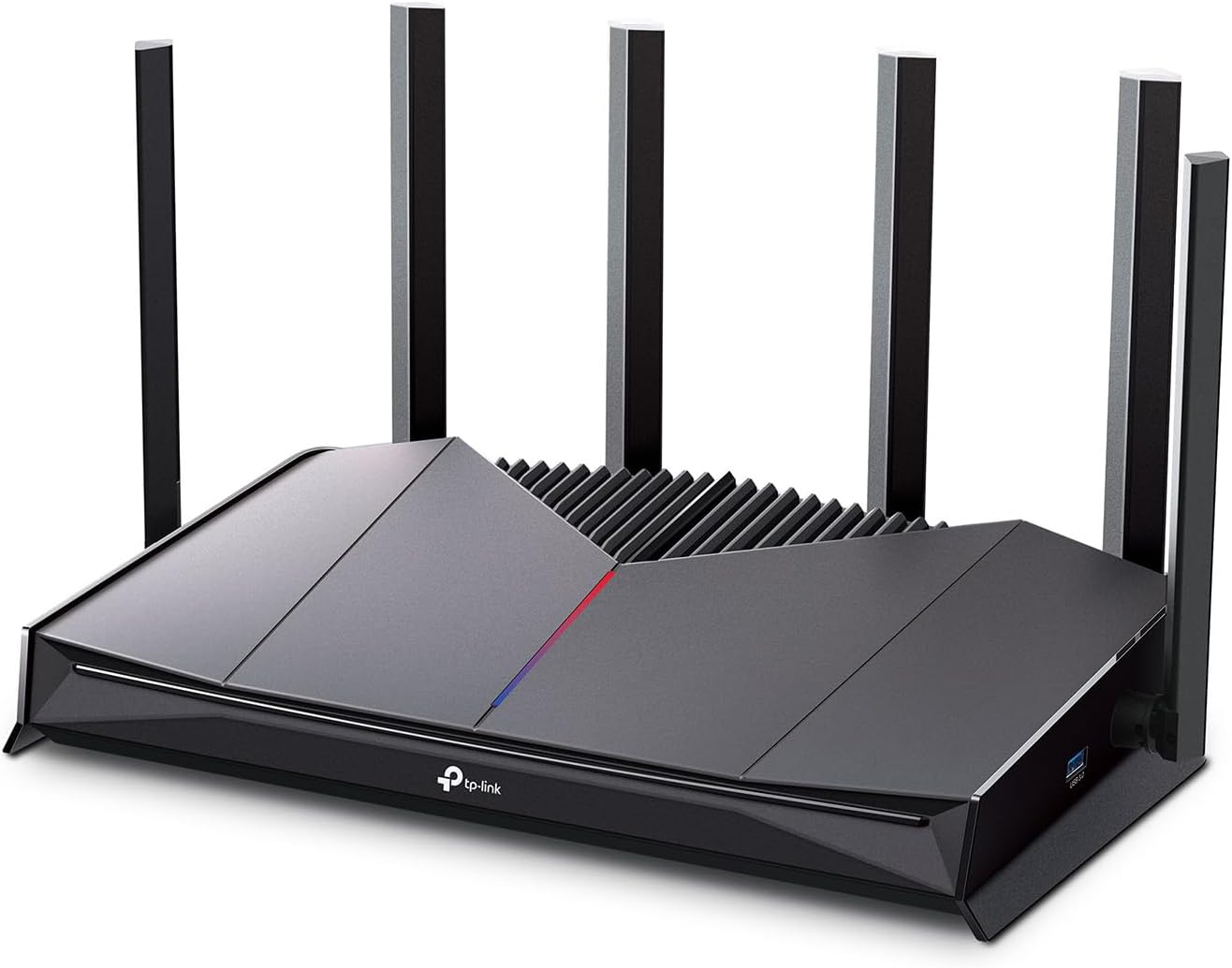
Obraz: Przód view of the TP-Link Archer GE400 Dual-Band BE6500 WiFi 7 Gaming Router, showcasindzięki smukłej konstrukcji i sześciu zewnętrznym antenom.
Główne cechy:
- Dwuzakresowe WiFi 7: Offers combined speeds of up to 6.5 Gbps (5765 Mbps on 5 GHz and 688 Mbps on 2.4 GHz) for high-speed data transfer.
- Przyspieszenie gry: Includes a dedicated multi-gig gaming port, Quality of Service (QoS) for prioritizing game traffic, and game server acceleration via WTFast.
- Porty wielogigabitowe: Equipped with 1x 2.5 Gbps WAN/LAN port, 1x 2.5 Gbps LAN port (dedicated gaming port), and 3x 1 Gbps LAN ports for versatile wired connections.
- Obszerny zakres: Provides up to 2,600 sq. ft. of coverage for up to 90 devices, enhanced by 6 antennas and Beamforming technology.
- Zgodność z EasyMesh: Allows for seamless expansion of WiFi coverage by adding compatible EasyMesh devices.
- Osłona HomeShield TP-Link Integrated security service offering network protection, parental controls, and IoT device security.
- Intuicyjne zarządzanie: Easy setup and management via the TP-Link Tether app or web interfejs.
2. Co znajduje się w pudełku
Zanim zaczniesz, upewnij się, że w przesyłce znajdują się wszystkie elementy:
- 1 x Wi-Fi 7 Router Archer GE400
- 1 x Instrukcja szybkiej instalacji
- 1 x zasilacz
- 1 x kabel Ethernet RJ45
3. Przewodnik konfiguracji
3.1 Połączenie sprzętowe
- Wyłączanie modemu: Odłącz modem od zasilania, aby go wyłączyć.
- Podłącz router: Connect the provided Ethernet cable from your modem's Ethernet port to the 2.5 Gbps WAN/LAN port (blue) on your Archer GE400 router.
- Włącz modem: Plug in and power on your modem. Wait for about 2 minutes for it to restart.
- Włącz router: Connect the power adapter to the router and plug it into a power outlet. Wait for the router to fully start up.
- Podłącz urządzenia: For wired connections, connect your gaming PC or console to the dedicated 2.5 Gbps Gaming Port (red) for prioritized traffic, or use any of the 1 Gbps LAN ports for other devices.

Obraz: Zbliżenie view of the rear ports of the Archer GE400 router, highlighting the 2.5 Gbps WAN/LAN port, 2.5 Gbps Gaming Port, and 1 Gbps LAN ports.
3.2 Konfiguracja sieci
- Połącz się z siecią Wi-Fi routera: On your computer or mobile device, connect to the default WiFi network name (SSID) printed on the label at the bottom of the router.
- Początek Web Przeglądarka: Otwórz web przeglądarka i wprowadź
http://tplinkwifi.netlub domyślny adres IP routera (zwykle192.168.0.1or192.168.1.1) na pasku adresu. - Utwórz hasło logowania: Follow the on-screen instructions to create a new login password for the router.
- Wykonaj szybką konfigurację: The Quick Setup wizard will guide you through basic internet settings and WiFi network configuration.
- Pobierz aplikację Tether: For easier management, download the TP-Link Tether app from the App Store or Google Play.
Video: An introductory video for the Archer GE400, demonstrating its features and setup process.
4. Instrukcja obsługi
4.1 Przyspieszenie gry
The Archer GE400 is optimized for gaming performance:
- Dedykowany port do gier: Connect your primary gaming device (PC, console) to the 2.5 Gbps Gaming Port for automatic traffic prioritization.
- Game QoS: Configure Quality of Service settings via the Tether app or web interface to prioritize gaming applications over other network traffic.
- Game Server Acceleration (WTFast): Utilize the integrated WTFast service to optimize connections to game servers, reducing ping and latency.

Image: Diagram illustrating the Archer GE400's gaming features, including Game Applications Boost with QoS, Prioritize Game Devices with the Gaming Port, and Game Server Acceleration by GPN.
4.2 WiFi 7 Connectivity
Leverage the advanced capabilities of WiFi 7 for a superior wireless experience:
- Praca dwupasmowa: The router operates on both 2.4 GHz and 5 GHz bands. The 5 GHz band offers higher speeds for demanding tasks like gaming and 4K/8K streaming, while the 2.4 GHz band provides wider coverage for general use.
- Operacja wielopunktowa (MLO): WiFi 7's MLO feature allows devices to use multiple frequency bands simultaneously, improving throughput and reducing latency.
- 4K-QAM: This modulation scheme packs more data into each signal, leading to higher speeds and efficiency.
4.3 EasyMesh Integration
Expand your network coverage with TP-Link EasyMesh:
- Bezproblemowy roaming: Add EasyMesh-compatible routers or range extenders to create a unified whole-home mesh network. Your devices will automatically switch to the strongest signal as you move around your home.
- Single WiFi Name: Enjoy a single network name (SSID) across your entire home, eliminating the need to manually switch between different networks.

Image: Illustration of an EasyMesh network setup with the Archer GE400, showing how it extends WiFi coverage throughout a home.
4.4 Bezpieczeństwo HomeShield
Protect your network and devices with TP-Link HomeShield:
- Bezpieczeństwo sieci: Scans for network threats and vulnerabilities.
- Kontrola rodzicielska: Zarządzaj dostępem dzieci do Internetu, w tym filtrowaniem treści i limitami czasowymi.
- IoT Device Protection: Provides security for smart home devices, preventing unauthorized access.

Image: Visual representation of TP-Link HomeShield features, including network threat scanning, WPA3 encryption, device blocking, and IoT device protection.
4.5 Dedicated Game Panel
Monitor and manage your gaming network with the intuitive Game Panel:
- Real-Time Stats: View network status, router performance, and accelerated game data.
- Sterowanie RGB: Customize the router's RGB lighting settings.
- Priorytety urządzeń: Easily see and manage which devices are prioritized for gaming performance.

Image: Screenshot of the Archer GE400's dedicated game panel, showing network overview, device distribution, and gaming record features accessible via the Tether app.
5. Konserwacja
To ensure optimal performance and longevity of your Archer GE400 router, follow these maintenance guidelines:
- Aktualizacje oprogramowania układowego: Regularnie sprawdzaj dostępność aktualizacji oprogramowania sprzętowego i instaluj je za pośrednictwem aplikacji Tether lub web interfejsu. Aktualizacje często obejmują poprawę wydajności i poprawki zabezpieczeń.
- Regularne ponowne uruchomienie: Reboot your router periodically (e.g., once a month) to clear its memory and refresh network connections.
- Czyszczenie fizyczne: Keep the router in a well-ventilated area. Gently clean dust from the vents and surfaces using a soft, dry cloth. Avoid blocking ventilation openings.
- Network Security Scans: Utilize the HomeShield feature to perform regular network security scans to identify and address potential vulnerabilities.
6. Rozwiązywanie Problemów
If you encounter issues with your Archer GE400 router, try the following troubleshooting steps:
6.1 Brak dostępu do Internetu
- Sprawdź kable: Sprawdź, czy wszystkie kable Ethernet są solidnie podłączone do routera i modemu.
- Ponowne uruchomienie urządzeń: Power off your modem and router. Wait 30 seconds, then power on the modem first. Once the modem is fully online, power on the router.
- Verify Modem Status: Sprawdź kontrolki na modemie, aby upewnić się, że połączenie internetowe jest aktywne.
- Kontakt z dostawcą usług internetowych: If the modem lights indicate no internet, contact your Internet Service Provider (ISP).
6.2 Slow WiFi Speeds
- Umieszczenie urządzenia: Ensure the router is centrally located and free from obstructions. Avoid placing it near large metal objects or other electronics that may cause interference.
- Wybór zespołu: For high-bandwidth activities, connect your devices to the 5 GHz WiFi band.
- Ingerencja: Check for potential sources of wireless interference (e.g., microwaves, cordless phones).
- Ustawienia QoS: Review your QoS settings in the Tether app or web interface to ensure critical applications are prioritized correctly.
6.3 Dropped Connections
- Aktualizacja firmware: Upewnij się, że oprogramowanie sprzętowe routera jest aktualne.
- Siła sygnału: If connections drop frequently, your device might be too far from the router or experiencing signal interference. Consider using EasyMesh to extend coverage.
- Zresetuj router: As a last resort, perform a factory reset. Use a pin to press and hold the Reset button on the back of the router for about 10 seconds until the LEDs flash. Note: This will erase all your custom settings.
7. Specyfikacje
Detailed technical specifications for the TP-Link Archer GE400 router:
| Marka | TP-Link |
| Nazwa modelu | Dual-Band GE6500 WiFi 7 Gaming Router |
| Numer modelu | Łucznik GE400 |
| Klasa pasma częstotliwości | Dwuzakresowy |
| Standard komunikacji bezprzewodowej | 802.11.be, 802.11ac, 802.11ax, 802.11g, 802.11n |
| Szybkość przesyłu danych | 6500 megabitów na sekundę |
| Przepustowość portu LAN | 1 x 2.5 Gbps WAN/LAN, 1 x 2.5 Gbps LAN (Gaming Port), 3 x 1 Gbps LAN |
| Liczba anten | 6 |
| Zasięg | Do 2,600 stóp kwadratowych. |
| Kompatybilne urządzenia | Konsola do gier, komputer osobisty, telewizor Smart TV, smartfon, tablet |
| Protokół bezpieczeństwa | WPA-PSK, WPA2-PSK, WPA3 |
| Metoda kontroli | App (TP-Link Tether) |
| System operacyjny | Linux |
| Pozycja Wymiary (dł. x szer. x wys.) | 10.57" dł. x 6.02" szer. x 2.31" wys. |
| Waga przedmiotu | 1.43 funtów |
8. Gwarancja i wsparcie
8.1 Informacje o gwarancji
The TP-Link Archer GE400 Dual-Band BE6500 WiFi 7 Gaming Router comes with a 2-letnia gwarancja producenta. Zachowaj dowód zakupu na wypadek roszczeń gwarancyjnych.
8.2 Wsparcie techniczne
For further assistance, technical support, or to access the latest drivers and firmware, please visit the official TP-Link webstrona:
Odpowiedzi na często zadawane pytania i fora społecznościowe można znaleźć także na stronach pomocy technicznej TP-Link.