
Wstęp
Thank you for choosing the Surfans F20 Pro Android Hi-Res Music Player. This manual provides essential information for setting up, operating, and maintaining your device. Please read it thoroughly to ensure optimal performance and longevity of your music player.
1. Konfiguracja
1.1 Rozpakowanie i zawartość opakowania
Carefully unpack your Surfans F20 Pro. Ensure all components are present.
Paczka powinna zawierać:
- 1 x Surfans F20 Pro Music Player
- (Other accessories like USB cable, protective case, etc., may be included depending on the specific package.)
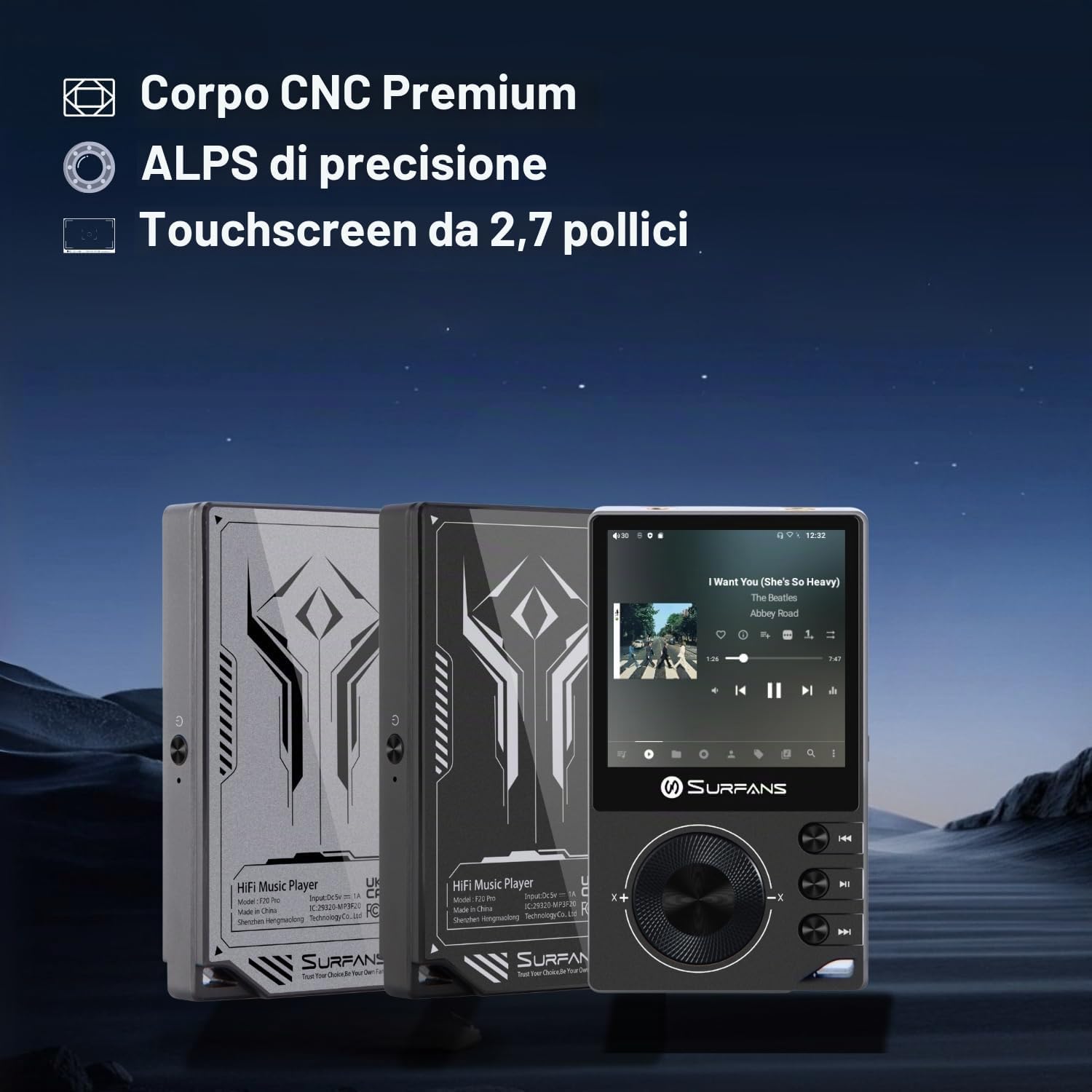
The Surfans F20 Pro features a premium CNC body for durability and aesthetics.
1.2 Ładowanie urządzenia
Before first use, fully charge the device. Connect the included USB cable to the player's charging port and to a USB power adapter (not included) or a computer's USB port. The charging indicator will show the charging status. A full charge typically takes approximately 3 hours.
The Surfans F20 Pro features a 1450mAh rechargeable battery, providing up to 15 hours of music playback on a full charge.
1.3 Włączanie/wyłączanie
- Włączanie: Naciśnij i przytrzymaj przycisk zasilania znajdujący się z boku urządzenia, aż ekran się zaświeci.
- Aby wyłączyć: Press and hold the Power button until a power-off menu appears on the screen. Select "Power Off" to shut down the device. A short press will turn the screen on/off.
1.4 Konfiguracja początkowa
Upon first power-on, you may be guided through an initial setup process. This typically includes:
- Wybór języka: Wybierz preferowany język.
- Konfiguracja Wi-Fi: Connect to a Wi-Fi network to enable streaming services and software updates. Navigate to Settings > Network & Internet > Wi-Fi.
- Konto Google: Zaloguj się za pomocą konta Google, aby uzyskać dostęp do sklepu Google Play i innych usług Google.
1.5 Rozszerzanie pamięci masowej
The Surfans F20 Pro comes with 32GB of internal memory. You can expand the storage up to 1TB using a Micro SD card. Insert the Micro SD card into the designated slot on the device.
2. Instrukcja obsługi
2.1 Urządzenie ponadview i Nawigacja
The F20 Pro features a 2.73-inch touchscreen for primary interaction and physical buttons for quick control.

The Surfans F20 Pro features a touchscreen interface for easy navigation and access to various applications.
- Ekran dotykowy: Tap, swipe, and pinch to navigate menus, select options, and control playback.
- Przyciski fizyczne: Use the side buttons for power, volume control, and playback (play/pause, skip tracks). The scroll wheel provides tactile navigation.
2.2 Odtwarzanie muzyki
The F20 Pro supports various audio formats including MP3, AAC, FLAC, WAV, and DSD. You can play music stored on the device's internal memory or Micro SD card, or stream from online services.
- Odtwarzanie lokalne: Use the pre-installed music player app to browse and play your local audio files.
- Transmisja strumieniowa: Install and use streaming applications like Spotify, Apple Music, Tidal, or YouTube from the Google Play Store.
2.3 Podłączanie urządzeń audio
The player offers both wired and wireless audio output options.

The F20 Pro features both 3.5mm single-ended and 4.4mm balanced audio output ports for versatile headphone connectivity.
- Słuchawki przewodowe:
- 3.5 mm, jednostronne: Connect standard headphones to the 3.5mm port.
- 4.4 mm zbalansowane: For enhanced audio quality and power, connect compatible balanced headphones to the 4.4mm port. This port provides 500mW of power.
- Słuchawki/głośniki Bluetooth:
- The F20 Pro supports Bluetooth 5.0 with LDAC for high-fidelity wireless audio.
- To pair: Go to Settings > Connected devices > Pair new device. Ensure your Bluetooth device is in pairing mode.

The F20 Pro supports Bluetooth 5.0 with LDAC for high-quality wireless audio streaming.
This video demonstrates the process of pairing a Bluetooth device with a music player. The steps shown are generally applicable to the Surfans F20 Pro.
2.4 Łączność Wi-Fi
The device supports dual-band Wi-Fi (2.4GHz and 5GHz) for fast downloads and smooth streaming.

The Surfans F20 Pro supports dual-band Wi-Fi for reliable internet connection and streaming.
- To connect: Go to Settings > Network & Internet > Wi-Fi. Select your network and enter the password.
- Once connected, you can use pre-installed or downloaded streaming apps.
2.5 Podłączanie do komputera
You can connect the F20 Pro to a computer via USB to transfer files or use it as a USB DAC.
This video illustrates how to easily connect a music player to a PC for file transfer or other functions. The process is similar for the Surfans F20 Pro.
- Podłącz odtwarzacz do komputera za pomocą kabla USB.
- On the player, swipe down from the top of the screen to access notifications. Tap on the USB connection notification and select "File transfer" or "USB DAC" mode as needed.
3. Konserwacja
3.1 Czyszczenie urządzenia
To keep your F20 Pro in optimal condition:
- Do przecierania ekranu i obudowy należy używać miękkiej, suchej i niepozostawiającej włókien ściereczki.
- Avoid using abrasive cleaners, solvents, or aerosol sprays, which can damage the finish.
- Nie narażaj urządzenia na działanie nadmiernej wilgoci.
3.2 Pielęgnacja baterii
Aby zmaksymalizować czas pracy baterii i wydajność:
- Unikaj ekstremalnych temperatur.
- Nie należy pozostawiać urządzenia całkowicie rozładowanego przez dłuższy czas.
- W przypadku długotrwałego przechowywania naładuj akumulator do około 50% i przechowuj w chłodnym, suchym miejscu.
3.3 Aktualizacje oprogramowania
The F20 Pro runs on Android 12. Periodically check for software updates to ensure the best performance and access to new features. Connect to Wi-Fi and go to Settings > System > System update.
4. Rozwiązywanie Problemów
4.1 Urządzenie się nie włącza
- Upewnij się, że bateria jest naładowana. Podłącz urządzenie do ładowarki na co najmniej 30 minut.
- Spróbuj nacisnąć i przytrzymać przycisk zasilania przez 10–15 sekund, aby wymusić ponowne uruchomienie.
4.2 Brak dźwięku
- Check headphone connections (3.5mm or 4.4mm). Ensure they are fully inserted.
- Verify volume levels on the device and any connected Bluetooth audio devices.
- Jeśli używasz technologii Bluetooth, upewnij się, że urządzenie jest prawidłowo sparowane i połączone.
- Test with different headphones or speakers to rule out a faulty audio accessory.
4.3 Wi-Fi or Bluetooth Connection Issues
- Ensure Wi-Fi or Bluetooth is enabled in the settings.
- Restart the F20 Pro and your router/Bluetooth device.
- Zapomnij sieć/urządzenie w ustawieniach i spróbuj ponownie się połączyć.
- Upewnij się, że znajdujesz się w zasięgu sieci Wi-Fi lub urządzenia Bluetooth.
4.4 Niska wydajność lub awarie aplikacji
While the F20 Pro has an Octa-Core processor and 3GB RAM, some apps or heavy multitasking might affect performance.
- Zamknij nieużywane aplikacje działające w tle.
- Clear app caches (Settings > Apps > [App Name] > Storage & cache > Clear cache).
- Upewnij się, że oprogramowanie urządzenia jest aktualne.
- If issues persist, consider a factory reset (Settings > System > Reset options > Erase all data), but back up your data first.
5. Specyfikacje
Below are the key technical specifications for the Surfans F20 Pro Music Player:
| Funkcja | Szczegół |
|---|---|
| Nazwa modelu | F20 Pro |
| Marka | Surfans |
| System operacyjny | Android 12 |
| Edytor | Ośmiordzeniowy |
| BARAN | 3 GB |
| Pamięć wewnętrzna | 32 GB |
| Możliwość rozbudowy pamięci masowej | Up to 1TB via Micro SD |
| DAC | Dual ESS9018 |
| Obsługa dźwięku w wysokiej rozdzielczości | DSD512 |
| Łączność | AUX, Bluetooth 5.0 (LDAC), USB, Dual-Band Wi-Fi (2.4GHz & 5GHz) |
| Rozmiar ekranu | 2.73 cali |
| Technologia ekranowa | Ekran dotykowy |
| Obsługiwane formaty audio | MP3, AAC, FLAC, WAV, DSD |
| Zrównoważone wyjście | 4.4mm (500mW) |
| Pojemność baterii | 1450mAh |
| Żywotność baterii | Do 15 godzin odtwarzania muzyki |

The Surfans F20 Pro features dual ESS9018 DACs for superior audio decoding.

Internal audio architecture showing dual DACs and multi-stage amplifier design for both single-ended and balanced outputs.
6. Gwarancja i pomoc techniczna
For warranty information and technical support, please refer to the documentation provided with your purchase or contact the seller directly. The seller for this product is SurfansAudio.
Zachowaj dowód zakupu na wypadek ewentualnych roszczeń gwarancyjnych.