
1. Wprowadzenie
This manual provides detailed instructions for the installation, setup, and operation of your JOYING JY-TT163N4 Android 13 Car Stereo. This unit is designed specifically for Toyota Corolla models manufactured between 2008 and 2013, offering advanced features such as Android 13 operating system, 9-inch touch screen, CarPlay, Android Auto, GPS navigation, and Bluetooth connectivity.
Przed instalacją i użyciem należy dokładnie przeczytać niniejszą instrukcję, aby zagwarantować prawidłowe działanie i bezpieczeństwo.
2. Zawartość opakowania
Sprawdź, czy w przesyłce znajdują się wszystkie elementy wymienione poniżej:
- Jednostka radiowa 9" (x1)
- Single Din Cage (x1)
- Left & Right Bracket (x1)
- Antena WiFi (x1)
- Antena GPS (x1)
- Antena 4G (x2)
- Mikrofon zewnętrzny (x1)
- Kabel USB (x2)
- Kabel AR (x1)
- Taśma ekranująca (x1)
- Kabel zasilający (x1)
- Instrukcja obsługi (x1)

Figure 2.1: All included accessories for the JOYING JY-TT163N4 car stereo.
3. Instrukcja instalacji
Zaleca się zlecenie instalacji profesjonalnemu fachowcowi. Przed rozpoczęciem instalacji należy upewnić się, że zasilanie pojazdu jest odłączone.
3.1. Sprawdzenie zgodności
This unit is designed for Toyota Corolla 2008-2013. Please verify your car's dashboard configuration to ensure compatibility, especially regarding JBL amplifier systems and screen sizes.

Figure 3.1: Dashboard compatibility for models without factory JBL amplifier (Option A).
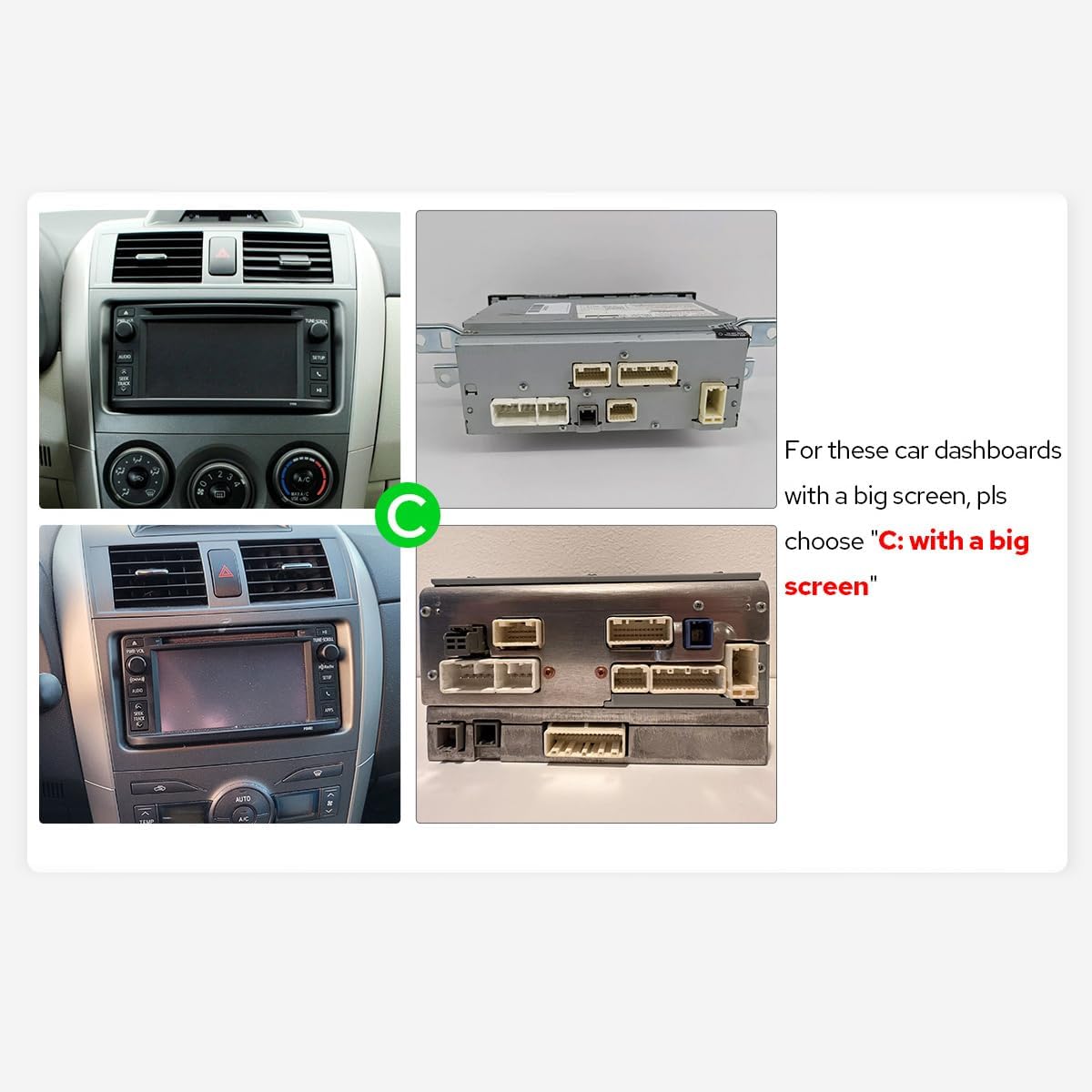
Figure 3.2: Dashboard compatibility for models with a big screen (Option C).
3.2. Połączenia okablowania
Connect the provided cables to the corresponding ports on the car stereo and your vehicle's harness. Ensure all connections are secure.

Rysunek 3.3: Tył view of the car stereo with labeled connection ports.
Video 3.1: This video demonstrates the general wiring operation for car stereo installation. It shows how to connect the power cable, RCA harness, USB adapter cables, radio antenna, and GPS antenna to the head unit.
Video 3.2: This video illustrates the installation effect of a car stereo in a Toyota Corolla 2009-2013 model, providing a visual reference for the final appearance.
4. Konfiguracja początkowa
4.1. Pierwsze uruchomienie
Upon inserting the car key, the unit will start up and enter the user interface within 2 seconds (initial boot may take 30-40 seconds).
4.2. AC Settings
To adjust AC settings, including temperature units (Fahrenheit) and display options:
- Navigate to the main home screen.
- Tap on 'My Car'.
- Select 'Setting'.
- Choose 'AC setting'.
- Toggle the 'Fahrenheit' option to your preference.
- Ensure 'Display large Air' is enabled for full AC display.
- Click 'Confirm' to save changes.
Video 4.1: This video demonstrates how to access and adjust the AC settings on your car stereo, including switching between Celsius and Fahrenheit and enabling the large air display option.
5. Instrukcja obsługi
5.1. CarPlay i Android Auto
Connect your mobile phone via USB cable or Bluetooth to share apps, navigation, make calls, and listen to music on the larger screen.

Figure 5.1: Built-in CarPlay and Android Auto interfaces.
Video 5.1: This video demonstrates the main functions of the car stereo, including how to connect and use CarPlay, Android Auto, and Mirror Link features.
Video 5.2: This video provides instructions on how to set up and use Wireless CarPlay and Android Auto with the car stereo.
Video 5.3: This video guides users through the process of connecting their smartphone to the car stereo for CarPlay and Android Auto functionality.
Video 5.4: This video demonstrates the steps to connect your device to the car stereo for CarPlay functionality.
5.2. Łącze lustrzane
Mirror your smartphone screen directly onto the car stereo display for enhanced viewing of apps and content.
Film 5.5: Ten krótki wstępview video demonstrates the wireless mirroring feature, showing a smartphone screen duplicated on the car stereo display.
5.3. Nawigacja GPS
The unit features precise GPS engines and includes GPS antennas for accurate positioning and faster real-time navigation. Offline maps are supported in areas where data download is available.
5.4.Bluetooth 5.0
Supports audio streaming, automatic phone book transfer, and hands-free calling. Note: It primarily supports phone and OBD dongle connections.
5.5. Odtwarzanie multimediów
Enjoy music and videos from various sources. The unit supports split-screen multitasking, allowing you to run two applications simultaneously.
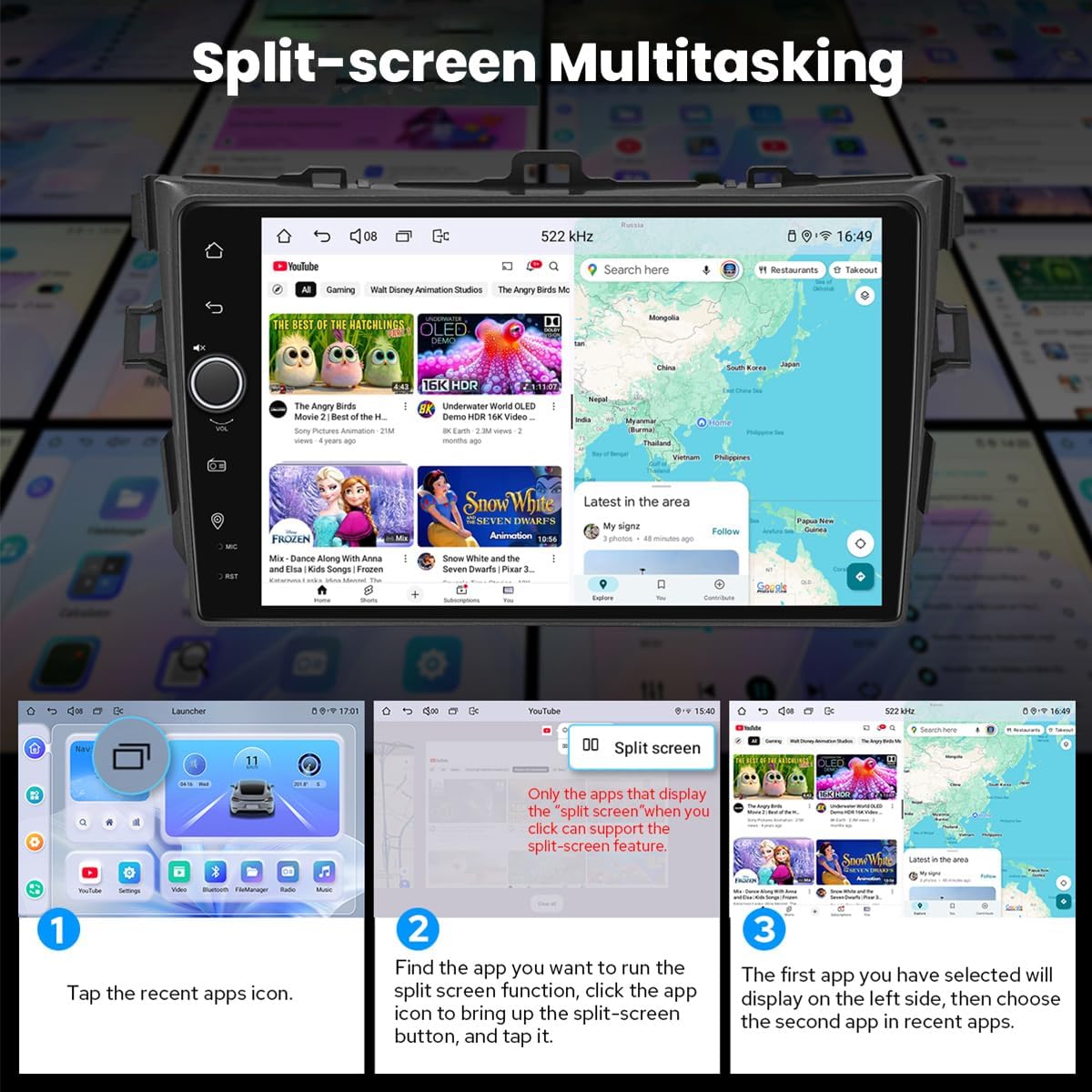
Figure 5.2: Split-screen multitasking interface.
5.6. Personalized Settings
Customize your stereo with various options including car boot logos, wallpapers, and changeable button colors.

Figure 5.3: Personalized settings options.
5.7. Sound Enjoyment
Equipped with a TDA7851 DSP chip, a 48-Band Graphic Equalizer, and 4x50W Max Output Power. Supports aftermarket amplifiers with 4 Audio Outputs, 1 SUB Output, Fiber Optical Output, SPDIF Coaxial Output, and Center Channel Output.

Figure 5.4: High-quality sound features.
5.8. Built-in 4G Module
Insert a SIM card for internet access. Supports FDD-LTE: B2/B4/B5/B7/B12/B13/B14/B17/B25/B26/B38/B66/B71 and TDD-LTE: B41. Does not support phone calls or SMS.
5.9. Wyjście HDMI
Provides full digital image and sound output for external displays like headrest monitors, offering 1080P clear picture without stuttering. HDMI cable is not included.
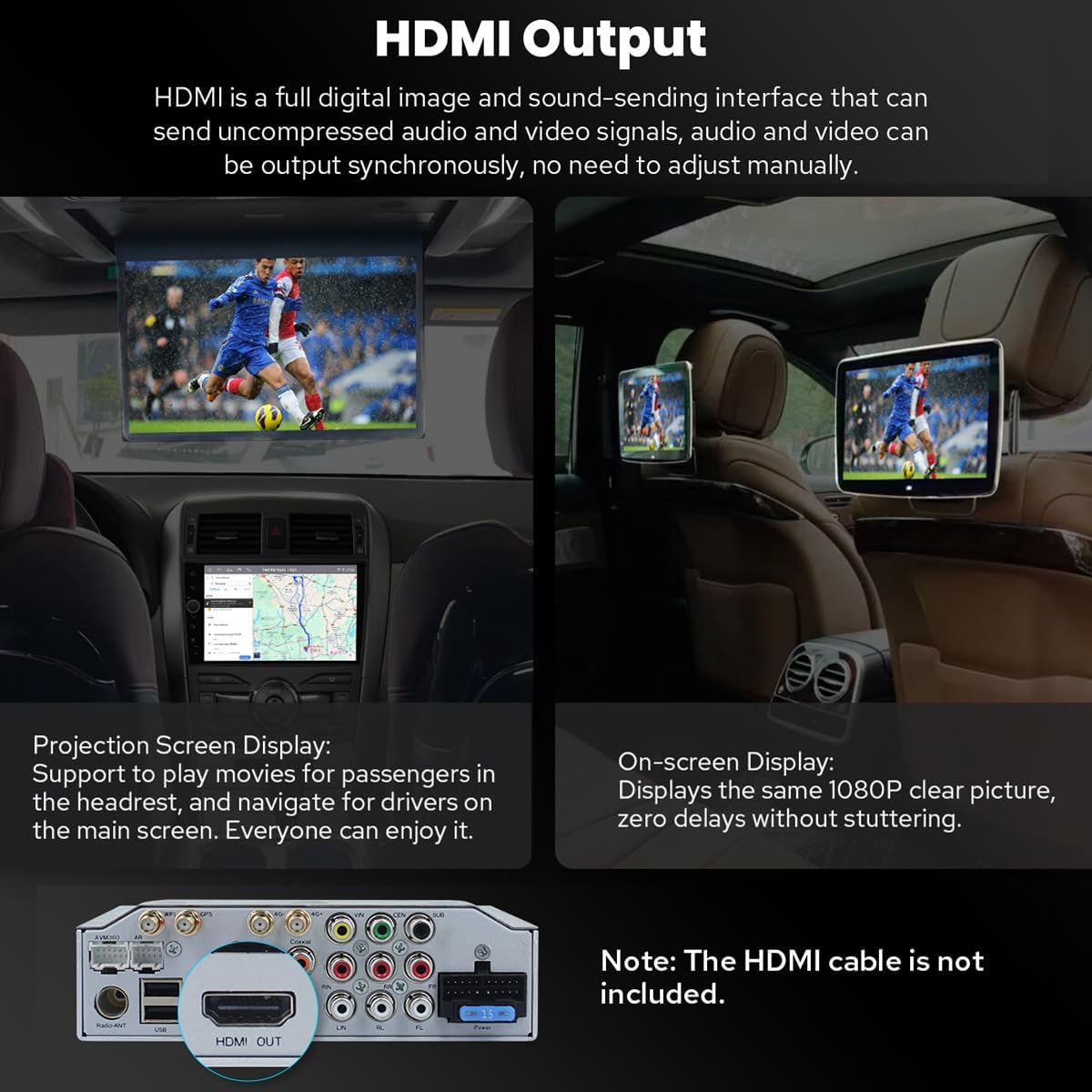
Figure 5.5: HDMI Output functionality.
5.10. Inne funkcje
Includes Picture-in-Picture, 3 USB Ports, Micro SD Card Slot, and 4G SIM Card Slot.

Rysunek 5.6: Koniecview of additional features.
6. Konserwacja
6.1. Czyszczenie ekranu
Delikatnie przetrzyj ekran miękką, niepozostawiającą włókien ściereczką. W przypadku uporczywych plam delikatnie przetrzyj.ampPrzetrzyj ściereczkę wodą lub środkiem do czyszczenia ekranów. Unikaj silnych środków chemicznych i materiałów ściernych.
6.2. Układ chłodzenia
The unit features a dual heat sink design for superior heat dissipation and improved temperature control. A warning value can be set for volume or CPU temperature; if exceeded, the fan will automatically activate to prevent overheating.

Figure 6.1: Cooling system features.
6.3. WiFi Signal
An independent WiFi antenna ensures stable signal quality and provides fast and smooth internet access, supporting 802.11a/b/g/n/AC standards across 2.4GHz/5GHz spectral bands.

Figure 6.2: WiFi signal features.
7. Rozwiązywanie Problemów
If you encounter any issues, please refer to the following general troubleshooting steps:
- Brak zasilania: Sprawdź wszystkie połączenia zasilania i bezpieczniki. Upewnij się, że zapłon jest włączony.
- Brak dźwięku: Verify speaker connections, volume levels, and audio output settings.
- Problemy z połączeniem Bluetooth: Upewnij się, że Bluetooth jest włączony zarówno w zestawie stereo, jak i w urządzeniu. Spróbuj rozparować i ponownie sparować urządzenia.
- Utrata sygnału GPS: Upewnij się, że antena GPS jest prawidłowo zainstalowana i ma zapewnioną przejrzystość. view nieba.
- Brak reakcji ekranu dotykowego: Spróbuj ponownie uruchomić urządzenie. Jeśli problem będzie się powtarzał, skontaktuj się z pomocą techniczną.
For more specific issues, consult the detailed troubleshooting section in the full user manual or contact JOYING customer support.
8. Specyfikacje
| Funkcja | Specyfikacja |
|---|---|
| Numer modelu przedmiotu | JY-TT163N4 |
| Rozmiar wyświetlacza | 9 cali |
| Rozmiar ekranu | 9 cali |
| Typ ekranu dotykowego | Pojemnościowy |
| System operacyjny | Android, iOS (via CarPlay/Android Auto) |
| Pojemność pamięci masowej | 64 GB |
| Technologia łączności | Bluetooth, Ethernet, USB, Wi-Fi |
| Funkcja specjalna | Bluetooth, ekran dotykowy |
| Tryb wyjścia audio | Stereofoniczny |
| Typ mapy | Ameryka Północna |
| Producent | RADOŚĆ |
9. Gwarancja i pomoc techniczna
9.1. Informacje o gwarancji
This JOYING car stereo comes with a 2-letnia gwarancja od daty zakupu. Zachowaj dowód zakupu na wypadek roszczeń gwarancyjnych.
9.2. Obsługa klienta
For technical assistance, troubleshooting, or warranty inquiries, please contact JOYING customer support through the retailer where the product was purchased or visit the official JOYING webwitryna do informacji kontaktowych.