
Produkt ponadview
The EWEADN C98 Wired Keyboard and Mouse Combo is designed for comfortable and efficient use with various computer systems. This set includes a wired keyboard with a detachable wrist rest, RGB backlighting, double-shot keycaps, and a multimedia knob, along with a wired mouse featuring adjustable DPI settings.
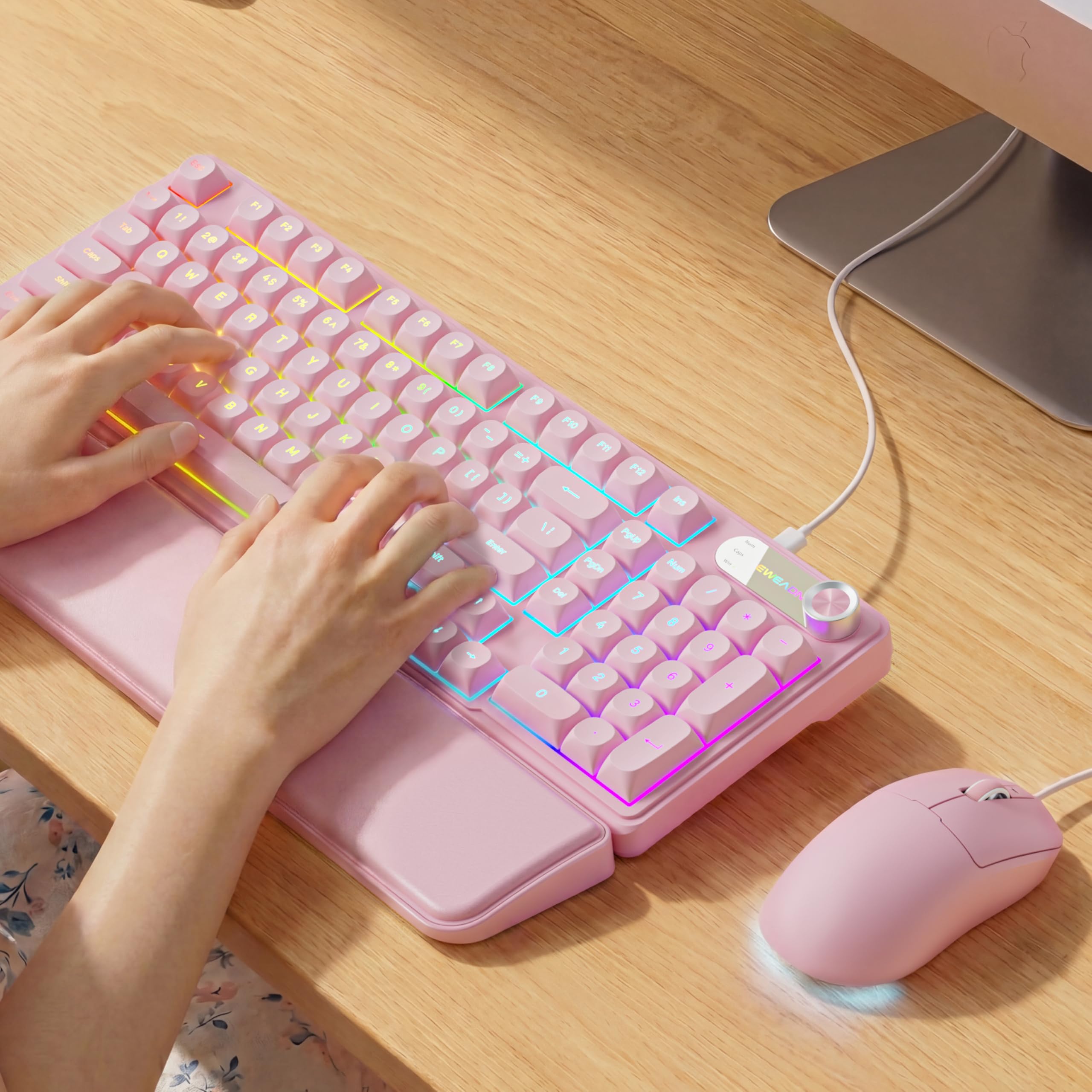
Image: EWEADN C98 Wired Keyboard and Mouse Combo in Pink. This image displays the full keyboard and mouse set, highlighting its ergonomic design and color.
Zawartość opakowania
Sprawdź, czy w opakowaniu znajdują się wszystkie elementy:
- EWEADN C98 Wired Keyboard
- Mysz przewodowa
- Odłączana podpórka pod nadgarstek
- Kabel USB (zintegrowany)
- Instrukcja obsługi (ten dokument)
Instrukcje konfiguracji
Follow these steps to set up your EWEADN C98 Keyboard and Mouse Combo:
- Podłącz klawiaturę: Locate an available USB-A port on your computer (Laptop, PC, Desktop, Gaming Console). Insert the USB-A connector from the keyboard into the port.
- Podłącz mysz: The mouse is typically connected via the same USB cable as the keyboard or has its own integrated USB-A connector. Insert the mouse's USB-A connector into another available USB-A port on your computer.
- Zamontuj podpórkę pod nadgarstek: Align the detachable wrist rest with the front edge of the keyboard and gently attach it.
- Rozpoznawanie systemu: Your operating system (Windows, Linux, macOS) should automatically detect and install the necessary drivers. No additional software installation is typically required for basic functionality.
- Mac Compatibility Note: For macOS devices, a USB-A to Type-C adapter is required if your Mac only has Type-C ports. This adapter is not included with the product.

Image: Close-up of the keyboard's USB connection and the detachable wrist rest. This illustrates how the keyboard connects and the wrist rest attaches for ergonomic support.

Image: Diagram showing dual-system compatibility. The image indicates how to switch between Windows (FN + A) and Mac (FN + S) layouts for optimal functionality.
Instrukcja obsługi
Funkcje klawiatury
- Podświetlenie RGB: The keyboard features 12 active RGB lighting modes.
- Zmień kolor światła: Naciskać FN + IN to cycle through different lighting colors.
- Dostosuj jasność: Naciskać FN + PGUP zwiększyć jasność i FN + PGDN aby zmniejszyć jasność.
- Gałka multimedialna: The 2-in-1 rotary knob provides quick control over media and lighting.
- Regulacja głośności: Obróć pokrętło, aby dostosować głośność systemu.
- Funkcja wyciszenia: Press the knob once to mute/unmute audio.
- Tryb przełączania: Press and hold the knob for 3 seconds to switch between volume control mode and lighting adjustment mode. In lighting mode, rotate to adjust brightness or press to switch light effects.
- Ergonomiczna konstrukcja: The keyboard includes a detachable PU leather wrist rest for comfortable typing posture and foldable stands to adjust the typing angle (up to 8 degrees).
- Ciche pisanie: The membrane keys are designed for low-noise operation, suitable for quiet environments.
- Klawisze dwustronne: Characters are injection molded for durability and fade resistance, allowing backlighting to shine through clearly.

Image: Illustration of RGB backlight controls. This image shows the FN + INS and FN + PGUP/PGDN key combinations for adjusting keyboard lighting.

Image: Diagram detailing the 2-in-1 multimedia knob functions. It shows how to adjust volume, mute, and switch between lighting and volume modes.
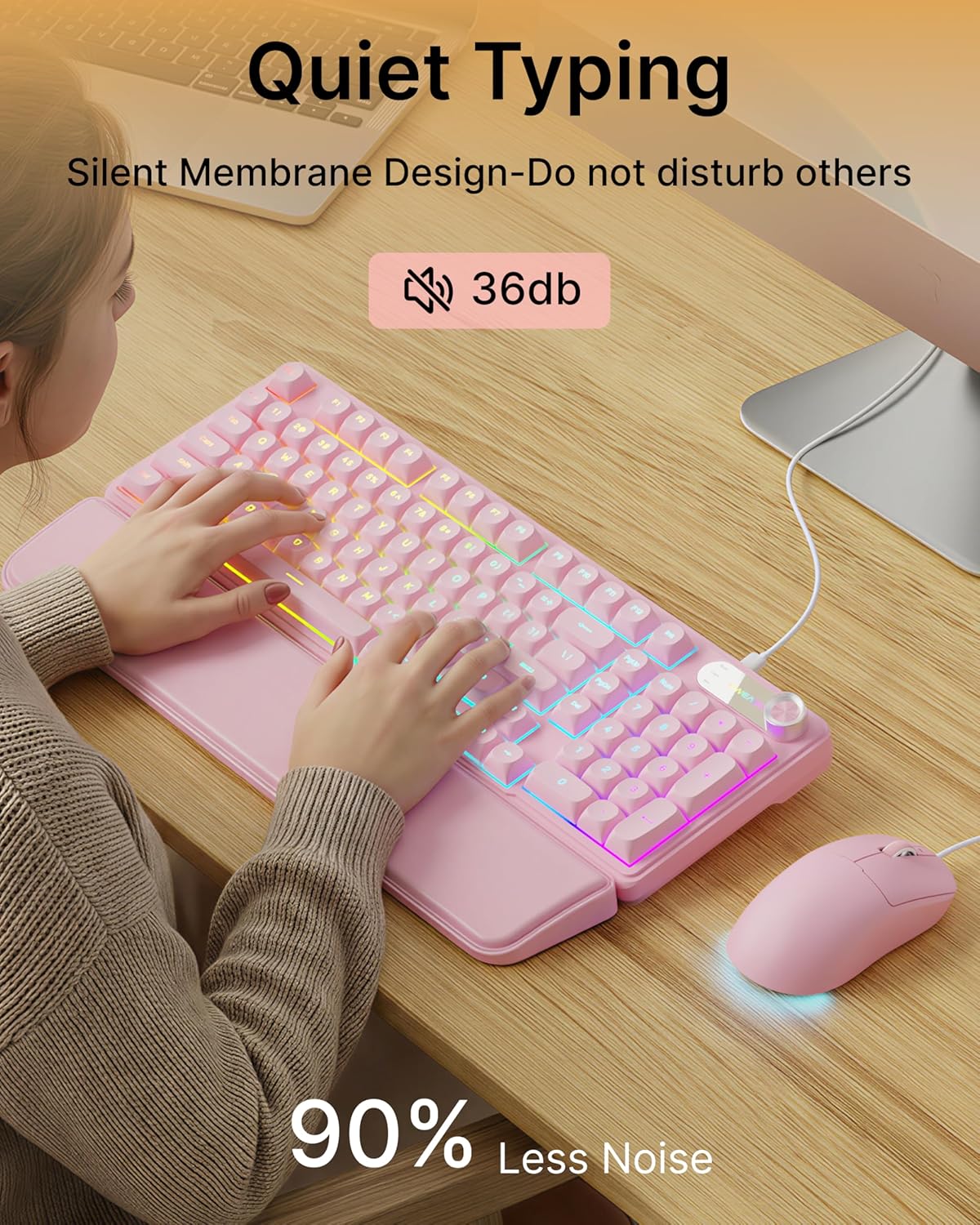
Image: Visual representation of the quiet typing feature. This image highlights the low noise level (36dB) of the keyboard during use.
Funkcje myszy
- Regulowane DPI: The mouse offers 4 adjustable DPI levels for precision control.
- DPI levels typically range from 800 to 4800.
- Press the DPI button (usually located behind the scroll wheel) to cycle through the available sensitivity settings.
- Ciche kliknięcie: The mouse buttons are designed for quiet operation.
- Ergonomiczna konstrukcja: Designed for a comfortable palm grip.

Image: Diagram illustrating the 4-level DPI adjustment for the mouse. It shows the different DPI settings (800, 1600, 3200, 4800) and the ergonomic palm grip design.
Konserwacja
To ensure the longevity and optimal performance of your EWEADN C98 Keyboard and Mouse Combo, follow these simple maintenance guidelines:
- Czyszczenie: Do przecierania powierzchni klawiatury i myszy użyj miękkiej, suchej ściereczki. W przypadku uporczywych zabrudzeń delikatnie przetrzyjampPrzetrzyj szmatkę wodą lub delikatnym, nieściernym środkiem czyszczącym. Unikaj nadmiernej wilgoci.
- Usuwanie kurzu: Usuń kurz i zanieczyszczenia spomiędzy klawiszy za pomocą sprężonego powietrza.
- Unikaj płynów: While the product has some water resistance, avoid spilling liquids directly onto the keyboard or mouse. If a spill occurs, disconnect immediately and allow to dry completely before reconnecting.
- Składowanie: Store the combo in a clean, dry environment away from extreme temperatures.
Rozwiązywanie problemów
If you encounter issues with your EWEADN C98 Keyboard and Mouse Combo, refer to the following common solutions:
- Klawiatura lub mysz nie odpowiadają:
- Ensure the USB-A connector(s) are securely plugged into your computer's USB port(s).
- Try plugging the USB connector(s) into a different USB port on your computer.
- Uruchom ponownie komputer.
- Jeśli używasz koncentratora USB, spróbuj podłączyć go bezpośrednio do komputera.
- Podświetlenie nie działa:
- Sprawdź, czy klawiatura jest prawidłowo podłączona.
- Naciskać FN + PGUP multiple times to increase brightness, as it might be set to the lowest level.
- Naciskać FN + IN to cycle through lighting modes, ensuring a mode with backlighting is selected.
- Multimedia Knob Not Functioning:
- Sprawdź, czy klawiatura jest prawidłowo podłączona.
- Press and hold the knob for 3 seconds to switch between volume and lighting modes. Verify you are in the desired mode.
- Mouse Cursor Movement is Erratic or Slow:
- Clean the mouse sensor on the underside with a soft cloth.
- Upewnij się, że używasz myszy na odpowiedniej powierzchni (np. podkładce pod mysz).
- Press the DPI button to adjust the sensitivity.
- Zgodność z systemem Mac: If using with a Mac and experiencing connection issues, confirm you are using a USB-A to Type-C adapter if your Mac lacks standard USB-A ports.
Specyfikacje
| Marka | EWEADN |
| Numer modelu | C98 |
| Technologia łączności | USB-A (przewodowy) |
| Kompatybilne urządzenia | Laptop, PC, Desktop, Windows, Linux, Gaming Consoles |
| Opis klawiatury | Membrane, 98-key layout |
| Cechy specjalne | RGB Backlit, Ergonomic, Detachable Wrist Rest, Multimedia Knob, Double-Shot Keycaps, Quiet Typing |
| Obsługa kolorów podświetlenia klawiatury | RGB (12 trybów) |
| Poziomy DPI myszy | 4 adjustable levels (up to 4800 DPI) |
| Tworzywo | Plastic (Keyboard), PU Leather (Wrist Rest) |
| Poziom wodoodporności | Waterproof (general resistance, not submersible) |
| Kolor | Różowy |

Image: Detailed dimensions of the EWEADN C98 keyboard, mouse, and wrist rest. This image provides measurements in inches for each component.
Gwarancja i wsparcie
Specific warranty details are not provided in the product information. For warranty claims or technical support, please refer to the retailer's return policy or contact EWEADN customer service directly through their official channels. Typically, products purchased through Amazon.sg may be subject to a 30-day return policy.