
1. Wprowadzenie i koniecview
This manual provides detailed instructions for setting up and using your Rapoo Blade-Series E9310M Wireless Keyboard and M300G Silent Mouse Combo. This combo offers multi-device connectivity and a compact design for enhanced productivity across various operating systems.
Główne cechy:
- Compact Wireless Combo: Features a 99-key layout with number pad and arrow keys, paired with a silent mouse with side buttons. This design optimizes typing and browsing efficiency while occupying 20% less space.
- Multi-Device and Multi-OS Support: Connects to up to 4 devices across Windows, Mac OS, and Linux via Bluetooth 5.0/4.0 and a plug-and-play USB receiver.
- Płynne wrażenia podczas pisania: Laptop-like profile with incurve rounded keys ensures a fast, fluid, precise, and quiet typing experience.
- 5-DPI Adjustable Silent Mouse: The M300G mouse offers good portability and ergonomics, with 5 preset DPI levels (800/1000/1200/1600/2400) for smooth tracking.
- Klucze multimedialne: Supports Windows and Mac OS dual system shortcuts for 12 common functions like play/pause and volume control.
- Aesthetic and Durable Design: Constructed with an aluminum alloy frame and a matte antioxidant finish for a delicate texture and enhanced durability.
- Refined Details: Includes device and capitalization indicator lights for improved user awareness and an upgraded Bluetooth 5.0/4.0 for extended battery life.
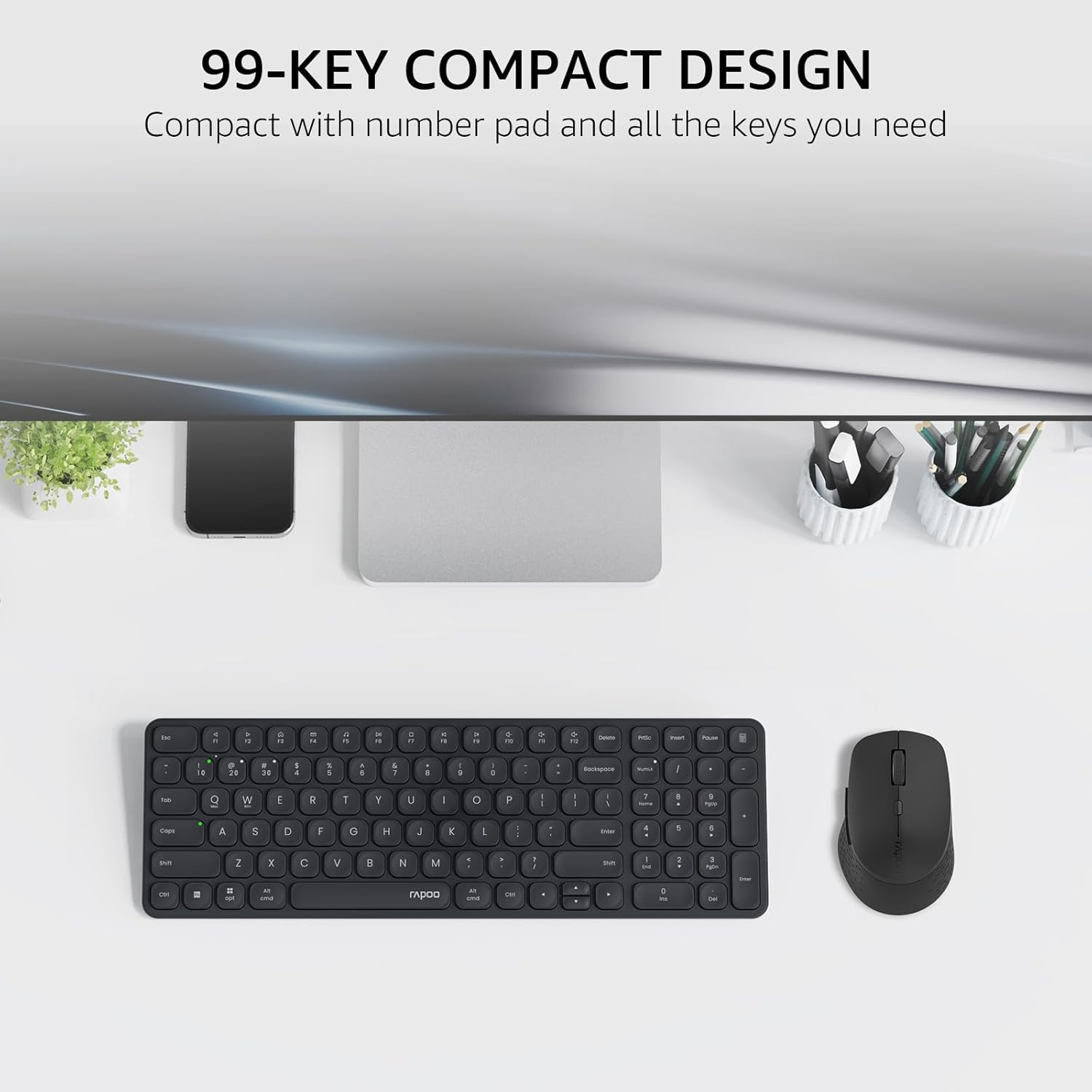
Image: The Rapoo E9310M keyboard and M300G mouse combo, showcasing its compact design on a desk.
2. Instrukcje konfiguracji
2.1 Instalacja baterii
The keyboard and mouse require AAA batteries. Two AAA batteries are included with the product.
- Znajdź komorę baterii na spodzie klawiatury i myszy.
- Otwórz pokrywę komory baterii.
- Włóż baterie AAA, zwracając uwagę na prawidłową biegunowość (+/-).
- Dokładnie zamknij pokrywę komory baterii.
2.2 Łączenie się z urządzeniami
Your Rapoo combo supports connection via 2.4GHz USB receiver or Bluetooth 5.0/4.0, allowing connection to up to 4 devices (3 via Bluetooth, 1 via 2.4GHz).
2.2.1 Połączenie odbiornika USB 2.4 GHz
- Znajdź odbiornik USB, który zazwyczaj znajduje się w komorze baterii myszy.
- Podłącz odbiornik USB do dostępnego portu USB w komputerze.
- Włącz klawiaturę i mysz za pomocą odpowiednich przełączników zasilania.
- The devices should automatically connect to your computer. If not, press the 2.4G pairing button on the keyboard/mouse (refer to device for exact button location).
2.2.2 Bluetooth Connection (for up to 3 devices)
- Włącz klawiaturę i mysz.
- On the keyboard, press and hold one of the Bluetooth pairing keys (e.g., Fn + 1, Fn + 2, or Fn + 3) until the indicator light flashes, indicating pairing mode.
- Na swoim urządzeniu (komputerze, tablecie, telefonie) przejdź do ustawień Bluetooth i wyszukaj nowe urządzenia.
- Select the Rapoo keyboard from the list and follow any on-screen prompts to complete pairing.
- Repeat steps 2-4 for the mouse, pressing its Bluetooth pairing button (usually on the underside) until its indicator flashes.
- To switch between paired Bluetooth devices, simply press the corresponding Bluetooth key (Fn + 1/2/3) on the keyboard or the Bluetooth switch on the mouse.
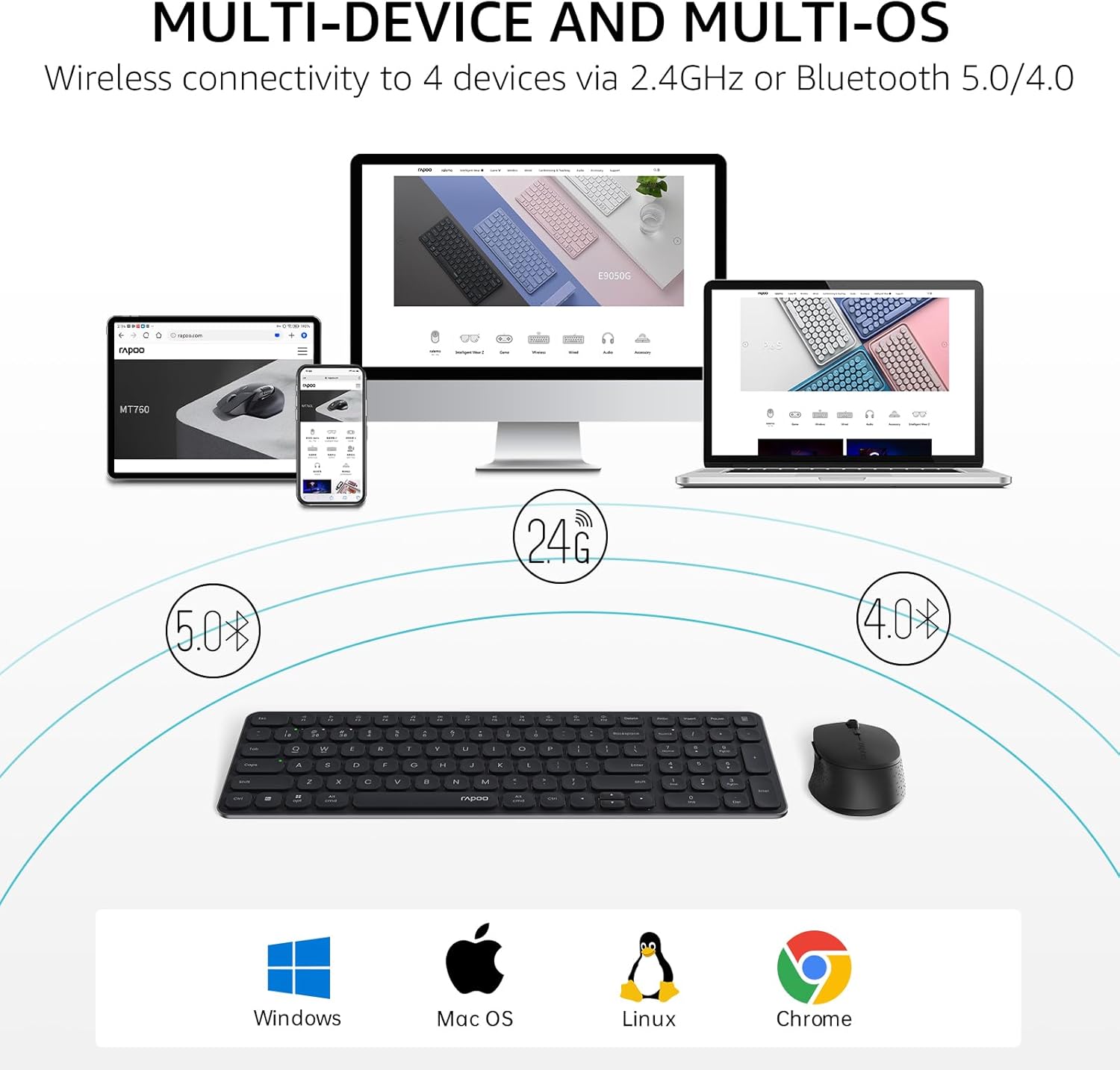
Image: The Rapoo keyboard and mouse combo connected to a desktop, laptop, tablet, and smartphone, illustrating its multi-device capability.
3. Instrukcja obsługi
3.1 Funkcje klawiatury
The E9310M keyboard features a 99-key layout, including a number pad and dedicated arrow keys, designed for efficient input.
3.1.1 klawiszy multimedialnych
Access 12 widely used function keys by pressing the Fn key in combination with the corresponding F-keys (F1-F12). These shortcuts are compatible with both Windows and Mac OS.
- Fn+F1: Odtwórz/Pauza
- Fn+F2: Zatrzymywać się
- Fn+F3: Poprzedni utwór
- Fn+F4: Następny utwór
- Fn+F5: Niemy
- Fn+F6: Zmniejsz głośność
- Fn+F7: Zwiększ głośność
- Fn+F8: Szukaj
- Fn+F9: Dom
- Fn+F10: Poczta
- Fn+F11: Mój komputer
- Fn+F12: Ulubione
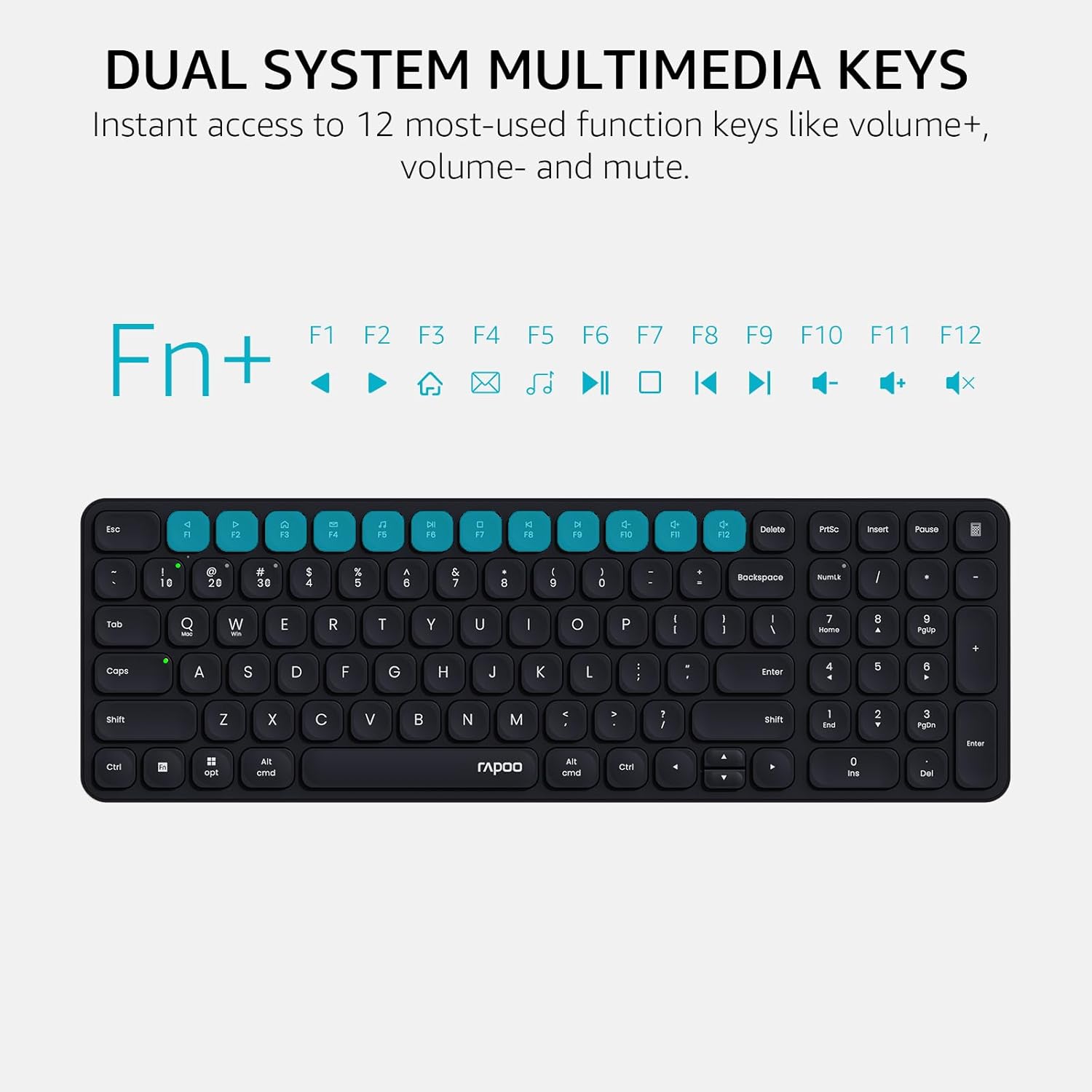
Image: Close-up of the Rapoo E9310M keyboard highlighting the multimedia function keys (F1-F12) and their corresponding icons.
3.1.2 Device and Capitalization Indicator Lights
The keyboard includes indicator lights to show which device is currently active and the status of the Caps Lock key.
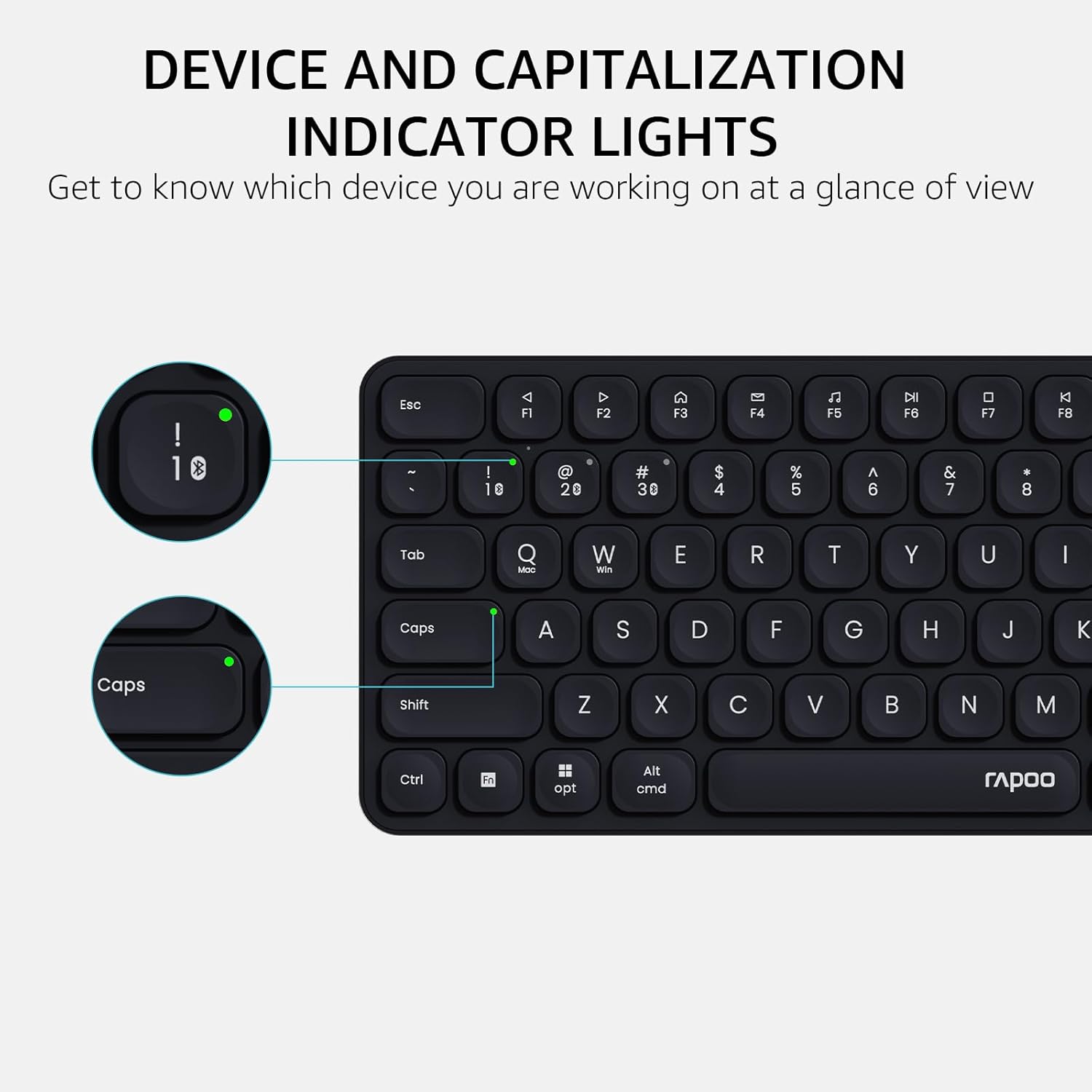
Obraz: szczegółowy view of the Rapoo E9310M keyboard, pointing out the indicator lights for device connection and Caps Lock status.
3.2 Funkcje myszy
The M300G Silent Mouse provides precise control with adjustable DPI settings and a quiet click design.
3.2.1 Regulacja DPI
The mouse features 5 adjustable DPI levels (800/1000/1200/1600/2400) to suit different screen resolutions and user preferences. Press the DPI button (usually located near the scroll wheel) to cycle through the settings.
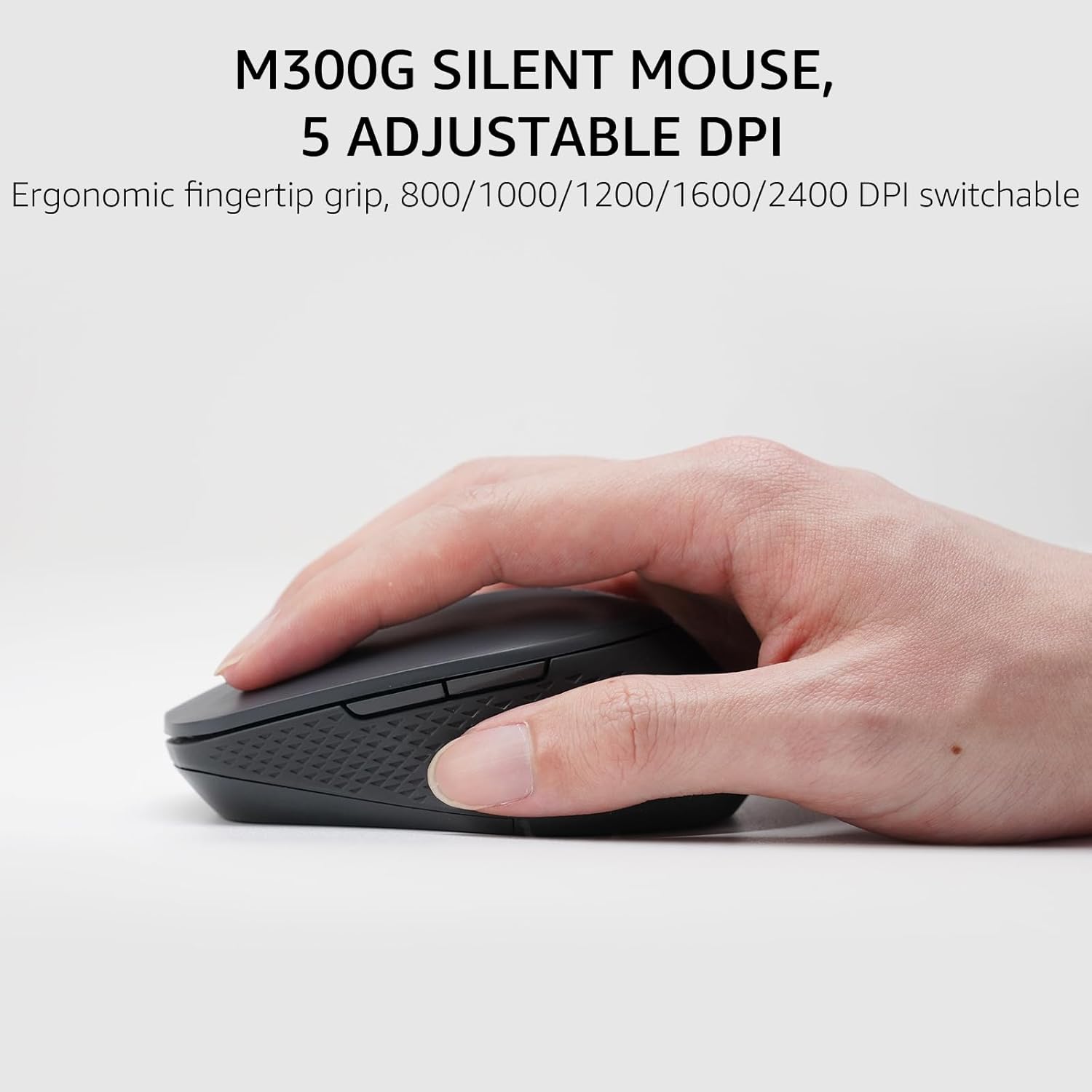
Image: The Rapoo M300G Silent Mouse, highlighting its ergonomic design and the DPI adjustment button.
4. Konserwacja
4.1 Czyszczenie
- Do czyszczenia powierzchni klawiatury i myszy należy używać miękkiej, suchej ściereczki.
- W przypadku uporczywych zabrudzeń, delikatnieampPrzetrzyj ściereczkę wodą lub delikatnym środkiem czyszczącym. Unikaj nadmiernej wilgoci.
- Nie należy używać środków czyszczących o działaniu ściernym, rozpuszczalników ani aerozoli.
4.2 Wymiana baterii
When the battery indicator light flashes or performance degrades, replace the batteries. The upgraded Bluetooth 5.0/4.0 technology extends battery life up to 12 months.
- Wyłącz urządzenie.
- Otwórz komorę baterii.
- Wyjmij stare baterie i zutylizuj je zgodnie z lokalnymi przepisami.
- Włóż nowe baterie AAA, zwracając uwagę na prawidłową biegunowość.
- Zamknij komorę.
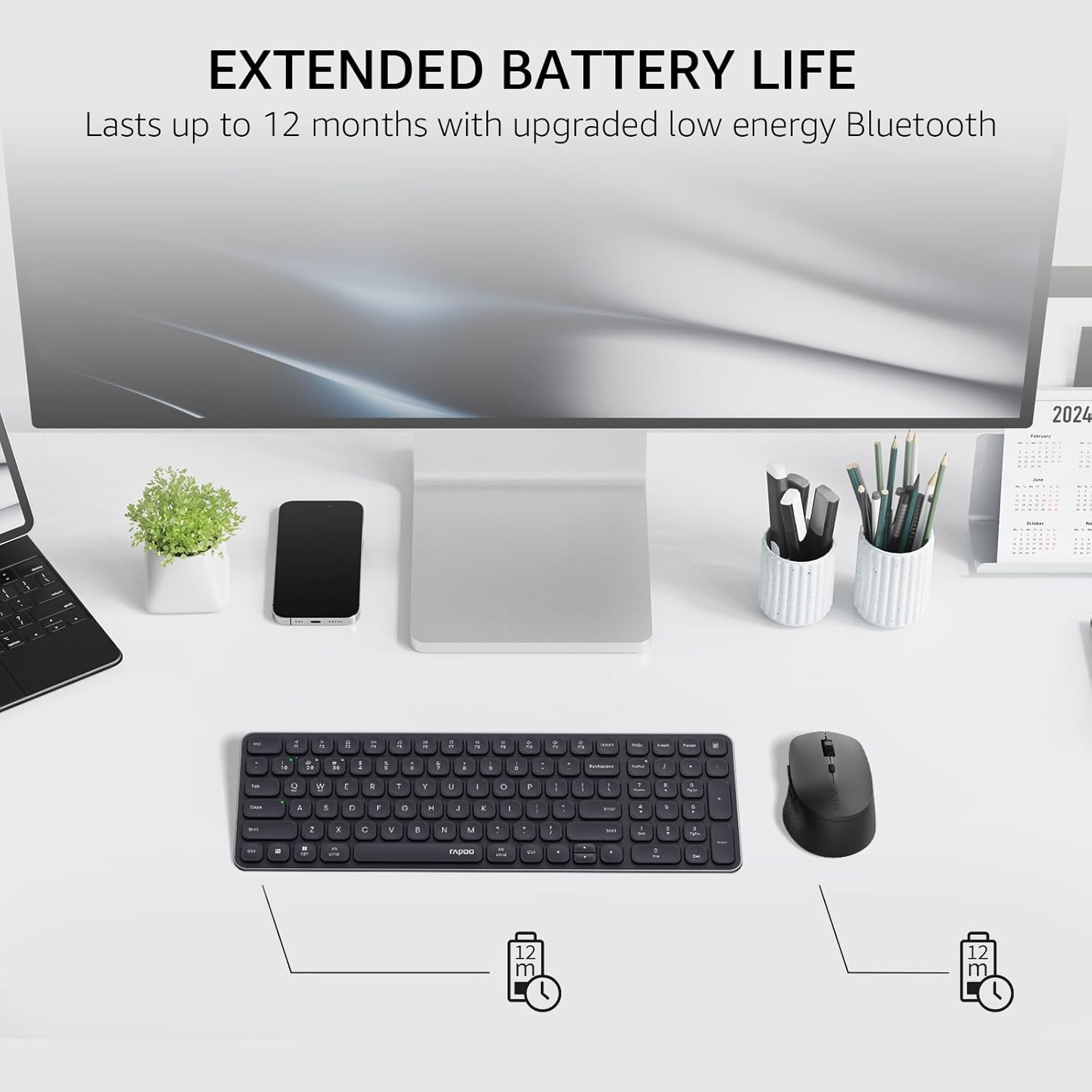
Image: The Rapoo keyboard and mouse on a desk, with an overlay indicating an extended battery life of up to 12 months.
5. Rozwiązywanie Problemów
5.1 Problemy z połączeniem
- Urządzenie nie łączy się: Ensure the keyboard/mouse is turned on and in pairing mode (indicator light flashing). Check your device's Bluetooth settings to ensure Bluetooth is enabled and the correct Rapoo device is selected.
- Niestabilne połączenie 2.4 GHz: Ensure the USB receiver is securely plugged into a working USB port. Try a different USB port. Ensure no other wireless devices are causing interference.
- Bluetooth connection dropping: Ensure the devices are within the effective range (typically 10 meters/33 feet). Check battery levels. Remove and re-pair the device if issues persist.
5.2 Klawiatura/mysz nie reaguje
- Brak danych wejściowych: Check battery levels and replace if necessary. Ensure the correct connection mode (2.4GHz or Bluetooth channel) is selected on the keyboard/mouse.
- Klawisze nie działają: Wyczyść obszar wokół klawiszy, aby usunąć wszelkie zanieczyszczenia.
- Kursor myszy jest niestabilny: Clean the mouse sensor. Ensure the mouse is used on a suitable surface. Adjust DPI settings if sensitivity is an issue.
6. Specyfikacje
| Funkcja | Szczegół |
|---|---|
| Marka | Rapoo |
| Model (klawiatura) | E9310m |
| Model (Mysz) | M300G |
| Kolor | Czarny |
| Technologia łączności | Bluetooth (5.0/4.0), Radio Frequency (2.4GHz) |
| Kompatybilne urządzenia | Laptop, Personal Computer (Windows, macOS, Linux, Chrome OS) |
| Układ klawiatury | QWERTY, 99-Key with Number Pad |
| DPI myszy | 800/1000/1200/1600/2400 (Adjustable) |
| Źródło zasilania | Zasilanie bateryjne (w zestawie 2 baterie AAA) |
| Waga przedmiotu | 393.2 gram |
| Producent | Shenzhen Rapoo Technology Co., Ltd. |
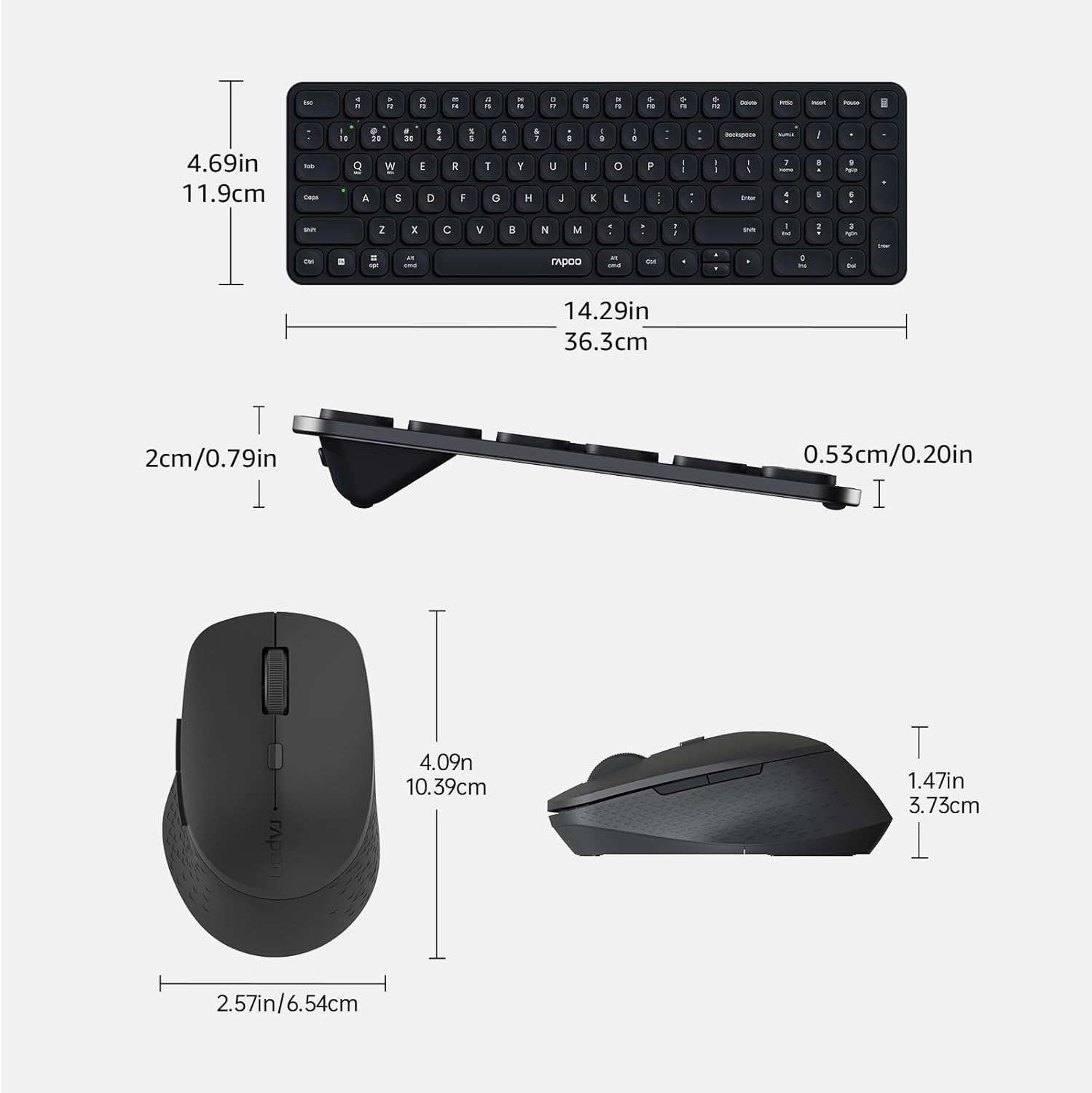
Image: Technical drawing showing the dimensions of the Rapoo E9310M keyboard and M300G mouse in inches and centimeters.
7. Gwarancja i wsparcie
7.1 Informacje o gwarancji
Ten produkt jest dostarczany z 1-letnia gwarancja od daty zakupu. Prosimy zachować dowód zakupu na wypadek roszczeń gwarancyjnych. Gwarancja obejmuje wady produkcyjne i usterki powstałe w normalnych warunkach użytkowania.
7.2 Obsługa klienta
For technical assistance, troubleshooting, or warranty inquiries, please contact Rapoo customer support. Refer to the official Rapoo webAktualne dane kontaktowe znajdziesz na stronie internetowej lub opakowaniu produktu.