
1. Wprowadzenie
Thank you for choosing the Dragonhawk A4 Wireless Thermal Tattoo Stencil Printer. This device is designed for efficient and high-quality tattoo stencil transfers, offering portability and broad compatibility. This manual provides essential instructions for setup, operation, maintenance, and troubleshooting to ensure optimal performance and longevity of your printer.
2. Informacje dotyczące bezpieczeństwa
For external use only. Do not attempt to disassemble or modify the device. Keep the printer away from water and extreme temperatures. Use only the recommended power adapter and accessories. Ensure proper ventilation during operation. Keep out of reach of children.
3. Zawartość opakowania
Upon opening your Dragonhawk A4 printer package, please verify that all the following items are included:
- Dragonhawk A4 Wireless Thermal Tattoo Stencil Printer
- Kabel ładujący USB-C
- Instrukcja obsługi
- Sample Stencil Paper (may vary)
Jeśli brakuje jakichkolwiek elementów lub są one uszkodzone, prosimy o natychmiastowy kontakt z działem obsługi klienta.
4. Koniec produktuview
The Dragonhawk A4 printer is a compact and lightweight device designed for professional and portable use. It features a thermal printing mechanism, eliminating the need for ink, and supports wireless connectivity for ease of use.
4.1 Główne cechy
- Kompaktowy i przenośny: Small and lightweight design for easy transport and use on the go.
- High-Quality Transfer: Delivers clear, sharp, and long-lasting stencil transfer results with precise detail handling.
- Szeroka kompatybilność: Seamlessly connects with smartphones, tablets, and PCs, supporting iOS, Android, and Windows systems.
- Easy APP Operation: Dedicated mobile application for simple control, supporting multiple languages.
- Długotrwała bateria: Equipped with a 1500mAh battery for extended use without frequent recharging.
4.2 Komponenty urządzenia
Familiarize yourself with the main components of your printer:

Image: The Dragonhawk A4 Wireless Thermal Tattoo Stencil Printer, showcasindzięki smukłej, kompaktowej konstrukcji.

Image: The printer in operation, demonstrating a professional thermal transfer of a tattoo design onto stencil paper, highlighting its Bluetooth, Android, and iOS compatibility.

Image: A collage illustrating the printer's lightweight and ultra-portable nature, showing it next to a laptop, fitting into a backpack, and being used outdoors.

Obraz: Zbliżenie view of a tattoo stencil being printed, emphasizing the vibrant, precise, and consistent results of the professional-grade transfer quality.
5. Konfiguracja
5.1 Ładowanie drukarki
Before initial use, fully charge the printer using the provided USB-C cable. Connect the USB-C end to the printer's charging port and the other end to a compatible USB power source (e.g., wall adapter, computer USB port). The LED indicator will show charging status.

Image: The Dragonhawk A4 printer highlighting its 1500mAh battery, designed to provide long-lasting power for extended use.
5.2 Włączanie/wyłączanie
To power on the printer, long-press the power button located on the side of the device until the indicator light illuminates. To power off, long-press the same button until the indicator light turns off.
5.3 Instalacja i połączenie aplikacji
The Dragonhawk A4 printer operates via a dedicated mobile application. Download the 'Tattoo Print' app from your device's app store (available for iOS and Android). For PC users, drivers may be required, typically available on the manufacturer's webstrona.
5.3.1 Bluetooth Connection (Mobile/Tablet)
- Sprawdź, czy Bluetooth jest włączony na Twoim urządzeniu mobilnym lub tablecie.
- Long-press the power button on the printer to turn it on.
- Open the 'Tattoo Print' app. The app will search for available printers.
- Select your printer (e.g., 'T6') from the list within the app to establish a connection.
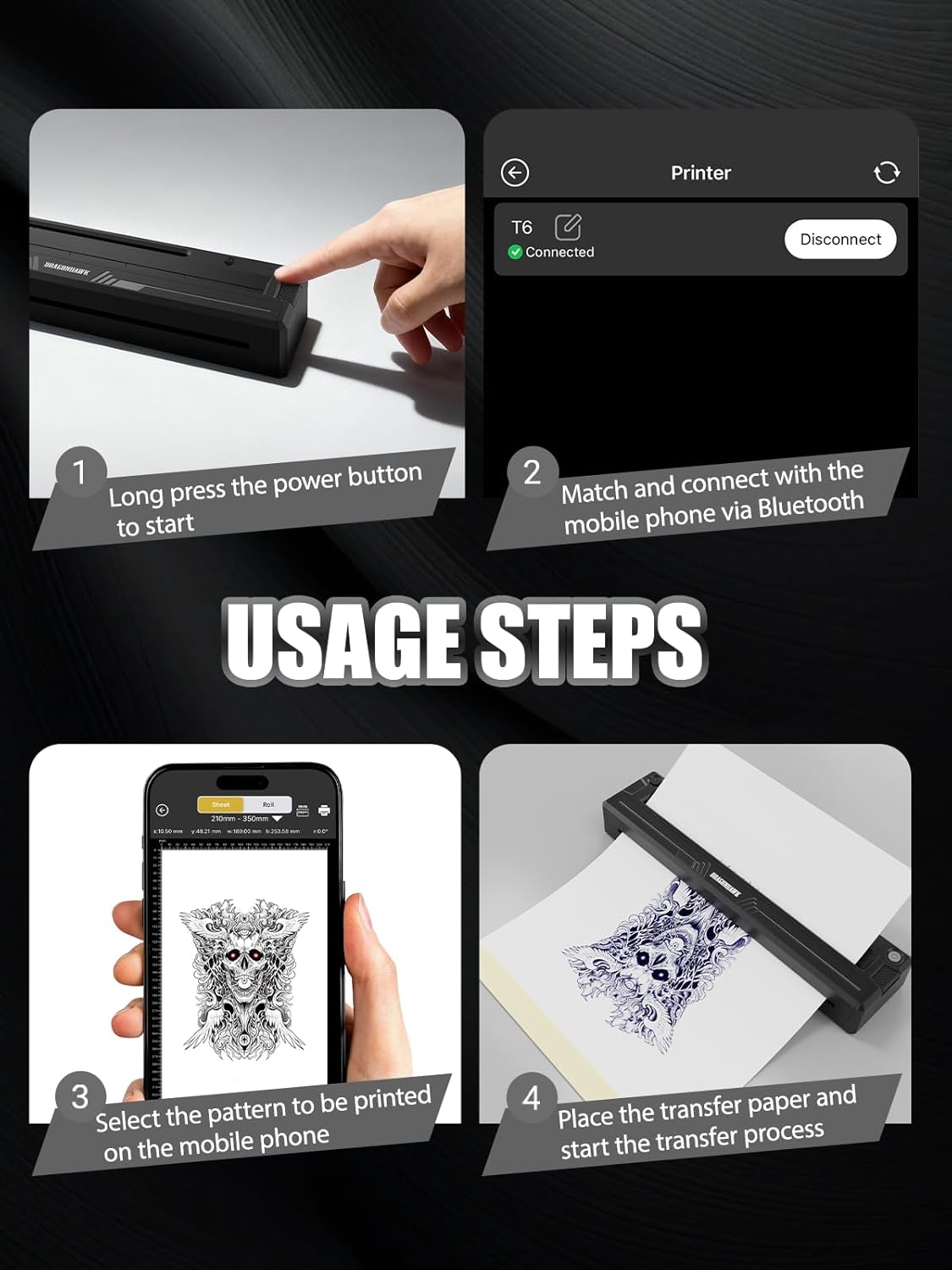
Image: A four-step guide showing how to use the printer: 1) Long press power button to start, 2) Match and connect with mobile phone via Bluetooth, 3) Select the pattern to be printed on the mobile phone, 4) Place the transfer paper and start the transfer process.

Image: The mobile app interface demonstrating Bluetooth connectivity, allowing users to edit, adjust, and transfer designs with ease. Options for sizing, line art, tile crop, crop, rotate/invert, copy, add, and save are visible.
5.3.2 USB Connection (PC)
For PC connectivity, use the provided USB-C cable to connect the printer to your computer. Ensure the necessary drivers are installed. Once connected, the printer should be recognized by your computer's printing software.

Image: The Dragonhawk A4 printer connected to a laptop via its Type-C port, illustrating its compatibility with PC control for printing tattoo stencils.
5.4 Rozpakowywanie i początkowa konfiguracja wideo
Wideo: Rozpakowywanie i koniecview video for the Dragonhawk A4 Tattoo Stencil Printer. This video demonstrates the contents of the package, how to power on the device, connect it to a smartphone, load stencil paper, and initiate a print, providing a visual guide for initial setup and basic operation.
6. Instrukcja obsługi
6.1 Ładowanie papieru szablonowego
Carefully insert the stencil transfer paper into the printer's paper feed slot. Ensure the paper is aligned correctly and fed straight to prevent jams or skewed prints. The printer supports various sizes, including A4, A5, and A6.

Image: The Dragonhawk A4 printer demonstrating its multi-size support for various tattoo transfer paper dimensions, including A4 (210x297mm), A5 (210x140mm), and A6 (105x140mm).
6.2 Korzystanie z aplikacji mobilnej
The 'Tattoo Print' app allows you to select, edit, and send designs to your printer. After connecting via Bluetooth:
- Select a design from your device's gallery or the app's material library.
- Use the app's editing tools to adjust size, crop, rotate, or apply line art filters to optimize the stencil.
- Choose your desired print mode (e.g., Standard, AI) and temperature settings (Low, Medium, High) based on the stencil paper and desired transfer quality.
- Confirm the print preview and tap 'Print' to begin the transfer process.
6.3 Proces drukowania
Once the print command is sent, the printer will automatically feed the stencil paper and transfer the design. Ensure the paper is not obstructed during the printing process. After printing, carefully remove the stencil paper.
7. Konserwacja
7.1 Czyszczenie
Regular cleaning helps maintain print quality and extends the life of your printer. Use a soft, dry, lint-free cloth to wipe the exterior of the printer. For the thermal print head and rollers, use a cotton swab lightly dampened with isopropyl alcohol. Ensure the printer is powered off and disconnected from any power source before cleaning. Allow all components to dry completely before resuming use.
7.2 Przechowywanie
Store the printer in a cool, dry place away from direct sunlight and extreme temperatures. When not in use for extended periods, ensure the battery is partially charged (around 50%) to preserve its lifespan. Keep the printer covered to prevent dust accumulation.
8. Rozwiązywanie Problemów
If you encounter issues with your Dragonhawk A4 printer, refer to the following common problems and solutions:
| Problem | Możliwa przyczyna | Rozwiązanie |
|---|---|---|
| Drukarka się nie włącza | Niski poziom naładowania baterii; przycisk zasilania nie został prawidłowo naciśnięty | Charge the printer; Long-press the power button until the indicator light appears. |
| Nie można połączyć się przez Bluetooth | Bluetooth wyłączony na urządzeniu; Drukarka nie jest w trybie parowania; Problem z aplikacją | Ensure Bluetooth is on; Restart printer and app; Check app permissions. |
| Paper not feeding or jamming | Incorrect paper insertion; Damaged paper; Rollers obstructed | Ensure paper is inserted straight and flat; Use undamaged paper; Clean the paper rollers. |
| Poor print quality (faint, lines, incomplete) | Low battery; Incorrect print settings; Dirty print head; Low-quality stencil paper | Charge printer; Adjust print mode/temperature in app; Clean print head; Use recommended stencil paper. |
| Printer unresponsive | Software glitch; Hardware malfunction | Restart the printer; If issue persists, contact customer support. |
9. Specyfikacje
Detailed technical specifications for the Dragonhawk A4 Wireless Thermal Tattoo Stencil Printer:
- Model: A4
- Wymiary: 12.36 x 4.37 x 2.91 cala
- Waga: 1.5 funtów
- Bateria: 1500mAh (wymagana 1 bateria AA, dołączona)
- Łączność: Bluetooth, USB typu C
- Zgodność: iOS, Android, Windows
- Metoda drukowania: Termotransfer
- Producent: DRAGONHAWK
10. Gwarancja i wsparcie
Dragonhawk provides customer support for its products. For warranty information, technical assistance, or service inquiries, please refer to the contact details provided on the product packaging or the official Dragonhawk webStrona. Zachowaj dowód zakupu na wypadek roszczeń gwarancyjnych.