
Wstęp
Niniejsza instrukcja zawiera szczegółowe instrukcje dotyczące konfiguracji, obsługi i konserwacji kamery EMEET C60E 4K. Webcam and EMEET HS50 Wired Headset. Please read this manual thoroughly before using the devices to ensure optimal performance and longevity.
Produkt ponadview
EMEET C60E 4K Webkrzywka
The EMEET C60E is a high-performance 4K webcam designed for clear video communication. It features advanced imaging and audio capabilities for professional and personal use.
- Rozdzielczość 4K Ultra HD: Delivers crisp 3840x2160 video at 30 frames per second.
- Autofokus PDAF: Ensures sharp focus even with movement.
- Automatyczna korekcja światła: Adjusts to various lighting conditions for optimal image quality.
- Podwójne mikrofony z redukcją szumów: Captures clear audio up to 8 feet, reducing background noise.
- 73° Pole View (pole widzenia): Provides a balanced perspective for individual or small group use.
- Podłączenie przez USB i korzystanie: Do instalacji nie są wymagane żadne sterowniki.
- Ochrona prywatności: Integrated cover for enhanced privacy when not in use.

Image: The EMEET C60E 4K Webcam provides superior image quality, as shown by the clear 4K resolution compared to a blurred standard image.
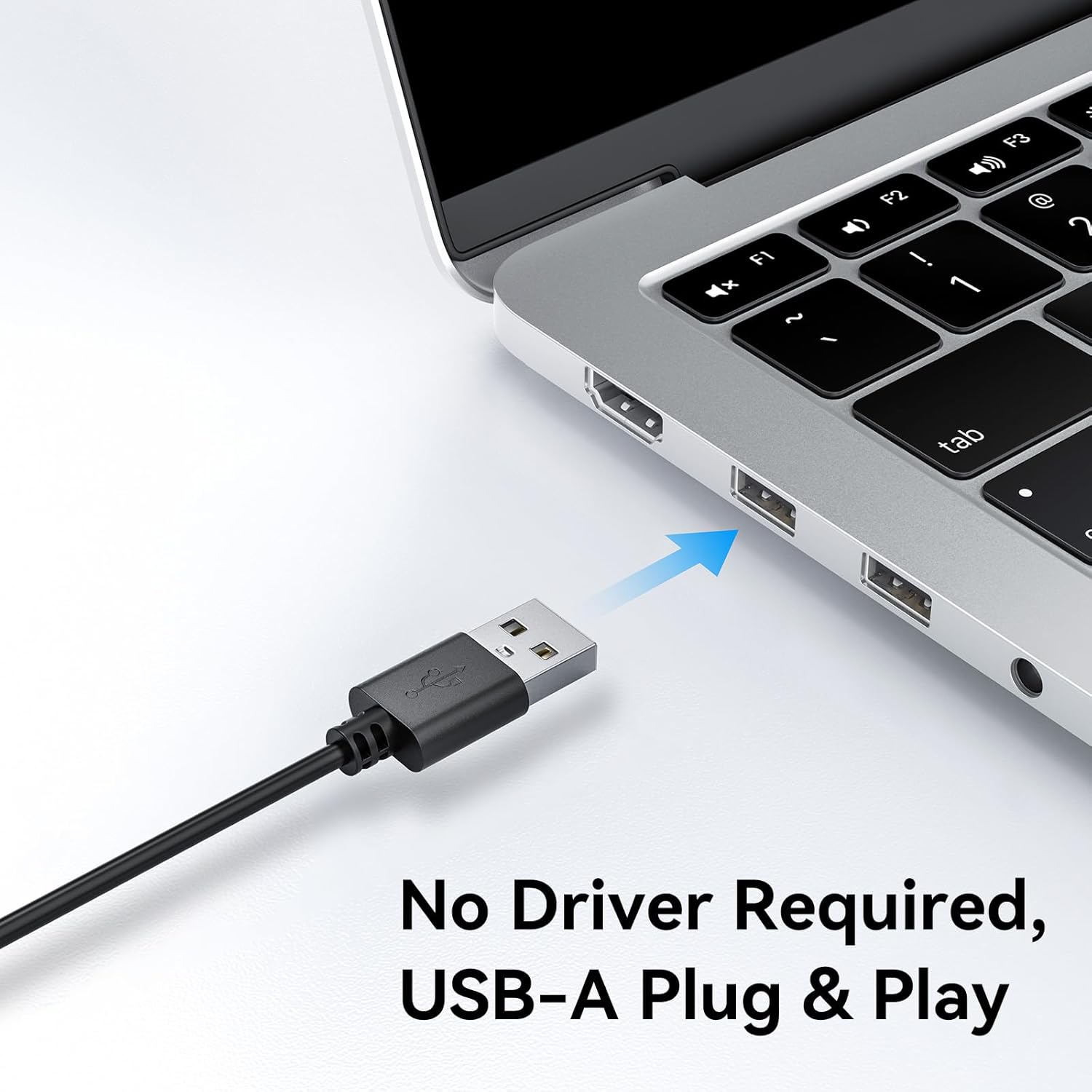
Image: A user on a video call demonstrating the effectiveness of the dual noise-cancelling microphones on the EMEET C60E webcam, showing a waveform before and after noise cancellation.
EMEET HS50 Wired Headset
The EMEET HS50 is a comfortable and versatile wired headset designed for extended use in various communication environments.
- Lekka konstrukcja: Weighs approximately 0.27 lb for all-day comfort.
- Adjustable Headband and Earpads: Customizable fit for various head sizes with 10° earpad adjustment.
- 270° Flexible Microphone: Allows for precise positioning and can be rotated out of the way.
- Sterowanie w linii: Easy access to volume adjustment, microphone mute, and speaker mute.
- Łączność USB: Simple plug-and-play connection.

Image: The EMEET HS50 Wired Headset, highlighting its lightweight and comfortable design with feather illustrations.

Obraz: Szczegółowy view of the EMEET HS50 headset's adjustable headband and the 10-degree swivel capability of its earpads for a customized fit.

Image: The EMEET HS50 headset's microphone demonstrating its 270-degree flexible rotation for optimal positioning.
Przewodnik po konfiguracji
EMEET C60E 4K WebKonfiguracja kamery
- Połącz Webkrzywka: Plug the USB-A cable from the EMEET C60E webpodłącz kamerę do wolnego portu USB w komputerze.
- Instalacja automatyczna: Ten webcam is plug-and-play. Your operating system (Windows, macOS) will automatically detect and install the necessary drivers. No manual driver installation is typically required.
- Pozycja Webkrzywka: Zamontuj webcam securely on top of your monitor or place it on a flat surface. Adjust the angle as needed.
- Sprawdź połączenie: Open a video conferencing application (e.g., Zoom, Skype, Google Meet) or your computer's camera application to confirm the webKamera zostaje rozpoznana i zaczyna wyświetlać obraz.
- Adjust Resolution (Optional): The default video resolution may be 1080P. To switch to 4K, use your built-in camera software or applications like PotPlayer/OBS.

Image: The EMEET C60E webcam's USB-A cable being connected to a laptop, illustrating its plug-and-play functionality.
EMEET HS50 Wired Headset Setup
- Podłącz zestaw słuchawkowy: Plug the USB cable from the EMEET HS50 headset into an available USB port on your computer.
- Instalacja automatyczna: The headset is plug-and-play. Your operating system will automatically detect and configure the audio device.
- Dostosuj dla komfortu:
- Dopasuj pałąk tak, aby wygodnie pasował do Twojej głowy.
- Rotate the earpads up to 10° to ensure a snug fit over your ears.
- Umiejscowienie mikrofonu: Rotate the flexible microphone boom to position the microphone near your mouth for optimal voice pickup. It can rotate 270° to be used on either side or moved out of the way when not needed.
- Sprawdź ustawienia audio: In your computer's sound settings or communication application, ensure the EMEET HS50 is selected as the input (microphone) and output (speaker) device.
Instrukcja obsługi
EMEET C60E 4K WebObsługa kamery
- Używanie z aplikacjami: Select the EMEET C60E as your video and audio device within your preferred video conferencing software (e.g., Zoom, Microsoft Teams, Google Meet, Skype).
- Oprogramowanie EMEETLINK: Download and install the EMEETLINK software from the official EMEET website for advanced settings. This software allows you to:
- Dostosuj jasność, kontrast i nasycenie.
- Activate backlight compensation for improved visibility in challenging lighting.
- Aktualizacja oprogramowania.
- Ochrona prywatności: Slide the integrated privacy cover over the lens when the webcam is not in use to ensure your privacy.
EMEET HS50 Wired Headset Operation
The HS50 headset features convenient in-line controls for managing your audio during calls or media playback.
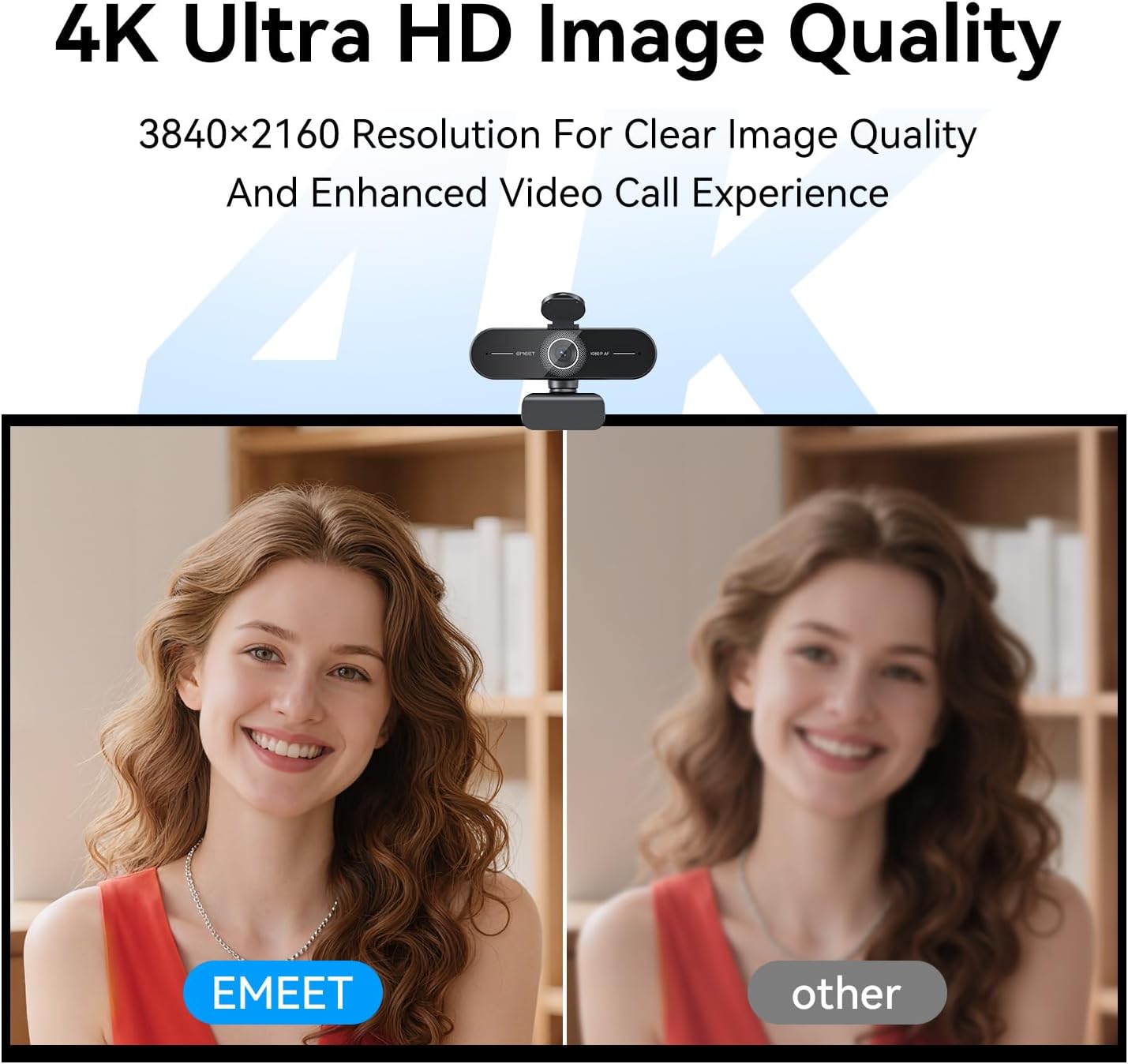
Image: Close-up of the EMEET HS50 headset's in-line control unit, showing buttons for microphone mute, volume up/down, and speaker on/off, along with LED indicators.
- Regulacja głośności: Użyj + I - buttons on the in-line control unit to adjust the speaker volume.
- Wyciszenie mikrofonu: Naciśnij microphone icon button to mute or unmute your microphone. An LED indicator will show the mute status.
- Speaker Mute/On-Off: Naciśnij ikona głośnika button to turn the speaker audio on or off. An LED indicator will show the speaker status.
- Pozycjonowanie mikrofonu: Adjust the 270° flexible microphone boom to ensure the microphone is optimally positioned for your voice.
Konserwacja
- Czyszczenie: Use a soft, dry cloth to clean the exterior surfaces of both the webcam and headset. For the webcam lens, use a lens cleaning cloth.
- Unikaj płynów: Nie należy używać płynnych środków czyszczących ani aerozoli bezpośrednio na urządzeniach.
- Składowanie: When not in use, store the devices in a clean, dry place away from extreme temperatures.
- Pielęgnacja kabli: Aby zapobiec uszkodzeniom kabli USB, należy unikać ich ostrego zginania i nadmiernego ciągnięcia.
Rozwiązywanie problemów
Webcam Troubleshooting
- Webkamera nie została wykryta:
- Upewnij się, że kabel USB jest bezpiecznie podłączony do obu urządzeń. webkamera i komputer.
- Spróbuj podłączyć webpodłączoną do innego portu USB.
- Uruchom ponownie komputer.
- Sprawdź w Menedżerze urządzeń swojego systemu operacyjnego, czy webkamera jest wymieniona.
- Brak obrazu lub słaba jakość obrazu:
- Upewnij się, że osłona prywatności jest otwarta.
- Check lighting conditions; ensure adequate front lighting.
- Sprawdź, czy jest to poprawne webkamera jest wybrana w ustawieniach aplikacji.
- Use EMEETLINK software to adjust video settings like brightness and contrast.
- Ensure your computer meets the system requirements for 4K video streaming.
- No Audio from Webcam Microphones:
- Ensure the EMEET C60E is selected as the microphone input device in your computer's sound settings and your application.
- Check application-specific mute settings.
Headset Troubleshooting
- Zestaw słuchawkowy nie został wykryty:
- Ensure the USB cable is securely connected to both the headset and your computer.
- Spróbuj podłączyć zestaw słuchawkowy do innego portu USB.
- Uruchom ponownie komputer.
- No Audio from Headset Speakers:
- Check the in-line control unit to ensure the speaker is not muted and volume is turned up.
- Verify that the EMEET HS50 is selected as the audio output device in your computer's sound settings and your application.
- Adjust the volume on your computer.
- Microphone Not Working on Headset:
- Check the in-line control unit to ensure the microphone is not muted.
- Verify that the EMEET HS50 is selected as the microphone input device in your computer's sound settings and your application.
- Sprawdź, czy wysięgnik mikrofonu jest ustawiony prawidłowo.
Specyfikacje
EMEET C60E 4K Webkrzywka
| Rezolucja | 4K Ultra HD (3840x2160) |
| Szybkość klatek | 30 klatek na sekundę |
| Typ czujnika | CMOS |
| Typ fokusu | PDAF Autofocus |
| Pole View (pole widzenia) | 73° |
| Mikrofony | Dual Noise-Cancelling Mics (up to 8 ft range) |
| Łączność | USB-A Plug & Play |
| Zgodność | Windows, macOS, Android TV, major conferencing platforms |
EMEET HS50 Wired Headset
| Waga | Około. 0.27 funta (122 g) |
| Mikrofon | 270° Flexible Microphone |
| Sterownica | In-line: Volume +, Volume -, Mic Mute, Speaker Mute |
| Łączność | USB-A |
| Earpad Adjustment | Regulacja kąta 10° |
Gwarancja i wsparcie
EMEET products are designed for reliability and performance. For detailed warranty information, please refer to the warranty card included with your product or visit the official EMEET website. If you encounter any issues or require technical assistance, please contact EMEET customer support through their official channels. You can typically find support contact information on the EMEET webmiejscu lub w opakowaniu produktu.
Official EMEET Webstrona: www.emeet.com