
1. Wprowadzenie
The Kensington KB535 EQ Rechargeable Multi-Device Wireless Keyboard is designed for versatile and efficient use across multiple platforms. It features quiet, responsive scissor-switch keys, a full-size layout with a number pad, and advanced wireless connectivity options. This manual provides detailed instructions to help you set up, operate, and maintain your keyboard.
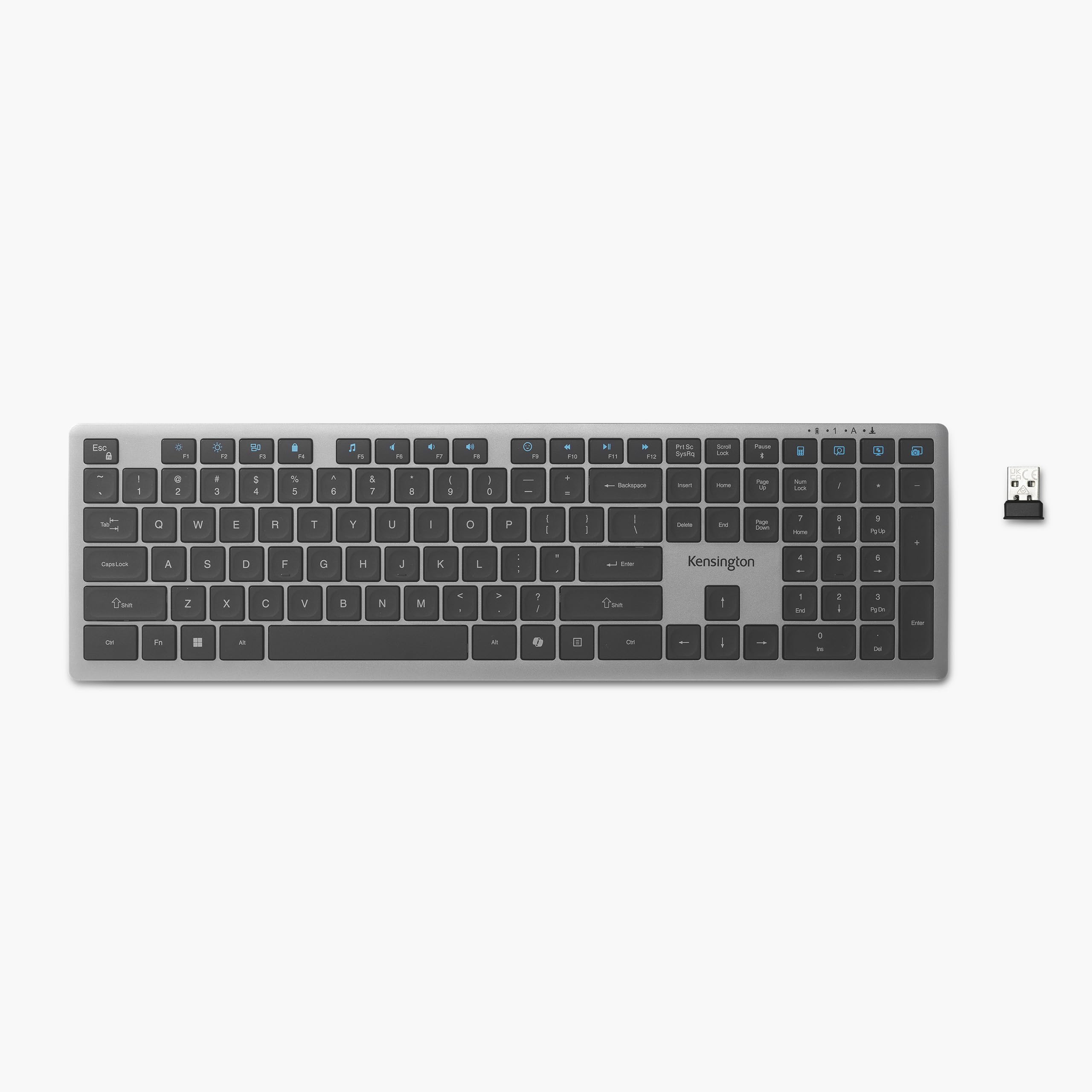
Image: The Kensington KB535 EQ Rechargeable Multi-Device Wireless Keyboard, showcasinze względu na jego elegancki wygląd.
2. Zawartość opakowania
Sprawdź, czy w przesyłce znajdują się wszystkie elementy:
- Kensington KB535 EQ Rechargeable Multi-Device Wireless Keyboard
- Kabel ładujący USB-A do USB-C
- Odbiornik USB 2.4 GHz
3. Konfiguracja
3.1 Ładowanie klawiatury
Before initial use, fully charge the keyboard. Connect the provided USB-A to USB-C charging cable to the keyboard's USB-C port and a power source (e.g., computer USB port, USB wall adapter). The battery indicator LED will show charging status. A full charge can provide up to 3 months of battery life, depending on usage.
3.2 Łączenie się z urządzeniami
The KB535 keyboard supports connection to up to four devices: one via 2.4GHz USB receiver and three via Bluetooth 5.4.

Image: The Kensington KB535 keyboard connected to a desktop computer, laptop, and tablet, illustrating its multi-device capability.
3.2.1 Połączenie bezprzewodowe 2.4 GHz
- Locate the 2.4GHz USB receiver. It may be stored in a compartment on the keyboard.
- Podłącz odbiornik USB do wolnego portu USB-A w komputerze.
- Turn on the keyboard. The keyboard should automatically connect to the receiver. The 2.4GHz connection features 128-bit AES encryption and a range of up to 10 meters.
3.2.2 Połączenie Bluetooth 5.4
- Ensure Bluetooth is enabled on your device (computer, tablet, smartphone).
- On the keyboard, select one of the three Bluetooth channels (e.g., BT1, BT2, BT3) by pressing the corresponding key.
- Press and hold the selected Bluetooth channel key for 3-5 seconds until the LED indicator for that channel begins to flash, indicating pairing mode.
- On your device, search for Bluetooth devices and select "Kensington KB535" from the list.
- Follow any on-screen prompts to complete the pairing process. The LED indicator will stop flashing once successfully paired.
- Repeat these steps for up to two additional Bluetooth devices using the other Bluetooth channels.
3.2.3 Przełączanie między urządzeniami
To switch between connected devices, simply press the corresponding connection key (2.4GHz, BT1, BT2, or BT3) on the keyboard.
3.3 Kensington Konnect Software
For advanced customization, including programming keys and buttons, download and install the optional Kensington Konnect software. Visit the official Kensington website for software downloads and installation instructions.

Image: A visual representation of the Kensington Konnect Software interface, showing options to personalize keyboard functions and program keys.
4. Instrukcja obsługi
4.1 Scissor-Switch Keys
The KB535 features scissor-switch keys, which provide a quiet and responsive typing experience. This design reduces typing noise and offers tactile feedback for comfortable and accurate input.

Obraz: Zbliżenie view of the keyboard keys, highlighting the scissor-switch mechanism for quiet and precise typing.
4.2 Full-Size Layout
The keyboard features a full-size ANSI layout with 108 keys, including a dedicated number pad for efficient data entry and function keys for multitasking.
4.3 Wskaźniki LED
The keyboard includes LED indicators for Num Lock, Caps Lock, Scroll Lock, and Battery Life, providing visual feedback on the keyboard's status.
4.4 Programmable Keys and Function Lock
The KB535 offers 16 programmable keys to customize your workflow. Use the Function Lock feature to toggle between standard function keys (F1-F12) and their secondary multimedia or shortcut functions. Refer to the Kensington Konnect software for detailed customization options.

Obraz: widok z góry view of the Kensington KB535 keyboard, pointing out the 16 programmable keys, LED indicators for Num Lock, Caps Lock, Scroll Lock, and the Function Lock key.
4.5 Copilot AI Key
A dedicated Copilot AI key is included for quick access to AI features (Windows only). This key allows for seamless integration with AI-powered functionalities on compatible Windows operating systems.
5. Konserwacja
5.1 Czyszczenie
To clean your keyboard, power it off and disconnect any cables. Use a soft, lint-free cloth lightly dampened with water or a mild cleaning solution. Avoid harsh chemicals, abrasive materials, or excessive moisture. Do not spray cleaners directly onto the keyboard.
5.2 Pielęgnacja baterii
The keyboard is equipped with a rechargeable 500mAh battery. For optimal battery life, avoid fully discharging the battery frequently. Recharge the keyboard when the battery indicator shows low power. Store the keyboard in a cool, dry place when not in use for extended periods.
6. Rozwiązywanie Problemów
If you encounter issues with your Kensington KB535 keyboard, please refer to the following common troubleshooting steps:
- Klawiatura nie odpowiada: Ensure the keyboard is powered on and fully charged. Check that the correct connection mode (2.4GHz or Bluetooth channel) is selected.
- Problemy z połączeniem 2.4 GHz: Verify the USB receiver is securely plugged into a working USB port. Try a different USB port. Ensure no strong interference sources are nearby.
- Problemy z połączeniem Bluetooth: Ensure Bluetooth is enabled on your device. Re-enter pairing mode on the keyboard and re-pair with your device. Remove the keyboard from your device's Bluetooth list and try pairing again.
- Klawisze nie działają prawidłowo: Check if Function Lock is enabled or disabled as needed. If using Kensington Konnect software, ensure key assignments are correct.
- Akumulator nie ładuje się: Ensure the USB-C cable is properly connected to both the keyboard and a working power source. Try a different USB-C cable or power source.
For further assistance, please visit the Kensington support webstrona.
7. Specyfikacje
| Funkcja | Szczegół |
|---|---|
| Marka | Kensington |
| Nazwa modelu | KB535 |
| Numer modelu | K75408NA |
| Technologia łączności | Bluetooth 5.4, 2.4 GHz Bezprzewodowy |
| Układ klawiatury | Full-Size ANSI (108 keys) |
| Typ klucza | Przełącznik nożycowy |
| Programowalne klawisze | 16 |
| Cechy specjalne | Copilot Hotkey (Windows only), Function Lock, LED Indicators (Num Lock, Caps Lock, Scroll Lock, Battery Life) |
| Bateria | Akumulator 500 mAh |
| Żywotność baterii | Up to 3 months (usage dependent) |
| Tworzywo | Outer case made with 43% Post-Consumer Recycled (PCR) content |
| Wymiary (dł. x szer. x wys.) | 20" x 8" x 1" (w przybliżeniu) |
| Waga | 1.25 funtów |
| Kompatybilne urządzenia | Konsola do gier, laptop, komputer |
| Dołączone akcesoria | USB-A to USB-C charging cable, 2.4GHz USB receiver |
8. Gwarancja i wsparcie
8.1 Informacje o gwarancji
The Kensington KB535 EQ Rechargeable Multi-Device Wireless Keyboard is covered by a 3-roczna ograniczona gwarancja. Please retain your proof of purchase for warranty claims. For full warranty terms and conditions, refer to the official Kensington webstrona.
8.2 Obsługa klienta
For technical support, product registration, or frequently asked questions, please visit the official Kensington support webmiejsce na www.kensington.com/support. You may also find updated drivers or software for the Kensington Konnect application there.