
1. Wprowadzenie
Thank you for choosing the INFIYA K1 2K Window Camera. This manual provides detailed instructions for setting up, operating, and maintaining your camera to ensure optimal performance and home security. Please read this manual thoroughly before use and retain it for future reference.
2. Co znajduje się w pudełku
Sprawdź, czy w pakiecie znajdują się wszystkie komponenty:
- 1 x INFIYA K1 Camera
- 1 x zasilacz
- 1 x kabel zasilający typu C
- Magnetic Stickers
- Zaciski kablowe
- 1 x Skrócona instrukcja obsługi

Image: Contents of the INFIYA K1 camera box.
3. Koniec produktuview
Familiarize yourself with the main components of your INFIYA K1 camera:

Image: Labeled diagram of the INFIYA K1 camera components.
- Kontrolka: Pokazuje stan kamery.
- Obiektyw: Nagrywa wideo w rozdzielczości 2K.
- Magnetic Part: For easy window mounting.
- Przycisk resetowania: Służy do przywracania ustawień fabrycznych i parowania.
- Gniazdo karty TF: Do przechowywania lokalnego (obsługuje do 128 GB, karta nie jest dołączona).
- Głośnik: Do dwukierunkowej komunikacji audio.
- Type-C Power Cable: Łączy kamerę z zasilaczem.
4. Przewodnik konfiguracji
4.1 Physical Installation (Drill-Free)
The INFIYA K1 camera features a magnetic design for easy, drill-free installation on any interior window.
- Wyczyść okno: Ensure the glass surface is clean and dry to prevent condensation issues.
- Apply Magnetic Sticker: Peel off the protective film from the magnetic sticker and firmly attach it to the desired location on your window.
- Podłącz kamerę: Align the camera with the magnetic sticker and attach it. The magnetic connection will hold it securely.
- Włączanie: Connect the Type-C power cable to the camera and plug the power adapter into an electrical outlet.

Image: Step-by-step physical installation of the camera.
4.2 App Connection and Wi-Fi Configuration
To access your camera's features, you need to connect it to the Wansview Aplikacja w chmurze.
- Pobierz aplikację: Pobierz Wansview Cloud App from your smartphone's app store (available for Android and iOS).
- Zarejestruj Konto: Otwórz aplikację i zarejestruj nowe konto lub zaloguj się, jeśli już je posiadasz.
- Dodaj urządzenie: Follow the in-app instructions to add a new device. Select the INFIYA K1 model.
- Połącz się z Wi-Fi: Ensure your camera is powered on and near your Wi-Fi router (within 3 feet for initial setup). The K1 camera supports dual-band Wi-Fi (2.4Ghz & 5Ghz). Follow the app prompts to connect the camera to your home Wi-Fi network.

Image: App connection and Wi-Fi configuration steps.
5. Działanie
5.1 Na żywo View i rozdzielczość 2K
Po połączeniu uzyskaj dostęp do transmisji na żywo za pomocą sieci WANview Cloud App. The INFIYA K1 provides sharp 2K resolution video, capturing clear details of your outdoor environment through the window, optimized to reduce glare and reflection.
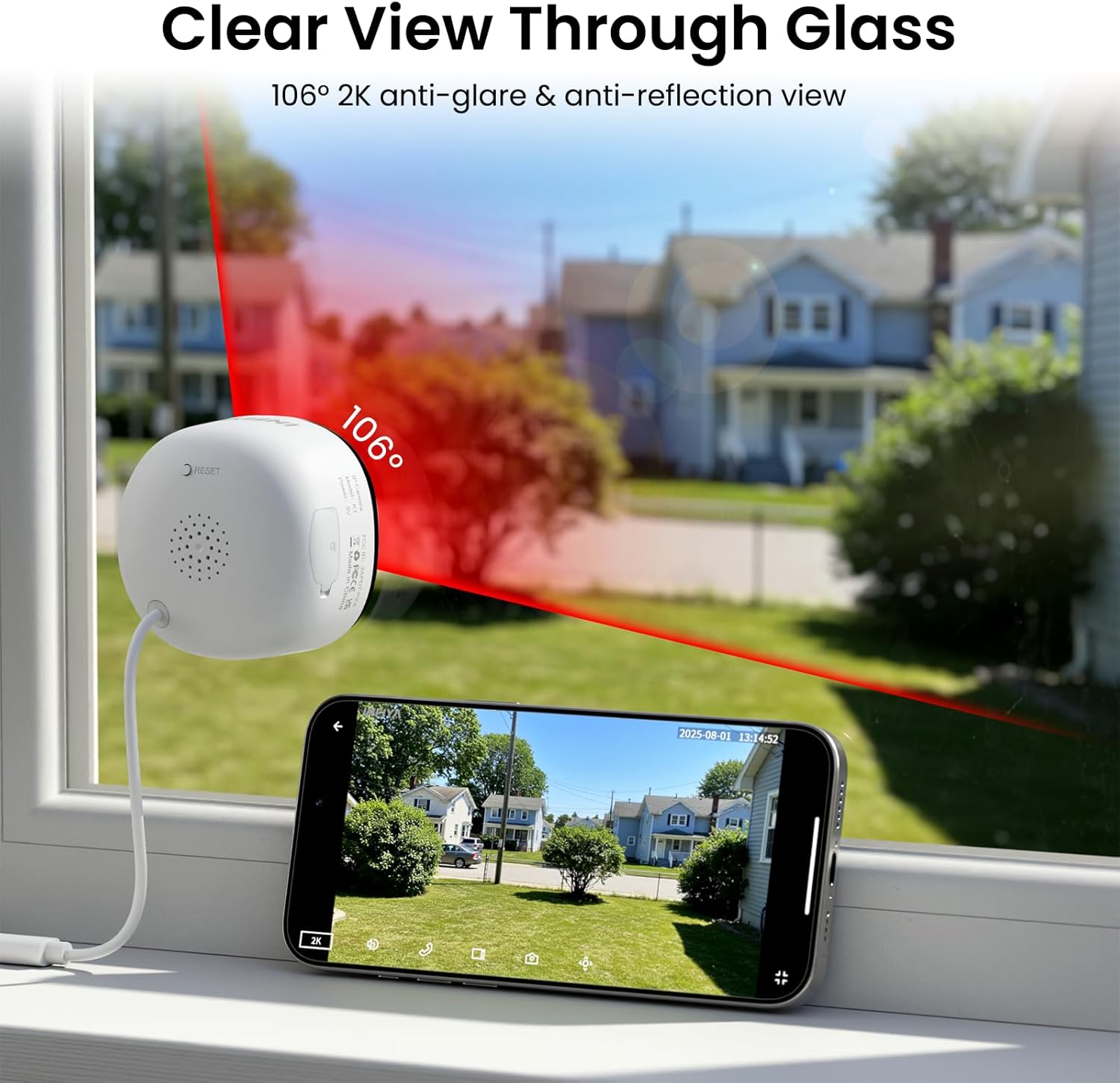
Image: Clear 2K view through glass from the camera.
5.2 Pełnokolorowa wizja nocna
The camera features advanced Black Light Color Technology, enabling vivid full-color footage even in low-light conditions (e.g., starlight/moonlight). This allows for better identification of details at night compared to traditional infrared black and white night vision.

Image: Comparison of night vision capabilities.
5.3 Motion & Human Detection with Alerts
The INFIYA K1 camera utilizes AI-powered human detection to minimize false alarms. When human activity is detected, the camera activates a three-layer alert system:
- Immediate app notifications to your phone.
- An optional siren (can be configured in the app).
- Automatic video clip recording of the event.
You can customize detection zones and sensitivity levels within the app.
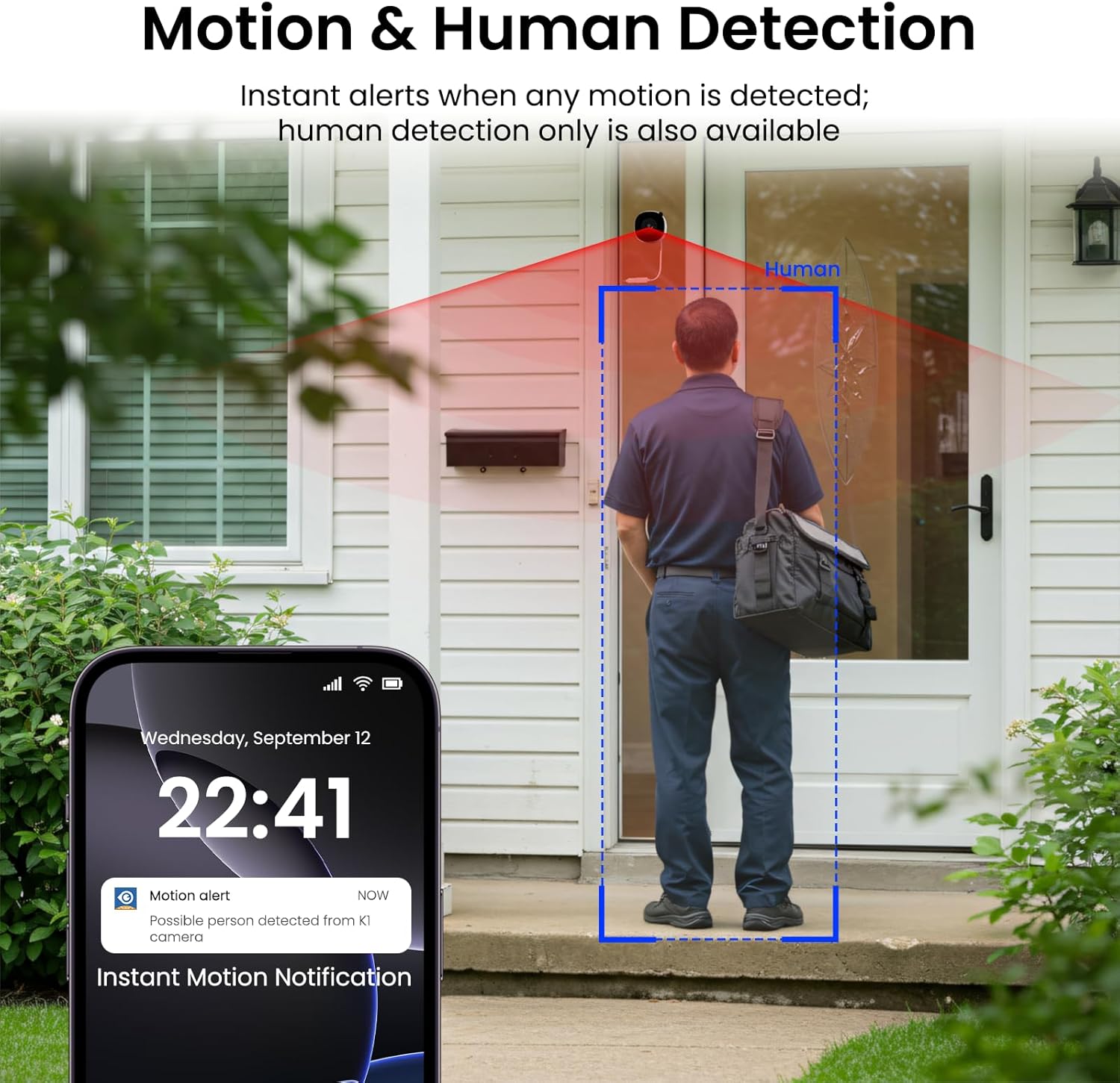
Image: Motion and human detection in action.
5.4 Dźwięk dwukierunkowy
The integrated speaker and microphone allow for two-way communication. You can speak through the camera to visitors or deter intruders directly from your smartphone app.
5.5 Multi-User Sharing & Multi-Device Support
Share camera access with family members through the app. The camera also supports integration with multiple devices and smart home platforms like Alexa and Google Assistant for convenient voice control and viewing.

Obraz: Funkcja udostępniania wielu użytkownikom.

Image: Multi-device support with smart assistants.
6. Opcje przechowywania
The INFIYA K1 camera offers flexible recording and storage solutions:
6.1 Local Storage (TF Card)
Insert a TF (microSD) card (up to 128GB, not included) into the camera's slot for continuous 24/7 recording. The camera features a smart overwrite function that automatically manages storage space by cycling old footage.
6.2 Przechowywanie w chmurze (opcjonalnie)
For enhanced security and accessibility, you can opt for cloud storage. All videos uploaded to the cloud are encrypted. Cloud plans offer various features and storage durations, as detailed in the app.

Obraz: Opcje przechowywania lokalnego i w chmurze.
6.3 Recording Modes Comparison

Image: Comparison table of recording modes.
7. Specyfikacje
Detailed technical specifications for the INFIYA K1 camera:
| Funkcja | Szczegół |
|---|---|
| Nazwa modelu | K1 |
| Marka | INFIJA |
| Technologia łączności | Bezprzewodowy (Wi-Fi) |
| Częstotliwość Wi-Fi | 5 GHz i 2.4 GHz |
| Rozdzielczość przechwytywania wideo | 3 MP (2K) |
| Viewing kąt | 105 stopni |
| Wizja nocna | Color Night Vision (Black Light Color Technology) |
| Zakres noktowizora | 29.5 stóp |
| Funkcje wykrywania | Wykrywanie ruchu i ludzi |
| Tryb pracy | Motion Only (Configurable) |
| Audio | Dwukierunkowa rozmowa |
| Opcje przechowywania | TF Card (up to 128GB), Cloud Storage (Optional) |
| Źródło zasilania | Corded Electric (5V, 5 Watt-hours) |
| Typ mocowania | Window Mount (Magnetic) |
| Kompatybilne urządzenia | Alexa / Asystent Google |
| Wymiary przedmiotu | 2.41 x 1.57 x 2.41 cala |
| Zastosowanie wewnątrz i na zewnątrz | Indoor (for window monitoring) |
8. Rozwiązywanie Problemów
If you encounter issues with your INFIYA K1 camera, refer to the following common problems and solutions:
- Kamera nie łączy się z Wi-Fi:
- Ensure the camera is within range of your router.
- Sprawdź, czy hasło Wi-Fi jest prawidłowe.
- Check if your router supports 2.4Ghz or 5Ghz, and ensure the camera is attempting to connect to a compatible band.
- Spróbuj zresetować kamerę za pomocą przycisku resetowania i ponownie spróbować przeprowadzić proces konfiguracji.
- Słaba jakość wideo:
- Upewnij się, że obiektyw aparatu jest czysty.
- Check your internet connection speed; a stable connection is crucial for 2K streaming.
- Verify the camera is positioned correctly on the window to minimize glare or reflections.
- Alerty ruchu nie działają:
- Sprawdź, czy wykrywanie ruchu jest włączone w ustawieniach aplikacji.
- Dostosuj czułość i strefy detekcji.
- Upewnij się, że powiadomienia aplikacji są włączone na Twoim smartfonie.
- No Recording to TF Card:
- Ensure a TF card is properly inserted into the slot.
- Check if the TF card is formatted correctly (usually FAT32). Format it via the app if necessary.
- Verify that continuous recording or event recording to TF card is enabled in the app settings.
For further assistance, please refer to the in-app help section or contact INFIYA customer support.
9. Informacje dotyczące bezpieczeństwa
Please observe the following safety guidelines to ensure safe operation and prevent damage to your device:
- Używaj wyłącznie dołączonego zasilacza i kabla.
- Do not expose the camera to extreme temperatures, humidity, or direct water.
- Unikaj umieszczania kamery w pobliżu silnych pól magnetycznych.
- Przechowuj aparat poza zasięgiem dzieci i zwierząt domowych.
- Nie próbuj samodzielnie demontować ani naprawiać aparatu. W celu uzyskania pomocy skontaktuj się z wykwalifikowanym personelem.
- Ensure the camera is securely mounted to prevent it from falling.
10. Gwarancja i wsparcie
Your INFIYA K1 camera comes with a standard manufacturer's warranty. Please refer to the warranty card included in your package or visit the official INFIYA webSzczegółowe warunki gwarancji można znaleźć na naszej stronie.
For technical support, product inquiries, or warranty claims, please contact INFIYA customer service through the contact information provided in the app or on the official webstrona.