
1. Wprowadzenie
Thank you for choosing the suevery All-in-One PC. This manual provides essential information for setting up, operating, and maintaining your new computer. The suevery All-in-One PC is designed for productivity, entertainment, and various applications, featuring a 21.5-inch Full HD display, Intel Core i5 processor, 16GB RAM, and a 256GB SSD. It comes equipped with a built-in HD webcam, Wi-Fi 6, and includes a keyboard and mouse for a complete out-of-the-box experience.
2. Co znajduje się w pudełku
Sprawdź zawartość przesyłki. Jeśli brakuje któregokolwiek z elementów lub jest on uszkodzony, skontaktuj się z obsługą klienta.
- suevery 21.5-inch All-in-One PC
- Zasilacz
- Klawiatura
- Mysz
- Instrukcja obsługi (ten dokument)
3. Koniec produktuview
3.1 Przód View i wyświetlacz
The All-in-One PC features a 21.5-inch Full HD (1920x1080) IPS Anti-glare display, providing clear and vibrant visuals. The display is tiltable for ergonomic adjustment.

Rycina 3.1: Przód view of the suevery All-in-One PC, showcasinz 21.5-calowym wyświetlaczem.
3.2 Built-in Audio-Video Components
The PC integrates a high-definition camera, microphone, and speakers, eliminating the need for external peripherals for video communication.

Figure 3.2: Illustration of the integrated speaker, camera, and microphone for video communication.
3.3 Porty i interfejsy
The device provides various ports for connectivity. Refer to the diagram below for port locations and types.
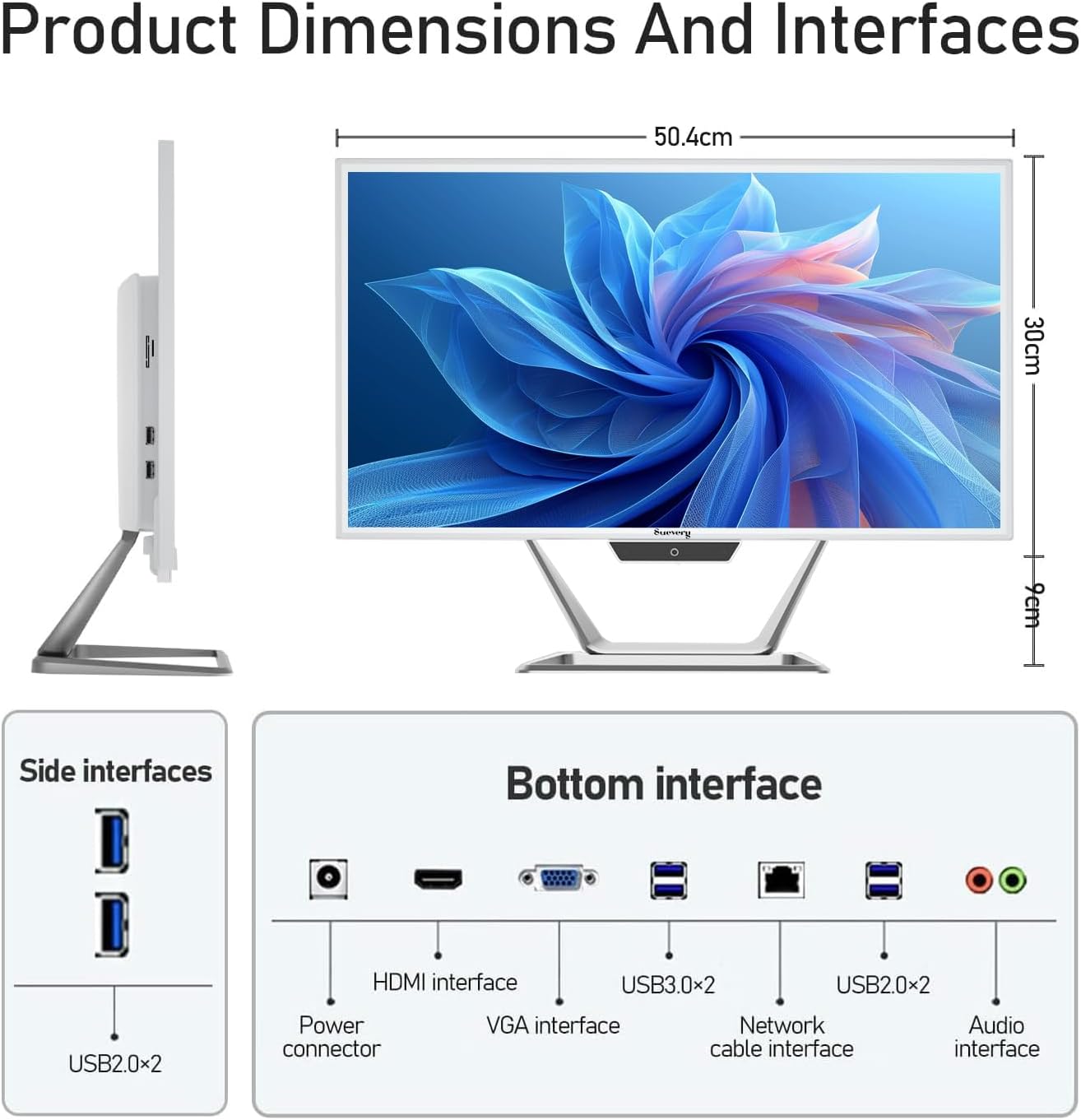
Figure 3.3: Product dimensions and interface layout. Includes USB 2.0, USB 3.0, HDMI, VGA, Network, Audio, and Power ports.
- Złącze zasilania: Do podłączenia zasilacza.
- Interfejs HDMI: Do podłączania zewnętrznych wyświetlaczy.
- VGA Interface: For connecting to older external displays.
- USB 3.0 x 2: Porty do szybkiego przesyłu danych.
- USB 2.0 x 4: Standard data transfer ports (2 on side, 2 on bottom).
- Interfejs kabla sieciowego: Do przewodowego połączenia Ethernet.
- Interfejs audio: Do podłączenia zewnętrznych słuchawek lub głośników.
4. Przewodnik konfiguracji
Follow these steps to set up your suevery All-in-One PC.
- Rozpakuj komputer: Carefully remove the All-in-One PC and all accessories from the packaging. Place the PC on a stable, flat surface.
- Podłącz klawiaturę i mysz: Connect the included keyboard and mouse to the available USB ports on the back or side of the PC.
- Podłącz zasilanie: Connect the power adapter to the power connector on the PC, then plug the power cord into a wall outlet.
- Włączanie: Press the power button, usually located on the bottom bezel or side of the display. The PC will boot up.
- Początkowa konfiguracja systemu operacyjnego: Your PC comes with DOS pre-installed. You will need to install your preferred operating system (e.g., Windows, Linux) following its specific installation instructions. This typically involves booting from a USB drive or DVD.
- Połącz z siecią: Once the OS is installed, connect to your network via Wi-Fi 6 or an Ethernet cable.
5. Instrukcja obsługi
5.1 Podstawowa obsługa
- Włączanie/wyłączanie: Press the power button to turn the PC on. To turn off, use the operating system's shutdown function. A short press on the power button can put the PC to sleep.
- Regulacja wyświetlacza: The display can be tilted from -5 to 25 degrees to achieve an optimal viewing angle. Gently adjust the top or bottom edge of the screen to tilt it.

Figure 5.1: The display supports tilt angle adjustment for ergonomic viewing.
5.2 Using Integrated Peripherals
- Webkrzywka: The built-in 5MP HD webcam is ready for video calls and conferences. Ensure your operating system and applications have permission to access the camera.
- Mikrofon: The integrated microphone captures audio for calls and voice commands. Adjust microphone levels in your operating system's sound settings.
- Prelegenci: The built-in speakers provide audio output. Adjust volume using your operating system's sound controls or external keyboard media keys.
5.3 Łączność
- Wi-Fi 6: Connect to wireless networks for internet access. Configure Wi-Fi settings through your operating system.
- Ethernet: For a stable wired connection, plug an Ethernet cable into the network port.
- Porty USB: Use the USB 2.0 and USB 3.0 ports to connect external devices such as USB drives, printers, or additional peripherals.
- HDMI/VGA: Connect an external monitor or projector using the HDMI or VGA port for extended display options.
6. Konserwacja
Właściwa konserwacja zapewnia długowieczność i optymalną wydajność Twojego komputera.
- Czyszczenie ekranu: Użyj miękkiej, niestrzępiącej się ściereczki, lekko wyczyśćampened with water or a screen cleaner specifically designed for electronics. Do not spray cleaner directly onto the screen.
- Czyszczenie podwozia: Przetrzyj powierzchnie zewnętrzne miękką, suchą ściereczką. Unikaj środków czyszczących o właściwościach ściernych i rozpuszczalników.
- Wentylacja: Ensure the ventilation openings on the back and sides of the PC are not blocked to prevent overheating.
- Aktualizacje oprogramowania: Regularnie aktualizuj system operacyjny i sterowniki, aby zapewnić bezpieczeństwo i wydajność.
- Kopia zapasowa danych: Okresowo twórz kopie zapasowe ważnych danych na dysku zewnętrznym lub w chmurze.
7. Rozwiązywanie Problemów
Jeśli napotkasz problemy, zapoznaj się z poniższymi, często występującymi problemami i rozwiązaniami.
| Problem | Możliwe rozwiązanie |
|---|---|
| Komputer się nie włącza. | Check if the power adapter is securely connected to both the PC and the wall outlet. Ensure the power outlet is functional. |
| Brak obrazu na ekranie. | Ensure the PC is powered on. If an external monitor is connected, check its power and cable connection. Try restarting the PC. |
| Klawiatura lub mysz nie reagują. | Check USB connections. Try plugging them into different USB ports. If wireless, ensure batteries are charged and dongle is connected. |
| No internet connection (Wi-Fi/Ethernet). | For Wi-Fi, check if Wi-Fi is enabled in your OS settings and if you're connected to the correct network. For Ethernet, ensure the cable is properly connected to both the PC and the router/modem. Restart your router/modem. |
| Webcam or microphone not working. | Check privacy settings in your operating system to ensure applications have permission to access the camera and microphone. Ensure drivers are up to date. |
8. Specyfikacje
Detailed technical specifications for the suevery All-in-One PC (Model: I22X W1-99).
| Funkcja | Szczegół |
|---|---|
| Marka | srogość |
| Numer modelu | I22X W1-99 |
| System operacyjny | DOS (User-installable OS) |
| Model procesora | Intel Core i5 7300U |
| Prędkość procesora | 2.6 GHz (do 3.5 GHz Turbo) |
| Zainstalowana pamięć RAM | 16 GB DDR3 |
| Maksymalny rozmiar pamięci RAM | 32 GB |
| Pojemność pamięci masowej | Dysk SSD 256 GB (PCIE x 2) |
| Koprocesor graficzny | Karta graficzna Intel HD 620 (zintegrowana) |
| Rozmiar ekranu | 21.5 cali |
| Maksymalna rozdzielczość wyświetlacza | 1920x1080 pikseli (Full HD) |
| Typ wyświetlacza | LED IPS Anti-glare |
| Technologia łączności | Ethernet, Wi-Fi 6 |
| Interfejs wyjścia wideo | HDMI, VGA, |
| Łączna liczba portów USB | 6 (2x USB 3.0, 4x USB 2.0) |
| Wbudowane media | Webcam (5MP), Speakers, Microphone |
| Pobór mocy | 90 watów |
| Kolor | Biały |
9. Informacje o gwarancji
The suevery All-in-One PC comes with a 1-roczna ograniczona gwarancja from the date of purchase. This warranty covers manufacturing defects and workmanship under normal use. It does not cover damage caused by misuse, accidents, unauthorized modifications, or external factors. Please retain your proof of purchase for warranty claims.
10. Obsługa klienta
For technical assistance, troubleshooting beyond this manual, or warranty inquiries, please contact suevery customer support through the retailer where you purchased the product or refer to the official suevery webwitryna do informacji kontaktowych.
Please have your product model number (I22X W1-99) and proof of purchase ready when contacting support.