
1. Wprowadzenie
This manual provides essential information for the proper setup, operation, and maintenance of your Gawfolk GF005 28-inch UHD 4K Computer Monitor. Please read this manual thoroughly before using the product to ensure optimal performance and safety.
2. Informacje dotyczące bezpieczeństwa
- Aby zapobiec przypadkowemu upadkowi, należy upewnić się, że monitor jest umieszczony na stabilnej i równej powierzchni.
- Nie wystawiaj monitora na działanie deszczu, wilgoci ani ekstremalnych temperatur.
- Unikaj blokowania otworów wentylacyjnych, aby zapobiec przegrzaniu.
- Należy używać wyłącznie zasilacza dołączonego do monitora.
- Przed czyszczeniem lub jeśli monitor nie będzie używany przez dłuższy czas, należy odłączyć kabel zasilający od gniazdka.
- Nie próbuj samodzielnie naprawiać monitora. Wszelkie naprawy zlecaj wykwalifikowanemu personelowi.
3. Zawartość opakowania
Sprawdź, czy w paczce znajdują się wszystkie elementy. Jeśli brakuje któregokolwiek z nich lub jest on uszkodzony, skontaktuj się z obsługą klienta.
Wideo: Gawfolk GF005 28-inch 4K Monitor Unboxing Video. This video demonstrates the unboxing process and displays all included accessories.
- Gawfolk GF005 28-inch UHD 4K Monitor
- Podstawa stojaka na monitor
- Monitor Mounting Arm
- Kabel DP
- Zasilacz
- Instrukcja monitora
- Stand Base Screws
4. Konfiguracja
Follow these steps to assemble and connect your monitor. For a visual guide, refer to the installation video below.
Wideo: Gawfolk GF005 28'' 4K Monitor Mount Installation Video. This video provides a step-by-step demonstration of how to install the monitor stand.
4.1 Montaż stojaka
- Ostrożnie wyjmij monitor z opakowania i połóż go bezpiecznie na miękkiej powierzchni.
- Attach the monitor mounting arm to the back of the monitor. Ensure it clicks securely into place.
- Secure the monitor stand base to the mounting arm using the provided screws and screwdriver.
- Połóż zmontowany monitor na stabilnym biurku lub powierzchni.

Obraz: Przód view of the Gawfolk GF005 monitor with its stand assembled.
4.2 Kable połączeniowe
Monitor wyposażono w wiele portów wejściowych, co zapewnia wszechstronną łączność.

Obraz: Tył view of the monitor detailing the available input ports (DC, HDMI 2.0 x2, DP 1.4 x2, Audio Out) and VESA mount points.
- Connect the provided DP cable from your computer's graphics card to one of the DP 1.4 ports on the monitor for optimal 4K 60Hz performance. Alternatively, use an HDMI 2.0 cable for up to 4K 50Hz.
- Podłącz zasilacz do wejścia DC monitora, a następnie do gniazdka elektrycznego.
- If desired, connect external audio devices to the Audio Out port.
4.3 Montaż ścienny VESA
The monitor supports standard 75x75mm VESA mounting for wall or arm installation (mounting hardware sold separately).
5. Instrukcja obsługi
5.1 Włączanie/wyłączanie
Naciśnij przycisk zasilania, zazwyczaj znajdujący się z tyłu lub na spodzie monitora, aby go włączyć lub wyłączyć. Kontrolka zasilania zaświeci się, gdy monitor jest włączony.
5.2 Dostosowywanie ustawień wyświetlania
Use the control buttons (typically located on the back or bottom right) to navigate the On-Screen Display (OSD) menu. From the OSD, you can adjust settings such as brightness, contrast, color temperature, input source, and more.
5.3 Główne cechy
- Rozdzielczość UHD 4K: Enjoy sharp and detailed visuals with a 3840x2560 resolution IPS panel.
- 3:2 Aspect Ratio: Offers increased vertical screen space, beneficial for document viewing and creative tasks.
- 10-bitowa głębia kolorów: Displays up to 1.07 billion colors with 128% sRGB coverage for accurate and vivid color reproduction.
- Technologie ochrony wzroku: Features DC dimming to reduce screen flicker and a low blue light design to minimize eye strain during extended use.
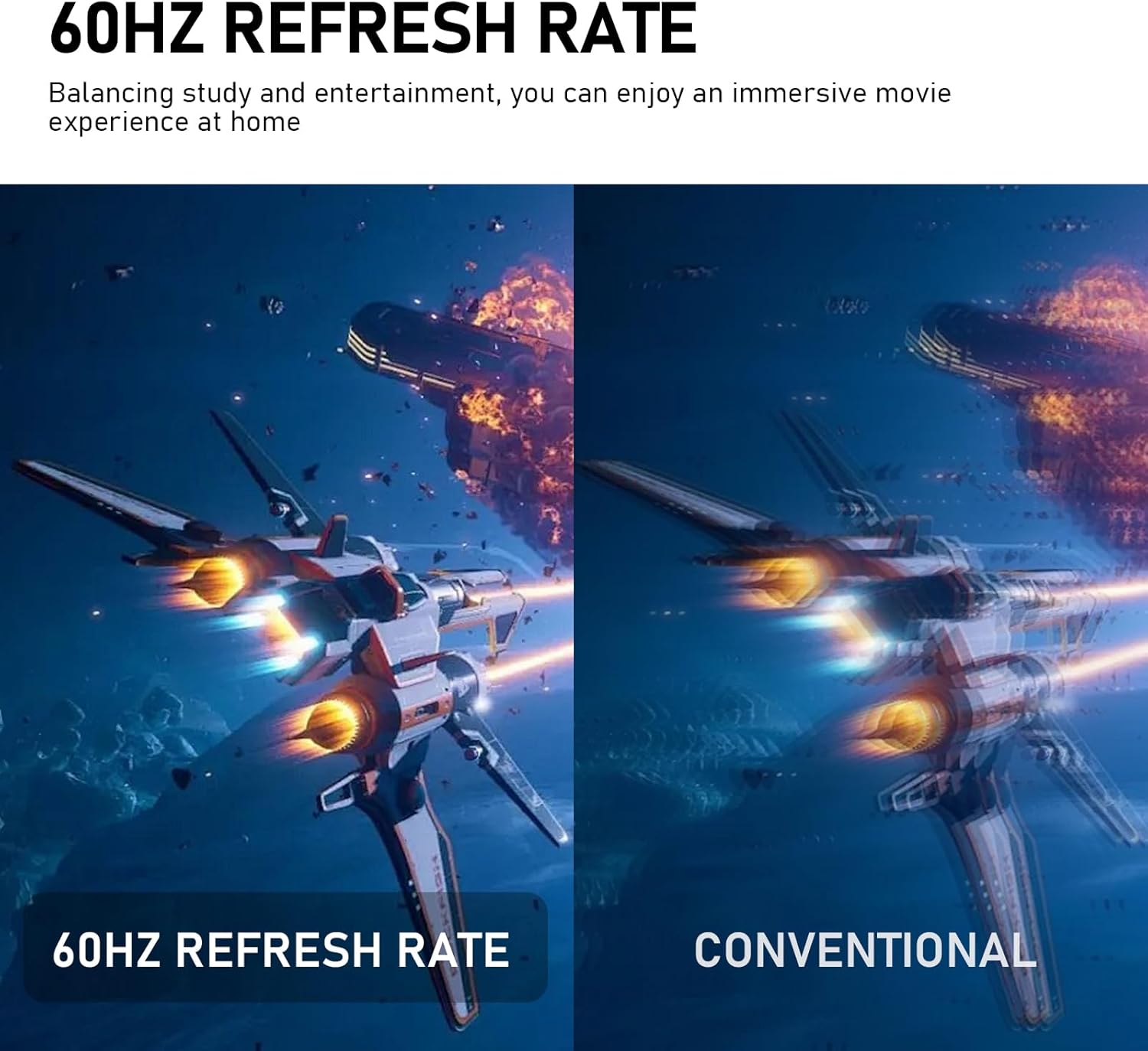
- Synchronizacja adaptacyjna: Synchronizes the monitor's 60Hz refresh rate with your graphics card to eliminate screen tearing and stuttering.
- Wbudowane głośniki: Integrated speakers provide audio for daily use, reducing desktop clutter.
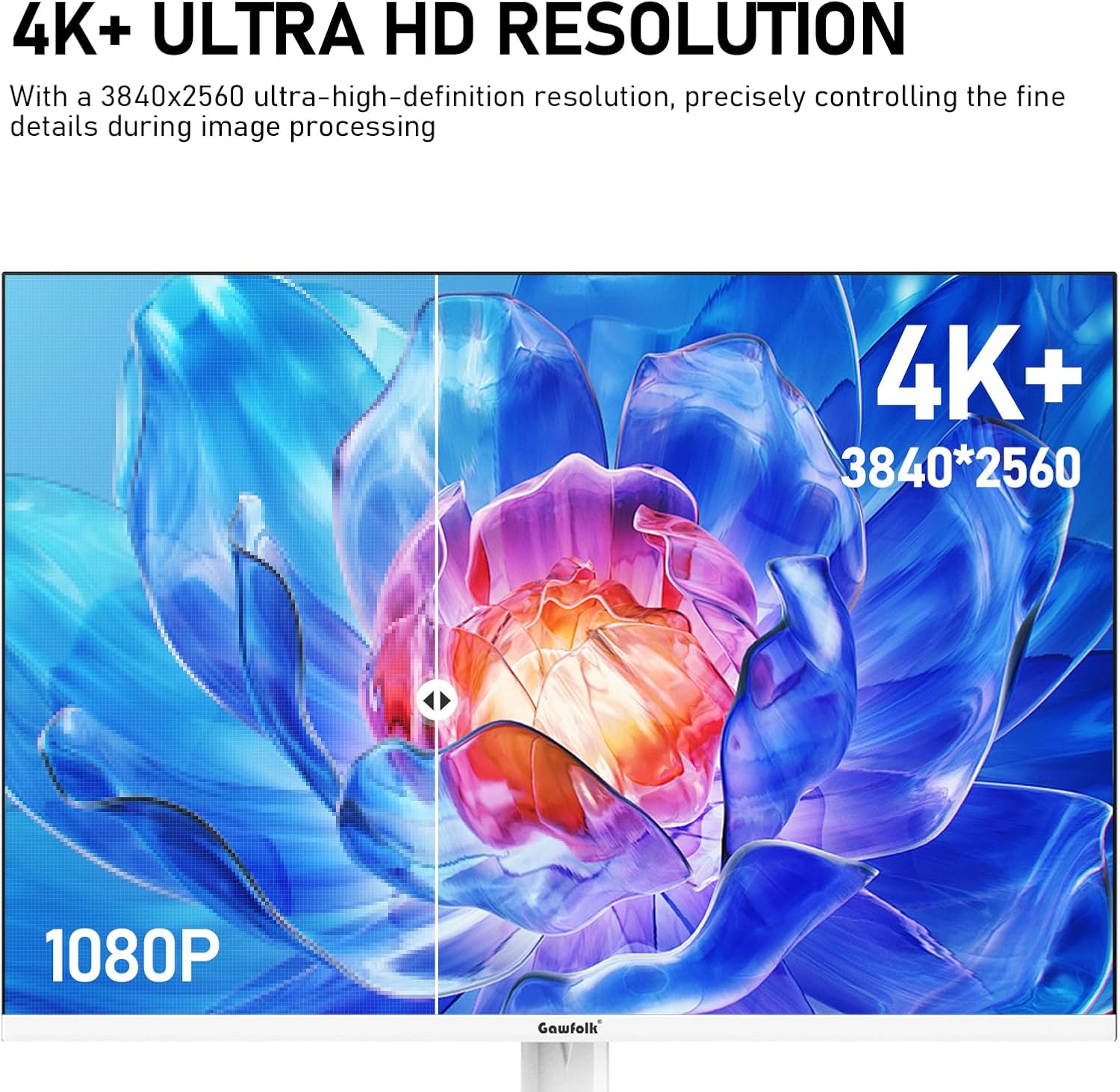
Obraz: Visual comparison demonstrating the clarity of 4K+ Ultra HD resolution.
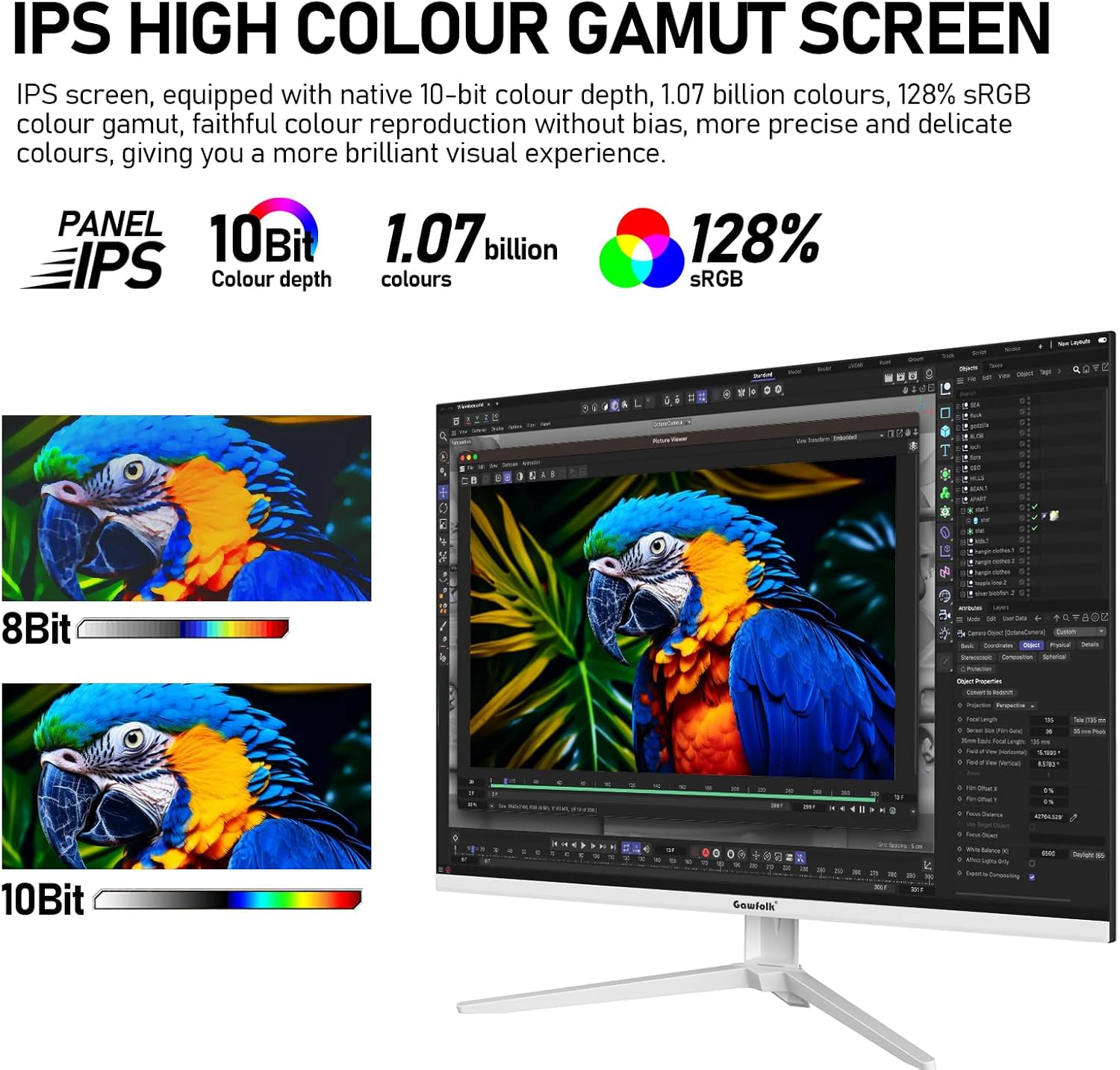
Obraz: Illustration of the IPS panel's high color gamut and 10-bit color depth capabilities.
Obraz: Depiction of the monitor's built-in dual speakers providing audio.

Obraz: Visual representation of the smoothness provided by a 60Hz refresh rate compared to conventional displays.

Obraz: Diagram illustrating the benefits of DC Dimming and Low Blue Light technology for reducing eye strain.
6. Konserwacja
6.1 Czyszczenie monitora
- Zawsze odłączaj monitor od zasilania przed czyszczeniem.
- Delikatnie użyj miękkiej, niestrzępiącej się szmatki dampspłukać wodą lub łagodnym, nieściernym środkiem do czyszczenia ekranów.
- Nie rozpylać środka czyszczącego bezpośrednio na ekran.
- Avoid using benzene, thinner, ammonia-based cleaners, or abrasive materials.
6.2 Przechowywanie
If storing the monitor for an extended period, place it in its original packaging in a dry, cool environment away from direct sunlight.
7. Rozwiązywanie Problemów
Jeśli masz problemy z monitorem, zapoznaj się z poniższymi typowymi problemami i ich rozwiązaniami:
- Brak zasilania: Ensure the power cable is securely connected to both the monitor and the power outlet. Verify the power outlet is functional.
- Brak sygnału: Check that the video cable (DP or HDMI) is firmly connected to both the monitor and your computer. Ensure the correct input source is selected in the monitor's OSD menu.
- Migotanie ekranu: Confirm that the video cable is properly connected. Adjust the refresh rate settings on your computer. Ensure Adaptive Sync is enabled if supported by your graphics card.
- Słaba jakość obrazu: Adjust brightness, contrast, and color settings via the OSD menu. Ensure your computer's display resolution matches the monitor's native resolution (3840x2560).
- Brak dźwięku z wbudowanych głośników: Check the volume settings on both the monitor and your computer. Ensure the correct audio output device is selected on your computer.
If the problem persists after attempting these solutions, please contact Gawfolk customer support.
8. Specyfikacje
| Funkcja | Specyfikacja |
|---|---|
| Rozmiar ekranu | 28 cali |
| Typ panelu | IPS |
| Rezolucja | 3840 x 2560 Pixels (UHD 4K) |
| Proporcje obrazu | 3:2 |
| Głębia koloru | 10-Bit (1.07 Billion Colours) |
| Gama kolorów | 128% sRGB |
| Częstotliwość odświeżania | 60 Hz (DP), 50 Hz (HDMI) |
| Jasność obrazu | 270 XNUMX kandeli |
| Viewing kąt | 178° szerokości Viewing kąt |
| Łączność | 2x HDMI 2.0, 2x DisplayPort 1.4, Audio Out |
| Głośniki | Wbudowany |
| Mocowanie VESA | 75x75mm |
| Wymiary produktu | 7.83 x 24.09 x 19.96 cala |
| Waga przedmiotu | 7.48 funta |
| Numer modelu | GF005 |
9. Gwarancja i wsparcie
Gawfolk provides 12 months of after-sales service for this monitor. If you encounter any problems or require assistance, please feel free to communicate with us through the retailer or the official Gawfolk support channels.


