
Produkt ponadview
The ATTACK SHARK R11 Ultra is an ultralight 8K wireless gaming mouse designed for high performance. It features a carbon fiber construction, a PixArt PAW3950 MAX sensor, and Nordic 52840 MCU for precise tracking and rapid response. This mouse offers versatile connectivity options and customizable settings for an optimized gaming experience.

Image: The ATTACK SHARK R11 Ultra 8K Wireless Gaming Mouse in Ink color.
Zawartość opakowania
- ATTACK SHARK R11 Ultra 8K Wireless Gaming Mouse
- Odbiornik USB (2.4 GHz)
- Kabel USB-C do USB-A
- Instrukcja obsługi (ten dokument)
Przewodnik po konfiguracji
1. Ładowanie myszy
Before first use, it is recommended to fully charge the mouse. Connect the provided USB-C cable to the mouse's charging port and the USB-A end to a power source (e.g., computer USB port, USB wall adapter). The mouse's indicator light will show charging status.
2. Podłączanie myszy
The R11 Ultra supports three connectivity modes: 2.4GHz Wireless, Bluetooth, and Wired USB. A switch on the bottom of the mouse allows you to select the desired mode.

Image: Underside of the mouse with the 2.4G, BT, and DPI mode switch clearly visible.
- Tryb bezprzewodowy 2.4 GHz:
- Set the switch on the bottom of the mouse to "2.4G".
- Podłącz odbiornik USB do wolnego portu USB w komputerze.
- Mysz powinna połączyć się automatycznie.
- Tryb Bluetooth:
- Set the switch on the bottom of the mouse to "BT".
- Na komputerze lub urządzeniu otwórz ustawienia Bluetooth i wyszukaj nowe urządzenia.
- Select "ATTACK SHARK R11 Ultra" from the list of available devices to pair.
- Tryb przewodowy USB:
- Podłącz koniec kabla USB-C do myszy, a koniec USB-A do komputera.
- Mysz będzie działać jak urządzenie przewodowe i jednocześnie się ładować.
3. Driver and Software Access
The R11 Ultra features an AI-designed controller accessible via a web-based interface. This eliminates the need for traditional software downloads and installations. You can access advanced settings such as DPI adjustment, polling rate, custom button assignments, and macro recording through this interface.

Obraz: Zrzut ekranu web-based driver interface for customizing mouse settings.
Refer to the official ATTACK SHARK webmiejsce dla konkretnego URL aby uzyskać dostęp do web interfejs.
Instrukcja obsługi
1. Regulacja DPI
The mouse features a highly customizable DPI range up to 42,000. You can adjust DPI settings through the web-based driver interface to match your preference and game requirements.
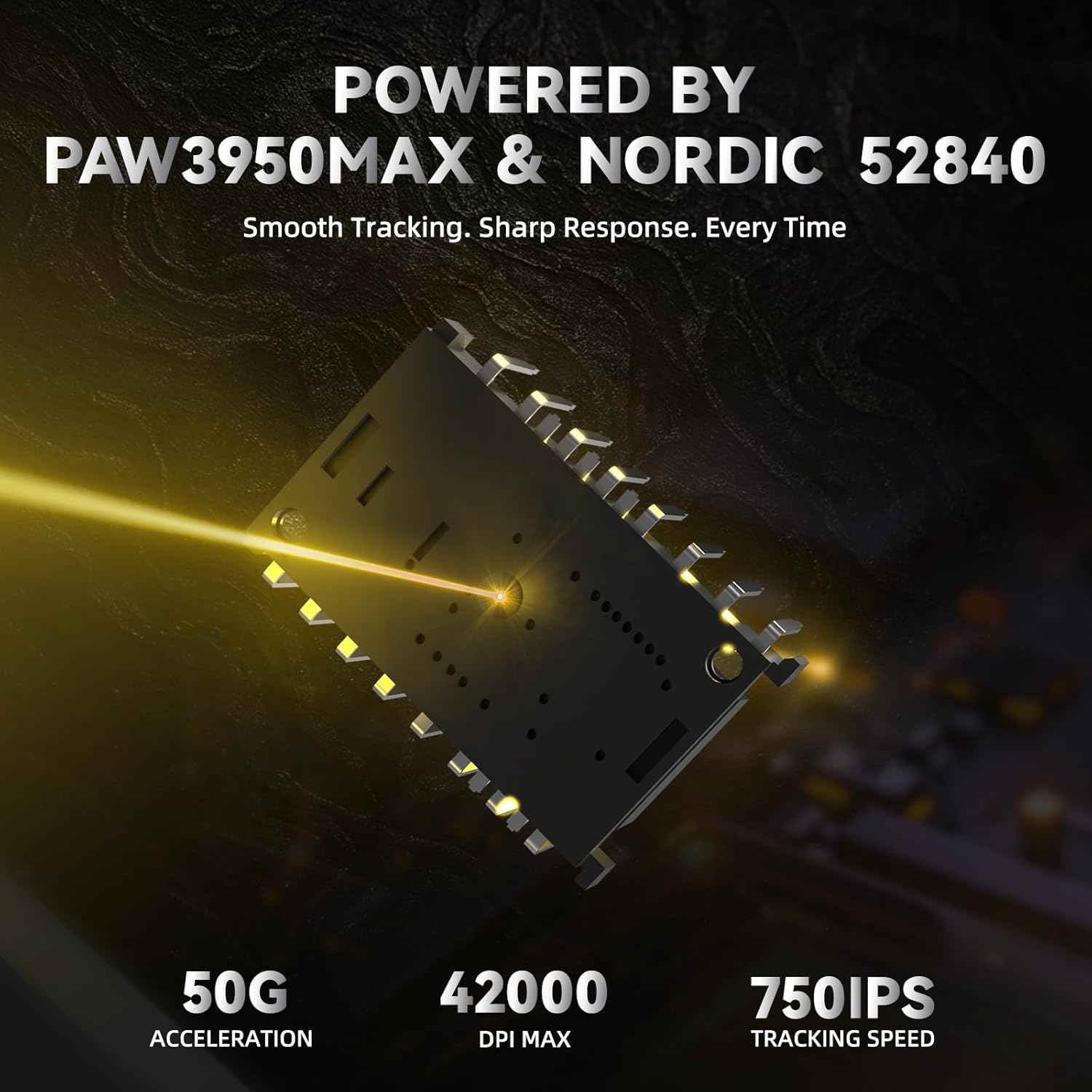
Image: Illustration highlighting the PixArt PAW3950 MAX sensor and Nordic 52840 MCU, indicating 50G acceleration, 42000 DPI MAX, and 750 IPS tracking speed.
2. Polling Rate Settings
The R11 Ultra supports an 8 kHz wireless polling rate for ultra-low latency and fast data transmission. In wired mode, it operates at a 1 kHz polling rate. These settings can be configured via the web interfejs.
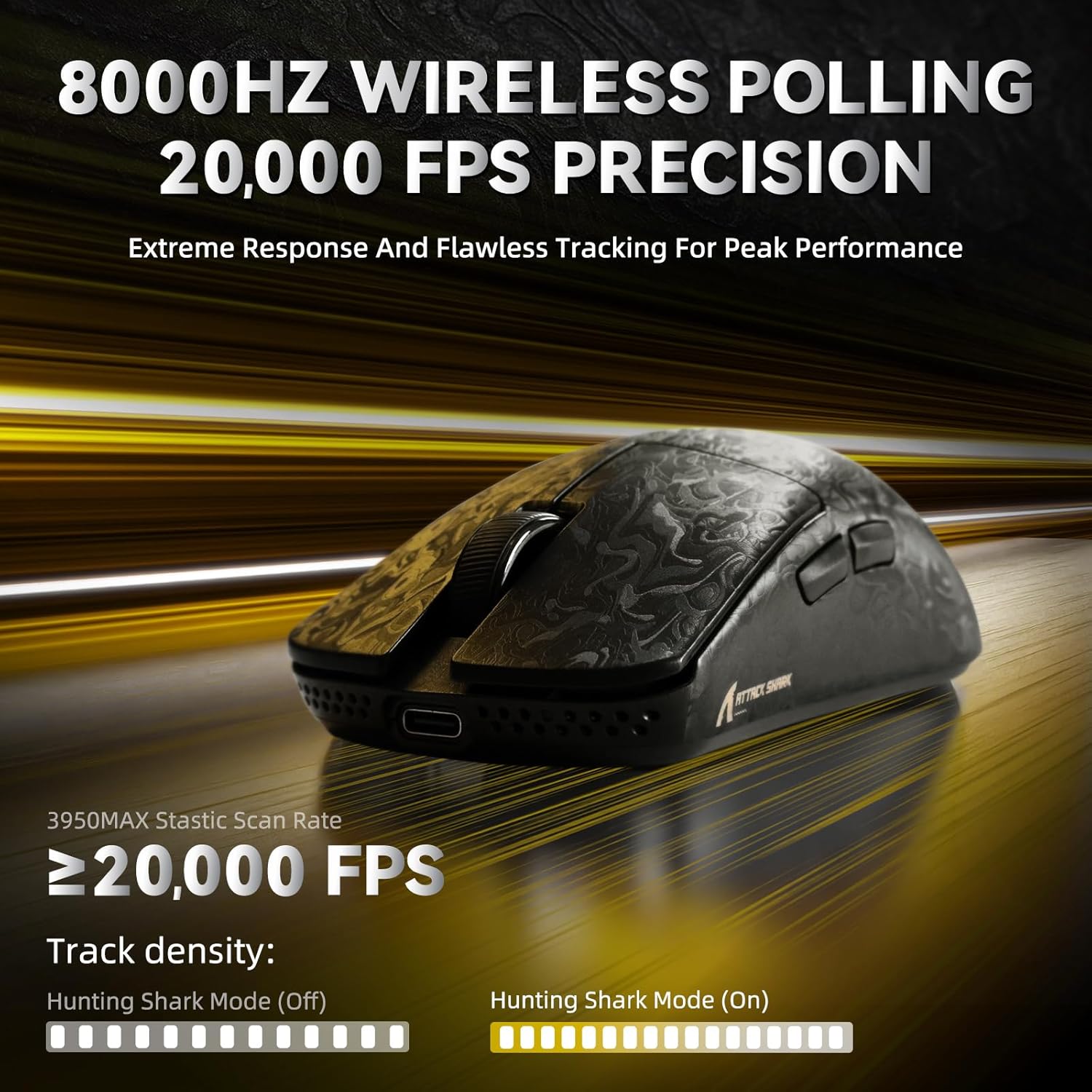
Image: Visual representation of 8000Hz wireless polling and 20,000 FPS precision tracking.
3. Dostosowywanie przycisków i makra
The mouse features 6 programmable buttons. Use the web-based driver interface to assign custom functions, create macros, and personalize your control scheme for different applications or games.

Image: Diagram illustrating the internal optical micro switches with 70 million click durability and the F-SWITCH scroll wheel encoder with 2,000,000 cycle tactility.
4. Grip Options
The ergonomic design of the R11 Ultra accommodates various grip styles, including palm grip, finger grip, and claw grip, ensuring comfort during extended use.

Image: Visual guide demonstrating Palm Grip, Finger Grip, and Claw Grip for the mouse.
Konserwacja
1. Czyszczenie myszy
Aby utrzymać optymalną wydajność, regularnie czyść mysz. Do przecierania powierzchni używaj miękkiej, suchej ściereczki. W przypadku uporczywych zabrudzeń, delikatnie przetrzyj powierzchnię.amp Można użyć ściereczki z łagodnym mydłem, upewniając się, że płyn nie dostanie się do wnętrza myszy. Unikaj środków czyszczących o działaniu ściernym i rozpuszczalników.
The Nano-ice coating provides a smooth, cool touch and durability, making it easy to clean.
Image: Close-up of the mouse surface highlighting the Nano Metallic Ice-Coating.
2. Mouse Feet Care
The R11 Ultra is equipped with 100% virgin PTFE double-layer mouse feet for smooth gliding. Keep the mouse feet clean and free of debris to ensure consistent performance. If the feet show significant wear, replacement feet may be available from the manufacturer.