
1. Koniec produktuview
The Keychron M6 Silent Wireless Gaming Mouse is designed for optimal comfort and performance across various tasks, from gaming to productivity. It features a lightweight, ergonomic design, versatile connectivity options, and a high-precision optical sensor. This manual provides detailed instructions for setup, operation, and maintenance.

Image: Keychron M6 Silent Wireless Gaming Mouse, showcasing its ergonomic shape and main buttons.
2. Główne cechy
- Ultra-Ergonomic & Lightweight Design: The M6 mouse combines a compact, ergonomic shape with a lightweight 86g body for extended comfort. It includes over ten customizable buttons and an infinite metal scroll wheel.
- Stable Wireless with Ultra-Low Latency: Experience reliable 2.4GHz wireless performance with a 1000Hz polling rate. The M6 also supports Bluetooth 5.3 for multi-device use and flexible switching.
- Wysokiej precyzji czujnik PixArt 3395: Equipped with the advanced PixArt 3395 optical sensor, the M6 provides up to 26,000 DPI, 650 IPS tracking speed, and pinpoint accuracy.
- Infinite Scroll & Premium Metal Wheel: Features dual scrolling modes: smooth, infinite scroll for fast navigation and tactile mode for precision. The solid metal wheel offers a quiet, premium feel.
- Fully Programmable via Keychron Engine Software: Customize every button with Keychron Engine software on macOS and Windows. Create shortcuts, set macros, adjust DPI, polling rate, and LOD.
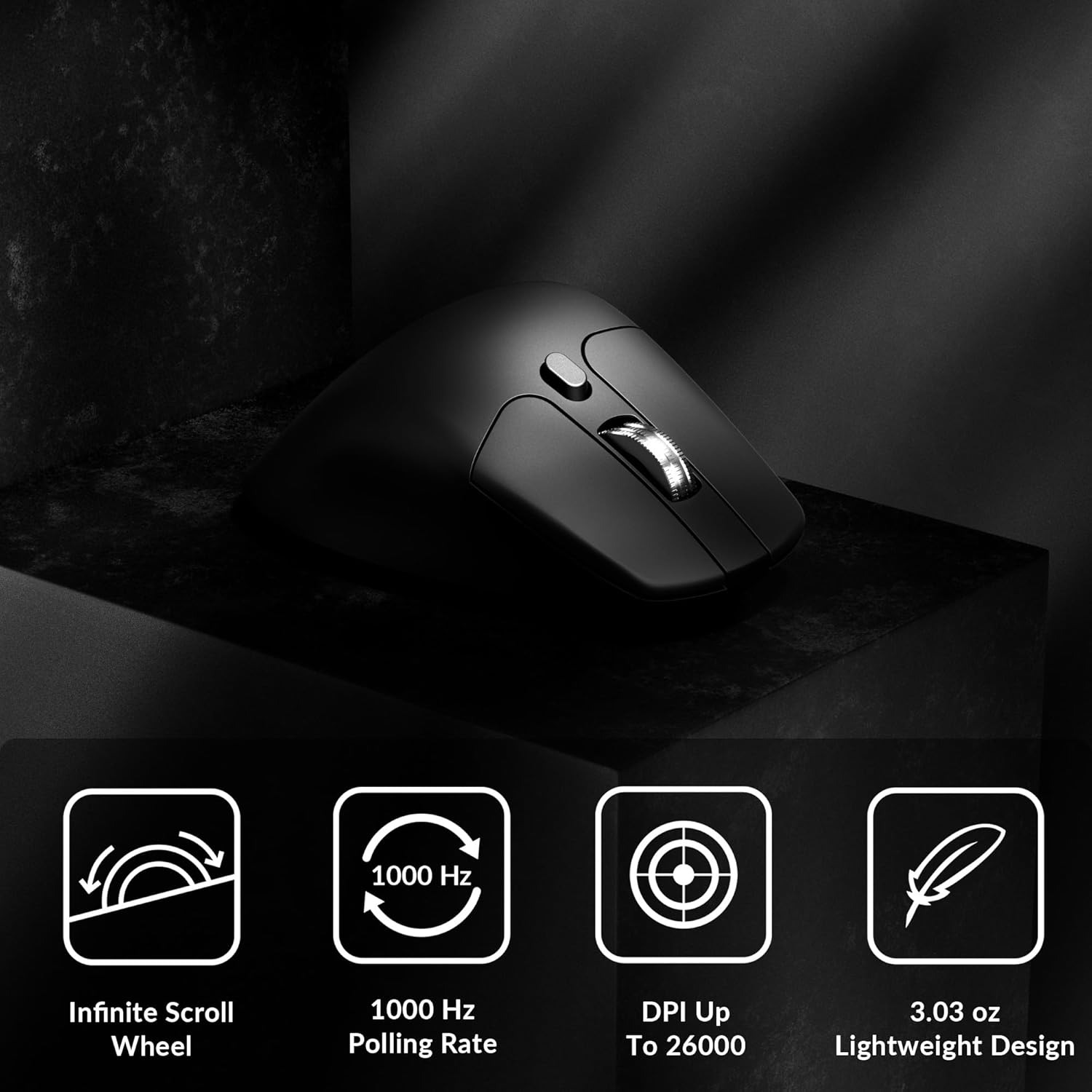
Image: Icons illustrating key features: Infinite Scroll Wheel, 1000 Hz Polling Rate, DPI Up To 26000, and Lightweight Design.
3. Konfiguracja
3.1 Zawartość opakowania
Sprawdź, czy w opakowaniu znajdują się wszystkie elementy:
- 1x Keychron M6 Mouse
- 1x kabel typu C do typu C
- 1x przejściówka typu A na typ C
- 1x Adapter przedłużający do odbiornika
- 1x Type-C 2.4 GHz Receiver
- 1x odbiornik typu A 2.4 GHz
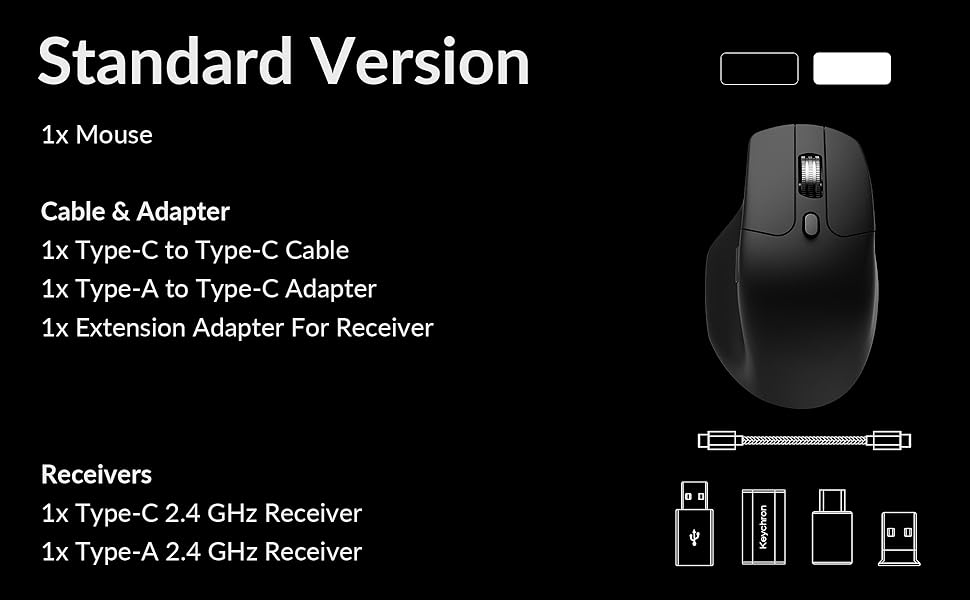
Image: Diagram showing the contents of the Keychron M6 mouse package.
3.2 Pierwsze ładowanie
Before first use, it is recommended to fully charge the mouse. Connect the mouse to your computer using the provided Type-C cable. The LED indicator will show charging status.
3.3 Podłączanie myszy
The Keychron M6 supports three connection modes: 2.4GHz wireless, Bluetooth 5.3, and wired.
- Łączność bezprzewodowa 2.4 GHz: Insert the 2.4GHz receiver (Type-A or Type-C) into your computer's USB port. Switch the mode switch on the bottom of the mouse to 'G' (Gaming) mode. The mouse should connect automatically.
- Bluetooth 5.3: Switch the mode switch on the bottom of the mouse to 'B' (Bluetooth) mode. On your computer, search for Bluetooth devices and select 'Keychron M6' to pair.
- wired: Connect the mouse directly to your computer using the provided Type-C cable. The mouse will function in wired mode and charge simultaneously.

Image: Keychron M6 mouse connected to a laptop via 2.4GHz receiver, with Bluetooth 5.3 icon.
4. Instrukcja obsługi
4.1 Podstawowe funkcje
- Kliknięcie lewym/prawym przyciskiem: Standardowe funkcje przycisków myszy.
- Kółko przewijania: Used for vertical scrolling.
- Przyciski boczne: Default to Forward/Backward navigation. Customizable via software.
- Pokrętło kciukowe: Located on the side, used for horizontal scrolling.
4.2 Regulacja DPI
The DPI (Dots Per Inch) button on the bottom of the mouse allows you to cycle through preset sensitivity levels. Each level is indicated by a specific LED color. You can customize these DPI levels using the Keychron Engine software.
4.3 Dostosowanie częstotliwości odpytywania
The polling rate button on the bottom of the mouse allows you to switch between different polling rates (125Hz, 500Hz, 1000Hz). A higher polling rate provides more responsive tracking, ideal for gaming. The LED indicator will change color to reflect the current polling rate.

Image: Close-up of the polling rate switch and indicator light on the mouse's underside.
4.4 Infinite Scroll Mode
The M6 features a button near the main scroll wheel to toggle between infinite scroll mode and tactile (notched) scroll mode. Infinite scroll allows for rapid navigation through long documents or web stron.

Image: Diagram showing the infinite scroll button and the horizontal scrolling function of the thumb wheel.
5. Customization with Keychron Engine Software
The Keychron Engine software allows for comprehensive customization of your M6 mouse. It is compatible with macOS and Windows and can be accessed online, eliminating the need for a download.
- Przypisanie przycisku: Remap any of the mouse buttons to perform different functions, including keyboard shortcuts, multimedia keys, or macros.
- Tworzenie makr: Record and assign complex sequences of commands to a single button.
- DPI/Polling Rate/LOD Adjustment: Fine-tune sensor settings to match your preferences.
Odwiedź oficjalny Keychron website to access the Keychron Engine software.

Image: Screenshot of the Keychron Engine software interface, showing button customization options for the M6 mouse.
6. Tryby łączności
The M6 mouse offers flexible connectivity to suit various setups:
- Łączność bezprzewodowa 2.4 GHz: Provides a stable, low-latency connection with a 1000Hz polling rate, ideal for gaming and demanding tasks. Uses a dedicated USB receiver.
- Bluetooth 5.3: Offers seamless connection to multiple devices, allowing for quick switching between systems. Suitable for general use and productivity.
- Przewodowy (USB-C): Connects directly via the USB-C cable, providing a reliable connection and simultaneously charging the mouse.
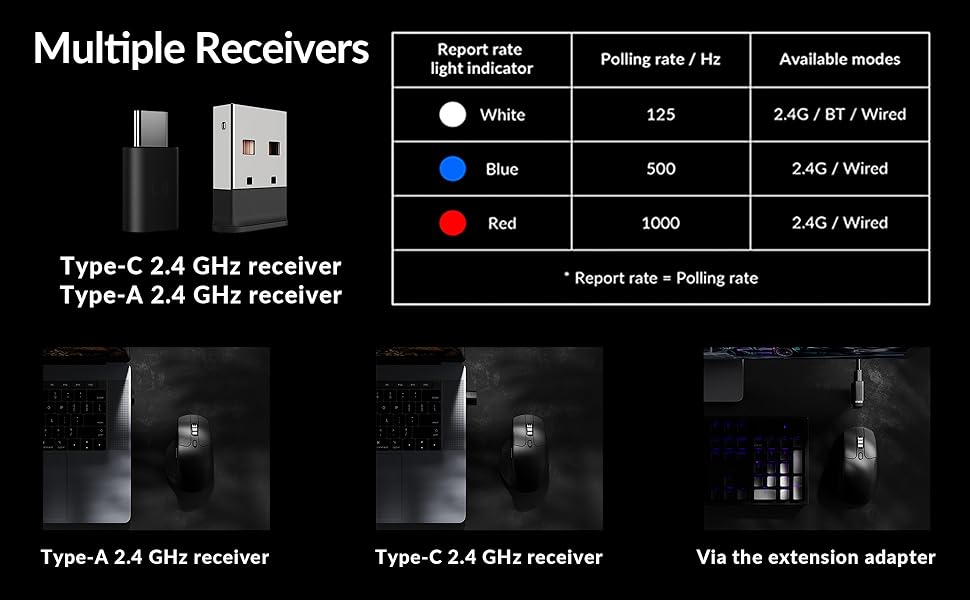
Image: Illustration of the Type-C and Type-A 2.4 GHz receivers, along with a table detailing polling rates and available modes.
7. Specyfikacje
| Numer modelu | M6S |
| Transduktor | Czujnik optyczny PixArt 3395 |
| DPI | Do 26,000 |
| Prędkość śledzenia IPS | 650 |
| Współczynnik sondowania | 1000Hz (2.4GHz/Wired), 125Hz (Bluetooth) |
| Łączność | Łączność bezprzewodowa 2.4 GHz, Bluetooth 5.3, przewodowy port USB-C |
| Waga | 86 g (3.03 uncji) |
| Bateria | 800 mAh (do 80 godzin) |
| Przełączniki | Huano 20M Silent Micro Switch |
| Zgodność | Windows, macOS, Linux |
| Wymiary | 4.82 x 2.97 x 1.97 cala (122.5 x 75.4 x 50 mm) |
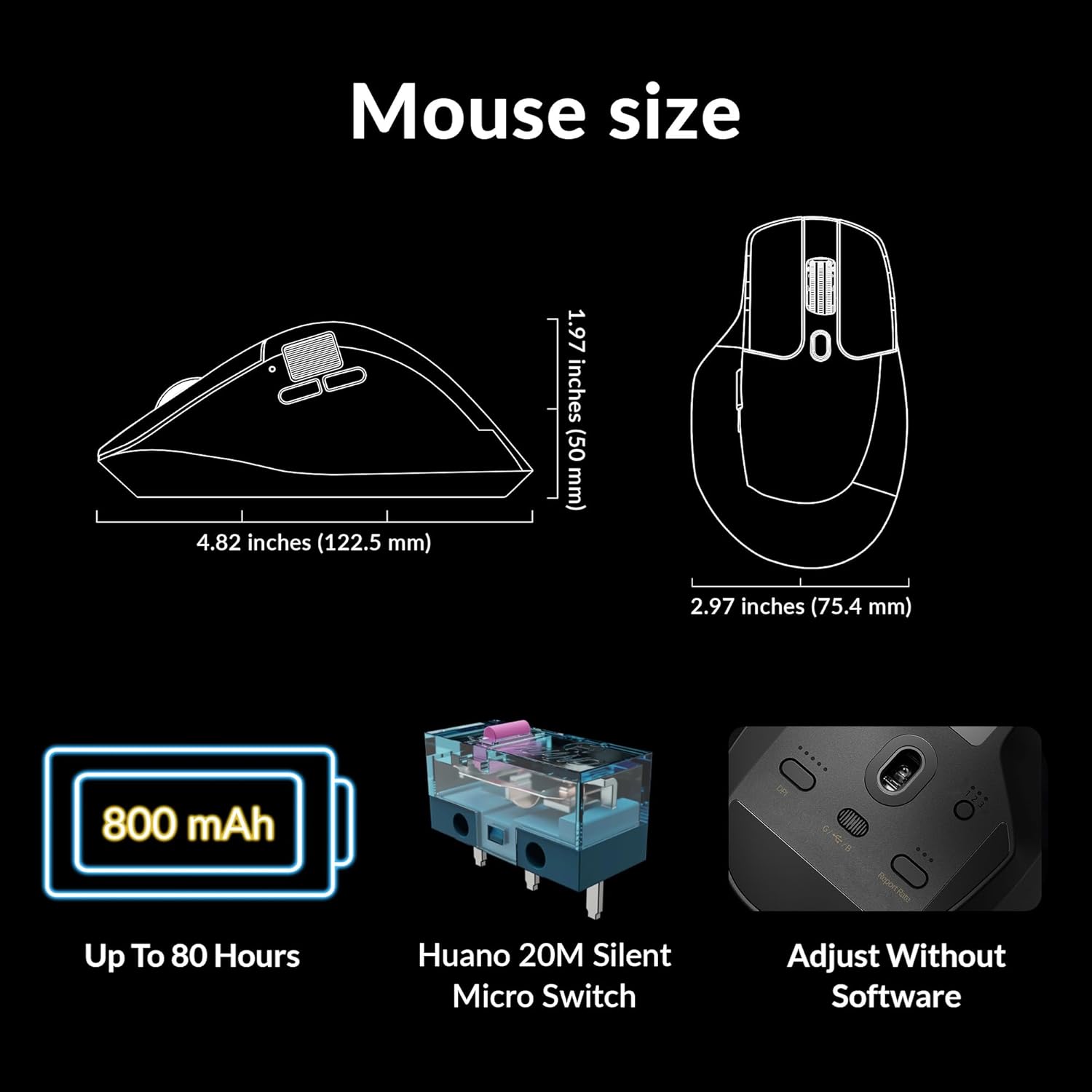
Image: Diagram showing the dimensions of the Keychron M6 mouse, its 800 mAh battery, and Huano 20M Silent Micro Switches.
8. Konserwacja
To ensure the longevity and optimal performance of your Keychron M6 mouse, follow these maintenance guidelines:
- Czyszczenie: Do przecierania powierzchni myszy użyj miękkiej, suchej ściereczki. W przypadku uporczywych zabrudzeń delikatnie przetrzyjampPrzetrzyj ściereczkę wodą lub delikatnym środkiem czyszczącym. Unikaj silnych środków chemicznych.
- Pielęgnacja czujnika: Utrzymuj czujnik optyczny znajdujący się na spodzie myszy w czystości i zapobiegaj jego zakurzeniu lub zanieczyszczeniom, aby zapewnić precyzyjne śledzenie ruchów.
- Pielęgnacja baterii: Unikaj częstego całkowitego rozładowywania baterii. W przypadku długotrwałego przechowywania naładuj mysz do około 50% i przechowuj ją w chłodnym, suchym miejscu.
- Składowanie: When not in use, store the mouse in a safe place to prevent physical damage.
9. Rozwiązywanie Problemów
If you encounter issues with your Keychron M6 mouse, refer to the following common solutions:
- Mysz nie odpowiada:
- Sprawdź, czy mysz jest naładowana.
- Check the connection mode switch (2.4GHz, Bluetooth, Wired) is set correctly.
- For 2.4GHz, ensure the receiver is properly inserted and try a different USB port.
- For Bluetooth, re-pair the device in your computer's Bluetooth settings.
- Spróbuj podłączyć się za pomocą kabla USB-C, aby wykluczyć problemy z łącznością bezprzewodową.
- Niespójne śledzenie:
- Wyczyść czujnik optyczny znajdujący się na spodzie myszy.
- Upewnij się, że używasz myszy na odpowiedniej powierzchni (np. podkładce pod mysz).
- Dostosuj ustawienia DPI do poziomu, który Ci odpowiada.
- Przyciski nie działają:
- Check Keychron Engine software for custom button assignments that might be interfering.
- Sprawdź, czy oprogramowanie układowe myszy jest aktualne.
- Problemy z kółkiem przewijania:
- Toggle the infinite scroll button to ensure it's in the desired mode.
- Wyczyść wszelkie zanieczyszczenia wokół kółka przewijania.
10. Oficjalny film o produkcie
Wideo: Oficjalnyview of the Keychron M6 Silent Wireless Optical Gaming Mouse, highlighting its features and design.
11. Gwarancja i wsparcie
Keychron products come with a limited warranty. For detailed warranty information, technical support, and frequently asked questions, please visit the official Keychron webOdwiedź witrynę lub skontaktuj się z działem obsługi klienta. Zachowaj dowód zakupu na wypadek reklamacji.