
1. Wprowadzenie
Thank you for choosing the Pisichen 24 inch Touch Screen Gaming Monitor. This manual provides essential information for setting up, operating, and maintaining your monitor. Please read it thoroughly before use to ensure optimal performance and safety.
This monitor features a 24-inch QHD (2560x1440P) display with a 165Hz refresh rate, 2ms response time, and 10-point projected capacitive touchscreen functionality. It supports FreeSync and HDR, offering a vibrant and responsive visual experience for both gaming and professional applications.

Image: The Pisichen 24-inch 2K 165Hz Touch Screen Monitor highlighting its key features like HDR, IPS Panel, and 10-point Touch.
2. Zawartość opakowania
Przed przystąpieniem do instalacji sprawdź, czy w opakowaniu znajdują się wszystkie elementy:
- Pisichen 24 inch Touch Screen Monitor
- Stojak na monitor (podstawa i szyjka)
- Kabel DP
- Kabel HDMI
- USB B Touch Cable
- Kabel USB CC
- Zasilacz prądu stałego
- Instrukcja obsługi (ten dokument)
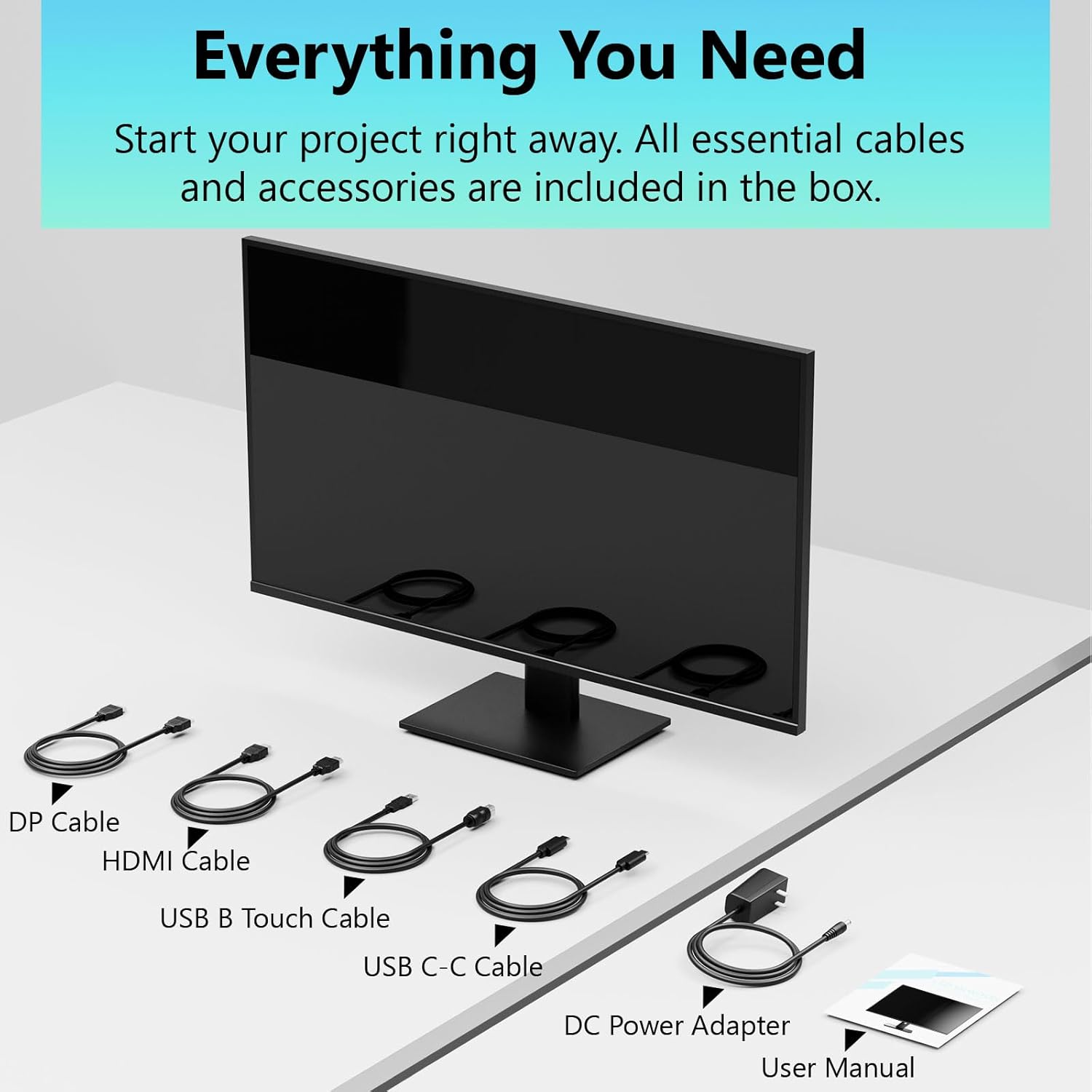
Image: All essential cables and accessories included in the box for the monitor setup.
3. Instrukcje konfiguracji
3.1 Montaż stojaka
- Ostrożnie wyjmij monitor z opakowania i połóż go ekranem do dołu na miękkiej, czystej powierzchni, aby zapobiec zarysowaniu.
- Przymocuj podstawę do tylnego panelu monitora.
- Przymocuj podstawę stojaka do szyjki stojaka za pomocą dołączonych śrub.
- Przed ustawieniem monitora w pozycji pionowej sprawdź, czy wszystkie połączenia są solidne.
3.2 Montaż uchwytu VESA (opcjonalnie)
This monitor supports VESA mounting. If you plan to use a VESA-compatible arm or wall mount, remove the stand and attach the VESA mount according to the mount's instructions. The VESA pattern is typically 75x75mm or 100x100mm (refer to specifications for exact details).
3.3 Podłączanie do urządzenia
Monitor oferuje wiele opcji łączności:
- HDMI: Podłącz jeden koniec kabla HDMI do portu HDMI monitora, a drugi koniec do wyjścia HDMI komputera.
- DisplayPort (DP): Connect one end of the DP cable to the monitor's DP port and the other end to your computer's DP output.
- USB typu C: For compatible devices, connect the USB C-C cable to the monitor's USB Type-C port and your device's USB Type-C port. This single cable can transmit video, data, and power (charging).
- USB Type-B (for Touch Functionality): To enable the touch screen feature, connect the USB B Touch Cable from the monitor's USB Type-B port to an available USB Type-A port on your computer.

Image: The monitor's rear panel with various connectivity options, including HDMI, DisplayPort, and USB-C ports.
3.4 Połączenie zasilania
Connect the DC Power Adapter to the monitor's power input port, then plug the adapter into a power outlet.
3.5 Initial Power On and Touch Compatibility
Press the power button on the monitor. The display should light up. If no image appears, ensure all cables are securely connected and the correct input source is selected on the monitor (via the OSD menu).
For touch functionality, ensure the USB B Touch Cable is connected to your computer. Touch compatibility may vary by operating system and device. Most Windows PCs support multi-touch. For Mac devices, single-touch click is generally supported, but multi-touch may require specific drivers or configurations. Game consoles (PS3/4/5, Xbox, Steam Deck) and some other devices (Fire TV, Apple products like iPhone/iPad) typically do not support touch functionality.

Image: A compatibility chart illustrating which devices support multi-touch or single-touch, and which devices do not support touch functionality with the monitor.
4. Instrukcja obsługi
4.1 Włączanie/wyłączanie zasilania
Naciśnij przycisk zasilania znajdujący się na monitorze, aby go włączyć lub wyłączyć. Kontrolka zasilania pokaże stan monitora.
4.2 Menu ekranowe (OSD)
The OSD menu allows you to adjust various monitor settings. Use the control buttons (usually located on the back or bottom of the monitor) to navigate the menu. Common menu options include:
- Ustawienia obrazu: Brightness, Contrast, Sharpness, Color Temperature, HDR mode.
- Ustawienia wyświetlania: Aspect Ratio, Input Source selection (HDMI, DP, USB-C).
- Ustawienia gry: FreeSync, Response Time (Overdrive), Crosshair.
- Ustawienia audio: Volume (if internal speakers or audio output are present).
- Ustawienia systemowe: Language, OSD Transparency, Reset to Factory Defaults.
4.3 Funkcjonalność ekranu dotykowego
The monitor supports 10-point multi-touch, allowing for intuitive interaction directly on the screen. Ensure the USB B Touch Cable is connected to your computer for this feature to work.
- Pojedyncze dotknięcie: Equivalent to a left-click.
- Naciśnij i przytrzymaj: Odpowiednik kliknięcia prawym przyciskiem myszy.
- Powiększanie za pomocą szczypania: Użyj dwóch palców, aby przybliżać i oddalać.
- Trzepnąć: Poruszaj się po treści i przewijaj.

Image: A user interacting with the monitor's touch screen, highlighting its precision and responsiveness for creative tasks.
4.4 Regulacje ergonomiczne
The monitor stand allows for tilt adjustments to achieve the most comfortable viewing and touch angle. Gently adjust the screen to your preferred position.
4.5 Funkcje pielęgnacji oczu
The monitor includes advanced eye-comfort features such as Flicker-Free technology and Low Bluelight mode to reduce eye strain during prolonged use. These settings can typically be adjusted within the OSD menu.

Image: Visual representation of the monitor's advanced eye-comfort features, including Flicker-Free and Low Bluelight technologies.
5. Konserwacja
5.1 Czyszczenie monitora
- Przed czyszczeniem należy zawsze wyłączyć monitor i odłączyć przewód zasilający.
- Delikatnie użyj miękkiej, niestrzępiącej się szmatki dampspłukać wodą lub łagodnym, nieściernym środkiem do czyszczenia ekranów.
- Nie rozpylaj środka czyszczącego bezpośrednio na ekran. Najpierw nanieś go na ściereczkę.
- Unikaj stosowania benzenu, rozcieńczalnika, środków czyszczących na bazie amoniaku i materiałów ściernych, ponieważ mogą one uszkodzić powierzchnię ekranu.
5.2 Przechowywanie
When storing the monitor for an extended period, ensure it is powered off, unplugged, and stored in a cool, dry place away from direct sunlight and extreme temperatures. Use the original packaging if available for best protection.
6. Rozwiązywanie Problemów
Jeśli masz problemy z monitorem, zapoznaj się z poniższymi typowymi procedurami rozwiązywania problemów:
- Brak zasilania: Upewnij się, że zasilacz jest prawidłowo podłączony do monitora i sprawnego gniazdka elektrycznego. Sprawdź, czy świeci się kontrolka zasilania.
- Brak obrazu/sygnału:
- Verify that the video cable (HDMI, DP, or USB-C) is securely connected to both the monitor and your computer.
- Sprawdź, czy w menu OSD monitora wybrano właściwe źródło sygnału wejściowego.
- Sprawdź ustawienia wyświetlania komputera, aby upewnić się, że monitor został wykryty i włączony.
- Funkcjonalność bezdotykowa:
- Confirm the USB B Touch Cable is connected from the monitor to your computer.
- Check your computer's device manager to see if the touch screen driver is installed and functioning correctly.
- Refer to the "Initial Power On and Touch Compatibility" section for device-specific limitations.
- Migotanie lub zniekształcenie obrazu:
- Sprawdź, czy kabel wideo nie jest uszkodzony lub czy połączenia nie są luźne.
- Spróbuj użyć innego kabla wideo lub portu.
- Dostosuj częstotliwość odświeżania w ustawieniach wyświetlania komputera.
- Martwe piksele: Niewielka liczba jasnych lub ciemnych pikseli występuje powszechnie w technologii LCD/LED i nie jest uznawana za wadę, chyba że przekracza parametry określone przez producenta.
Jeśli po wypróbowaniu tych kroków problem nadal występuje, skontaktuj się z obsługą klienta.
7. Specyfikacje
| Funkcja | Specyfikacja |
|---|---|
| Marka | Pisichen |
| Numer modelu | 24IN165HZ-QHD |
| Rozmiar ekranu | 23.8 cali |
| Rezolucja | QHD Szeroka rozdzielczość 1440p (2560 x 1440) |
| Proporcje obrazu | 16:9 |
| Częstotliwość odświeżania | 165 Hz |
| Czas reakcji | 2 milisekund |
| Typ wyświetlacza | LED IPS |
| Jasność | 400 kandeli (cd/m²) |
| Współczynnik kontrastu | 3000:1 |
| Viewing kąt | 178 stopni |
| Gama kolorów | 99% |
| Picture Quality Enhancement | HDR |
| Adaptacyjna synchronizacja | FreeSync |
| Technologia łączności | DisplayPort, HDMI, USB Type-C, USB Type-B |
| Dodatkowe funkcje | Tilt Adjustment, 10-Point Touchscreen |
| Wymiary przedmiotu (gł. x szer. x wys.) | 0.75" gł. x 21.5" szer. x 12.7" wys. |
| Waga przedmiotu | 5.38 kilograma |
| Kolor | Czarny |
8. Informacje o gwarancji
This product comes with a 1-year limited warranty from the date of purchase. The warranty covers manufacturing defects and workmanship under normal use. It does not cover damage caused by misuse, accidents, unauthorized modifications, or external factors. Please retain your proof of purchase for warranty claims.
9. Obsługa klienta
For technical assistance, warranty claims, or further inquiries, please contact Pisichen customer support. You may find contact information on the official Pisichen webna stronie internetowej lub u sprzedawcy.
Aby uzyskać dodatkowe zasoby i informacje o produkcie, odwiedź stronę Pisichen Store on Amazon.