
Wstęp
This manual provides detailed instructions for setting up, operating, maintaining, and troubleshooting your RSH Android Smart Tag Locator. Please read this manual carefully before using the device to ensure proper functionality and to maximize its lifespan.
The RSH Android Smart Tag is designed to help you track and locate your valuable items using the Google Find My Device network. It is compact, durable, and features a long-lasting replaceable battery.

Rysunek 1: The RSH Android Smart Tag Lokalizator.
1. Konfiguracja
1.1 Zawartość opakowania
- RSH Android Smart Tag Lokalizator
- Zaczep na klucze
- Bateria CR2032 (wstępnie zainstalowana)
- Instrukcja obsługi (ten dokument)
1.2 Quick Pairing
Mądry Tag connects quickly to your Android phone. As soon as the Tag is near your phone, a connection prompt will appear.
- Sprawdź, czy Bluetooth w Twoim telefonie z systemem Android jest włączony.
- Bring the RSH Smart Tag close to your Android phone.
- A connection prompt should appear on your phone's screen. Follow the on-screen instructions to pair the device.
- Open the "Google Find My Device" application to complete the setup and register your new Smart Tag.

Rysunek 2: Seamless integration of the RSH Smart Tag with the Android ecosystem, compatible with most Android phones including Samsung, Google, Xiaomi, Oppo, and Vivo.

Rysunek 3: RSH Smart Tag integrated with Google Find My Device. The app allows you to play a sound on the tag to easily locate your item.
Wideo 1: An official RSH-TECH video demonstrating the connection process and main features of the RSH Android Smart Tag. This video shows how to connect the device and highlights its primary functionalities.
2. Instrukcja obsługi
2.1 Lokalizowanie przedmiotów
Use the "Google Find My Device" application to locate your item.
- Within Bluetooth Range: When the tracker is within Bluetooth range, activate the integrated speaker through the app to locate your item by sound.
- Outside Bluetooth Range: If the tracker is out of Bluetooth range, you can view the current position of the tag on the map within the "Google Find My Device" app. The network of billions of Android devices helps pinpoint its location.
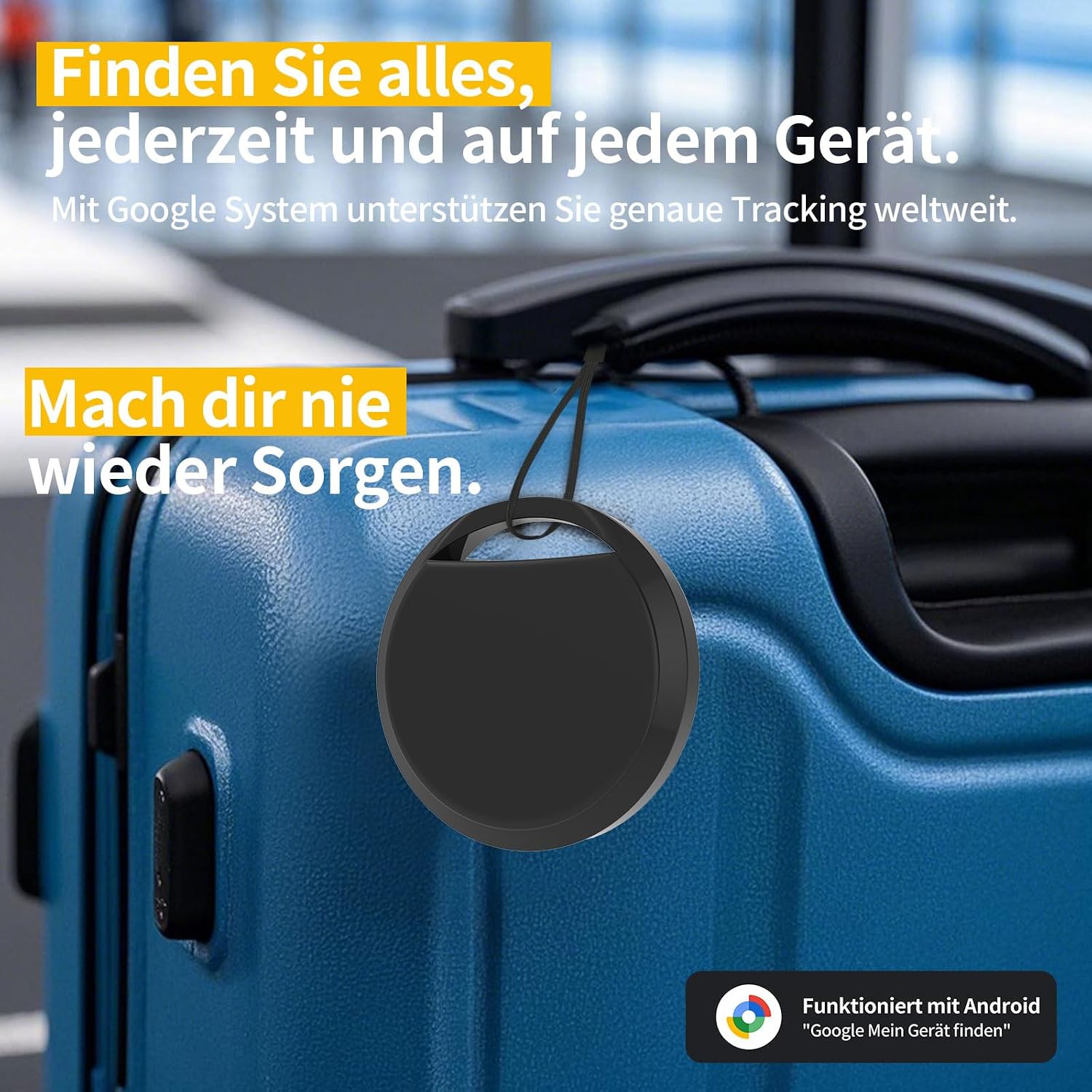
Rysunek 4: RSH Smart Tag attached to luggage, illustrating its use for finding items globally with the Google system.

Rysunek 5: Attach the RSH Smart Tag to any item to locate its track. Certified by Google for reliable tracking and seamless integration.

Rysunek 6: RSH Smart Tag can be easily attached to various objects such as keys, wallets, backpacks, and luggage, ensuring you never lose important items again.
2.2 Tryb utracony
When you activate Lost Mode, billions of Android devices on the "Google Find My Device" network will assist in locating your lost items. This feature leverages the vast Android network to help you recover your belongings.
2.3 Item Sharing
You can share the item's location within the "Google Find My Device" application with other individuals, allowing them to view the item's position on the map. This is useful for shared items or when coordinating with others to find a lost item.
2.4 Understanding Sounds
Wideo 2: An official RSH-TECH video explaining the different sounds emitted by the Smart Tag and their meanings, which can help in locating the device or understanding its status.
3. Konserwacja
3.1 Wymiana baterii
RSH Smart Tag is powered by a replaceable CR2032 battery, which can last up to 1 year under normal usage. When the battery is low, you may receive a notification via the Google Find My Device app.
Aby wymienić baterię:
- Locate the small groove or opening on the side of the Smart Tag.
- Use a thin tool (like a guitar pick or a small flat-head screwdriver) to carefully pry open the casing.
- Wyjmij starą baterię CR2032.
- Włóż nową baterię CR2032 biegunem dodatnim (+) skierowanym do góry.
- Wyrównaj dwie połówki casing i dociśnij mocno, aż zatrzaśnie się na swoim miejscu.
Wideo 3: An official RSH-TECH video demonstrating how to reset the Smart Tag and replace its CR2032 battery.
3.2 Wodoodporność
Mądry Tag is IP67 certified, meaning it can be immersed in water up to 1 meter deep for 30 minutes. While it is water-resistant, it is not recommended for prolonged submersion or use in harsh aquatic environments. Ensure the casing jest odpowiednio uszczelniony po wymianie baterii, aby zachować wodoodporność.
4. Rozwiązywanie Problemów
4.1 Device Not Connecting
- Sprawdź, czy Bluetooth w Twoim telefonie jest włączony.
- Upewnij się, że Smart Tag is within close proximity to your phone.
- Check the battery level. A low battery can affect connectivity. Replace the battery if necessary (refer to Section 3.1).
- Try restarting your phone and the Smart Tag (by removing and reinserting the battery).
- Ensure the "Google Find My Device" app is updated to the latest version.
4.2 Inaccurate Location
- Location accuracy depends on the density of Android devices in the vicinity. In areas with fewer Android devices, the location might be less precise.
- Ensure your phone's location services are enabled and the "Google Find My Device" app has location permissions.
- Jeśli tag is indoors or in a shielded environment, GPS signals might be weak, affecting accuracy.
4.3 Brak dźwięku z Tag
- Check the battery level. A depleted battery will prevent the tag from emitting sound.
- Zapewnij tag is within Bluetooth range of your phone when attempting to play a sound.
- Verify that the volume on your phone and within the "Google Find My Device" app is not muted.
4.4 Resetowanie urządzenia
If you experience persistent issues, you may need to reset the Smart Tag. Odnieś się do Wideo 3 in Section 3.1 for instructions on how to reset the device. This typically involves a specific sequence of button presses or battery removal/reinsertion.
5. Specyfikacje
| Marka | RSH |
| Numer modelu | LokalizacjaTag (ACCUTAG) |
| Tworzywo | Plastikowy |
| Wymiary (dł. x szer. x wys.) | 36mm x 36mm x 8mm |
| Waga przedmiotu | 7.6 gram |
| Typ baterii | 1 x CR2032 (w zestawie, wymienna) |
| Średnia żywotność baterii | Do 365 dni |
| Odporność na wodę | IP67 (1 metr na 30 minut) |
| Kompatybilne urządzenia | Android Smartphones (via Google Find My Device app) |
| Metoda kontroli | Application (Google Find My Device) |
| Kraj pochodzenia | Chiny |
6. Gwarancja i wsparcie
6.1 Informacje o gwarancji
For specific warranty details, please refer to the product packaging or contact the seller directly. Warranty terms may vary based on region and retailer.
6.2 Obsługa klienta
If you encounter any issues or have questions not covered in this manual, please contact RSH-TECH customer support through the platform where you purchased the product.
You can also visit the official RSH webwitrynę zawierającą dodatkowe zasoby i wsparcie.