
1. Wprowadzenie
Thank you for choosing the Yusuuo P05 Instant Print Camera for Kids. This camera is designed to provide an engaging and creative experience, allowing children to capture moments and print them instantly. It features a large screen, 1080P video recording, various filters and stickers, and a durable, inkless printing mechanism. Please read this manual carefully to ensure proper use and maintenance of your device.
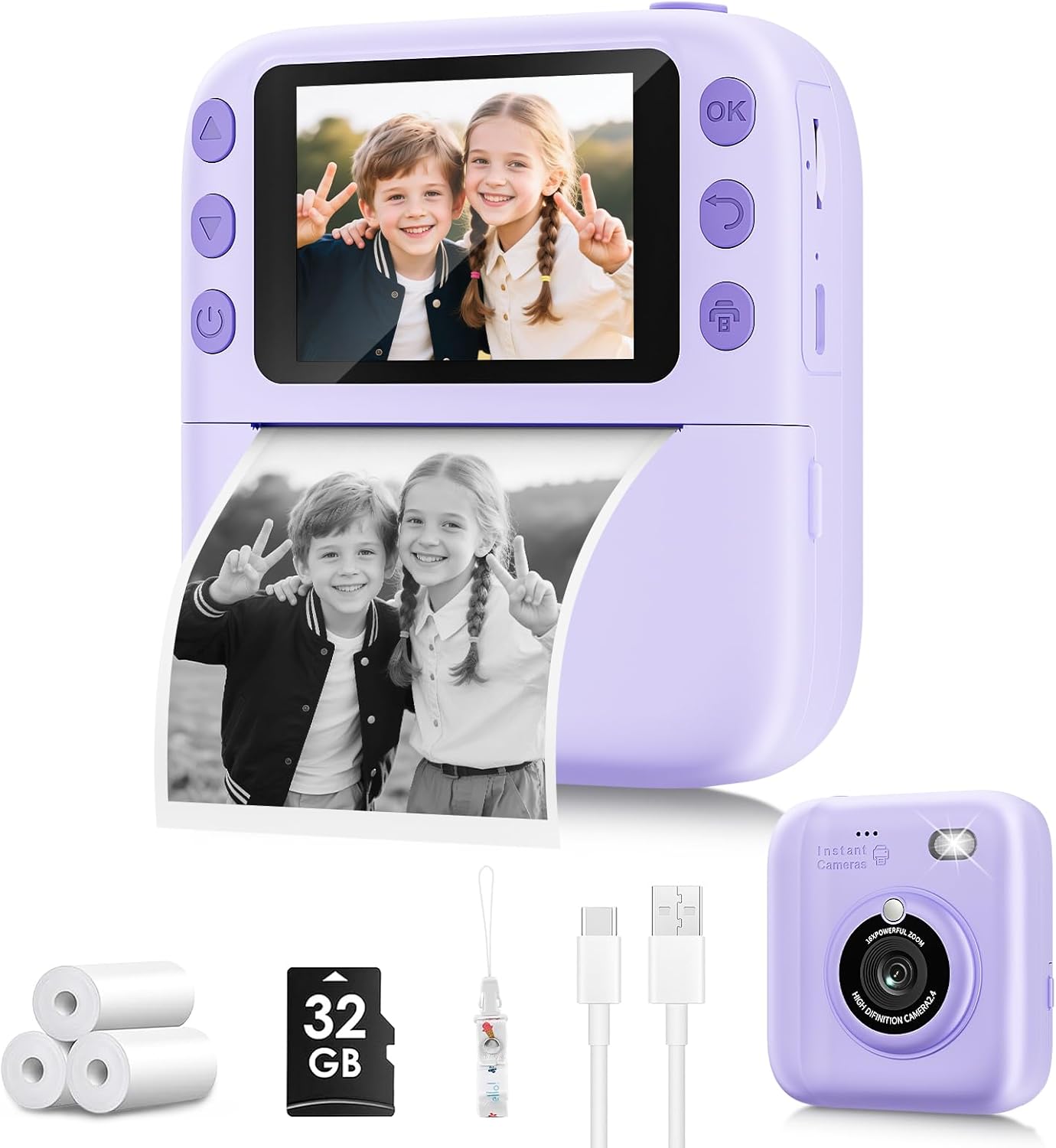
Image 1.1: Yusuuo P05 Instant Print Camera with included paper rolls, SD card, lanyard, and charging cable.
2. Co znajduje się w pudełku
- 1 x Yusuuo P05 Instant Print Camera
- 3 x Print Paper Rolls (for approximately 372 prints)
- 1 x Instrukcja obsługi
- Karta SD 1 x 32GB
- 1 x Smycz
- 1 x kabel ładujący typu C
3. Koniec produktuview
The Yusuuo P05 camera combines multiple functions to enhance the user experience:
- Natychmiastowe drukowanie: Prints black and white photos instantly without ink. Color copies are saved digitally.
- Przechwytywanie w wysokiej rozdzielczości: Supports 1080P video recording and high-quality digital photos.
- Funkcje kreatywne: Includes 15 filters and 16 stickers to personalize photos.
- Rozrywka: Features built-in games and music playback (MP3s must be loaded onto the SD card).
- Trwała konstrukcja: Made from soft, kid-safe, shockproof materials.
- Długa żywotność baterii: Fast-charging with approximately 3 hours of continuous use.

Image 3.1: Visual representation of the camera's multi-functional capabilities.
4. Konfiguracja
4.1 Ładowanie kamery
Before first use, fully charge the camera using the provided Type-C charging cable. Connect the cable to the camera's charging port and a compatible USB power source. The charging indicator light will show the charging status.
4.2 Instalacja karty SD
The camera comes with a 32GB SD card for storing photos and videos. Locate the SD card slot on the side of the camera and gently insert the card until it clicks into place. Ensure the card is inserted correctly to avoid damage.
4.3 Ładowanie papieru do drukowania
The camera uses thermal paper for instant prints. Follow these steps to load a new paper roll:
- Push up the part with the lens to open the paper slot.
- Insert the printing paper roll in the correct direction. Ensure the paper feeds from the bottom of the roll.
- Pull the paper out by approximately 1 inch before closing the two parts of the camera.
- Close the camera securely. If prints are blank, rotate the paper roll 180 degrees and re-install.
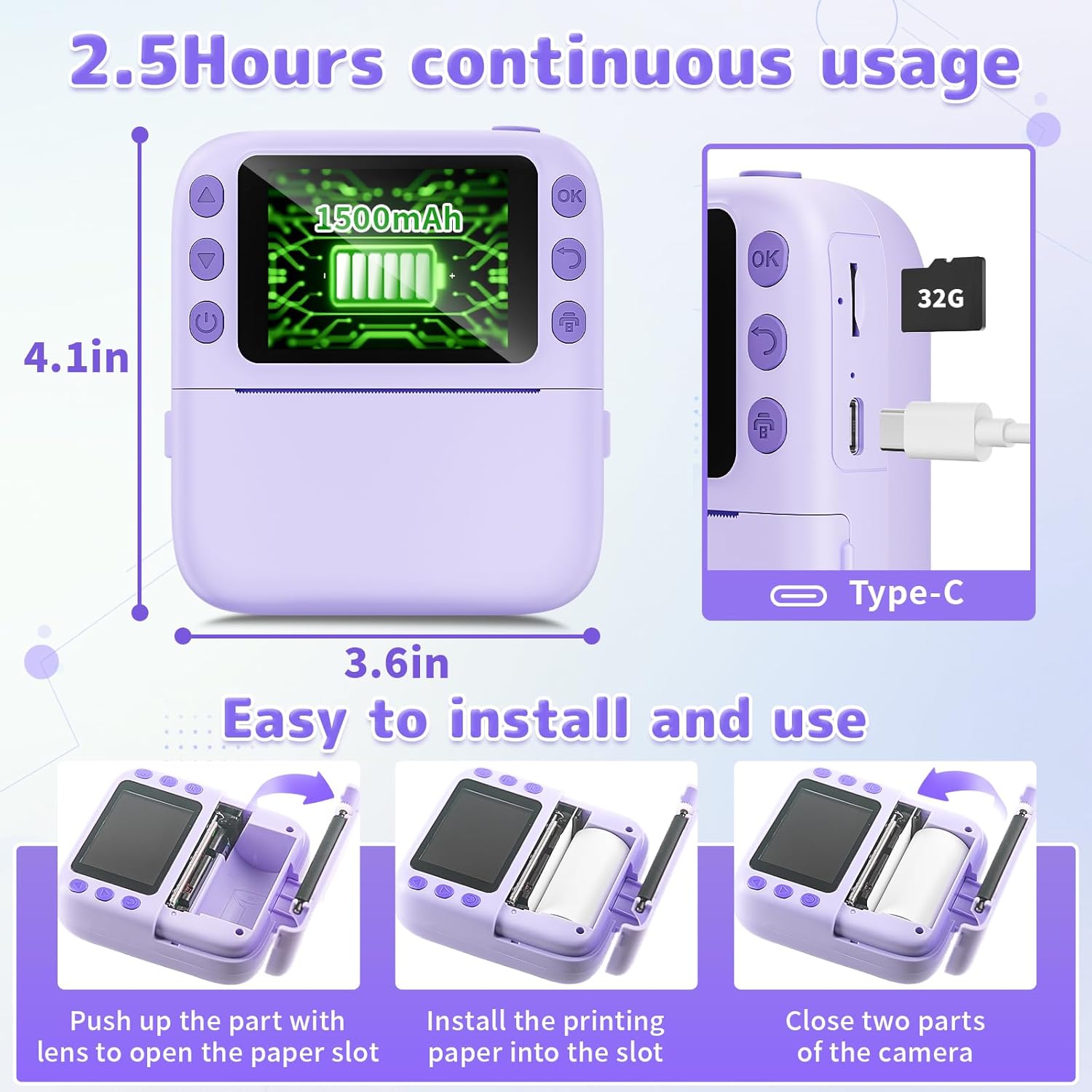
Image 4.1: Step-by-step guide for installing the thermal paper roll.
5. Instrukcja obsługi
5.1 Włączanie/wyłączanie zasilania
Press and hold the power button (usually marked with a power symbol) to turn the camera on or off.
5.2 Nawigacja
Use the directional buttons (up/down/left/right) to navigate through the menu options on the screen. Press the 'OK' button to select an option.
5.3 Robienie zdjęć
Select the 'Photo' icon from the main menu. Frame your shot using the screen. Press the shutter button (often a dedicated button or the 'OK' button) to capture the image. The camera supports digital zoom and has a built-in flash.
5.4 Nagrywanie filmów
Select the 'Video' icon from the main menu. Press the shutter button to start recording and press it again to stop. Videos are recorded in 1080P resolution.
5.5 Drukowanie natychmiastowe
After taking a photo, you can choose to print it instantly. The camera prints in black and white. Color versions of photos are saved to the SD card. There are typically two printing modes: one that prints immediately after each photo, and another that allows you to select photos from the gallery to print.

Image 5.1: Instant photo printing and digital storage capabilities.
5.6 Filtry i naklejki
Access the 'Filters' or 'Stickers' option in the menu to apply various creative effects to your photos before or after capturing them. The camera offers 15 filters and 16 stickers.
5.7 Playback and Gallery
Select the 'Playback' or 'Photos' icon to view your captured images and videos. Use the directional buttons to browse through your media.
5.8 Games and Music
The camera includes built-in games for entertainment. For music playback, ensure MP3 files are loaded onto the SD card. Select the 'Music' icon to access the player.
6. Integracja mediów
6.1 Zdjęcia produktów
Below are additional images illustrating the camera's features and usage.

Image 6.1: The camera's 1080P video recording and 16X digital zoom functions.

Image 6.2: Details on the cost-effectiveness and safety of the camera's inkless printing.
6.2 Oficjalne filmy o produktach
Watch these videos for a visual guide on setting up and using your Yusuuo P05 camera.
Wideo 6.1: Overview of the instant printing camera, including unboxing and basic functions.
Video 6.2: A detailed demonstration of the camera's features and printing process.
Video 6.3: Highlighting the ease of use and quality of prints from the camera.
7. Konserwacja
- Aby utrzymać kamerę w czystości, należy ją czyścić miękką, suchą ściereczką.
- Unikaj wystawiania aparatu na działanie ekstremalnych temperatur, bezpośredniego światła słonecznego i wilgoci.
- Store unused paper rolls in a cool, dry place away from light.
8. Rozwiązywanie Problemów
- Puste wydruki: Ensure the paper roll is inserted correctly with the printable side facing the print head. Try rotating the roll 180 degrees.
- Brak zasilania: Check if the battery is charged. Connect the camera to the charger and allow it to charge fully.
- Kamera się zawiesza: Try turning the camera off and then on again. If the issue persists, contact customer support.
- Słaba jakość druku: Ensure the paper roll is fresh and correctly installed.
9. Specyfikacje
| Nazwa modelu | P05 |
| Marka | Yusuuo |
| Waga przedmiotu | 13.9 uncji (0.4 kilograma) |
| Wymiary opakowania | 5.35 x 5.16 x 2.52 cala |
| Baterie | 1 bateria litowo-jonowa (w zestawie) |
| Typ formatu filmu | Instant (Thermal) |
| Kolor filmu | Czarno-biały |
| Cechy specjalne | 1-Second Magic Camera, Creative Filters & Stickers, Safe & No-Mess Printing |
| Producent | Shenzhen Yue Wu Tao Technology Co.,LTD |
| UPC | 762744310585 |
10. Gwarancja i wsparcie
For warranty information or technical support, please refer to the contact details provided by your retailer or visit the official Yusuuo webZachowaj dowód zakupu na wypadek roszczeń gwarancyjnych.