
1. Wprowadzenie
This manual provides detailed instructions for the installation, operation, and maintenance of your GOHHDL Android 15 Car Stereo. Please read this manual thoroughly before using the product to ensure proper functionality and safety.
2. Informacje dotyczące bezpieczeństwa
- Ensure professional installation to prevent damage to the vehicle's electrical system.
- Nie należy obsługiwać urządzenia w sposób rozpraszający uwagę kierowcy.
- Utrzymuj głośność na bezpiecznym poziomie, aby móc słyszeć zewnętrzne odgłosy ruchu ulicznego.
- Unikaj wystawiania urządzenia na działanie ekstremalnych temperatur lub bezpośredniego światła słonecznego przez dłuższy czas.
- Nie należy podejmować prób demontażu ani modyfikacji urządzenia. Może to spowodować unieważnienie gwarancji i uszkodzenie.
3. Zawartość opakowania
Sprawdź, czy w opakowaniu znajdują się wszystkie elementy:
- Jednostka stereo samochodowego
- Kabel zasilający
- Kabel RCA
- Mikrofon
- Akcesoria
- Kamera cofania
- Kabel USB
- Antena GPS
- Tył View Kabel wejściowy
- Radio Antenna
- Instrukcja obsługi
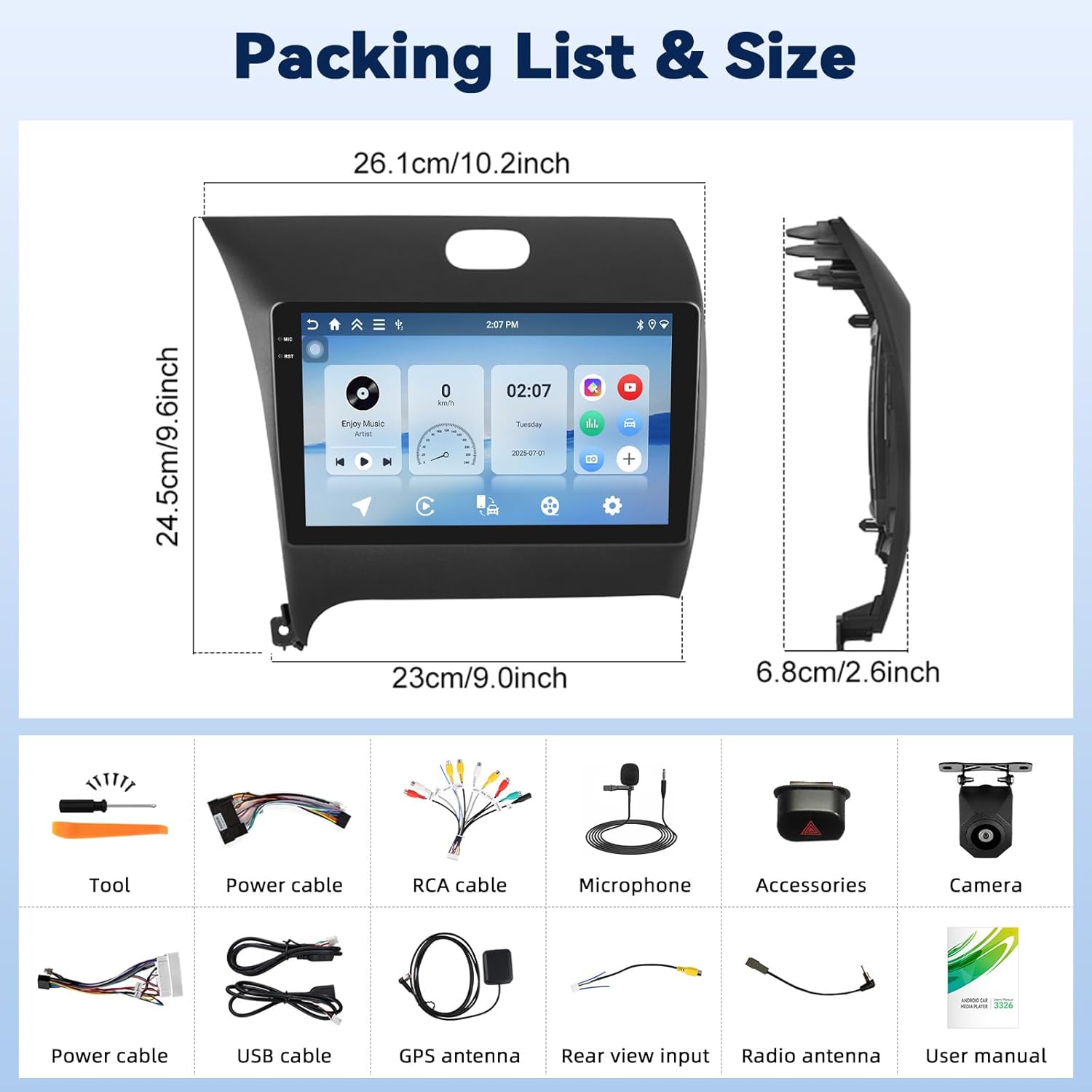
Obraz: Szczegółowy view of the GOHHDL Android 15 Car Stereo package contents.
4. Koniec produktuview
The GOHHDL Android 15 Car Stereo is designed to enhance your driving experience with advanced features and seamless integration. It features a 9-inch Incell screen and is compatible with Kia Forte Cerato K3 models from 2013-2018.
Główne cechy:
- Wysoka wydajność: Equipped with 4GB RAM and 128GB storage, running on the latest Android 15 for smooth application performance.
- Wyświetlacz: 9.0-inch Incell screen with high color saturation and enhanced visibility, supporting split-screen functionality.
- Połączenie bezprzewodowe: Supports Wireless CarPlay and Android Auto for seamless smartphone integration, including navigation, calls, and music.
- Bluetooth: Dzwonienie w trybie głośnomówiącym i strumieniowe przesyłanie muzyki.
- Audio: FM radio with RDS technology and adjustable EQ equalizer for a customized sound experience.
- Navigation & Internet: Built-in GPS and Wi-Fi connectivity for system updates, online navigation, and app downloads.
- Funkcje bezpieczeństwa: Includes a 170° ultra-wide AHD backup camera with night vision and Steering Wheel Control (SWC) compatibility.

Image: GOHHDL Android 15 Car Stereo main unit and included components.
5. Konfiguracja i instalacja
Zaleca się zlecenie instalacji profesjonalnemu fachowcowi. Przed rozpoczęciem instalacji należy upewnić się, że zasilanie pojazdu jest odłączone.
5.1. Instalacja fizyczna
The car stereo is designed for direct fitment in Kia Forte Cerato K3 models from 2013-2018. Carefully remove the original car stereo and connect the new unit using the provided wiring harnesses. Ensure all connections are secure.

Image: Comparison of the car dashboard before and after installing the GOHHDL car stereo.
5.2. Połączenie Bluetooth
To enable hands-free calling and music streaming, connect your smartphone via Bluetooth.
- On the car stereo, open the S-Play application.
- Navigate to the Bluetooth settings on your smartphone and enable Bluetooth.
- Szukaj available devices on your phone and select the car stereo's Bluetooth name (e.g., BLINK_UNW2652).
- Potwierdź prośbę o sparowanie na obu urządzeniach.
Video: Demonstrates the process of connecting a smartphone to the car stereo via Bluetooth.
5.3. Bezprzewodowe połączenie CarPlay i Android Auto
Connect your smartphone wirelessly for an integrated driving experience.
- Ensure your phone's Bluetooth is connected to the car stereo.
- On the car stereo, open the S-Play application.
- Follow the on-screen prompts to initiate CarPlay or Android Auto. This may involve enabling Wi-Fi on your phone for the connection.
Video: Shows the steps for connecting a smartphone to the car stereo for Wireless CarPlay and Android Auto functionality.

Image: Visual representation of wireless CarPlay, Android Auto, and Mirror Link features.
5.4. Mirror Link (Jlink) Connection
To mirror your phone's screen to the car stereo, use the Jlink application.
- Open the Jlink application on the car stereo.
- Connect the car stereo to your mobile phone's hotspot.
- If connecting for the first time, download the Jlink client to your phone by scanning the QR code provided in the Jlink app on the stereo.
- On your mobile phone, open the Jlink app and initiate screen casting.
Video: Demonstrates the Jlink connection process for screen mirroring.
5.5. Konfiguracja sterowania z kierownicy (SWC)
If your vehicle has original steering wheel buttons, you can configure them to control the car stereo.
- Access the Steering Wheel Control settings on the car stereo.
- Follow the on-screen instructions to program each button by pressing the corresponding button on your steering wheel and then selecting the desired function on the stereo screen.

Image: Reversing display and Steering Wheel Control interface.
5.6. Screen Calibration
If the touchscreen response is inaccurate, you may need to calibrate the screen.
Video: Guide on how to calibrate the car radio screen for accurate touch response.
6. Instrukcja obsługi
6.1. Podstawowa nawigacja interfejsu użytkownika
The car stereo features a customizable homepage with multiple UI interfaces and wallpapers. Swipe left or right to access different app screens. Use the navigation bar at the top for quick access to common functions like Home, Back, and Volume.
Wideo: Ponadview of the user interface functions, CarPlay, Android Auto, and navigation.
6.2. Audio Playback and Settings
Enjoy music from various sources, including Bluetooth, FM/RDS radio, and installed media apps. Adjust the sound using the built-in equalizer (EQ) for optimal audio quality.

Image: Bluetooth, FM/RDS Radio, and EQ settings.
Video: Demonstrates music playback, EQ adjustment, sound filter, and sound field balance.
6.3. Nawigacja GPS
The unit supports GPS navigation with real-time traffic updates. You can use pre-installed maps or download other navigation applications from the Google Play Store.

Image: GPS navigation and Wi-Fi features.
Video: Demonstrates Google Maps navigation and support for other map applications.
6.4. Video Playback and Split Screen
The car stereo supports 1080P HD video playback. Utilize the split-screen function to run two applications simultaneously, such as navigation and video playback.
Video: Shows 1080P HD video playback and split-screen display.
6.5. App Installation (Google Play Store)
Connect to Wi-Fi and access the Google Play Store to download and install various applications.
Video: Demonstrates accessing the Google Play Store and installing applications.
6.6. Obsługa kamery cofania
The included AHD backup camera provides a 170° ultra-wide view with night vision, automatically displaying the rear view gdy pojazd jest na biegu wstecznym.
Image: Reversing display with parking guidelines.
Video: Shows the HD night vision reversing image.
7. Konserwacja
- Czyszczenie: Do czyszczenia ekranu i obudowy używaj miękkiej, suchej ściereczki. Unikaj środków czyszczących o działaniu ściernym i rozpuszczalników.
- Aktualizacje oprogramowania: Okresowo sprawdzaj dostępność aktualizacji systemu przez Wi-Fi, aby zapewnić optymalną wydajność i dostęp do nowych funkcji.
- Temperatura: Nie wystawiaj urządzenia na działanie ekstremalnych temperatur.
8. Rozwiązywanie Problemów
| Problem | Możliwa przyczyna | Rozwiązanie |
|---|---|---|
| Urządzenie nie włącza się | Nieprawidłowe okablowanie; przepalony bezpiecznik | Sprawdź połączenia zasilania. W razie potrzeby wymień bezpiecznik. |
| Brak dźwięku | Speaker wires disconnected; Volume too low | Check speaker connections; Increase volume. |
| Bluetooth nie łączy się | Bluetooth not enabled; Incorrect pairing | Ensure Bluetooth is on; Re-pair device. |
| Utracono sygnał GPS | GPS antenna obstructed or disconnected | Upewnij się, że jasne view of sky for antenna; Check antenna connection. |
| Ekran dotykowy nie reaguje | Software glitch; Calibration needed | Restart the unit; Perform screen calibration. |
9. Specyfikacje
| Funkcja | Specyfikacja |
|---|---|
| Model | B0FMHTH9BT |
| System operacyjny | Android 15 |
| BARAN | 4 GB |
| Składowanie | 128 GB |
| Rozmiar ekranu | 9 cali |
| Typ ekranu dotykowego | In-cell |
| Łączność | Bluetooth, WiFi |
| Nawigacja | GPS, Worldwide Map Type |
| Waga przedmiotu | 3.03 funta (1.38 kilograma) |
| Wymiary opakowania | 11.57 x 11.14 x 4.02 cala |
10. Gwarancja i wsparcie
GOHHDL provides the following support for this product:
- Gwarancja: 1-year manufacturer's warranty.
- Gwarancja zwrotu pieniędzy: 30-dniowa gwarancja zwrotu pieniędzy.
- Wymiana: 12-month replacement policy.
- Wsparcie techniczne: Dożywotnie wsparcie techniczne.
- Online Reply: Online support replies within 18 hours.
For technical assistance or warranty claims, please contact GOHHDL customer support.