
1. Wprowadzenie
This manual provides detailed instructions for the VOPLLS Q5 Smart Mini Projector. Please read this manual thoroughly before using the product to ensure proper operation and to maximize your viewdoświadczenie. Zachowaj tę instrukcję na przyszłość.
2. Co znajduje się w pudełku
- VOPLLS Q5 Smart Mini Projector
- Stojak obrotowy 360°
- Pilot zdalnego sterowania (baterie nie są dołączone)
- HDMI Cable (1.5m/4.92ft)
- Power Cord (2m/6.56ft)
- Instrukcja obsługi (ten dokument)
3. Główne cechy
- Oficjalnie licencjonowane aplikacje: Pre-installed streaming services like Netflix, YouTube, and Prime Video, with support for 4K HDR content within the app.
- Elegancka i przenośna konstrukcja: Ultra-thin at 1.81 inches and lightweight (0.79 kg / 1.74 lbs) for easy transport.
- Automatyczna regulacja ostrości i korekcja trapezowa: Features automatic fast focus and 6D all-around keystone correction for instant clarity and precise image alignment.
- Natywna rozdzielczość 1080P: Delivers vivid, color-accurate, and sharp visuals with native Full HD 1080P resolution and 4K playback compatibility.
- Stojak regulowany w zakresie 360°: Integrated rotatable stand allows for flexible projection angles, including ceiling projection.
- Zaawansowana łączność: Equipped with WiFi 6 for stable, rapid signal transmission and Bluetooth 5.2 for seamless audio sync with external speakers.
- Authentic Brightness: Certified 320 ANSI lumens for clear visuals in various environments.
4. Koniec produktuview

Rysunek 4.1: VOPLLS Q5 Smart Mini Projector on its adjustable stand.

Rysunek 4.2: Nadview kluczowych cech i elementów projektu.
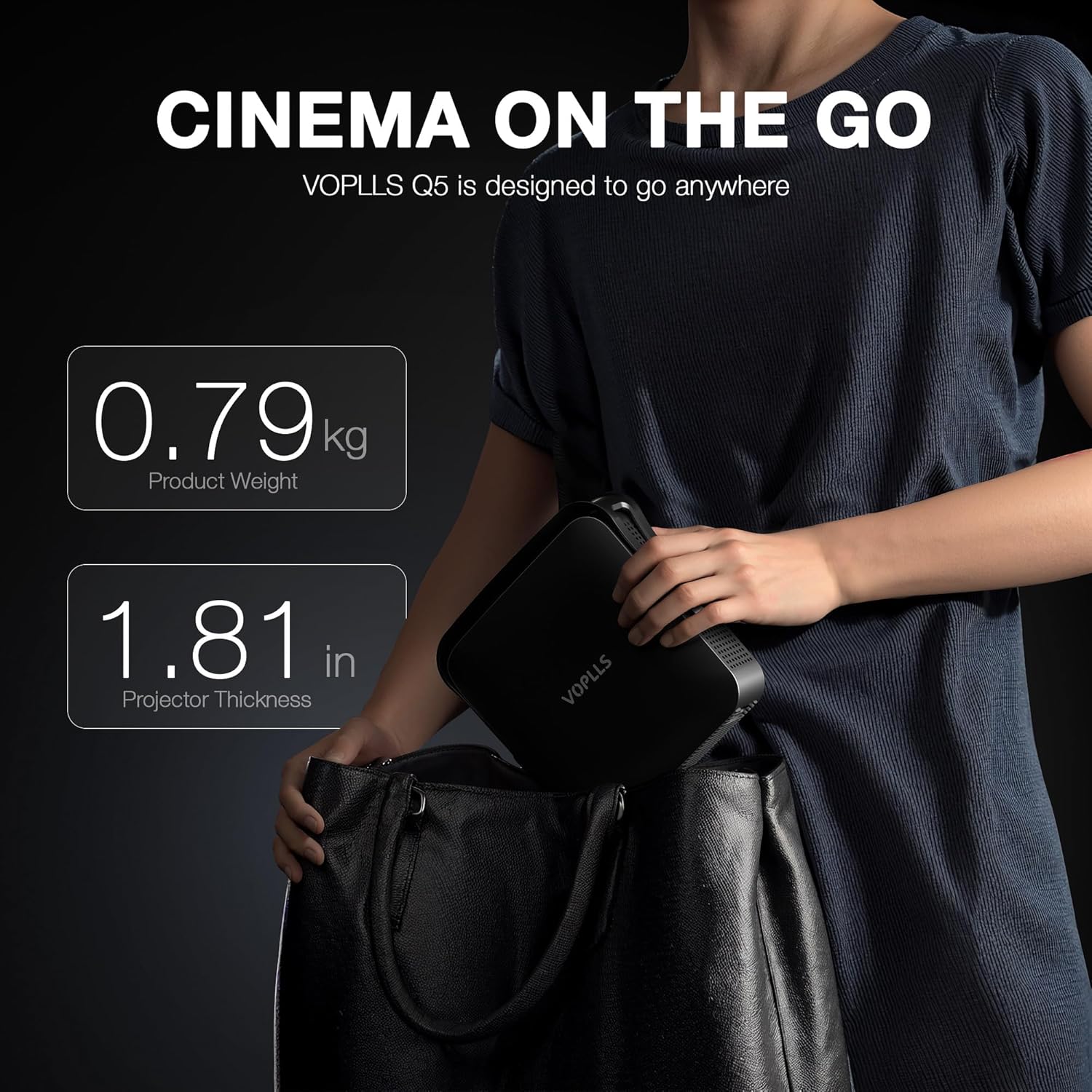
Rysunek 4.3: The compact size of the VOPLLS Q5, ideal for portability.
Wideo 4.1: Szczegółowy opisview of the VOPLLS Q5 projector's features, app interface, and video quality demonstrations.
4.1. składniki
- Przód: Projection Lens, Auto-Focus Sensor.
- Tył: USB Port, 3.5mm Audio Jack, HDMI Input, Power Button, Power Input.
- Strony: Speaker Grilles, Ventilation.
- Spód: Tripod Mounting Point (compatible with standard camera tripods).
5. Instrukcje konfiguracji
- Rozpakować: Ostrożnie wyjąć wszystkie elementy z opakowania.
- Umieszczenie: Place the projector on a stable, flat surface. Utilize the 360° rotating stand to adjust the projection angle as desired. For ceiling projection, ensure the projector is securely mounted.
- Podłączenie zasilania: Connect the power cord to the projector's power input and then to an electrical outlet.
- Włączanie: Press the power button on the projector or the remote control to turn on the device. The projector will perform an initial auto-focus and keystone correction.
- Połączenie internetowe: Navigate to the 'Network' settings to connect to your Wi-Fi network. This is essential for accessing streaming apps and online features.
Wideo 5.1: A short demonstration of the projector's portability and ease of setup.
6. Instrukcja obsługi
6.1. Nawigacja i interfejs użytkownika
The VOPLLS Q5 features a user-friendly operating system. Use the provided remote control to navigate through menus and select options. The home screen displays trending content and quick access to pre-installed applications.

Rysunek 6.1: The user-friendly operating system interface.
6.2. Aplikacje do strumieniowania
Access a wide range of entertainment through pre-installed and downloadable apps:
- Zainstalowano wstępnie: Netflix, YouTube, Prime Video.
- Downloadable: Visit the 'Play Store' to download additional apps like Hulu, HBO Max, Peacock, Paramount+, Tubi, and more.

Rysunek 6.2: Access to a wide selection of streaming applications.

Rysunek 6.3: Official Netflix compatibility for seamless streaming.
6.3. Łączność
- HDMI: Connect external devices such as laptops, gaming consoles, or Blu-ray players using the HDMI cable. Select 'HDMI' as the input source.
- USB: Insert a USB drive into the USB port to view local media files (videos, pictures, documents). Access these files via the 'Files' application on the home screen.
- Bluetooth 5.2: Pair with external Bluetooth speakers or headphones for enhanced audio. Go to 'Settings' > 'Network' > 'Bluetooth' to manage devices. (Note: Bluetooth supports audio transmission only, not video).
- Wi-Fi 6: Ensures stable and fast internet connection for streaming and online features. Configured during initial setup.
- Casting telewizyjny: Mirror content from your smartphone or tablet to the projector screen. Select 'TV Casting' from the home screen and follow the on-screen instructions.
6.4. Regulacja obrazu
- Auto Focus: The projector automatically adjusts focus upon power-on or when moved. This feature can be toggled in 'Settings' > 'Lens' > 'Autofocus settings'.
- Korekcja Keystone'a: Automatic 6D keystone correction adjusts the image shape. For manual adjustments, go to 'Settings' > 'Lens' > 'Keystone correction' and use the 4-corner correction option.
- Zoom cyfrowy: Adjust the screen size without moving the projector. Found in 'Settings' > 'Lens' > 'Digital zoom'.
- Kierunek projekcji: Adjust the image orientation if the projector is mounted in different positions (e.g., ceiling, rear projection). Navigate to 'Settings' > 'Lens' > 'Projection direction'.
6.5. Ustawienia obrazu i dźwięku
- Ustawienia obrazu: Customize brightness, contrast, saturation, sharpness, color tone, and color temperature. Access these in 'Settings' > 'Picture'. An 'Eye Protection Mode' is available to reduce blue light.
- Ustawienia dźwięku: Adjust audio balance and select sound modes (Standard, Music, Movie, News, Game, User). Manage audio output devices in 'Settings' > 'Sound'.
7. Konserwacja
- Czyszczenie soczewek: Do delikatnego czyszczenia soczewki projektora używaj miękkiej, niepozostawiającej włókien ściereczki przeznaczonej specjalnie do soczewek optycznych. Unikaj materiałów ściernych i silnych środków chemicznych.
- Ogólne sprzątanie: Przetrzyj obudowę projektora miękką, suchą ściereczką. Nie używaj płynnych środków czyszczących bezpośrednio na urządzeniu.
- Wentylacja: Ensure the ventilation grilles on the sides of the projector are clear of obstructions to prevent overheating.
- Składowanie: When not in use, store the projector in a cool, dry place, away from direct sunlight and extreme temperatures. The integrated stand helps protect the lens during storage.
8. Rozwiązywanie Problemów
- Brak zasilania: Upewnij się, że przewód zasilający jest prawidłowo podłączony zarówno do projektora, jak i do gniazdka elektrycznego. Spróbuj użyć innego gniazdka.
- Brak obrazka: Check the input source selection (HDMI, USB, etc.) to ensure it matches your connected device. Verify that the connected device is powered on and outputting a signal.
- Rozmazany obraz: The projector features auto-focus. If the image remains blurry, manually trigger auto-focus via the remote or check 'Settings' > 'Lens' > 'Autofocus settings'. Ensure the projection surface is flat.
- Zniekształcony obraz (kształt trapezu): The projector has auto keystone correction. If needed, go to 'Settings' > 'Lens' > 'Keystone correction' for manual 4-corner adjustment.
- Brak dźwięku: Check the volume level on both the projector and the connected source device. If using Bluetooth, ensure the external audio device is properly paired and selected as the output.
- Problemy z połączeniem sieciowym: Verify your Wi-Fi password. Try restarting your router and the projector. Ensure the projector is within range of your Wi-Fi signal.
- Aplikacje nie działają: Ensure the projector is connected to the internet. Check for app updates in the Play Store or system software updates in 'Settings' > 'Software Update'.
9. Specyfikacje
| Funkcja | Opis |
|---|---|
| Marka | VOPLLS |
| Numer modelu | Q5 |
| Rozdzielczość wyświetlacza | Natywna rozdzielczość 1920 x 1080 (1080P) |
| Obsługa 4K | Supported for playback within the APP only. Not via USB drives or HDMI input. |
| Jasność | 320 ANSI Lumen |
| Technologia łączności | 3.5mm Jack, Bluetooth 5.2, HDMI, USB, Wi-Fi 6 |
| Wymiary produktu | 6.93 x 1.81 x 6.93 cala (17.7 x 4.59 x 17.7 cm) |
| Waga przedmiotu | 3.3 funtów (0.79 kg) |
| Cechy specjalne | Smart TV Operating System, 360° rotating stand, Auto Focus, 4P/6D Keystone Correction, Officially-Licensed APPS |
| Zalecane zastosowania | Biznes, Edukacja, Gry, Kino domowe |
10. Gwarancja i wsparcie
For warranty information, please refer to the documentation provided at the time of purchase or contact VOPLLS customer support directly. For technical assistance or further inquiries, please visit the official VOPLLS webwitryny lub skontaktuj się z zespołem obsługi klienta.