
Wstęp
Welcome to the GravaStar Mercury K1 75% Wireless Mechanical Gaming Keyboard user manual. This guide provides essential information for setting up, operating, maintaining, and troubleshooting your new keyboard. The Mercury K1 combines a futuristic design with high-performance features, including an aluminum alloy frame, hot-swappable linear switches, and customizable RGB backlighting.
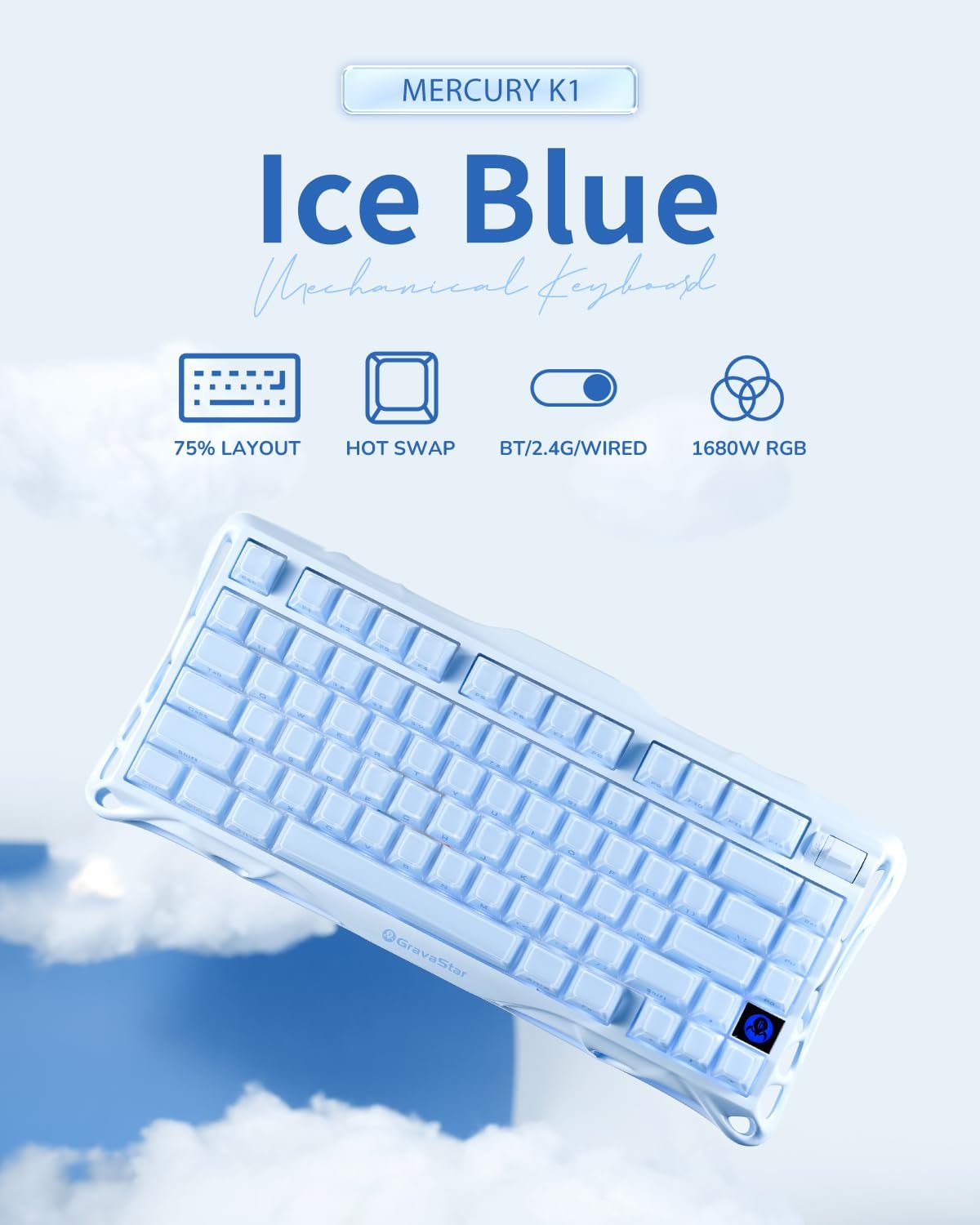
Image: The GravaStar Mercury K1 keyboard showcasing its 75% layout, hot-swap capability, triple connectivity modes (Bluetooth, 2.4GHz, wired), and 16.8 million color RGB lighting.
Co jest w pudełku
- 1 x GravaStar Mercury K1 Keyboard
- 1 x Type-A 2.4GHz Receiver
- 1 x kabel typu A do typu C
- 1 x narzędzie do zdejmowania nakładek klawiszy i przełączników
- 1 x Szczotka do czyszczenia
- 4 x Extra Switches (Kailh Platycodon, Kailh Crackle Ice Box, KTT Silent Blue, KTT Baby White)
Video: An unboxing video of the GravaStar Mercury K1 75% Blue Gaming Keyboard, showing the contents of the package.
Organizować coś
Opłata początkowa
Before first use, fully charge your Mercury K1 keyboard using the provided USB-C cable. Connect the USB-C end to the keyboard and the USB-A end to a power source (e.g., computer USB port, wall adapter). The battery indicator will show charging status.
Tryby łączności
The Mercury K1 supports three connection types: Wired (USB-C), 2.4GHz Wireless, and Bluetooth 5.0. Use the switch located on the back of the keyboard to select your desired mode.

Obraz: szczegółowy view of the keyboard's rear, highlighting the switches for 2.4GHz wireless, Bluetooth 5.0, and wired USB-C connections, along with Windows/Mac compatibility switch.
- Połączenie przewodowe: Connect the USB-C cable from the keyboard to your computer. The keyboard will automatically switch to wired mode.
- Połączenie bezprzewodowe 2.4 GHz:
- Locate the 2.4GHz receiver stored in the magnetic compartment on the underside of the keyboard.
- Podłącz odbiornik do wolnego portu USB-A w komputerze.
- Switch the keyboard to 2.4GHz mode using the selector switch. The keyboard should connect automatically.
- Połączenie Bluetooth 5.0:
- Switch the keyboard to Bluetooth mode using the selector switch.
- On your device (PC, laptop, tablet, gaming console), go to Bluetooth settings and search for new devices.
- Select "GravaStar K1" from the list of available devices to pair.
Zgodność z systemem operacyjnym
Use the dedicated switch on the back of the keyboard to toggle between Windows and Mac operating system layouts for optimal key functionality.
Instrukcja obsługi
Podstawowe funkcje
- Pisanie na maszynie: The 75% layout provides a compact yet functional typing experience.
- Regulacja głośności: Use the dedicated control knob for quick volume adjustments.
Sterowanie oświetleniem RGB
The Mercury K1 features dual RGB ecosystems with 16.8 million colors and 13 dynamic effects. Use the following key combinations to customize your lighting:
- Fn + /!: Przełączaj się między trybami podświetlenia.
- Fn + Tab: Cycle through side light modes.
- Fn + Strzałka w lewo/prawo: Dostosuj prędkość oświetlenia.
- Fn + Strzałka w górę/w dół: Dostosuj jasność oświetlenia.
- Fn + Shift: Toggle side light mode.
- Fn + >: Cycle brightness levels.
- Fn + /?: Cycle switch colors.
- Fn + <.: Cycle speed settings.
Video: Demonstrates the various RGB lighting effects and typing sounds of the GravaStar K1 75% Blue Gaming Keyboard in a dark environment.
Przełączniki z funkcją wymiany na gorąco
The Mercury K1 features a hot-swappable socket, allowing you to change switches without soldering. Use the provided keycap and switch puller tool to replace switches.

Obraz: Wybuch view diagram illustrating the internal components of a Kailh linear switch, including outer housing, inner housing, stem, extended spring, housing, high-transmittance light guide, and base.
- Delikatnie zdejmij nakładkę klawisza za pomocą ściągacza do nakładek klawiszy.
- Use the switch puller to carefully grip and pull out the switch.
- Dopasuj piny nowego przełącznika do otworów w płytce PCB i mocno dociśnij, aż zatrzaśnie się na miejscu.
- Załóż z powrotem nakładkę klawisza.
Konserwacja
Czyszczenie
Regularne czyszczenie pomaga zachować wydajność i wygląd klawiatury.
- Use the provided cleaning brush to remove dust and debris from between the keycaps.
- For deeper cleaning, remove keycaps and gently wipe the keyboard surface with a soft, damp szmatką. Unikać nadmiernej wilgoci.
Pielęgnacja baterii
Aby przedłużyć żywotność baterii:
- Avoid fully discharging the 8000mAh battery frequently.
- Jeśli klawiaturę nie używasz przez dłuższy czas, przechowuj ją w chłodnym i suchym miejscu.
- If using wired mode predominantly, consider turning off wireless modes to conserve battery health.
Rozwiązywanie problemów
- Klawiatura nie odpowiada: Ensure the keyboard is charged and correctly connected (wired, 2.4GHz receiver, or Bluetooth paired). Try restarting the keyboard and your device.
- Światła RGB nie działają: Check lighting settings using Fn key combinations. Ensure the keyboard is not in a low-power mode that disables lighting.
- Problemy z łącznością: For 2.4GHz, ensure the receiver is securely plugged in and within range. For Bluetooth, ensure the keyboard is in pairing mode and your device's Bluetooth is enabled. Try re-pairing.
- Klucze nie są rejestrowane: If specific keys are not working, try hot-swapping the switch with one of the extra switches provided to determine if the switch is faulty.
Specyfikacje
| Funkcja | Szczegół |
|---|---|
| Wymiary produktu | 16.34 x 7.39 x 2.27 cala (41.5 x 18.77 x 5.77 cm) |
| Waga przedmiotu | 3.52 funtów (1.6 kg) |
| Technologia łączności | Bluetooth 5.0, bezprzewodowy 2.4 GHz, przewodowy USB-C |
| Układ klawiatury | 75% (79 klawiszy) |
| Przełączniki | GravaStar × Kailh Linear Switches (Hot-Swappable) |
| Podświetlenie RGB | 16.8 Million Colors, 13 Dynamic Effects, Dual RGB Ecosystems |
| Pojemność baterii | 8000mAh |
| Klawisze | Dual-layer PBT |
| Zgodność | Windows, Mac, Gaming Consoles, Laptops, PCs, Tablets |
Gwarancja i wsparcie
For warranty information and customer support, please refer to the official GravaStar webOdwiedź witrynę lub skontaktuj się ze sprzedawcą. Zachowaj dowód zakupu na wypadek roszczeń gwarancyjnych.