
1. Koniec produktuview
The Xiaomi Portable Photo Printer Pro is a compact and lightweight device designed for printing photos directly from your smartphone or other compatible devices. It utilizes advanced printing technology to produce high-quality, vibrant prints.
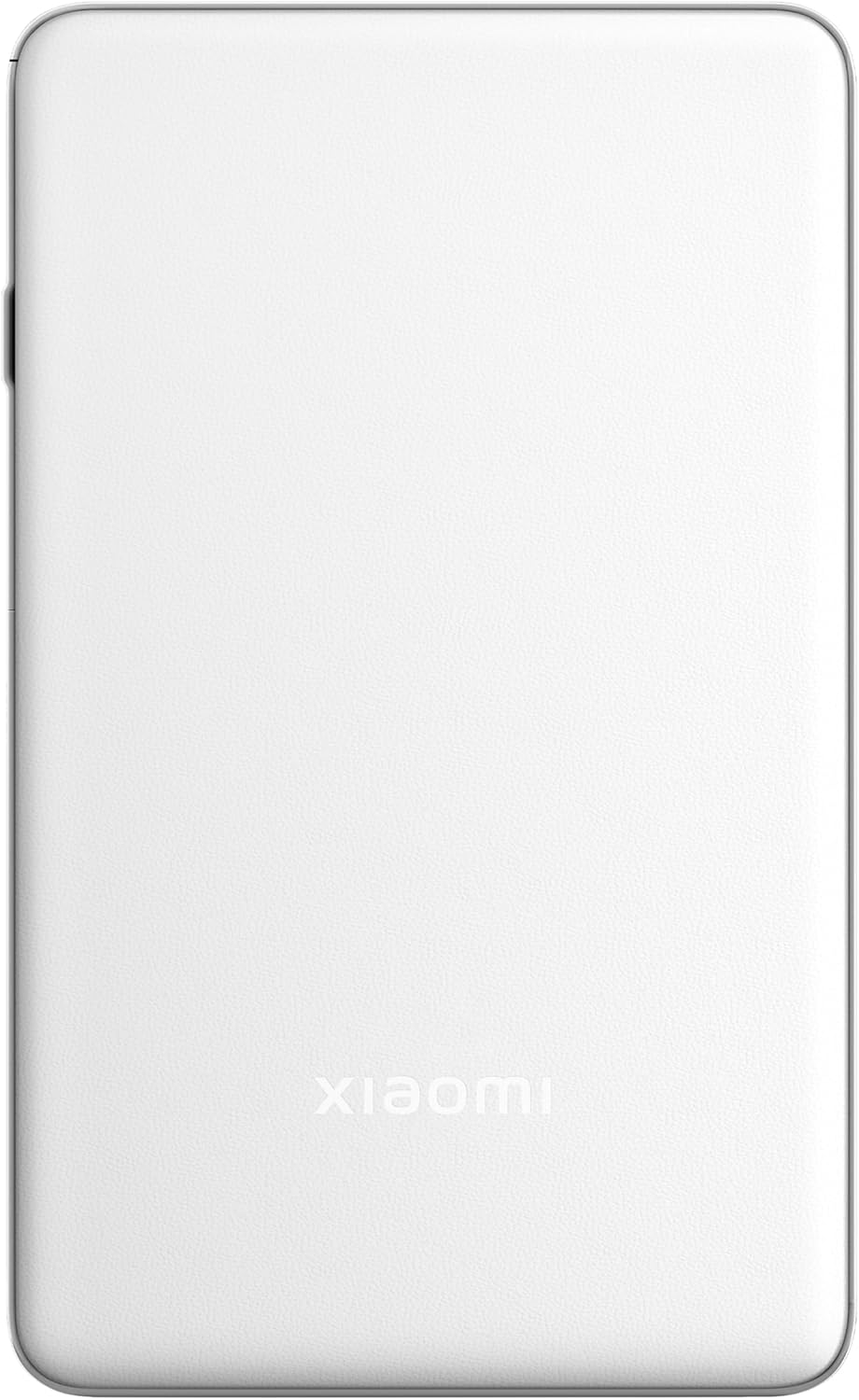
Obraz 1.1: Góra view of the Xiaomi Portable Photo Printer Pro, showcasing its minimalist design and compact form factor.

Obraz 1.2: Bok view of the Xiaomi Portable Photo Printer Pro, highlighting its slim profile and power button location.
2. Konfiguracja
2.1 Ładowanie drukarki
Before initial use, fully charge the printer. Connect the provided USB charging cable to the printer's charging port and a compatible power adapter. The indicator light will show charging status.
2.2 Ładowanie papieru fotograficznego
- Otwórz pokrywę zasobnika papieru w drukarce.
- Insert the photo paper stack into the tray with the glossy side facing up. Ensure the paper is aligned correctly.
- Dokładnie zamknij pokrywę tacy na papier.

Image 2.1: The Xiaomi Portable Photo Printer Pro with photo paper being inserted into the paper tray, demonstrating the correct orientation.
2.3 Instalowanie aplikacji towarzyszącej
Download and install the official Xiaomi Home app (or designated printer app) from your device's app store. This app is required for connecting to the printer and managing print jobs.
2.4 Łączenie przez Bluetooth
- Upewnij się, że drukarka jest włączona.
- Włącz Bluetooth w smartfonie lub tablecie.
- Open the Xiaomi Home app and follow the on-screen instructions to add a new device. Select the Xiaomi Portable Photo Printer Pro from the list of available devices.
- Confirm the pairing request on both your device and the printer if prompted.
3. Instrukcja obsługi
3.1 Włączanie/wyłączanie
- Włączanie: Naciśnij i przytrzymaj przycisk zasilania przez około 3 sekundy, aż zaświeci się kontrolka.
- Aby wyłączyć: Naciśnij i przytrzymaj przycisk zasilania przez około 3 sekundy, aż kontrolka zgaśnie.
3.2 Drukowanie zdjęć
- Ensure the printer is powered on and connected to your device via Bluetooth.
- Open the Xiaomi Home app and select the photo you wish to print.
- Adjust any print settings (e.g., size, filters) within the app.
- Tap the 'Print' button. The printer will feed the paper and begin printing.

Image 3.1: The Xiaomi Portable Photo Printer Pro positioned on a wooden table, actively printing a photo, with the printed image emerging from the top slot.

Image 3.2: The Xiaomi Portable Photo Printer Pro being held in a hand, illustrating its portability and ease of handling for on-the-go printing.
4. Konserwacja
4.1 Czyszczenie drukarki
- Przed czyszczeniem upewnij się, że drukarka jest wyłączona.
- Do czyszczenia zewnętrznej części drukarki należy używać miękkiej, suchej i niepozostawiającej włókien ściereczki.
- Nie należy używać płynnych środków czyszczących ani materiałów ściernych, gdyż mogą one uszkodzić urządzenie.
4.2 Replacing Photo Paper
When the printer runs out of paper, follow the steps in Section 2.2 to load a new stack of photo paper. Use only genuine Xiaomi photo paper for optimal print quality and to prevent damage to the printer.
4.3 Pielęgnacja baterii
- Unikaj wystawiania drukarki na działanie ekstremalnych temperatur.
- If storing the printer for an extended period, ensure it is partially charged (around 50%) to prolong battery life.
- Regularnie ładuj akumulator, nawet jeśli nie używasz go często.
5. Rozwiązywanie Problemów
- Drukarka nie włącza się: Upewnij się, że bateria jest naładowana. Podłącz drukarkę do źródła zasilania i spróbuj ponownie.
- Nie można połączyć się przez Bluetooth:
- Ensure Bluetooth is enabled on your device and the printer.
- Uruchom ponownie drukarkę i urządzenie.
- Forget the device in your phone's Bluetooth settings and attempt to pair again through the app.
- Słaba jakość druku:
- Check if the photo paper is loaded correctly with the glossy side up.
- Ensure you are using genuine Xiaomi photo paper.
- The image resolution might be too low. Try printing a higher-resolution image.
- Zakleszczenie papieru:
- Power off the printer immediately.
- Carefully open the paper tray cover and gently remove any jammed paper. Avoid tearing the paper inside the mechanism.
- Close the cover and power on the printer.
- Drukarka nie odpowiada: Try performing a soft reset by pressing and holding the power button for 10-15 seconds until the printer restarts.
6. Specyfikacje
| Funkcja | Specyfikacja |
|---|---|
| Model | KDRSHDY03HT |
| Wymiary produktu | Wymiary 14.25 x 8.68 x 2.68 cm |
| Waga przedmiotu | 308 gram |
| Maksymalna pojemność arkuszy wejściowych | 20 arkuszy |
| Media drukowane | Papier fotograficzny błyszczący, papier zwykły |
| Wyjście drukarki | Kolor |
| Cechy specjalne | Przenośny |
| Baterie | 1 x akumulator 12 V (w zestawie) |
| Łączność | Bluetooth |
7. Gwarancja i wsparcie
7.1 Informacje o gwarancji
The Xiaomi Portable Photo Printer Pro comes with a standard manufacturer's warranty. Please refer to the warranty card included in the product packaging for specific terms, conditions, and duration. Keep your proof of purchase for warranty claims.
7.2 Obsługa klienta
For technical assistance, troubleshooting beyond this manual, or warranty inquiries, please contact Xiaomi customer support. Visit the official Xiaomi webstrona zawierająca dane kontaktowe i zasoby pomocy.
Więcej informacji i wsparcia znajdziesz na oficjalnej stronie Sklep XIAOMI.