
1. Wprowadzenie
Czarnyview MP60 Mini PC is a compact and powerful computing solution designed for various applications, including office work, multimedia creation, and home server use. Featuring the Intel Twin Lake N150 processor, 16GB RAM, and a 512GB M.2 SSD, it offers efficient performance in a small form factor. This manual provides essential information for setting up, operating, and maintaining your device.

Obraz: Czarnyview MP60 Mini PC, highlighting its compact design and Intel Twin Lake N150 processor.
2. Co znajduje się w pudełku
Sprawdź, czy w opakowaniu znajdują się wszystkie elementy:
- Czarnyview Mini PC MP60 N150 (x1)
- Kabel HDMI (x1)
- Zasilacz (x1)
- VESA Mount with Screws (x1)
- Informacje o gwarancji i pomocy technicznej
3. Koniec produktuview
Czarnyview MP60 Mini PC features a compact design with essential ports for connectivity and expansion. Its small footprint makes it suitable for various environments.
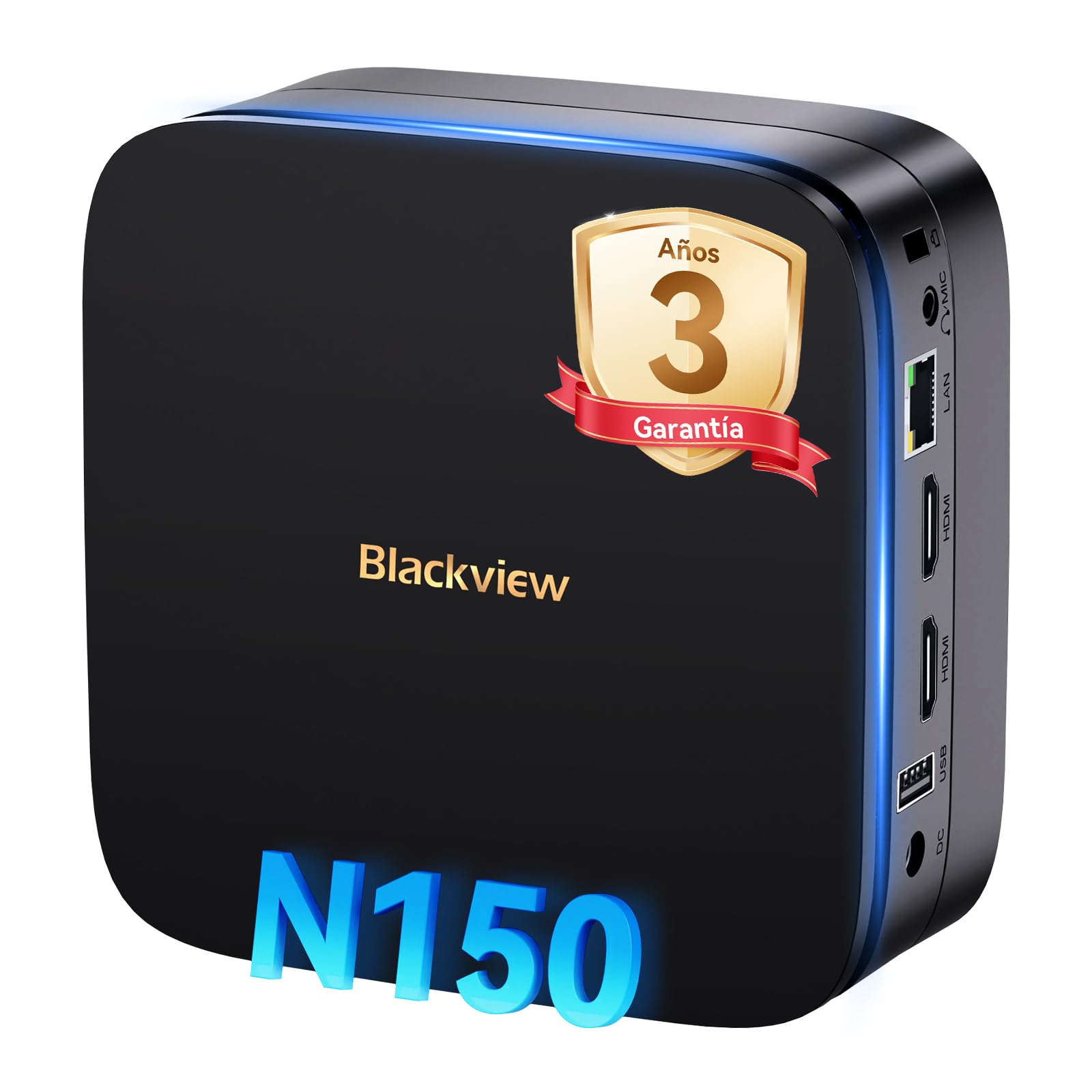
Obraz: przód i tył view Czarnegoview MP60 Mini PC, illustrating its various ports including USB, HDMI, and Ethernet.
Główne cechy:
- Edytor: Intel Twin Lake N150 (up to 3.6 GHz)
- BARAN: 16 GB DDR4
- Składowanie: 512GB M.2 SSD (expandable up to 2TB)
- Grafika: Zintegrowana karta graficzna Intel UHD
- System operacyjny: Windows 11 Pro
- Łączność: Dual-band Wi-Fi (2.4Ghz & 5Ghz), Bluetooth 4.2, Gigabit Ethernet (RJ45)
- Wyjście wideo: 2x HDMI 2.0 (supports dual 4K displays)
- Porty USB: 4x USB ports (USB 2.0 Type A, USB 3.0 Type A)
4. Instrukcje konfiguracji
Aby skonfigurować urządzenie Black, wykonaj następujące kroki:view Minikomputer MP60:
- Podłącz do wyświetlacza: Użyj dołączonego kabla HDMI, aby podłączyć mini PC do monitora lub telewizora. Urządzenie obsługuje dwa wyświetlacze 4K.
- Podłącz urządzenia peryferyjne: Podłącz klawiaturę i mysz USB do dostępnych portów USB.
- Podłącz do zasilania: Podłącz zasilacz do portu DC-in w komputerze Mini PC, a następnie podłącz zasilacz do gniazdka elektrycznego.
- Włączanie: Press the power button located on the front of the Mini PC. The device will boot up, and you will see the Windows 11 Pro setup screen.
- Początkowa konfiguracja systemu Windows: Postępuj zgodnie z instrukcjami wyświetlanymi na ekranie, aby dokończyć konfigurację systemu Windows 11 Pro, wybierając m.in. język, region, połączenie sieciowe i tworząc konto użytkownika.

Obraz: Czarnyview MP60 Mini PC demonstrating its micro size and portability, fitting easily into a bag.
5. Instrukcja obsługi
5.1 Podstawowa obsługa
Once Windows 11 Pro is set up, you can begin using your Mini PC. The Intel Twin Lake N150 processor provides sufficient power for daily tasks, office applications, and multimedia consumption.
- Włączanie/wyłączanie: Press the power button to turn the device on. To shut down, go to the Start Menu in Windows and select Power > Shut down.
- Uruchom ponownie: From the Start Menu, select Power > Restart.
- Tryb uśpienia: From the Start Menu, select Power > Sleep.
5.2 Rozszerzenie pamięci masowej
Czarnyview MP60 Mini PC allows for easy storage expansion with a 2.5-inch SSD/HDD. This feature is useful for storing large files, videos, or creating a home NAS.
- Locate the removable base of the Mini PC.
- Carefully remove the base to access the 2.5-inch drive bay.
- Install your 2.5-inch SSD or HDD (up to 2TB, not included) into the bay.
- Zabezpiecz napęd i ponownie przymocuj podstawę.
- After booting, you may need to initialize and format the new drive in Windows Disk Management.

Image: Step-by-step illustration of how to install a 2.5-inch SSD into the Blackview MP60 Mini PC for storage expansion.
5.3 Dual 4K Display Setup
The Mini PC supports connecting two 4K displays simultaneously via its two HDMI 2.0 ports, enhancing productivity for tasks requiring multiple screens.
- Connect your primary monitor to one HDMI port.
- Connect your secondary monitor to the second HDMI port.
- Once both monitors are connected and the PC is powered on, Windows will automatically detect them.
- To configure display settings (e.g., extend, duplicate, resolution), right-click on the desktop and select "Display settings."

Obraz: Czarnyview MP60 Mini PC powering two 4K monitors, demonstrating its dual display capability for enhanced productivity.
5.4 Łączność sieciowa i bezprzewodowa
The MP60 offers robust connectivity options:
- Wi-Fi: Supports dual-band 2.4GHz and 5GHz Wi-Fi for fast and stable wireless internet access. Connect via Windows network settings.
- Ethernet: A Gigabit RJ45 port provides a wired connection for maximum stability and speed (up to 1000 MB/s).
- Bluetooth: Bluetooth 4.2 allows for easy connection of wireless peripherals like keyboards, mice, and audio devices.
6. Konserwacja
To ensure optimal performance and longevity of your Blackview MP60 Mini PC, follow these maintenance guidelines:
- Utrzymuj czystość: Regularly clean the exterior of the Mini PC with a soft, dry cloth. Use compressed air to clear dust from vents to maintain efficient cooling.
- Aktualizacje oprogramowania: Aktualizuj system operacyjny Windows i sterowniki, aby zapewnić bezpieczeństwo i wydajność.
- Unikaj przeszkód: Upewnij się, że otwory wentylacyjne nie są zablokowane, aby zapobiec przegrzaniu.
- Bezpieczne wyłączenie: Always shut down the PC properly through the operating system rather than simply unplugging it.

Obraz: Wnętrze view Czarnegoview MP60 Mini PC, illustrating its silent heat dissipation system with a cooling fan and heatpipes.
7. Rozwiązywanie Problemów
Jeśli masz problemy z urządzeniem Blackview W przypadku komputera MP60 Mini PC należy zapoznać się z poniższymi typowymi krokami rozwiązywania problemów:
- Brak zasilania:
- Upewnij się, że zasilacz jest prawidłowo podłączony do komputera Mini PC i do sprawnego gniazdka elektrycznego.
- Sprawdź gniazdko elektryczne, podłączając do niego inne urządzenie.
- Brak wyświetlacza:
- Check HDMI cable connections to both the Mini PC and the monitor.
- Sprawdź, czy monitor jest włączony i ustawiony na prawidłowe źródło sygnału wejściowego (HDMI).
- Jeśli to możliwe, wypróbuj inny kabel HDMI lub monitor.
- Brak połączenia z internetem:
- W przypadku sieci Wi-Fi sprawdź, czy karta Wi-Fi jest włączona w ustawieniach systemu Windows i czy jesteś połączony z właściwą siecią przy użyciu prawidłowego hasła.
- For Ethernet, ensure the cable is securely plugged into both the Mini PC and your router/modem. Check router status.
- Uruchom ponownie router/modem i komputer Mini PC.
- Niska wydajność:
- Zamknij niepotrzebne aplikacje działające w tle.
- Sprawdź, czy są dostępne oczekujące aktualizacje systemu Windows i zainstaluj je.
- Upewnij się, że na dysku głównym jest wystarczająca ilość wolnego miejsca.
- Uruchom skanowanie antywirusowe.
If problems persist, refer to the warranty and support section for further assistance.
8. Specyfikacje
Detailed technical specifications for the Blackview Minikomputer MP60:
| Funkcja | Specyfikacja |
|---|---|
| Edytor | Intel Twin Lake N150 (up to 3.6 GHz, 4 Cores, 4 Threads, 6MB Cache) |
| Grafika | Zintegrowana karta graficzna Intel UHD |
| BARAN | 16 GB DDR4 (3200 MHz) |
| Składowanie | 512GB M.2 SSD (PCIe x4 interface), expandable with 2.5" SSD/HDD up to 2TB |
| System operacyjny | Windows 11 Pro |
| Wyjście wideo | 2x HDMI 2.0 (supports dual 4K @ 60Hz displays) |
| Porty USB | 4x USB (USB 2.0 Type A, USB 3.0 Type A) |
| Sieć | Gigabit Ethernet (RJ45), Wi-Fi 5G (802.11ac, dual-band 2.4GHz/5GHz) |
| Bluetooth | Bluetooth 4.2 |
| Wyjście audio | Gniazdo audio 3.5mm |
| Metoda chłodzenia | Air Cooling (Silent design with fan and heatpipes) |
| Wymiary | Wymiary 12.8 x 12.8 x 5.2 cm |
| Waga | 1.01 kilogramów |
| Zasilacz | External Power Adapter (Type E/F: 2 pins for EU) |
9. Gwarancja i wsparcie
Czarnyview is committed to providing high-quality products and excellent customer service.
Informacje o gwarancji:
Twój czarnyview Mini PC MP60 jest wyposażony w 3-letnia oficjalna gwarancja covering parts and labor for manufacturing defects. This ensures prompt replacement or repair in case of product failure.

Obraz: Czarnyview's commitment to customer satisfaction, highlighting a 3-year warranty and lifetime technical support.
Wsparcie techniczne:
Czarnyview oferty dożywotnie wsparcie techniczne. Our expert team is available via email, live chat, or phone to assist you with software updates, troubleshooting, and optimization tips to keep your device running smoothly for years. Please refer to the contact information provided with your product or visit the official Blackview webstronie, aby uzyskać szczegółowe informacje na temat pomocy technicznej.


