
Oakcastle IR200
Instrukcja obsługi radia internetowego Oakcastle IR200
Model: IR200
1. Wprowadzenie
Thank you for choosing the Oakcastle IR200 Internet Radio. This manual provides essential information for the safe and efficient operation of your device. Please read it thoroughly before use and retain it for future reference.
The Oakcastle IR200 is a versatile audio system offering multiple listening options, including Internet Radio, DAB+, FM, Bluetooth 5.3, and AUX input. It features a color display, remote control, and podcast support for a comprehensive audio experience.
2. Zawartość opakowania
Ostrożnie rozpakuj pudełko i sprawdź, czy wszystkie wymienione poniżej elementy są obecne i w dobrym stanie:
- Oakcastle IR200 Internet Radio Unit
- Kabel zasilający
- Zdalne sterowanie
- Instrukcja obsługi (ten dokument)
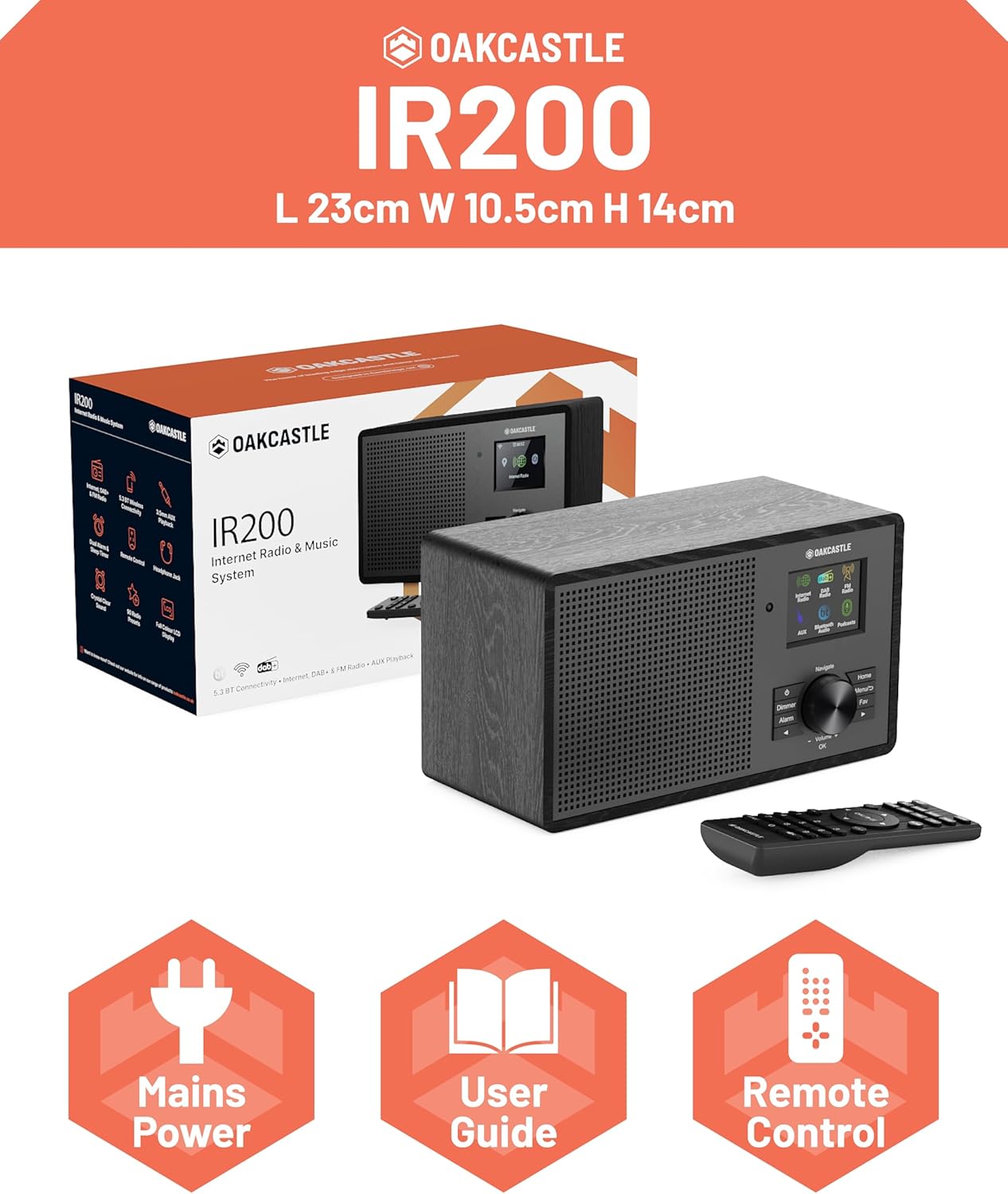
Image 2.1: Contents of the Oakcastle IR200 package, including the radio unit, its box, power cable, remote control, and user manual.
3. Koniec produktuview
Familiarize yourself with the main components and controls of your Oakcastle IR200 radio.
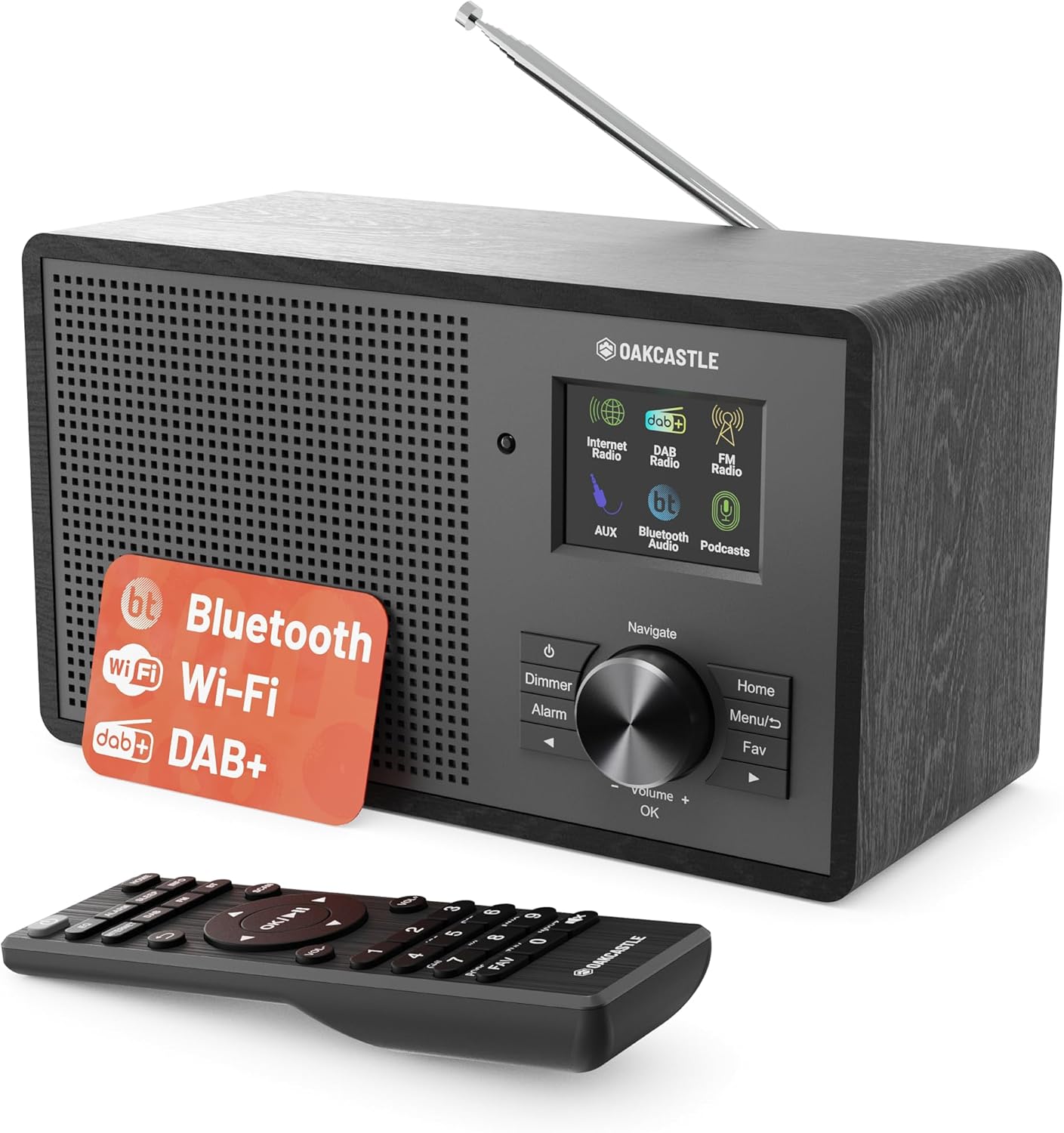
Obraz 3.1: Przód view of the Oakcastle IR200 radio, showcasing the display, control knob, buttons, and the included remote control.
3.1 Elementy sterujące na panelu przednim
- Ekran wyświetlacza: Wyświetla informacje o stacji, czas i opcje menu.
- Navigate/Volume/OK Knob: Obróć, aby poruszać się po menu lub regulować głośność; naciśnij, aby potwierdzić wybór.
- Przycisk zasilania: Włącza, wyłącza i przełącza urządzenie w tryb czuwania.
- Przycisk ściemniacza: Reguluje jasność wyświetlacza.
- Przycisk alarmowy: Dostęp do ustawień alarmu.
- Przycisk Home: Powrót do menu głównego.
- Przycisk menu: Accesses mode-specific menus.
- Przycisk Ulubione: Dostęp do ulubionych zaprogramowanych stacji.
3.2 Połączenia panelu tylnego

Obraz 3.2: Tył view of the Oakcastle IR200, highlighting the headphone output and AUX input ports.
- Antena teleskopowa: Do odbioru DAB+ i FM.
- Wejście AUX: Podłącz zewnętrzne urządzenia audio.
- Wyjście słuchawkowe: Podłącz słuchawki do prywatnego słuchania.
- DC IN: Podłączenie zasilacza.
4. Konfiguracja początkowa
4.1 Połączenie zasilania
- Insert the power cable into the DC IN port on the rear of the radio.
- Plug the other end of the power cable into a wall socket.
- Aby włączyć radio, naciśnij przycisk zasilania na panelu przednim lub pilocie.
4.2 Regulacja anteny
For optimal DAB+ and FM reception, fully extend the telescopic antenna located at the rear of the unit.
4.3 Network Connection (for Internet Radio)
- Po pierwszym włączeniu radio poprowadzi Cię przez proces konfiguracji sieci.
- Select "Network Wizard" or "Wi-Fi Setup" from the menu.
- Radio rozpocznie skanowanie w poszukiwaniu dostępnych sieci Wi-Fi. Wybierz sieć z listy.
- Enter your Wi-Fi password using the navigation knob and OK button.
- Po nawiązaniu połączenia radio wyświetli komunikat potwierdzający.
5. Tryby pracy
The Oakcastle IR200 offers several listening modes. Press the "Home" button to access the main menu and select your desired mode.
5.1 Radio internetowe
Uzyskaj dostęp do tysięcy światowych stacji radiowych za pośrednictwem połączenia Wi-Fi.

Image 5.1: The radio's display screen in Internet Radio mode, showing station information.
- Z menu głównego wybierz „Radio internetowe”.
- You can browse stations by location, genre, or search by name.
- Rotate the Navigate knob to scroll through options and press OK to select.
- To save a station as a favorite, press the "Fav" button during playback.
Radio 5.2 DAB+
Ciesz się wysokiej jakości cyfrowymi audycjami radiowymi.

Image 5.2: The radio's display screen in DAB+ Radio mode, showing the current station.
- From the main menu, select "DAB+ Radio".
- Radio automatycznie przeskanuje dostępne stacje DAB+.
- Use the Navigate knob to select a station from the list.
- To save a station as a favorite, press the "Fav" button during playback.
5.3 Radio FM
Słuchaj tradycyjnych analogowych audycji FM.
- Z menu głównego wybierz „Radio FM”.
- To auto-scan for stations, press and hold the OK button or use the scan function via the menu.
- To manually tune, rotate the Navigate knob.
- To save a station as a favorite, press the "Fav" button during playback.
5.4 Łączność Bluetooth
Przesyłaj strumieniowo dźwięk bezprzewodowo ze swoich urządzeń obsługujących technologię Bluetooth.

Image 5.3: The radio's display screen in Bluetooth mode, indicating readiness for pairing.
- Z menu głównego wybierz „Bluetooth”. Radio przejdzie w tryb parowania.
- On your external device (e.g., smartphone), enable Bluetooth and search for "Oakcastle IR200".
- Select "Oakcastle IR200" to pair. Once connected, you can stream audio.
5.5 Wejście AUX
Podłącz zewnętrzne źródła dźwięku za pomocą kabla audio 3.5 mm.
- Podłącz jeden koniec kabla audio 3.5 mm do portu AUX IN z tyłu radia.
- Podłącz drugi koniec do gniazda słuchawkowego lub wyjścia audio w urządzeniu zewnętrznym.
- From the main menu, select "AUX".
- Steruj odtwarzaniem z urządzenia zewnętrznego.
5.6 Podcasty
Browse and listen to a wide range of podcasts.
- From the main menu, select "Podcasts".
- Browse podcasts by category or search for specific titles.
- Select a podcast to start listening.
6. Ustawienia i funkcje
6.1 Ustawienia systemowe
Access general system settings via the main menu to configure time, language, display, and more.
- Data i godzina: Set time format, synchronize time.
- Język: Wybierz preferowany język menu.
- Wyświetlacz: Adjust backlight, color scheme.
- Sieć: Zmień konfigurację ustawień Wi-Fi.
- Aktualizacja oprogramowania: Sprawdź i zainstaluj aktualizacje oprogramowania sprzętowego.
6.2 Korektor (EQ)
Customize the audio output to your preference using the equalizer settings, accessible via the remote control or system menu.
6.3 Ustawienia wstępne
The radio supports over 90 presets for your favorite Internet, DAB+, and FM stations. To recall a preset, press the "Fav" button and select from the list.
6.4 Alarmy
Set alarms to wake up to your favorite radio station or a buzzer sound. Access alarm settings via the "Alarm" button on the front panel or remote.
7. Pilot zdalnego sterowania
The included remote control provides convenient access to all radio functions from a distance.
Ensure batteries are correctly inserted. Point the remote control towards the front of the radio for optimal response.
7.1 Funkcje zdalnego sterowania
- Moc: On/Off/Standby.
- Głośność +/-: Dostosuj poziom głośności.
- Przyciski nawigacyjne (góra/dół/lewo/prawo): Poruszanie się po menu.
- OK: Potwierdź wybór.
- Mode Buttons (Internet, DAB, FM, Bluetooth, AUX): Przełączanie między trybami.
- Przyciski ustawień wstępnych (1-90+): Directly select saved favorite stations.
- EQ: Dostęp do ustawień korektora.
- Menu: Access mode-specific menus.
- Ulubione: Access favorite station list.
8. Konserwacja
8.1 Czyszczenie
To clean the radio, use a soft, dry cloth. Do not use abrasive cleaners, waxes, or solvents as these may damage the finish.
8.2 Ogólna opieka
- Trzymaj urządzenie z dala od bezpośredniego światła słonecznego, źródeł ciepła i wilgoci.
- Unikaj upuszczania urządzenia i narażania go na silne uderzenia.
- Zapewnij odpowiednią wentylację wokół urządzenia.
9. Rozwiązywanie Problemów
| Problem | Możliwa przyczyna | Rozwiązanie |
|---|---|---|
| Brak zasilania | Power cable not connected; wall socket not active. | Check power cable connection; try a different wall socket. |
| Brak dźwięku | Głośność jest zbyt niska; Wyciszenie jest włączone; Wybrano nieprawidłowe źródło. | Increase volume; Check mute status; Select correct input mode. |
| Radio internetowe nie łączy się | Incorrect Wi-Fi password; Weak Wi-Fi signal; Router issue. | Re-enter Wi-Fi password; Move radio closer to router; Restart router. |
| Słaby odbiór DAB+/FM | Antenna not extended; Poor signal area. | Fully extend antenna; Reposition radio for better signal. |
| Bluetooth nie łączy się | Radio not in pairing mode; Device too far; Device already paired. | Ensure radio is in Bluetooth mode; Move device closer; Unpair from other devices. |
10. Specyfikacje
| Funkcja | Szczegół |
|---|---|
| Marka | Dąbowy zamek |
| Model | IR200 |
| Kolor | Czarny |
| Technologia łączności | Wi-Fi, Bluetooth 5.3, AUX |
| Technologia strojenia | Radio internetowe, DAB+, FM |
| Cechy specjalne | Bluetooth, EQ, Podcasts, Internet Radio, Remote Control |
| Źródło zasilania | Electric Cable (Mains) |
| Wymiary produktu (wys. x szer. x gł.) | 14 cm x 10.5 cm x 23 cm (w przybliżeniu) |
| Waga produktu | 0.94 kilogramów |
| Kompatybilne urządzenia | Odtwarzacz MP3, smartfon, tablet |
11. Gwarancja i wsparcie
11.1 Informacje o gwarancji
The Oakcastle IR200 comes with a standard warranty. An extended 3-year warranty is available upon product registration on the manufacturer's website. Please refer to the warranty card included in your package or visit the official Oakcastle webstronie o szczegóły.
11.2 Obsługa klienta
For technical assistance, troubleshooting, or further inquiries, please contact Oakcastle customer support. Contact details can typically be found on the official Oakcastle webmiejscu lub na karcie gwarancyjnej.
Ask a question about this manual
Ask about setup, troubleshooting, compatibility, parts, safety, or missing instructions. Manuals+ will review the question and use this page’s manual context to help answer it.