
1. Wprowadzenie
This manual provides detailed instructions for the installation, operation, and maintenance of your Naifay Android 12 Car Radio, Model B. This unit is specifically designed for Toyota Tacoma vehicles manufactured between 2005 and 2015. Please read this manual thoroughly before installation and use to ensure proper function and safety.
2. Informacje dotyczące bezpieczeństwa
- Zalecana profesjonalna instalacja: Due to the complexity of vehicle electrical systems, professional installation is highly recommended. Incorrect wiring can damage the unit or the vehicle.
- Zasilanie: Ensure the car radio is connected to a 12V DC power supply. Connecting to a higher voltage (e.g., 24V) will damage the unit.
- Okablowanie: Carefully follow all wiring diagrams. Do not modify the wiring harness unless explicitly instructed.
- Bezpieczeństwo jazdy: Nie używaj urządzenia w sposób rozpraszający Cię podczas jazdy. Zawsze priorytetowo traktuj bezpieczeństwo na drodze.
- Temperatura: Unikaj wystawiania urządzenia na działanie ekstremalnych temperatur lub bezpośredniego światła słonecznego przez dłuższy czas.
3. Zgodność
This Naifay Android 12 Car Radio (Model B) is compatible with Toyota Tacoma models from 2005 to 2015. It is specifically designed for vehicles equipped with a large screen navigation system or a J.B.L sound system. If your vehicle does not have these features, please ensure you have the correct model (Model A) or consult with the seller.

Image: Comparison of the car dashboard before and after installing the Naifay Android 12 Car Radio. The image also displays several compatible OEM radio configurations for Toyota Tacoma 2005-2015, indicating which setups the unit will fit.

Image: Visual guide to ensure your original equipment manufacturer (OEM) radio matches the photos provided for compatibility. This helps confirm if the Naifay unit is suitable for your specific Toyota Tacoma model (2005-2015), especially for those with original premium sound J.B.L system and large screen.
4. Zawartość opakowania
Sprawdź, czy w Twoim pakiecie znajdują się wszystkie wymienione poniżej elementy:
- Naifay Android 12 Car Radio Unit (9-inch IPS Touch Screen)
- Kamera cofania
- Kabel RCA
- Tył View Kabel wejściowy
- Antena GPS
- Mikrofon (MIC)
- Kable USB (x2)
- Dekoder CanBus
- Kabel zasilający
- Instrukcja obsługi
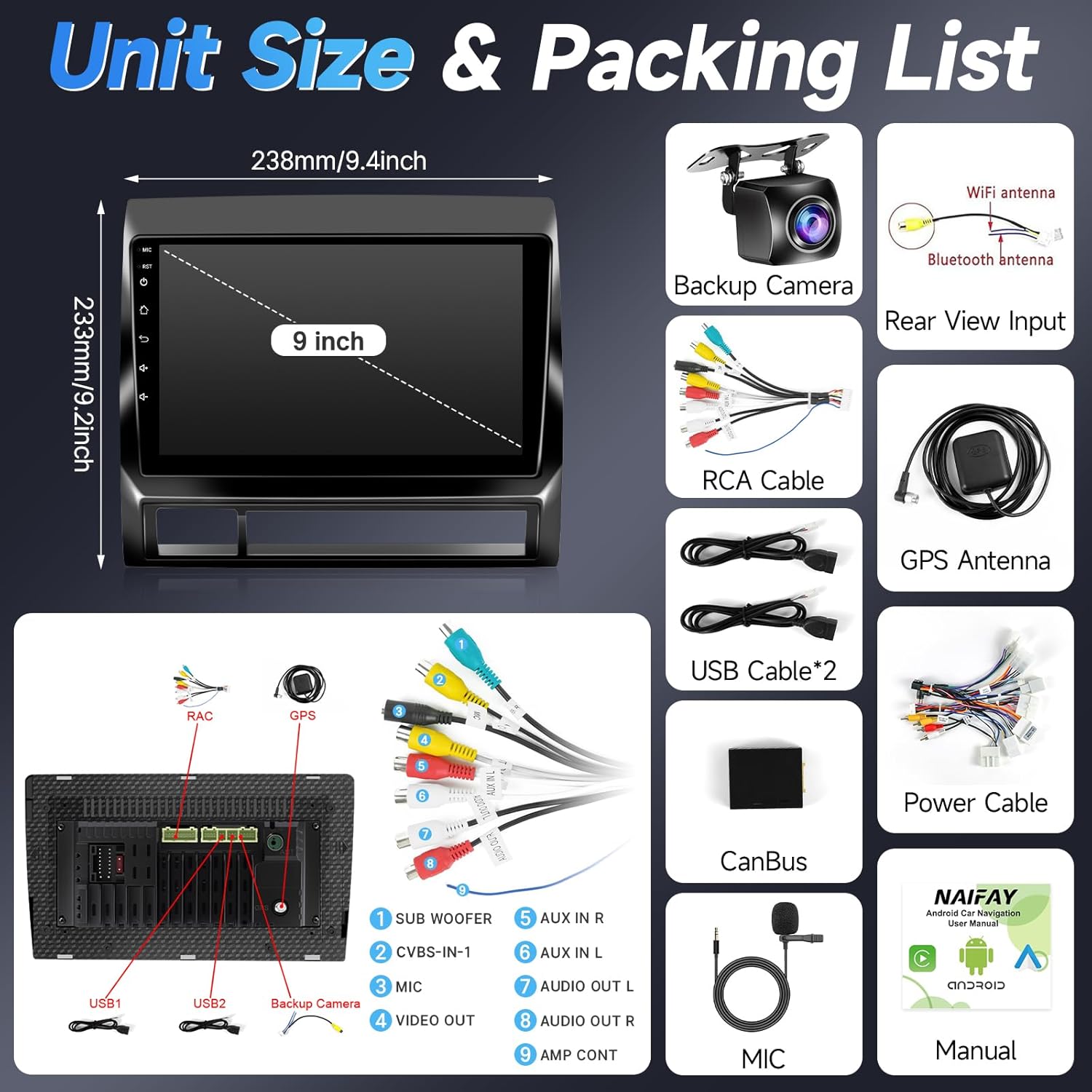
Image: Illustration of the unit's dimensions (9-inch screen, 238mm/9.4inch width, 233mm/9.2inch height) and a comprehensive packing list including the backup camera, RCA cable, rear view input, GPS antenna, microphone, two USB cables, CanBus, power cable, and user manual.
5. Instalacja
Installation of the Naifay Android 12 Car Radio requires careful attention to wiring and vehicle-specific considerations. It is strongly recommended to have this unit installed by a qualified professional.
5.1 Kontrole przed instalacją
- Confirm vehicle compatibility (Toyota Tacoma 2005-2015, with large screen navi or J.B.L sound system).
- Przed rozpoczęciem jakichkolwiek prac elektrycznych należy odłączyć akumulator pojazdu.
- Sprawdź, czy cała zawartość opakowania jest obecna i nieuszkodzona.
5.2 Wiring Harness Instruction
Refer to the wiring diagram below and the labels on the cables for correct connections. Ensure all connections are secure to prevent intermittent issues.

Image: Detailed wiring harness instruction. It illustrates the connections on the back of the car radio unit, including Power Cord, RCA, USB, Reverse Input, GPS, Radio Cable, Subwoofer, CVBS-IN-1, MIC, Video Out, AUX IN R/L, AUDIO OUT R/L, and AMP CONT. A note advises connecting the camera input cable to enhance Bluetooth and WiFi signals even if not using a camera.
- Przewód zasilający: Podłącz główną wiązkę zasilania do instalacji elektrycznej pojazdu.
- Kable RCA: Connect for audio/video output and input as needed (e.g., external amplifier, additional displays).
- USB: Podłącz dołączone kable USB do urządzeń zewnętrznych lub nośników danych.
- Odwrotne wejście: Connect the backup camera input cable. This cable also enhances Bluetooth and WiFi signals.
- GPS: Podłącz antenę GPS i umieść ją w miejscu z wolnym dostępem do światła. view nieba.
- Radio Cable: Podłącz kabel antenowy pojazdu.
- CanBus: The CanBus decoder is essential for integrating with your vehicle's existing systems, especially for steering wheel controls and vehicle information. Ensure it is correctly connected.
- Mikrofon: Connect the external microphone for clear hands-free calls.
5.3 Po instalacji
- Securely mount the head unit into the dashboard.
- Podłącz ponownie akumulator pojazdu.
- Perform initial power-on and test all functions.
6. Instrukcja obsługi
6.1 Podstawowa obsługa
- Włączanie/wyłączanie: The unit powers on with the vehicle's ignition. Press and hold the power button for manual power control.
- Ekran dotykowy: The 9-inch IPS capacitive touch screen responds to finger gestures. Navigate through menus and applications by tapping, swiping, and pinching.
- Regulacja głośności: Dostosuj głośność za pomocą przycisków fizycznych lub elementów sterujących na ekranie.
6.2 Bezprzewodowy CarPlay i Android Auto
Connect your iPhone or Android smartphone wirelessly for seamless integration of navigation, music, calls, and messaging.
- Upewnij się, że w smartfonie są włączone Bluetooth i Wi-Fi.
- On the car radio, open the CarPlay or Android Auto application.
- Follow the on-screen prompts to pair your device via Bluetooth.
- Once paired, the system will automatically connect for CarPlay or Android Auto functionality.
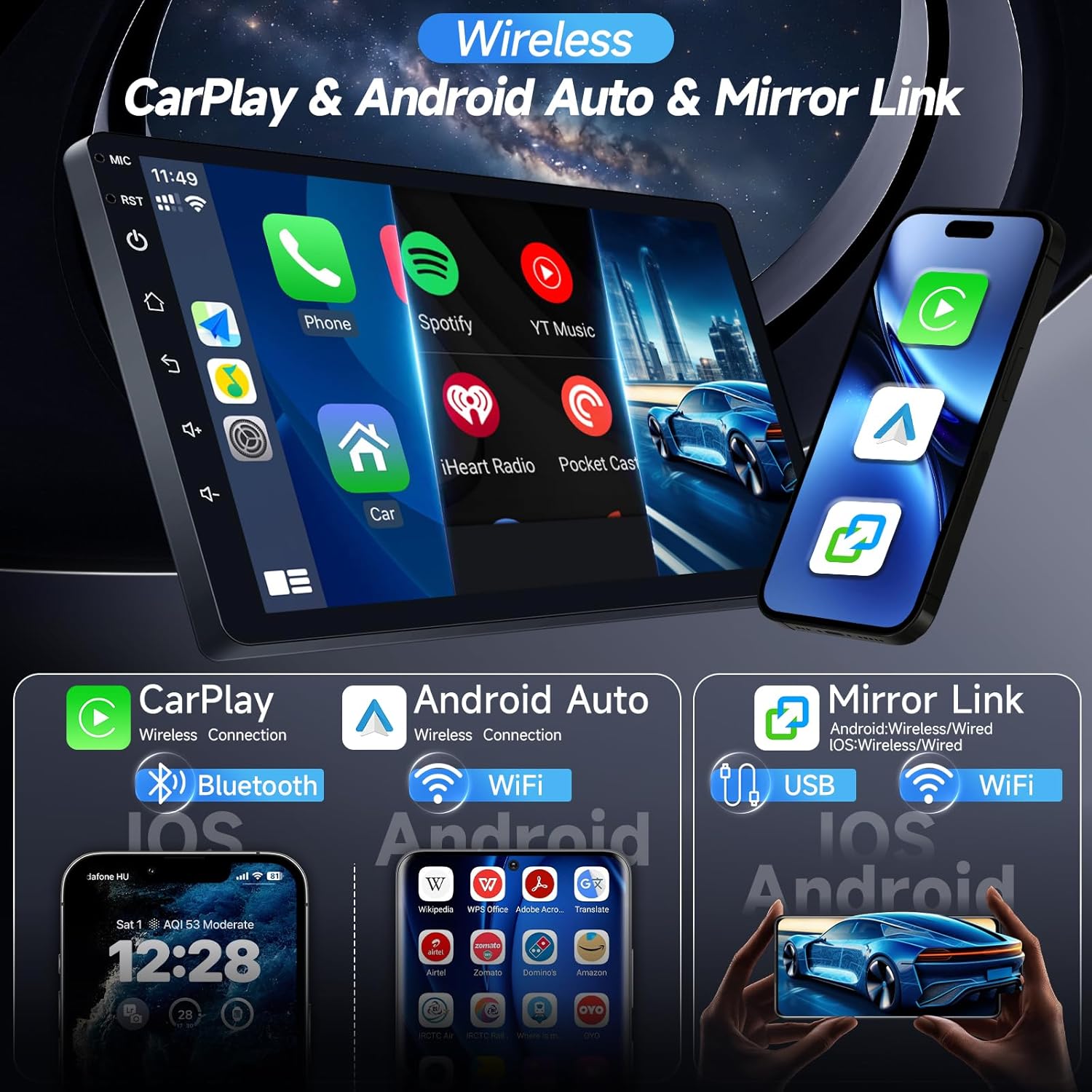
Image: The car radio screen displaying the CarPlay interface with various app icons. Adjacent to it, a smartphone shows the Android Auto and Mirror Link functionalities, highlighting wireless connectivity options for both iOS and Android devices via Bluetooth and Wi-Fi.

Image: This graphic demonstrates the wireless CarPlay and Android Auto features, showing how they enable navigation, music playback, and hands-free calling. Bluetooth and Wi-Fi symbols indicate the wireless connection methods for both iOS and Android phones.
6.3 MirrorLink (Wireless/Wired)
Project your smartphone's screen onto the car radio display for enhanced entertainment when the vehicle is stationary.
- Bezprzewodowy: Connect via Bluetooth or Wi-Fi.
- wired: Połącz za pomocą kabla USB.

Image: This visual explains the Mirror Link function, demonstrating how content from an iOS or Android smartphone can be displayed on the car radio's large screen. It highlights both wireless (Wi-Fi) and wired (USB) connection options.
6.4 Nawigacja GPS
The unit supports both online and offline navigation. Connect to Wi-Fi or a mobile hotspot to download maps for offline use.
- Nawigacja online: Requires an active internet connection. Use pre-installed map applications or download your preferred navigation apps from the app store.
- Nawigacja offline: Download map data in advance while connected to Wi-Fi. This allows navigation without an internet connection.
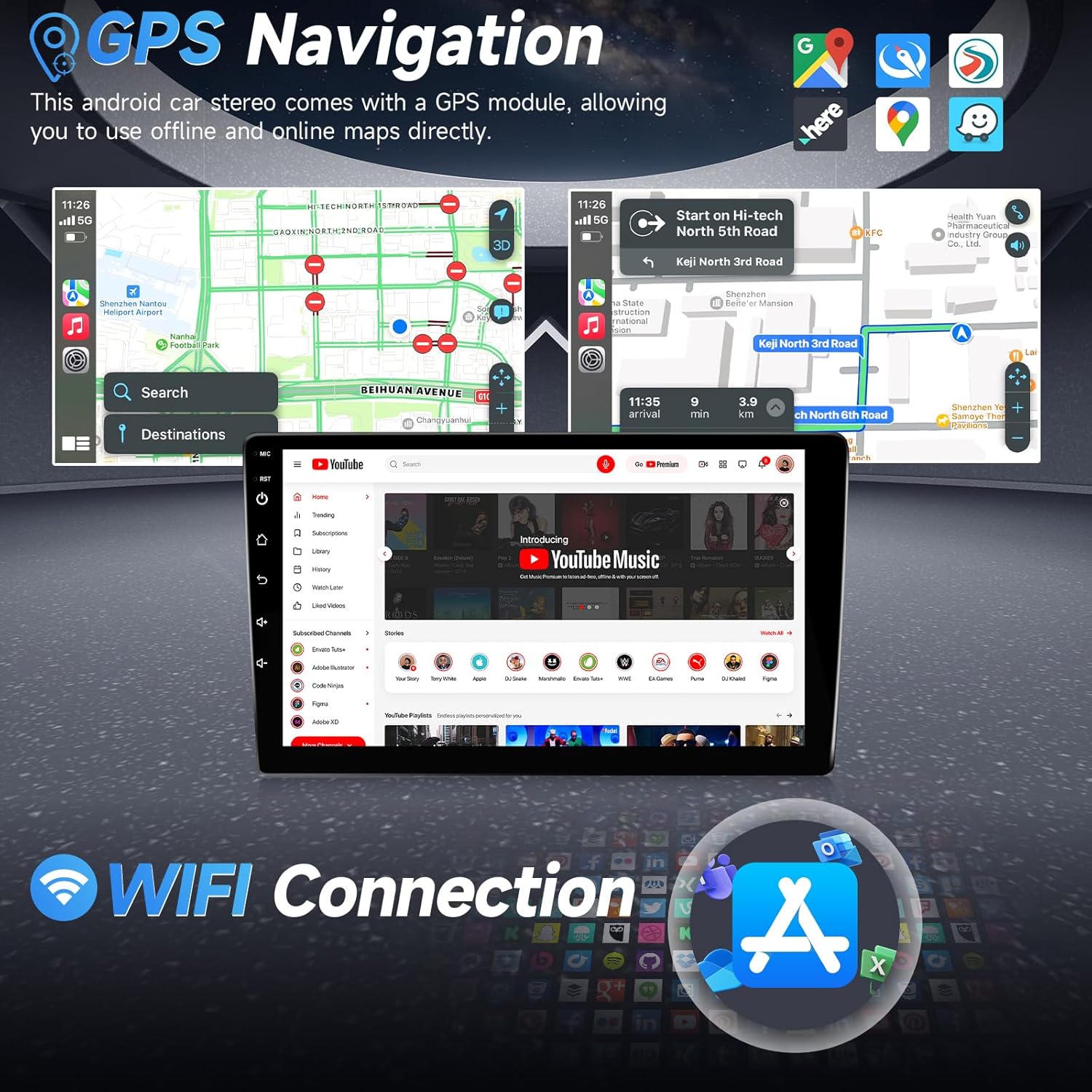
Image: The car radio screen displaying a GPS navigation map on the upper half and a YouTube video playing on the lower half, illustrating multi-tasking capabilities. A Wi-Fi connection icon is also visible, indicating internet connectivity for online services.

Image: This graphic illustrates both online and offline GPS navigation capabilities. It shows detailed map interfaces with route guidance and vehicles driving on a road, emphasizing the system's ability to provide directions with or without an active internet connection.
6.5 Funkcjonalność Bluetooth
Wbudowany moduł Bluetooth umożliwia prowadzenie rozmów telefonicznych w trybie głośnomówiącym oraz strumieniowe przesyłanie dźwięku.
- Rozmowy bez użycia rąk: Pair your phone via Bluetooth to make and receive calls directly from the car radio. The external microphone ensures clear audio.
- Strumieniowe przesyłanie dźwięku: Odtwarzaj muzykę ze sparowanego smartfona przez głośniki samochodu.

Image: This graphic highlights the upgraded Bluetooth version, showcasing its capabilities for music playback and hands-free calling. The car radio screen displays a phone interface for managing calls and a music player for streaming audio.
6.6 Radio FM
Access local radio stations with the built-in FM tuner. Note: This unit does not support AM radio.
- Wyszukiwanie stacji: Supports fully automatic, semi-automatic, and precision adjustment channel search.
- Ustawienia wstępne: Zapisz swoje ulubione stacje, aby mieć do nich szybki dostęp.

Image: This graphic illustrates the FM radio interface on the car radio screen, displaying the current frequency (e.g., 94.60 MHz) and a list of available stations. It highlights the unit's stable FM radio reception.
6.7 Sterowanie z kierownicy (SWC)
If properly connected via the CanBus, the unit supports your vehicle's original steering wheel controls, allowing you to manage audio and calls without taking your hands off the wheel.
- Konfiguracja: Access the SWC settings in the unit's menu to map functions to your steering wheel buttons.

Image: The car radio screen displaying the AHD backup camera view with parking guidelines. Below, the steering wheel control settings interface is shown, allowing users to configure buttons for functions like volume, track skip, and call management.

Image: This graphic illustrates the steering wheel control feature, showing a steering wheel with highlighted control buttons and the corresponding interface on the car radio for configuring these controls. Icons for call, volume, and track control are also displayed.
6.8 Kamera cofania AHD
Dołączona kamera cofania AHD zapewnia wyraźny obraz view obszaru za pojazdem podczas cofania, zwiększając bezpieczeństwo.
- Automatyczny wyświetlacz: Aparat fotograficzny view automatically appears on the screen when the vehicle is shifted into reverse.
- HD Image & Night Vision: Provides high-definition images and supports IR night vision for low-light conditions.

Image: This graphic demonstrates the AHD backup camera feature, displaying the camera's view on the car radio screen with dynamic parking lines. An overhead view of a car reversing into a parking spot further illustrates its utility for safe maneuvering.
6.9 Funkcja podzielonego ekranu
Multitask by running two applications simultaneously on the 9-inch screen.
- Aktywacja: Drag an app to one side of the screen, then select another app for the other side.
- Stosowanie: Na przykładample, use navigation on one side while playing music or watching a video (when parked) on the other.

Image: This graphic illustrates the split-screen functionality, showing the car radio displaying a navigation app and YouTube simultaneously. It also highlights the 1280x720P HD IPS Touch Screen with 2.5D glass, emphasizing display quality and multi-tasking capabilities.
6.10 Wi-Fi Connection & App Downloads
Connect to a Wi-Fi network or mobile hotspot to access online features and download applications.
- Połącz się z Wi-Fi: Go to Settings > Network > Wi-Fi and select your desired network.
- Sklep z aplikacjami: Access the pre-installed app store to download additional applications. Note: Downloading too many apps may affect performance.

Image: This graphic demonstrates the Wi-Fi connection capabilities, showing how it enables streaming video and music, and downloading various applications such as YouTube, Spotify, Netflix, and TikTok from the app store.
6.11 Ustawienia korektora
Customize your audio experience with the built-in Equalizer (EQ) settings.
- Ustawienia wstępne: Choose from various pre-defined sound modes (e.g., Pop, Rock, Jazz).
- Personalizacja: Manually adjust frequency bands to fine-tune the audio output to your preference.
7. Konserwacja
- Czyszczenie: Do czyszczenia ekranu i urządzenia używaj miękkiej, suchej ściereczki. Unikaj środków czyszczących o właściwościach ściernych i rozpuszczalników.
- Aktualizacje oprogramowania: Okresowo sprawdzaj dostępność aktualizacji oprogramowania w menu ustawień urządzenia, aby zapewnić optymalną wydajność i dostęp do nowych funkcji.
- Unikaj płynów: Nie wystawiaj urządzenia na działanie wody lub innych płynów.
8. Rozwiązywanie Problemów
Jeśli napotkasz problemy, zapoznaj się z poniższymi typowymi problemami i rozwiązaniami:
| Problem | Możliwa przyczyna | Rozwiązanie |
|---|---|---|
| Urządzenie nie włącza się | Incorrect wiring; Blown fuse; Vehicle battery disconnected | Check power cable connections; Inspect vehicle fuses; Ensure battery is connected. |
| Bluetooth disconnects frequently or is difficult to connect | Interference; Software glitch; Incorrect pairing | Ensure the camera input cable is connected (it enhances BT/WiFi signal); Re-pair the device; Restart the unit and phone; Check for software updates. |
| Steering Wheel Controls (SWC) not working | CanBus not connected or configured correctly; Incompatible CanBus | Verify CanBus connection; Check SWC settings in the unit; Ensure CanBus is compatible with your vehicle's specific model. |
| Screen freezes or unit is slow | Too many applications running; Insufficient memory; Software issue | Close unnecessary applications; Limit downloaded apps; Perform a factory reset (backup data first); Check for software updates. |
| Brak dźwięku | Speaker wires disconnected; Volume too low; Mute activated; Ampproblem lifier | Check speaker wiring; Increase volume; Deactivate mute; Verify external amppołączenia liniowe, jeśli dotyczy. |
| Kamera cofania nie jest wyświetlana | Camera not connected; Reverse trigger wire not connected; Faulty camera | Check camera and reverse input connections; Ensure the camera is powered; Test camera functionality. |

Image: This graphic provides installation tips and guidance on how to solve common problems. It includes advice on checking vehicle compatibility, ensuring proper connection of the 'CAM-IN' reversing input cable for signal enhancement, and instructions on how to contact customer support for assistance.
9. Specyfikacje
| Funkcja | Szczegół |
|---|---|
| Nazwa modelu | Model B |
| System operacyjny | Android 12 |
| Rozmiar ekranu | 9 cali |
| Typ wyświetlacza | Ekran LCD IPS |
| Typ ekranu dotykowego | Pojemnościowy |
| Pamięć (RAM) | 2 GB |
| Pamięć masowa (ROM) | 32 GB |
| Łączność | Bezprzewodowy, Bluetooth, USB, Wi-Fi |
| Cechy specjalne | Wireless CarPlay, Android Auto, MirrorLink, GPS Navigation, FM Radio, AHD Backup Camera Input, Steering Wheel Control, Split Screen |
| Tryb wyjścia audio | Stereofoniczny |
| Obsługiwany system nawigacji satelitarnej | GPS |
| Waga przedmiotu | 1.5 kilograma |

Image: This graphic illustrates the performance benefits of the 4-Core processor with 2GB RAM and 32GB ROM configuration, showing a 50% performance improvement and stable heat generation compared to a 2-Core, 1GB RAM, 16GB ROM setup.

Image: This graphic displays a variety of multiple user interface (UI) themes available for the car radio, allowing users to customize the visual appearance of their system.
10. Gwarancja i wsparcie
Naifay products are designed for reliability and performance. For warranty information, please refer to the documentation included with your purchase or contact the seller directly.
Obsługa klienta
If you encounter any issues or have questions not covered in this manual, please contact Naifay customer support through the platform where you purchased the product. Provide relevant pictures or videos to help resolve your issue faster.
- Krok 1: Navigate to the product page or your order history.
- Krok 2: Click on the seller's name (Naifay).
- Krok 3: Wybierz opcję „Zadaj pytanie” lub „Skontaktuj się ze sprzedawcą”.