
1. Wprowadzenie
Thank you for choosing the Darmoshark M5PRO Mini Wireless Gaming Mouse. This manual provides detailed instructions for setting up, operating, and maintaining your new gaming mouse. The M5PRO features a tri-mode connection (2.4G wireless, Bluetooth, wired), a high-precision PAW3950 optical sensor, and a lightweight design for optimal performance.
2. Koniec produktuview
The Darmoshark M5PRO is designed for competitive gaming, offering versatile connectivity and advanced sensor technology. Its ergonomic shape is ideal for finger grip players, providing responsive control and comfort during extended use.

Image: Darmoshark M5PRO Mini Wireless Gaming Mouse in various colors, highlighting its design.
Główne cechy:
- Łączność trójmodowa: Seamlessly switch between 2.4G wireless, Bluetooth 5.0, and wired USB connections.
- Czujnik optyczny PAW3950: Provides up to 30000 DPI, 750 IPS tracking speed, and 50G acceleration for precise and responsive tracking.
- Częstotliwość odpytywania 8 kHz: Experience ultra-low latency with an 8KHz polling rate in 2.4G wireless mode, ensuring rapid response times.
- Ultralekka konstrukcja: Weighing approximately 38 grams, the mouse reduces hand fatigue during long gaming sessions.
- 5 programowalnych przycisków: Customize button functions via the dedicated software.
- Wbudowana bateria litowa: High-capacity rechargeable battery for extended wireless usage.
- Szeroka kompatybilność: Compatible with Windows and Apple Mac operating systems.
3. Zawartość opakowania
Proszę sprawdzić, czy w paczce znajdują się następujące elementy:
- Darmoshark M5PRO Mini Wireless Gaming Mouse
- Odbiornik bezprzewodowy 2.4G (klucz USB)
- Kabel USB-C do USB-A (do ładowania i połączenia przewodowego)
- Instrukcja obsługi (ten dokument)
- Grip Tape (optional accessory, if included)
4. Konfiguracja i łączność
4.1 Tryb przewodowy
- Podłącz końcówkę USB-C dołączonego kabla do myszy.
- Podłącz koniec USB-A kabla do wolnego portu USB w komputerze.
- Mysz automatycznie przełączy się na tryb przewodowy i rozpocznie ładowanie.
4.2. 2.4G Wireless Mode (with 8KHz Receiver)
- Znajdź w opakowaniu odbiornik bezprzewodowy 2.4G (klucz USB).
- Podłącz odbiornik bezprzewodowy 2.4G do dostępnego portu USB w komputerze.
- On the bottom of the mouse, locate the tri-mode switching key. Switch it to the 2.4G wireless icon (usually indicated by a small antenna or 'G' symbol).
- The mouse should automatically connect. If not, press and hold the pairing button (if available, refer to the diagram) on the mouse until the indicator light flashes, then release.

Image: M5PRO mouse with its 8KHz wireless receiver for 2.4G connectivity.
4.3. Tryb Bluetooth
- On the bottom of the mouse, switch the tri-mode switching key to the Bluetooth icon.
- The mouse's indicator light will start flashing, indicating it is in pairing mode.
- Na komputerze lub urządzeniu otwórz ustawienia Bluetooth.
- Szukaj new devices and select "Darmoshark M5PRO" from the list.
- Postępuj zgodnie ze wskazówkami wyświetlanymi na ekranie, aby dokończyć proces parowania.
5. Korzystanie z myszy
5.1. Funkcje przycisków
The M5PRO mouse features 5 programmable buttons and a scroll wheel.
- Lewy przycisk myszy: Standardowe kliknięcie podstawowe.
- Kliknij prawym przyciskiem myszy: Standardowe kliknięcie wtórne.
- Track Roller Key (Scroll Wheel): Przewija w górę/w dół i działa jak środkowy przycisk.
- DPI Adjustment Key: Przełącza pomiędzy wstępnie ustawionymi poziomami DPI.
- Przycisk do przodu: Default function for navigating forward in web przeglądarki lub file odkrywcy.
- Przycisk Backspace: Default function for navigating backward in web przeglądarki lub file odkrywcy.

Obraz: Wybuchowy view of the M5PRO mouse showing internal components and button layout.
5.2. Regulacja DPI
Press the DPI Adjustment Key (located on the underside of the mouse, refer to the product diagram) to cycle through different DPI sensitivity levels. The default DPI settings can be customized using the Darmoshark software.
5.3. Ładowanie myszy
When the battery is low, the mouse's indicator light will typically flash red. Connect the mouse to your computer using the provided USB-C cable to charge it. The indicator light will show charging status and turn off or change color when fully charged.
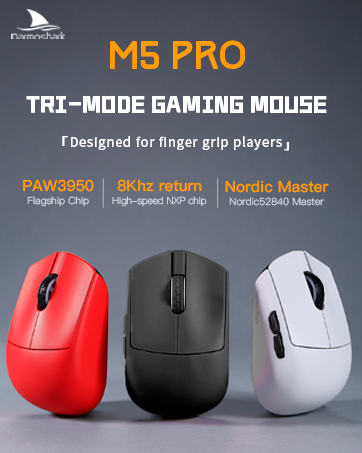
Image: Darmoshark M5PRO mouse charging via USB-C cable, highlighting its built-in lithium battery.
6. Dostosowywanie oprogramowania
To unlock the full potential of your Darmoshark M5PRO mouse, download and install the official Darmoshark driver software from the manufacturer's webwitryna. Oprogramowanie pozwala na:
- Customize DPI settings and create multiple profiles.
- Program button functions and macros.
- Adjust polling rate.
- Zarządzaj ustawieniami zasilania i czasem pracy baterii.
- Aktualizacja oprogramowania.

Image: Darmoshark proprietary driver software interface for mouse customization.
7. Specyfikacje
| Model | M5PRO |
| Transduktor | Czujnik optyczny PAW3950 |
| DPI | Do 30000 DPI |
| Śledzenie prędkości | 750 IPS |
| Przyśpieszenie | 50G |
| Współczynnik sondowania | 8KHz (2.4G Wireless), 1KHz (Wired/Bluetooth) |
| Łączność | Łączność bezprzewodowa 2.4G, Bluetooth 5.0, przewodowy port USB-C |
| Pikolak | 5 programowalne przyciski |
| Waga | Około 38g |
| Wymiary (dł. x szer. x wys.) | Wymiary: 91.7mm x 57.4mm x 35.7mm |
| Bateria | Wbudowana bateria litowa (300mAh) |
| Zgodność | Windows, Apple Mac |
Image: Product parameter diagram with mouse dimensions.
8. Konserwacja
- Czyszczenie: Do czyszczenia myszy używaj miękkiej, suchej ściereczki. Unikaj stosowania silnych środków chemicznych i materiałów ściernych.
- Składowanie: Przechowuj mysz w chłodnym, suchym miejscu, z dala od bezpośredniego światła słonecznego i ekstremalnych temperatur.
- Pielęgnacja baterii: Aby przedłużyć żywotność baterii, unikaj częstego całkowitego rozładowywania myszy. Naładuj ją, gdy pojawi się wskaźnik niskiego poziomu naładowania baterii.
9. Rozwiązywanie Problemów
9.1. Mysz nie odpowiada
- Tryb przewodowy: Upewnij się, że kabel USB jest prawidłowo podłączony do myszy i komputera. Spróbuj użyć innego portu USB.
- Tryb bezprzewodowy 2.4G: Ensure the 2.4G receiver is plugged in and the mouse is switched to 2.4G mode. Try re-pairing the mouse with the receiver. Ensure the mouse battery is charged.
- Tryb Bluetooth: Ensure Bluetooth is enabled on your device and the mouse is in Bluetooth pairing mode. Try re-pairing the mouse in your device's Bluetooth settings. Ensure the mouse battery is charged.
9.2. Cursor Movement is Erratic or Inaccurate
- Wyczyść czujnik optyczny znajdujący się na spodzie myszy miękką, suchą ściereczką.
- Upewnij się, że używasz myszy na odpowiedniej powierzchni (np. podkładce pod mysz). Unikaj powierzchni silnie odbijających światło lub przezroczystych.
- Adjust the DPI settings using the DPI Adjustment Key or the software.
- Check for any software conflicts or outdated drivers. Update mouse drivers if necessary.
9.3. Wireless Connection Issues
- Reduce the distance between the mouse and the receiver/device.
- Unikaj umieszczania odbiornika w pobliżu innych urządzeń bezprzewodowych lub źródeł zakłóceń (np. routerów Wi-Fi, telefonów bezprzewodowych).
- Sprawdź, czy mysz jest w pełni naładowana.
10. Oficjalny film o produkcie
Watch the official product video for a visual guide on the Darmoshark M5PRO Mini Wireless Gaming Mouse.
Wideo: Ponadview myszy do gier Darmoshark M5PRO Wireless, pokazasing its design and features in various colors.
11. Gwarancja i wsparcie
For warranty information and technical support, please refer to the warranty card included with your product or visit the official Darmoshark webstrona.
Producent: Darmoshark
Webstrona: Darmoshark Official Store


