
Xbox EP2-29563
Xbox Wireless Controller Storm Breaker Special Edition
Modele: EP2-29563
Marka: Xbox
Wstęp
The Xbox Wireless Controller Storm Breaker Special Edition is designed to provide an enhanced gaming experience across multiple platforms. This controller features a unique aesthetic with classic grays and blacks, offset with whites, along with textured grips for improved handling. It offers seamless connectivity and customizable controls to optimize your gameplay.
Główne cechy
- Storm Breaker Special Edition Design: Features a distinctive gray, black, and white pattern.
- Textured Triggers: Provides enhanced grip and control during gameplay.
- Rubberized Grips: Located on the back cases for secure handling.
- Wireless & Bluetooth Connectivity: Easily pairs with Xbox consoles, PCs, and mobile devices.
- Przycisk udostępniania: Seamlessly capture and share screenshots and game recordings.
- Możliwość dostosowania mapowania przycisków: Personalize controls using the Xbox Accessories app.
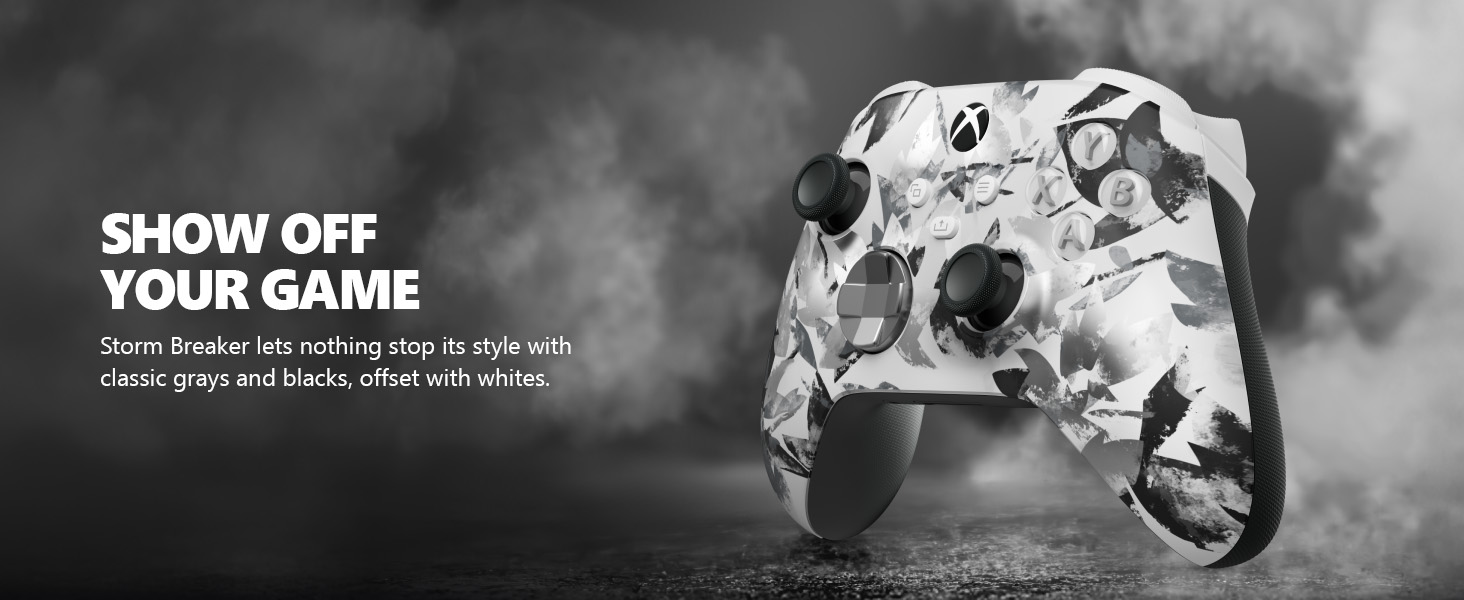
Image: The Xbox Wireless Controller Storm Breaker Special Edition showcasing its distinctive color scheme.
Organizować coś
1. Instalacja baterii
The controller requires two AA batteries (included). To install:
- Znajdź komorę baterii z tyłu kontrolera.
- Press the small tab and lift the battery cover.
- Insert the two AA batteries, ensuring correct polarity (+ and -).
- Załóż pokrywę baterii, aż usłyszysz kliknięcie.
2. Parowanie z urządzeniami
The controller supports both Xbox Wireless and Bluetooth for versatile connectivity.
- For Xbox Console:
- Turn on your Xbox console.
- Press the Xbox button on your controller to turn it on.
- Naciśnij i przytrzymaj przycisk parowania (⏚) on the top of the controller until the Xbox button flashes rapidly.
- Press the Pair button on your Xbox console (usually near the USB port or on the front).
- The Xbox button on the controller will become solid when connected.
- For PC (Windows 10/11) via Bluetooth:
- Upewnij się, że Twój komputer ma włączoną funkcję Bluetooth.
- Press the Xbox button on your controller to turn it on.
- Naciśnij i przytrzymaj przycisk parowania (⏚) on the top of the controller until the Xbox button flashes rapidly.
- Na komputerze przejdź do Ustawienia > Urządzenia > Bluetooth i inne urządzenia.
- Wybierz „Dodaj urządzenie Bluetooth lub inne”, a następnie „Bluetooth”.
- Choose "Xbox Wireless Controller" from the list and follow on-screen prompts.
- Dla urządzeń mobilnych (Android/iOS):
- Włącz Bluetooth w swoim urządzeniu mobilnym.
- Press the Xbox button on your controller to turn it on.
- Naciśnij i przytrzymaj przycisk parowania (⏚) on the top of the controller until the Xbox button flashes rapidly.
- On your mobile device, search for Bluetooth devices and select "Xbox Wireless Controller" to pair.
Wideo: Ponadview of the Xbox Wireless Controller, demonstrating its physical features and ports, useful for understanding setup.
Obsługa kontrolera
1. Podstawowe sterowanie
- Pałki kciukowe: Use for movement and camera control.
- Pad kierunkowy: Ideal for precise directional input in games and menu navigation.
- Przyciski A, B, X, Y: Primary action buttons for in-game commands.
- Triggers (LT/RT) & Bumpers (LB/RB): Used for various actions like shooting, accelerating, or menu selection.
2. Przycisk Udostępnij
The dedicated Share button (⤓) allows you to quickly capture and share your gaming moments:
- Press once to take a screenshot.
- Press and hold to record the last 30 seconds of gameplay.
3. Gniazdo zestawu słuchawkowego
A 3.5mm audio jack is located at the bottom of the controller, allowing you to connect compatible headsets for in-game audio and chat.
4. Customization with Xbox Accessories App
Download the Xbox Accessories app on your Xbox console or Windows PC to customize button mapping and create personalized controller profiles.
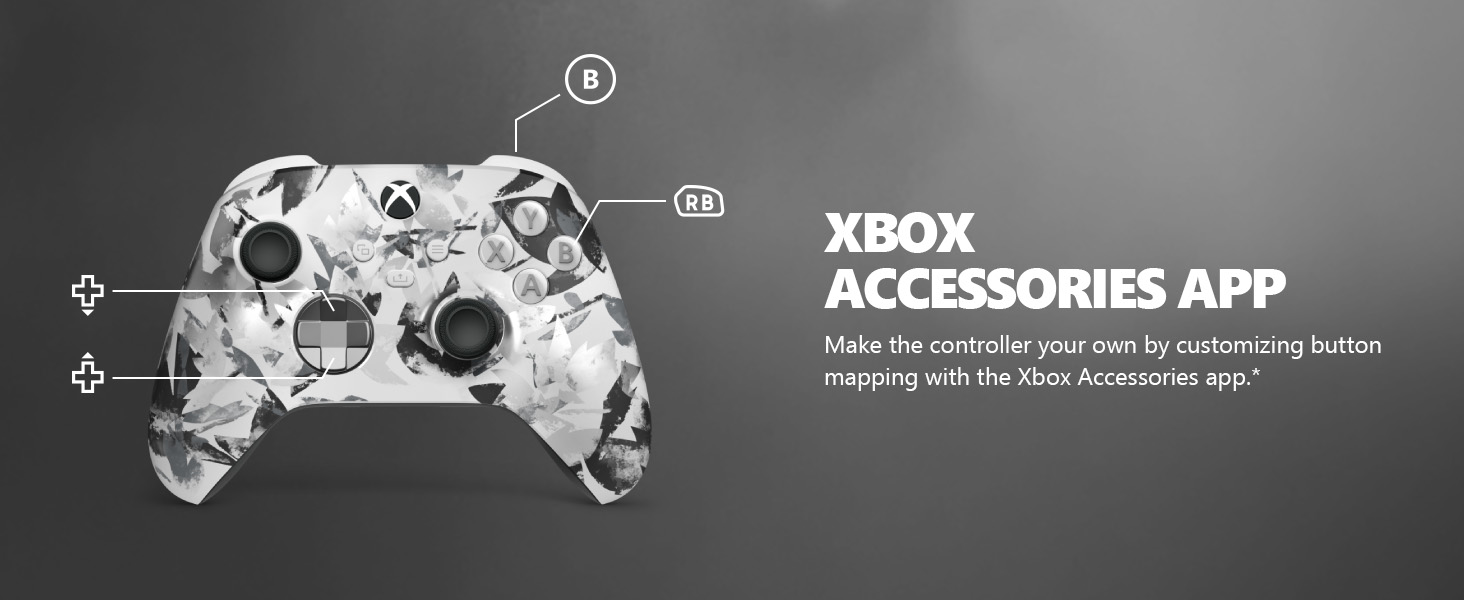
Image: The Share button and an illustration of button mapping customization via the Xbox Accessories app.
Konserwacja
- Czyszczenie: Do czyszczenia kontrolera używaj miękkiej, suchej ściereczki. Unikaj środków czyszczących o właściwościach ściernych i rozpuszczalników.
- Pielęgnacja baterii: Remove batteries if the controller will not be used for an extended period to prevent leakage.
- Składowanie: Przechowuj kontroler w chłodnym, suchym miejscu, z dala od bezpośredniego światła słonecznego i ekstremalnych temperatur.
Rozwiązywanie problemów
- Kontroler nie łączy się:
- Sprawdź, czy baterie są prawidłowo zainstalowane i naładowane.
- Spróbuj ponownie przeprowadzić proces parowania, postępując zgodnie z opisem w sekcji Konfiguracja.
- Sprawdź, czy nie występują zakłócenia ze strony innych urządzeń bezprzewodowych.
- Update controller firmware via the Xbox Accessories app.
- Przyciski nie reagują:
- Wyczyść okolice przycisków, aby usunąć wszelkie zanieczyszczenia.
- Test the controller with another device or game to isolate the issue.
- Krótki czas pracy baterii:
- Używaj nowych, wysokiej jakości baterii AA.
- Consider using a rechargeable battery pack (sold separately) for extended play.
Specyfikacje
| Funkcja | Szczegół |
|---|---|
| Numer modelu | EP2-29563 |
| Łączność | Xbox Wireless, Bluetooth |
| Zgodność | Xbox Series X|S, Xbox One, Windows 10/11, Android, iOS |
| Źródło zasilania | 2 baterie AA (w zestawie) |
| Port audio | Gniazdo słuchawkowe 3.5 mm |
| Wymiary | 6.91 x 5.61 x 2.76 cala |
| Waga | 14.1 uncji |
| Producent | Microsoft |
Gwarancja i wsparcie
For warranty information and technical support, please refer to the documentation included with your product or visit the official Xbox support webZachowaj dowód zakupu na wypadek roszczeń gwarancyjnych.
Wsparcie online: wsparcie.xbox.com