
1. Wprowadzenie
Thank you for choosing the Transformers GM04 Lightweight Wireless Gaming Mouse. This manual provides essential information for setting up, operating, and maintaining your new gaming mouse. Designed for precision and comfort, the GM04 features a high-precision PAW3311 sensor, triple connection modes (2.4G wireless, Bluetooth 5.3, and USB-C wired), 5 programmable buttons, and up to 100 hours of battery life. Its ergonomic design and lightweight construction ensure a comfortable and responsive experience for gaming, work, and study.
2. Co znajduje się w pudełku
- TF-GM04 Wireless Gaming Mouse x 1
- USB Wireless Dongle x 1
- Kabel USB-C x 1
- Instrukcja obsługi x 1
3. Koniec produktuview
Familiarize yourself with the key features and components of your Transformers GM04 gaming mouse.
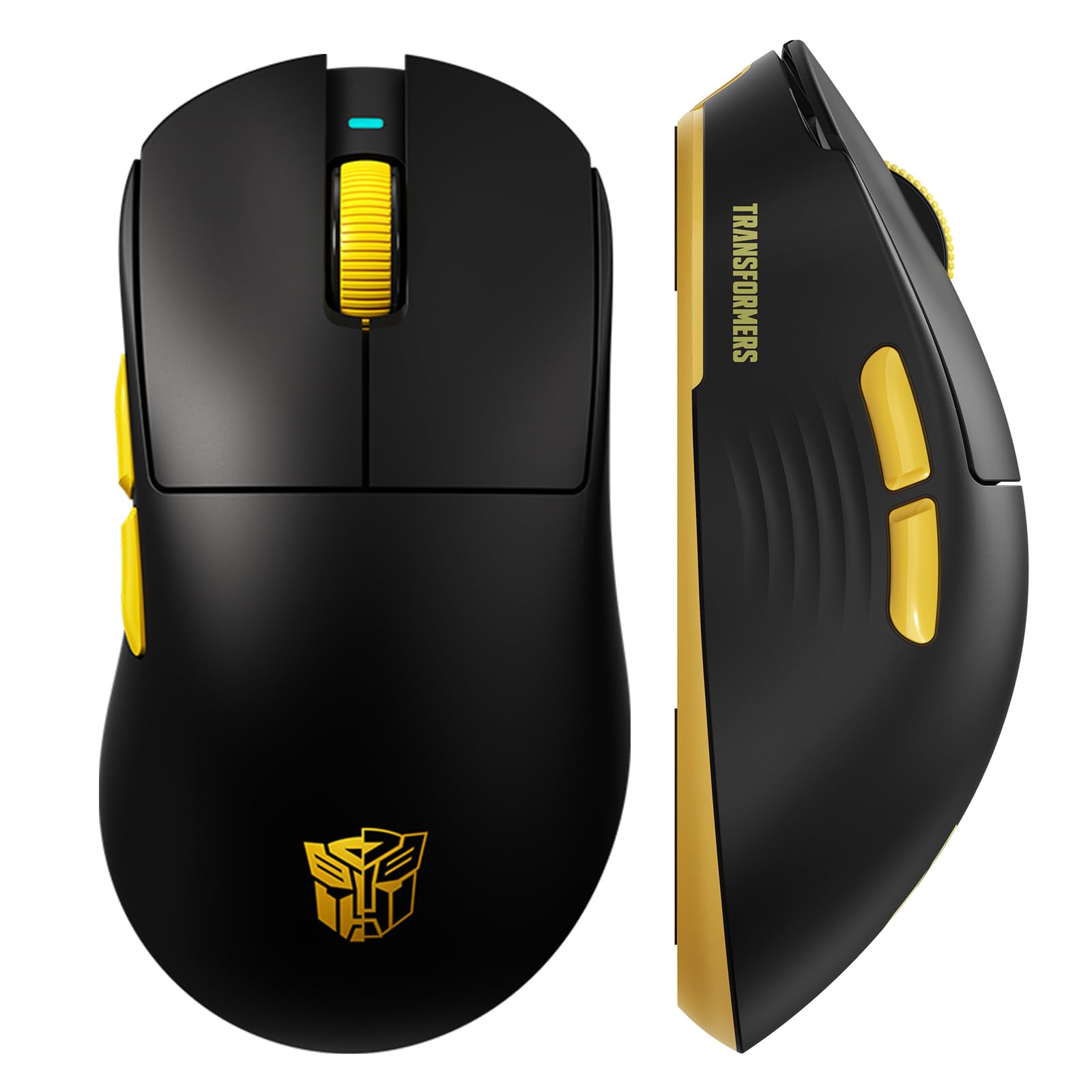
Obraz 1: The Transformers GM04 Wireless Gaming Mouse, showcasing its sleek black and yellow design, along with icons highlighting its core features such as PixArt PAW3311 sensor, up to 12000 DPI, 1000Hz polling rate, 20 million clicks, Tri-Mode connectivity, custom macros, 63g lightweight design, and up to 100 hours of battery life. A USB wireless dongle is also visible next to the mouse.

Obraz 2: A hand demonstrating the ergonomic design of the Transformers GM04 mouse. The image highlights how the mouse fits comfortably in the palm, promoting more comfort and less fatigue during extended use, thanks to its non-slip texture.

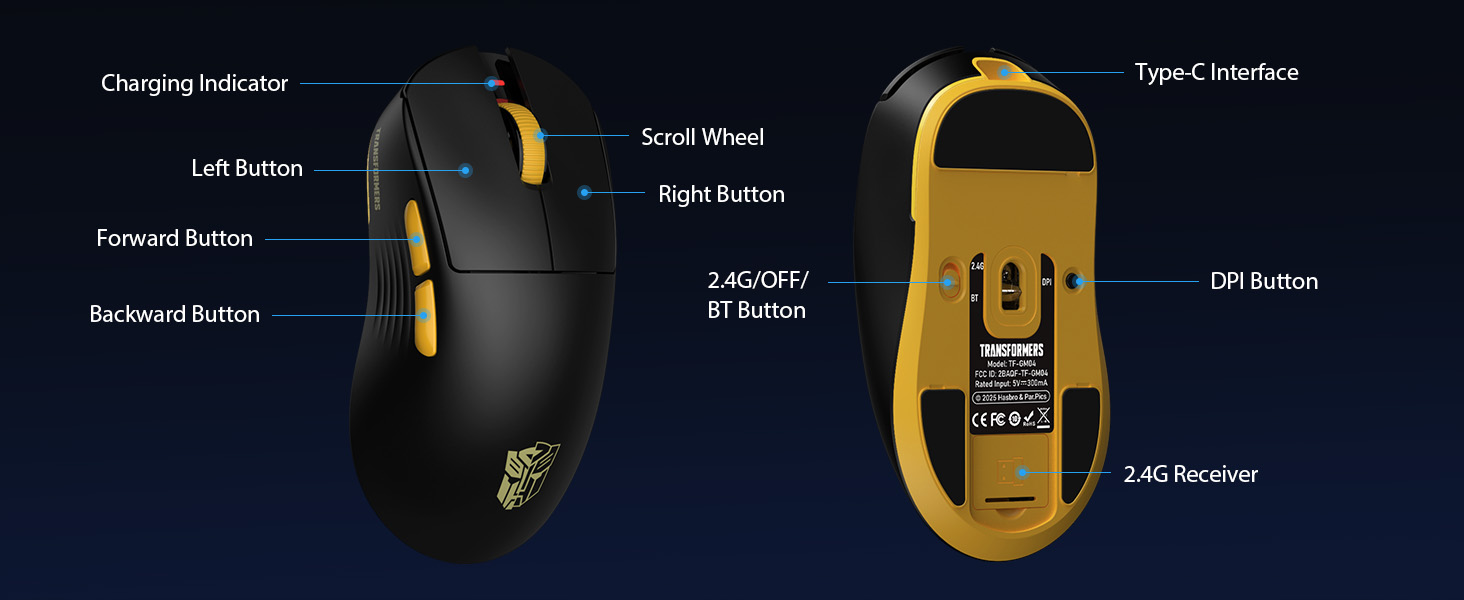
Obraz 3: The underside of the Transformers GM04 mouse, detailing the 2.4G/OFF/BT switch for connection modes, the DPI button, and the storage compartment for the 2.4G wireless receiver. This view is crucial for understanding how to switch modes and adjust settings.

Obraz 4: An illustration of the 6-level adjustable DPI settings for the Transformers GM04 mouse. It shows the DPI values (1200, 2400, 3200, 4800, 6400, 12000) and their corresponding LED indicator colors (Red, Green, Blue, Purple, Yellow, Cyan), which helps users identify the current DPI level.
Obraz 5: eksplodował view diagram of the Transformers GM04 mouse, highlighting the HUANO micro switches. This image emphasizes the precision-engineered mechanical switches designed for crisp feedback and a lifespan of over 20 million clicks, ideal for rapid gaming actions.
Wideo 1: An official product video from Transformers Keyboard showcasing the GM04 Lightweight Wireless Gaming Mouse. This short video provides a dynamic overview of the mouse's design and features.
4. Konfiguracja
4.1. Ładowanie myszy
Before first use, it is recommended to fully charge your GM04 mouse. Connect the provided USB-C cable to the mouse's front port and the other end to a USB power source (e.g., computer USB port, USB wall adapter). The LED indicator will show charging status.
4.2. Podłączanie myszy
The GM04 mouse supports three connection modes: 2.4G Wireless, Bluetooth 5.3, and USB-C Wired. Use the switch on the bottom of the mouse to select your desired mode.
4.2.1. Tryb bezprzewodowy 2.4G
- Remove the USB wireless dongle from its storage slot on the bottom of the mouse.
- Plug the USB wireless dongle into an available USB-A port on your computer.
- Przesuń przełącznik trybu znajdujący się na spodzie myszy na pozycję „2.4G”.
- Mysz powinna automatycznie połączyć się z komputerem.
4.2.2. Tryb Bluetooth
- Przesuń przełącznik trybu znajdujący się na spodzie myszy na pozycję „BT”.
- Na komputerze lub urządzeniu otwórz ustawienia Bluetooth i wyszukaj nowe urządzenia.
- Select "TF-GM04 BT" from the list of available devices to pair.
- The mouse should connect and be ready for use.
4.2.3. Tryb przewodowy USB-C
- Connect the provided USB-C cable to the mouse's front port and the other end to a USB-A port on your computer.
- Mysz automatycznie przełączy się na tryb przewodowy i rozpocznie ładowanie.
5. Obsługa
5.1. Regulacja DPI
The GM04 mouse offers 6 default DPI settings. To cycle through these settings, press the Przycisk DPI located on the bottom of the mouse. The LED indicator will change color to reflect the current DPI level:
- Czerwony: 1200 DPI
- Zielony: 2400 DPI
- Niebieski: 3200 DPI
- Fioletowy: 4800 DPI
- Żółty: 6400 DPI
- Cyjan: 12000 DPI
5.2. Programowalne przyciski
The mouse features 5 programmable buttons. To customize these buttons with macro commands, shortcut keys, or other functions, you will need to use the dedicated driver software. This software is typically available for Windows systems under 2.4G wireless and wired modes. Bluetooth mode may not support full software customization.
5.3. Connection Mode Switching
Easily switch between 2.4G Wireless, Bluetooth, and Wired modes using the dedicated switch on the bottom of the mouse. This allows for seamless transitions between multiple devices.
5.4. Wskaźniki LED
- Wskaźnik DPI: Changes color according to the current DPI setting (see 5.1).
- Wskaźnik ładowania: A green LED near the scroll wheel indicates charging. It turns off when fully charged.
6. Konserwacja
6.1. Czyszczenie
To maintain optimal performance and appearance, regularly clean your mouse. Use a soft, dry cloth to wipe the surface. For stubborn dirt, a slightly damp Można użyć ściereczki, aby zapobiec przedostaniu się wilgoci do wnętrza podzespołów. Unikaj agresywnych środków chemicznych i materiałów ściernych.
6.2. Pielęgnacja baterii
The GM04 mouse is equipped with a 500mAh high-capacity battery. To prolong battery life:
- Unikaj częstego całkowitego rozładowywania akumulatora.
- Jeśli mysz nie będzie używana przez dłuższy czas, należy ją przechowywać w chłodnym i suchym miejscu.
- If using wired mode, the mouse will charge automatically.
7. Rozwiązywanie Problemów
7.1. Mysz nie odpowiada
- Sprawdź baterię: Ensure the mouse is charged. Connect it via USB-C cable.
- Sprawdź tryb połączenia: Verify the switch on the bottom is set to the correct mode (2.4G, BT, or Wired).
- Re-pair (2.4G/Bluetooth): For 2.4G, try plugging the dongle into a different USB port. For Bluetooth, unpair and re-pair the device in your computer's settings.
- Try Wired Mode: Connect the mouse directly via USB-C cable to see if it functions.
7.2. DPI nie zmienia się
- Upewnij się, że naciskasz właściwy przycisk DPI znajdujący się na spodzie myszy.
- Observe the LED indicator for color changes to confirm DPI cycles.
- Jeśli używasz niestandardowego oprogramowania, upewnij się, że ustawienia zostały zastosowane prawidłowo.
7.3. Opóźnienie lub rozłączenie w trybie bezprzewodowym
- Zmniejszenie zakłóceń: Move the mouse closer to the receiver/device. Avoid obstacles or other wireless devices that may cause interference.
- Sprawdź baterię: Low battery can affect wireless performance.
- Aktualizacja sterowników: Ensure your computer's Bluetooth or USB drivers are up to date.
8. Specyfikacje
| Funkcja | Szczegół |
|---|---|
| Wymiary produktu | 4.68 x 2.52 x 0.1 cala |
| Waga przedmiotu | 2.22 uncji (około 63 g) |
| Numer modelu przedmiotu | TF-GM04 |
| Technologia łączności | Łączność bezprzewodowa 2.4G, Bluetooth 5.3, przewodowy port USB-C |
| Technologia wykrywania ruchu | Optyczny (czujnik PAW3311) |
| Ustawienia DPI | 1200/2400/3200/4800/6400/12000 (Adjustable) |
| Współczynnik sondowania | 1000Hz (1ms latency) |
| Śledzenie prędkości | 300 IPS |
| Przyśpieszenie | 35G |
| Pikolak | 5 programowalne przyciski |
| Typ przełącznika | HUANO Micro Switches (20 Million Clicks) |
| Pojemność baterii | 500mAh |
| Żywotność baterii | Do 100 godzin (tryb Bluetooth) |
| Zgodność | Windows, Mac OS, and other systems |
9. Gwarancja i pomoc techniczna
9.1. Informacje o gwarancji
The Transformers GM04 Lightweight Wireless Gaming Mouse comes with a standard manufacturer's warranty. Please refer to the packaging or the official Transformers webSzczegółowe warunki gwarancji znajdziesz na stronie. Zachowaj paragon jako dowód zakupu na wypadek roszczeń gwarancyjnych.
9.2. Obsługa klienta
For technical assistance, troubleshooting, or any questions regarding your Transformers GM04 mouse, please contact Transformers customer support. Contact details can typically be found on the product packaging or the official brand webstrona.