
1. Koniec produktuview
The PeriPage P92 is a compact and lightweight thermal tattoo stencil printer designed for both professional tattoo artists and enthusiasts. It utilizes inkless thermal technology to produce clear and precise tattoo lines, streamlining the stencil creation process. This printer offers versatile connectivity options, including Bluetooth and USB, making it compatible with a wide range of devices such as smartphones, tablets, and PCs.

Image: The PeriPage P92 Tattoo Stencil Printer, a sleek black device, shown on a desk with a printed tattoo stencil.
Główne cechy:
- Przenośna konstrukcja: Compact and lightweight (approximately 15.2 ounces) for easy transport.
- Technologia termiczna bez użycia atramentu: Eliminates the need for ink cartridges, reducing operational costs.
- Wysoka kompatybilność: Supports Android, iOS, Windows, and macOS devices.
- Wszechstronna łączność: Connects via Bluetooth for wireless printing or USB for wired connections.
- Powerful Mobile App: The "PeriPage APP" provides abundant resources, including built-in tattoo templates and design editing tools.
- Wydajne drukowanie: Capable of printing clear and precise tattoo lines in seconds.
- Długa żywotność baterii: Built-in 2600mAh rechargeable battery, capable of printing up to 200 pages per charge.
2. Przewodnik konfiguracji
2.1 Rozpakowanie i opłata początkowa
Carefully remove all components from the packaging. Before first use, ensure the printer is fully charged using the provided USB cable and a compatible power adapter. The power indicator light will typically change to indicate a full charge.
2.2 Instalacja oprogramowania
To operate the PeriPage P92, you will need to install the appropriate software:
- For Smartphones/Tablets (Android/iOS): Download the "PeriPage APP" from your device's respective app store (Google Play Store for Android, Apple App Store for iOS).
- For PCs (Windows/macOS): Download the printer driver from the official PeriPage webstrona: https://www.ileadtek.com/en/download.html.

Image: The PeriPage P92 printer connected to a laptop via USB and a smartphone via Bluetooth, illustrating multi-device compatibility.
2.3 Ładowanie papieru szablonowego
- Upewnij się, że drukarka jest wyłączona lub znajduje się w trybie czuwania.
- Gently insert the tattoo stencil paper (thermal paper, 8.5x11 inches) into the paper feed slot at the front of the printer.
- The printer will automatically detect and feed the paper into position. Ensure the transfer film side is facing up.

Image: A step-by-step visual guide showing how to power on the printer, insert stencil paper, and initiate printing via the app.
3. Instrukcja obsługi
3.1 Włączanie/wyłączanie
To power on the printer, press and hold the power button (usually located on the top or side) for approximately 2 seconds until the indicator light illuminates. To power off, press and hold the power button again until the light turns off.
3.2 Łączenie się z urządzeniem
- Połączenie Bluetooth:
- Sprawdź, czy Bluetooth jest włączony na Twoim smartfonie lub tablecie.
- Open the "PeriPage APP".
- Within the app, search for and select the PeriPage P92 printer to establish a connection.
- Połączenie USB:
- Podłącz drukarkę do komputera za pomocą dołączonego kabla USB.
- Ensure the printer driver is installed on your PC.
- Drukarka powinna zostać rozpoznana jako urządzenie drukujące.
3.3 Using the PeriPage App for Printing
The "PeriPage APP" is your primary interface for creating and printing tattoo stencils.
- Open the "PeriPage APP" on your connected device.
- You can choose to use built-in tattoo templates or import your personal designs. The app offers tools for editing, resizing, and adjusting your designs.
- Once your design is ready, select the print option within the app.
- Confirm print settings (e.g., density, size) if prompted.
- The printer will then feed the stencil paper and print your design.

Image: Screenshots of the PeriPage mobile application interface, demonstrating design editing, template selection, and 3D preview cechy.

Image: The PeriPage P92 printer actively printing a tattoo stencil design onto thermal paper, with a smartphone displaying the design.
4. Konserwacja
4.1 Czyszczenie drukarki
Regularne czyszczenie pomaga zachować jakość druku i wydłuża żywotność drukarki.
- Zewnętrzny: Wipe the exterior of the printer with a soft, dry cloth. Avoid using abrasive cleaners or solvents.
- Głowica drukująca termiczna: If print quality degrades, gently clean the thermal print head with an alcohol wipe or a specialized thermal printer cleaning pen. Ensure the printer is off and cooled down before cleaning.
- Ścieżka papieru: Periodically check the paper path for any dust or debris and remove it carefully.
4.2 Przechowywanie
Store the printer in a cool, dry place away from direct sunlight and extreme temperatures. When not in use for extended periods, ensure the printer is fully charged and then powered off.
5. Rozwiązywanie Problemów
This section addresses common issues you might encounter with your PeriPage P92 printer.
5.1 Słaba jakość wydruku
- Słabe wydruki:
- Check if the thermal paper is loaded correctly with the transfer film side facing up.
- Ensure the printer's battery is sufficiently charged.
- Wyczyść głowicę drukującą termiczną (patrz rozdział 4.1).
- Adjust print density settings within the PeriPage APP.
- Smugi lub przerwy:
- Clean the thermal print head.
- Ensure the paper is free from wrinkles or damage.
- Incomplete Designs (Large Shadows/Complex Images): The printer is optimized for clear line drawings. Complex images with large shaded areas may not transfer optimally.
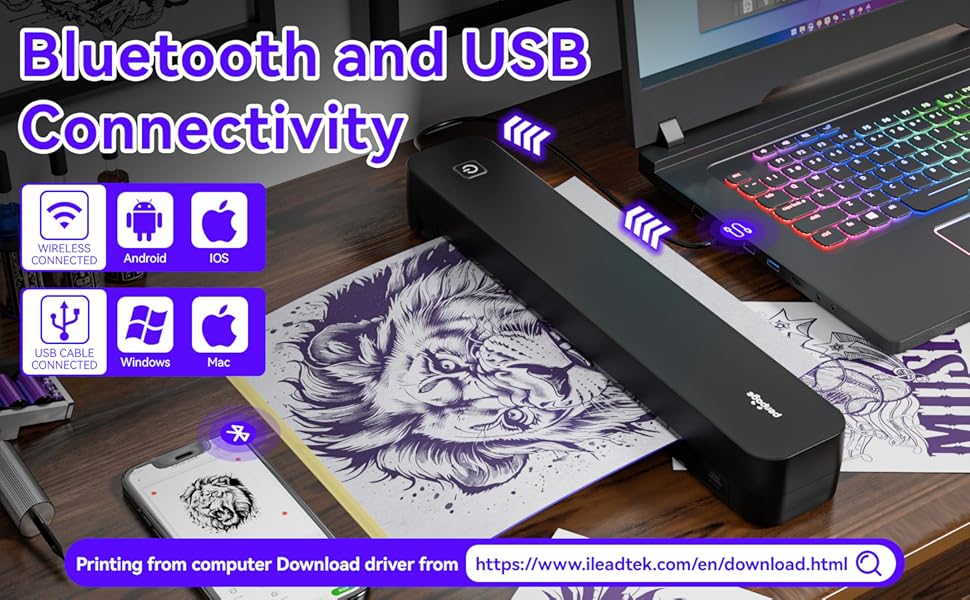
Image: A comparison showing effective line drawings and less shadowy prints versus bad effects with large shadows and complex images, illustrating optimal design types for the printer.
5.2 Problemy z łącznością
- Brak połączenia Bluetooth:
- Upewnij się, że drukarka jest włączona i znajduje się w zasięgu urządzenia.
- Sprawdź, czy Bluetooth jest włączony w Twoim urządzeniu.
- Uruchom ponownie drukarkę i urządzenie.
- Zapomnij urządzenie w ustawieniach Bluetooth i spróbuj sparować ponownie.
- USB Not Recognized:
- Ensure the USB cable is securely connected to both the printer and your PC.
- Verify that the correct printer drivers are installed on your PC.
- Spróbuj użyć innego portu USB lub kabla.
5.3 Zacięcie papieru
If paper gets jammed, gently pull the paper out in the direction of the paper path. Avoid forcing it, as this can damage the printer mechanisms. Ensure paper is loaded straight and not wrinkled.
6. Specyfikacje
| Funkcja | Szczegół |
|---|---|
| Marka | PeriPage |
| Nazwa modelu | HDD-P92 |
| Technologia łączności | Bluetooth, USB |
| Technologia druku | Termiczny (bezatramentowy) |
| Funkcja specjalna | Przenośny |
| Kolor | Czarny |
| Wyjście drukarki | Monochromia |
| Maksymalna prędkość drukowania (czarno-białe) | 6 stron na minutę |
| Waga przedmiotu | 15.2 uncji |
| Wymiary przedmiotu (gł. x szer. x wys.) | 2.13" gł. x 4" szer. x 11.4" wys. |
| Typ kontrolera | Android, iOS |
| Media drukowane | Papier termiczny |
| Kompatybilne urządzenia | Laptopy, PC, smartfony, tablety |
| Metoda kontroli | Aplikacja |
| Maksymalny rozmiar nośnika | A4, 8.5x11 Inches |
| Bateria | 2600mAh rechargeable, prints ~200 pages per charge |
7. Informacje o gwarancji
Zgodnie ze specyfikacją produktu, istnieje "Not Application" for warranty. Please refer to your retailer's return policy or contact the seller directly for any issues or concerns regarding your purchase.
8. Wsparcie
Aby uzyskać dalszą pomoc, zapoznaj się z następującymi źródłami:
- PeriPage APP: The mobile application often includes help sections, FAQs, and direct support contact options.
- Urzędnik Webstrona: Visit the PeriPage official website for updated drivers, FAQs, and support contact information: www.ileadtek.com.
- Wsparcie sprzedawcy: Contact the seller (Ileadtek Inc.) through the platform where you purchased the product for specific purchase-related inquiries.