
DOOGEE U11Pro
DOOGEE U11Pro Android 16 Tablet User Manual
Model: U11Pro | Brand: DOOGEE
Wstęp
This manual provides detailed instructions for the safe and efficient use of your DOOGEE U11Pro Android 16 Tablet. Please read this manual thoroughly before operating the device and keep it for future reference.
Zawartość opakowania
Po otwarciu opakowania należy sprawdzić, czy zawiera ono wszystkie poniższe elementy:
- 1x DOOGEE U11 Pro Tablet
- 1x kabel typu C
- 1x ładowarka
- 1x SIM Card Ejector Pin (Note: This is a Wi-Fi only model, the pin is for microSD card tray)
- 1x Pudełko do pakowania
- 1x Instrukcja obsługi
- 1x Karta gwarancyjna

Rysunek 1: Contents of the DOOGEE U11Pro package. Includes the tablet, charging accessories, and documentation.
Produkt ponadview i kluczowe cechy
Operating System: Android 16 with Gemini AI
The DOOGEE U11Pro runs on the latest Android 16 operating system, released in 2025. This version brings significant improvements in multitasking, AI capabilities, UI design, security, and privacy. It is optimized for faster app launch and responsiveness, offering a more intuitive and convenient user experience. The integration of Gemini AI enhances various functions, including content creation, image analysis, code development, language learning, smart assistance, and information retrieval.
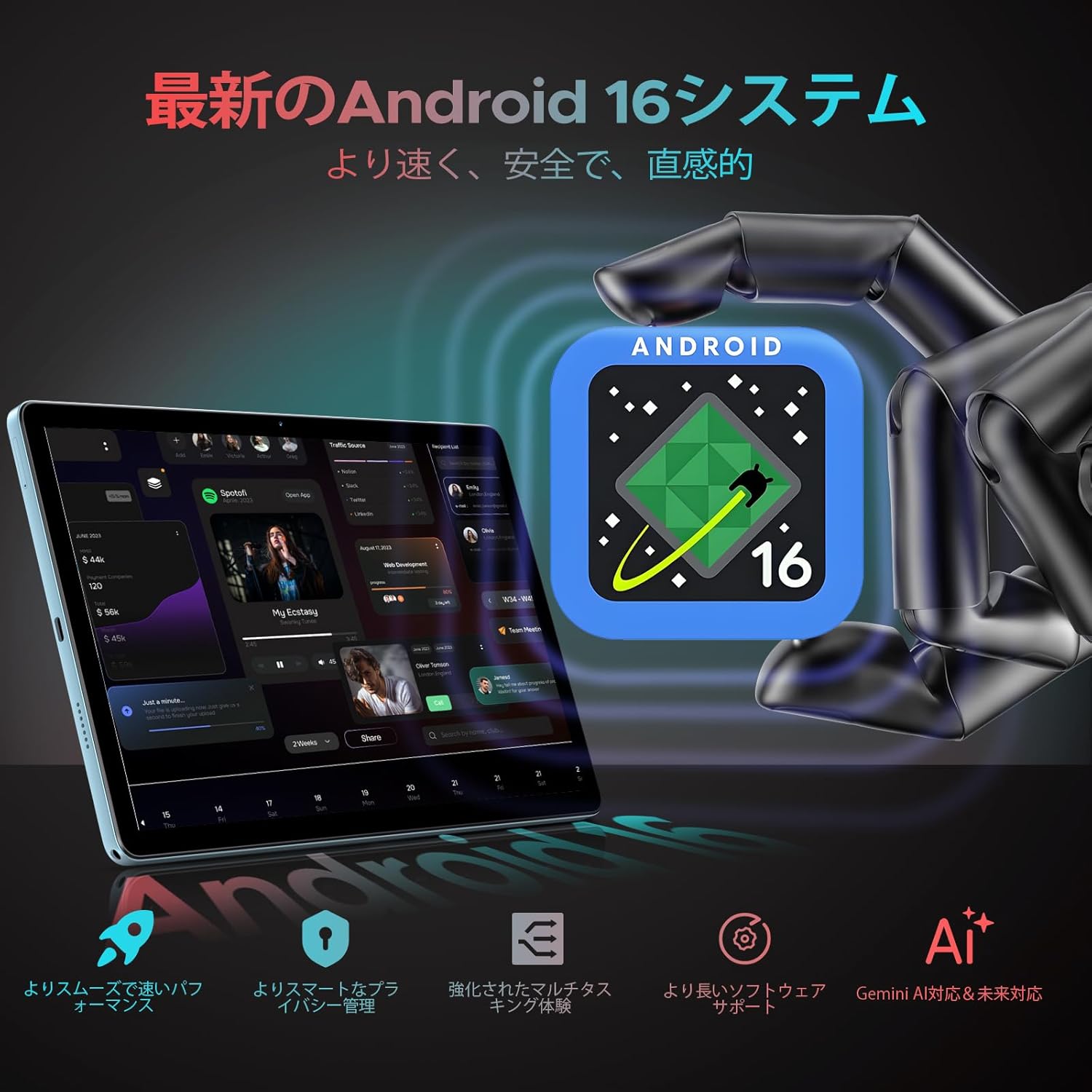
Rysunek 2: The DOOGEE U11Pro features the latest Android 16 OS with integrated Gemini AI for enhanced performance and smart functionalities.

Rysunek 3: Gemini AI capabilities on the DOOGEE U11Pro, supporting various intelligent tasks for work and daily life.
Performance: High-Capacity RAM & Storage
The U11Pro is equipped with 6GB of physical RAM, expandable with an additional 24GB of virtual RAM, totaling 30GB. This large RAM capacity ensures quick app launches and smooth multitasking. It also features 256GB of internal storage, which can be expanded up to 2TB using a microSD card (sold separately). This ample storage eliminates concerns about running out of space for applications, photos, and videos.

Rysunek 4: The powerful Unisoc T7200 Octa-core processor combined with 30GB RAM and 256GB ROM provides robust performance and ample magazyn.
Display: 11-inch IPS with 90Hz Refresh Rate
Experience vibrant and comfortable viewing on the DOOGEE U11Pro's 11-inch IPS display with a resolution of 1280x800. The 90Hz high refresh rate enhances responsiveness, providing a smoother and more comfortable gaming experience and fluid web browsing. Fast-moving actions are rendered seamlessly, and scrolling through web pages or social media feeds is highly responsive.

Rysunek 5: The 11-inch IPS 90Hz display offers ultra-clear visuals and a smoother user experience compared to standard 60Hz displays.

Rysunek 6: The 90Hz high refresh rate provides upgraded smooth operation for browsing and gaming.
Battery: 8580mAh Long-Lasting Power
The DOOGEE U11Pro is equipped with a large 8580mAh battery, supporting Type-C charging. This allows for extended usage, making it ideal for business trips or travel without frequent recharging. The battery provides up to 1509 hours of standby time, 28.3 hours of music playback, 9.2 hours of video viewing, and 6.7 hours of web przeglądanie.
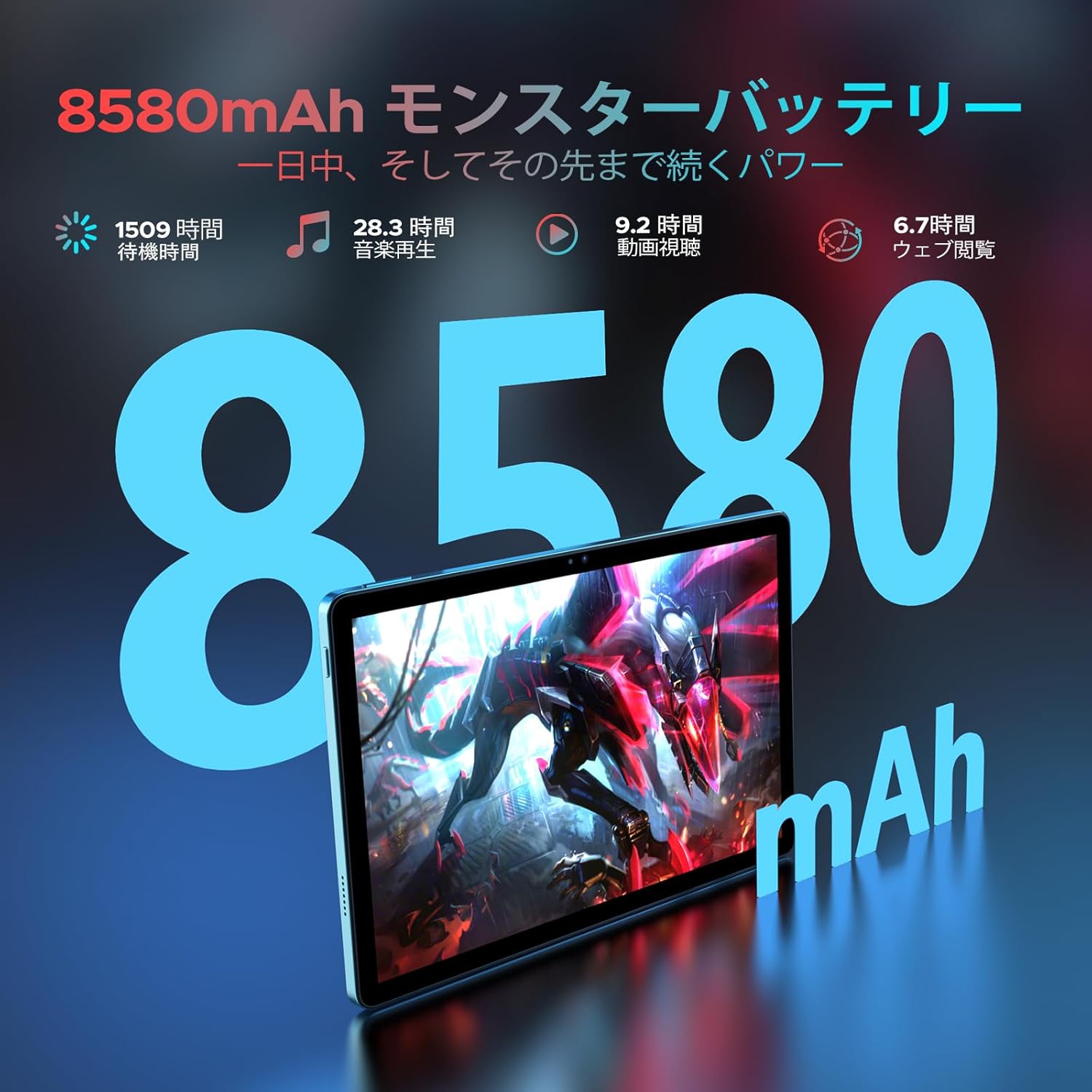
Rysunek 7: The 8580mAh monster battery provides power that lasts all day and beyond.
Connectivity: Dual-Band Wi-Fi, Bluetooth 5.0, and GPS
The tablet features a built-in dual-band Wi-Fi chip (2.4GHz/5GHz compatible) supporting 802.11 a/b/g/n/ac standards, enabling high-speed communication up to 433Mbps. This ensures stable connections both indoors and outdoors for a comfortable online experience. Bluetooth 5.0 allows for high-speed pairing with game controllers and external speakers with minimal delay. The integrated high-precision GPS enables quick and accurate positioning for navigation and location-based applications.
Multimedia & Productivity Features
- Obsługa Widevine L1: Enjoy high-quality streaming from platforms like Amazon Prime Video, Disney+, Hulu, and Netflix.
- Podwójne głośniki: Provides an immersive audio-visual experience.
- Kamery: Equipped with a 13MP main camera and a 5MP front camera for clear photos and video calls.
- Rozpoznawanie twarzy: Quick and easy tablet unlocking.
- Funkcjonalność podzielonego ekranu: Multitask efficiently, for example, watching YouTube while browsing Twitter.
- Radio FM: Connect your favorite headphones to enjoy high-quality audio anywhere.
- Wsparcie OTG: Connect external devices for seamless transfer of photos, videos, and files.
- Kids Protection Mode: Manage screen time for children and balance learning with entertainment.
- Blue Light Reduction Mode: Protects your eyes during extended use.
- Pre-installed WPS Office: Includes WPS Word, Excel, and PPT for productivity.

Rysunek 8: Widevine L1 support ensures the highest quality streaming anytime.

Rysunek 9: Capture clear details with the 13MP main camera and 5MP front camera.

Rysunek 10: Face recognition provides simple and fast tablet input.

Rysunek 11: The low blue light protect mode gently protects your vision.

Rysunek 12: Built-in PC-level WPS Office for enhanced productivity.
Przewodnik po konfiguracji
1. Pierwsze włączenie zasilania
- Press and hold the Power button located on the side of the tablet until the DOOGEE logo appears on the screen.
- Postępuj zgodnie z instrukcjami wyświetlanymi na ekranie, aby wybrać swój język i region oraz zaakceptować regulamin.
2. Ładowanie urządzenia
Before first use, it is recommended to fully charge your tablet. Use the provided Type-C cable and charger.
- Connect the Type-C cable to the tablet's charging port.
- Plug the other end of the cable into the charger, and then plug the charger into a power outlet.
- Na ekranie pojawi się wskaźnik ładowania. Pełne naładowanie trwa zazwyczaj kilka godzin.
3. Łączenie z Wi-Fi
- Na ekranie głównym przesuń palcem od góry w dół, aby otworzyć panel Szybkie ustawienia.
- Dotknij i przytrzymaj ikonę Wi-Fi, aby przejść do ustawień Wi-Fi.
- Przełącz przełącznik Wi-Fi na pozycję „Wł.”.
- Wybierz interesującą Cię sieć Wi-Fi z listy dostępnych sieci.
- Jeśli zostaniesz o to poproszony, wpisz hasło sieciowe i kliknij „Połącz”.
4. Setting up Face Recognition
- Idź do Ustawienia > Bezpieczeństwo i prywatność > Odblokowanie twarzą.
- Follow the on-screen instructions to register your face. Ensure you are in a well-lit area and hold the tablet at eye level.
- Once registered, you can use your face to unlock the tablet.
Instrukcja obsługi
Podstawowa nawigacja
- Dotykać: Kliknij ikonę lub opcję, aby ją wybrać.
- Trzepnąć: Przesuwaj palcem po ekranie, aby przewijać lub nawigować między ekranami.
- Powiększanie za pomocą szczypania: Place two fingers on the screen and spread them apart to zoom in, or pinch them together to zoom out.
- 10-punktowy dotyk: The tablet supports multi-touch gestures for precise control, especially useful in games and drawing applications.

Rysunek 13: 10-point touch provides multi-touch precision and seamless gesture control.
Using Split Screen
The split-screen feature allows you to use two applications simultaneously.
- Otwórz pierwszą aplikację, której chcesz użyć.
- Kliknij przycisk ostatnio używanych aplikacji (zwykle jest to ikona kwadratu), aby view otwarte aplikacje.
- Tap the app icon at the top of the first app's card, then select 'Split screen'.
- Choose the second application from the recent apps list or the app drawer to fill the other half of the screen.
Zarządzanie aplikacjami
- Instalowanie aplikacji: Pobierz i zainstaluj aplikacje ze sklepu Google Play.
- Odinstalowywanie aplikacji: Press and hold an app icon on the home screen or app drawer, then drag it to the 'Uninstall' option, or go to Ustawienia > Aplikacje, wybierz aplikację i dotknij „Odinstaluj”.
Funkcja radia FM
To use the FM radio, connect wired headphones to the 3.5mm audio jack. The headphones act as an antenna.
- Podłącz słuchawki.
- Otwórz aplikację „Radio FM”.
- Scan for available stations and select your preferred one.
Rysunek 14: The FM radio function allows you to relax and enjoy your favorite stations.
WPS Office Suite
The tablet comes with WPS Office pre-installed, allowing you to create, edit, and view documents, spreadsheets, and presentations.
- Open the WPS Office application from your app drawer.
- Select the type of document you wish to create or open an existing file.
Blue Light Reduction Mode
To reduce eye strain, especially during prolonged use or in low light conditions, activate the blue light reduction mode.
- Idź do Ustawienia > Wyświetlacz > Osłona oczu (lub podobne).
- Toggle the feature on. You may also be able to adjust the intensity or schedule it.
Nawigacja GPS
The built-in high-precision GPS supports various navigation systems (GPS, Beidou, GLONASS, Galileo) for accurate location tracking.
- Ensure location services are enabled in Ustawienia > Lokalizacja.
- Skorzystaj z preinstalowanych aplikacji mapowych lub pobierz preferowaną aplikację nawigacyjną ze sklepu Google Play.

Rysunek 15: The precise navigation system keeps you on track wherever you go.
Funkcjonalność OTG
The tablet supports On-The-Go (OTG) functionality, allowing you to connect USB devices such as flash drives, keyboards, or mice using an OTG adapter (not included).
- Connect the OTG adapter to the tablet's Type-C port.
- Plug your USB device into the OTG adapter.
- The tablet should automatically recognize the connected device.
Kids Protection Mode
This mode helps parents manage their children's tablet usage, ensuring a balanced experience between learning and entertainment.
- Access the Kids Protection Mode application or setting (location may vary based on Android version or pre-installed apps).
- Set time limits, restrict access to certain applications, and monitor usage.
Konserwacja
Pielęgnacja baterii
- Unikaj wystawiania tabletu na działanie ekstremalnych temperatur (wysokich lub niskich), ponieważ może to skrócić czas działania baterii.
- Nie dopuszczaj do całkowitego rozładowania akumulatora zbyt często. Naładuj go, zanim poziom naładowania spadnie do bardzo niskiego.
- Use only the provided charger and cable or certified alternatives to prevent damage.
Czyszczenie tabletu
- Do przecierania ekranu i obudowy tabletu należy używać miękkiej, niepozostawiającej włókien ściereczki.
- W przypadku uporczywych plam delikatnieampPrzetrzyj ściereczkę wodą lub płynem do czyszczenia ekranów przeznaczonym do urządzeń elektronicznych.
- Unikaj stosowania silnych środków chemicznych, materiałów ściernych i nadmiernej wilgoci.
Aktualizacje oprogramowania
Regularnie sprawdzaj dostępność aktualizacji oprogramowania i instaluj je, aby zapewnić sobie optymalną wydajność, bezpieczeństwo i dostęp do nowych funkcji.
- Idź do Ustawienia > System > Aktualizacja systemu.
- Postępuj zgodnie z instrukcjami wyświetlanymi na ekranie, aby pobrać i zainstalować dostępne aktualizacje.
Zarządzanie magazynem
To maintain optimal performance, regularly manage your tablet's storage.
- Usuń niepotrzebne files, zdjęcia i filmy.
- Odinstaluj nieużywane aplikacje.
- Wyczyść dane pamięci podręcznej dla aplikacji w Ustawienia > Aplikacje.
- Rozważ korzystanie z usług przechowywania danych w chmurze w przypadku dużych files.
Rozwiązywanie problemów
| Problem | Możliwa przyczyna | Rozwiązanie |
|---|---|---|
| Tablet nie włącza się. | Niski poziom naładowania baterii; Awaria systemu. | Ładuj tablet przez co najmniej 30 minut. Jeśli nadal nie reaguje, naciśnij i przytrzymaj przycisk zasilania przez 10–15 sekund, aby wymusić ponowne uruchomienie. |
| Problemy z połączeniem Wi-Fi. | Incorrect password; Router issue; Tablet Wi-Fi module issue. | Verify Wi-Fi password. Restart your Wi-Fi router. Go to Wi-Fi settings, forget the network, and reconnect. Restart the tablet. |
| Aplikacje działają wolno lub ulegają awarii. | Too many apps running; Low storage; App bug. | Close background apps. Clear app cache or data. Free up storage space. Update the app or the tablet's OS. |
| Bateria szybko się rozładowuje. | High screen brightness; Background apps; Frequent Wi-Fi/Bluetooth use. | Reduce screen brightness. Close unused apps. Turn off Wi-Fi/Bluetooth when not in use. Check battery usage in settings to identify power-hungry apps. |
| Tablet is not responding to touch. | Tymczasowa usterka oprogramowania; uszkodzenie ekranu. | Force restart the tablet. If the issue persists, contact customer support. |
Dane techniczne
| Marka | DOOGEE |
| Nazwa modelu | U11Pro |
| System operacyjny | Android 16 |
| Rozmiar wyświetlacza | 11 cali |
| Rozdzielczość wyświetlacza | 1280x800 pikseli |
| Marka procesora | Unisoc |
| Prędkość procesora | 1.6 GHz |
| Pojemność pamięci masowej | 256 GB (możliwość rozszerzenia do 2 TB za pomocą karty microSD) |
| BARAN | 6 GB pamięci fizycznej + 24 GB pamięci wirtualnej (łącznie 30 GB) |
| Typ bezprzewodowy | 802.11ac (dwupasmowe Wi-Fi) |
| Łączność | Wi-Fi, Bluetooth 5.0, GPS |
| Rozdzielczość przedniej kamery | 5 MP |
| Rozdzielczość tylnej kamery | 13 MP |
| Pojemność baterii | 8580 mAh (litowo-polimerowy) |
| Waga przedmiotu | 537 gramów |
| Wymiary produktu | Wymiary 32.9 x 19.2 x 3.7 cm |
| Kolor | Czarny |
Gwarancja i wsparcie
Your DOOGEE U11Pro tablet comes with a 12-miesięczna gwarancja od daty zakupu. Dodatkowo 30-dniowa polityka zwrotów is available for products purchased from our store.
If you encounter any issues with your product within the warranty period, or if you have any questions, please contact our customer support team. We are committed to ensuring your satisfaction.
Jak skontaktować się z pomocą techniczną:
- Navigate to your Amazon purchase history.
- Find your order for the DOOGEE U11Pro.
- Click on the seller's name (Doogee Smart Tablet) located under the "Add to Cart" button on the product page, then click "Ask a question" on the top right of the seller's page.
Powiązane dokumentyU11Pro


Ask a question about this manual
Ask about setup, troubleshooting, compatibility, parts, safety, or missing instructions. Manuals+ will review the question and use this page’s manual context to help answer it.