
Wstęp
This manual provides detailed instructions for the setup, operation, and maintenance of your TELE System UP Stick Google TV 4K UHD HDMI streaming device. Please read this manual thoroughly before using the device to ensure proper functionality and to maximize your viewzdobywania doświadczenia.

Image: The TELE System UP Stick, an Ultra HD 4K Streaming Player, featuring Google TV branding and logos for Dolby, HDMI, HEVC, and Bluetooth technologies.
Co jest w pudełku
Sprawdź, czy w pakiecie znajdują się wszystkie poniższe elementy:
- TELE System UP Stick Google TV 4K UHD HDMI device
- Pilot Bluetooth
- Baterie do pilota
- HDMI Cable/Extender
- Quick Start Guide and Warranty Sheet

Obraz: Przód view of the TELE System UP Stick Google TV 4K UHD HDMI device, showing its compact design and the 'UP Stick' logo with a green indicator light.
Instrukcje konfiguracji
1. Podłączenie Urządzenia
- Insert the UP Stick: Plug the TELE System UP Stick directly into an available HDMI port on your television. If space is limited, use the provided HDMI extender cable.
- Podłącz zasilanie: Connect the power adapter (not explicitly listed in box, but implied by "Power=5V=1A" on back image) to the UP Stick and then to a power outlet. The device can also be powered via a TV's USB port (0.5A is sufficient).
- Wybierz wejście HDMI: Turn on your television and select the corresponding HDMI input source to which the UP Stick is connected.
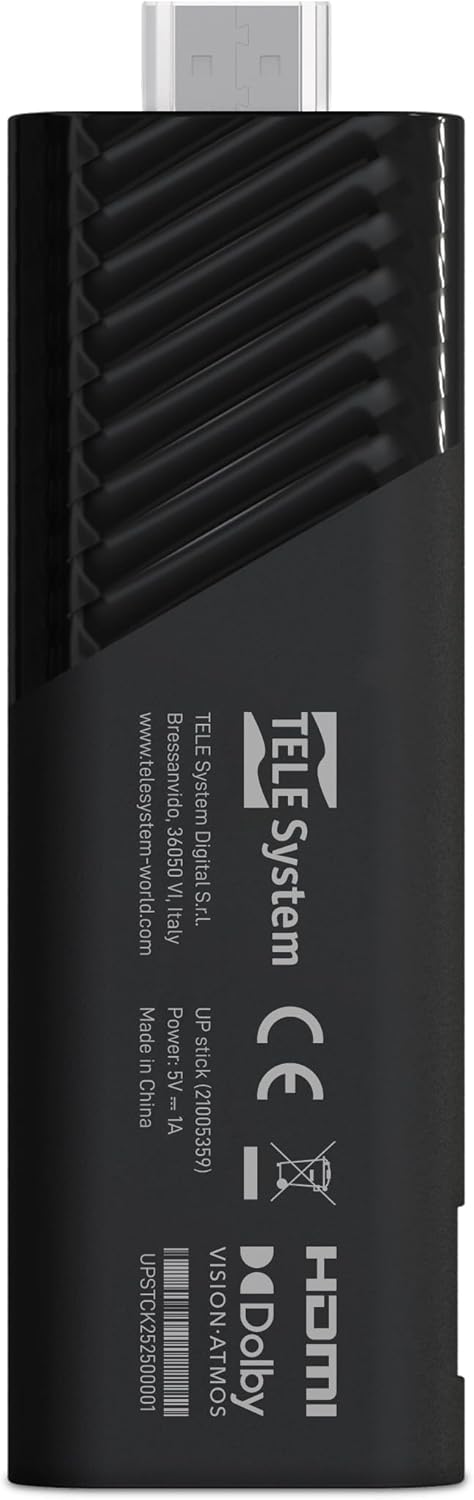
Obraz: Tył view of the TELE System UP Stick, displaying regulatory marks, HDMI connector, and power input specifications (5V=1A).
2. Parowanie pilota
Upon first use, the remote control may need to be paired with the UP Stick:
- Insert the provided batteries into the Bluetooth remote control.
- Follow the on-screen instructions to pair the remote. Typically, this involves pressing and holding specific buttons (e.g., Home and Back) simultaneously until a pairing confirmation appears on the screen.

Image: The TELE System UP Stick remote control, featuring a prominent voice control button and dedicated buttons for popular streaming services like YouTube, Netflix, Prime Video, and Disney+.
3. Początkowa konfiguracja oprogramowania
Once connected and powered on, the device will guide you through the initial setup process:
- Wybór języka: Wybierz preferowany język.
- Połączenie Wi-Fi: Select your Wi-Fi network from the list and enter the password. The device supports dual-band Wi-Fi for stable 4K streaming.
- Logowanie do konta Google: Sign in with your Google account. This is necessary to access Google TV features, download apps from the Google Play Store, and use Google Assistant.
- Google TV Configuration: Follow the prompts to configure Google TV, including accepting terms of service and setting up personalized recommendations.

Image: A screenshot of the Google TV interface, displaying icons for popular streaming services such as Netflix, Prime Video, Apple TV, Disney+, and YouTube, indicating broad app compatibility.
Instrukcja obsługi
Nawigacja w Google TV
The Google TV interface organizes your content from various streaming services into a single, personalized home screen. Use the remote control's directional pad to navigate through menus, select content, and launch applications.
- Ekran główny: Displays recommended content, installed apps, and quick access to different categories (Movies, Shows, Apps, Library).
- Aplikacje: Uzyskaj dostęp do wszystkich zainstalowanych aplikacji. Więcej możesz pobrać ze sklepu Google Play.
- Szukaj: Use the search function to find specific titles, actors, or genres across all your streaming services.
Using Google Assistant (Voice Control)
The remote control features a dedicated button for Google Assistant. Press this button and speak your commands or questions into the remote's microphone.
- Wyszukiwanie treści: Say "Find action movies" or "Open Netflix."
- Kontrola urządzenia: Say "Turn up the volume" or "Pause."
- Informacja: Ask "What's the weather?" or "Who directed this movie?"

Image: A television screen displaying the Google Assistant interface, prompted by a voice command, alongside the remote control, illustrating the voice control feature.
Przesyłanie strumieniowe treści
The UP Stick supports 4K UHD streaming with Dolby Vision, Dolby Atmos, and HDR10+ for an enhanced audio-visual experience. Access your favorite streaming services directly from the Google TV home screen or through their dedicated apps.
- Obsługiwane usługi: Netflix, Disney+, Prime Video, YouTube, DAZN, Apple TV+, NOW, RaiPlay, and more.
- Instalacja aplikacji: Download additional apps from the Google Play Store. The device has 32 GB of internal storage for apps and data.
Korzystanie z Google Cast
The built-in Google Cast functionality allows you to stream content directly from your compatible smartphone, tablet, or computer to your television via the UP Stick.
- Ensure your mobile device and the UP Stick are connected to the same Wi-Fi network.
- Otwórz kompatybilną aplikację (np. YouTube, Netflix) na swoim urządzeniu mobilnym.
- Kliknij ikonę Cast
 within the app and select your UP Stick from the list of available devices.

Image: The TELE System UP Stick shown alongside a smartphone displaying content being cast to a television, highlighting the Google Cast feature.
Konserwacja
- Czyszczenie: Do czyszczenia urządzenia należy używać miękkiej, suchej ściereczki. Nie należy używać płynów czyszczących ani aerozoli.
- Aktualizacje oprogramowania: The UP Stick will periodically receive software updates to improve performance and add new features. Ensure your device is connected to the internet to receive these updates automatically. You can also manually check for updates in the device settings.
- Zarządzanie pamięcią masową: Regularly check the available storage space (32 GB total) and uninstall unused applications to maintain optimal performance.
Rozwiązywanie problemów
No Picture/No Signal
- Ensure the UP Stick is securely plugged into the HDMI port on your TV.
- Sprawdź, czy w telewizorze wybrane jest prawidłowe źródło sygnału HDMI.
- Check that the UP Stick is receiving power and its indicator light is on.
- Try plugging the UP Stick into a different HDMI port on your TV.
Pilot nie odpowiada
- Sprawdź i wymień baterie w pilocie.
- Ensure there are no obstructions between the remote and the UP Stick.
- Attempt to re-pair the remote control by following the pairing instructions in the Setup section.
Problemy z połączeniem Wi-Fi
- Verify that your Wi-Fi router is powered on and functioning correctly.
- Sprawdź, czy inne urządzenia mogą połączyć się z Twoją siecią Wi-Fi.
- Restart your Wi-Fi router and the UP Stick.
- Sprawdź, czy wpisałeś prawidłowe hasło Wi-Fi.
Awaria lub zawieszanie się aplikacji
- Zamknij problematyczną aplikację i otwórz ją ponownie.
- Wyczyść pamięć podręczną i dane aplikacji w ustawieniach urządzenia (Ustawienia > Aplikacje > [Nazwa aplikacji] > Wyczyść pamięć podręczną/Wyczyść dane).
- Upewnij się, że aplikacja jest zaktualizowana do najnowszej wersji.
- Restart the UP Stick.
Specyfikacje
| Nazwa modelu | UP Stick |
| Marka | Tele System |
| Technologia łączności | WiFi, HDMI, Google Cast |
| Typ złącza | HDMI |
| Cechy specjalne | Dolby Vision, Dolby Atmos, HDR10+, HLG, HEVC, AV1, Google Cast |
| Rezolucja | 4K (3840 pikseli) |
| Obsługiwane usługi internetowe | Netflix, Disney+, Prime Video, YouTube, DAZN, Apple TV+, NOW, RaiPlay |
| Współczynnik kształtu | TV Stick |
| Kolor | Czarny |
| Wymiary produktu (dł. x szer. x wys.) | 30 x 20 x 110 milimetrów |
| Zainstalowana pamięć RAM | 2 GB |
| Pojemność magazynowa | 32 GB |
| Kompatybilne urządzenia | TV, smartphone, tablet, personal computer |
| Kodek wideo | H.264, H.265/HEVC, AV1 |
| Zgodność z inteligentnym domem | Compatible with digital home systems |
| Kraj pochodzenia | Chiny |
Informacje o gwarancji
The TELE System UP Stick Google TV 4K UHD HDMI device is covered by a 2-year manufacturer's warranty from the date of purchase. This warranty covers defects in materials and workmanship under normal use. Please retain your proof of purchase for warranty claims.
For specific details regarding warranty terms and conditions, refer to the warranty sheet included in your product package or contact Tele System customer support.
Obsługa klienta
For technical assistance, troubleshooting, or further inquiries regarding your TELE System UP Stick, please contact Tele System customer support. Refer to the contact information provided in the warranty sheet or visit the official Tele System webstrona.
Producent: Tele System
Webstrona: www.telesystem-świat.com