
1. Wprowadzenie
This manual provides detailed instructions for the setup, operation, and maintenance of your KCEVE KVM Switch. This device allows you to control up to three computers (two laptops and one desktop) using a single set of keyboard, mouse, and two HDMI monitors. It supports high-resolution video output up to 4K@60Hz and features USB 3.0 ports for high-speed data transfer.
2. Zawartość opakowania
Sprawdź, czy w przesyłce znajdują się wszystkie elementy wymienione poniżej:
- 1 x KCEVE KVM Switch (Model KC-302HX-CA)
- 2 kable USB-C
- 2 kable HDMI
- 1 x kabel USB 3.0
- 1 x Wired Remote Control (1.5m)
- 1 x zasilacz prądu stałego 12 V
- 1 x Instrukcja obsługi

Image: All components included in the KCEVE KVM Switch package, neatly arranged.
3. Koniec produktuview
The KVM switch is designed for efficient multi-computer management, allowing seamless switching between devices while sharing peripherals and dual monitors.
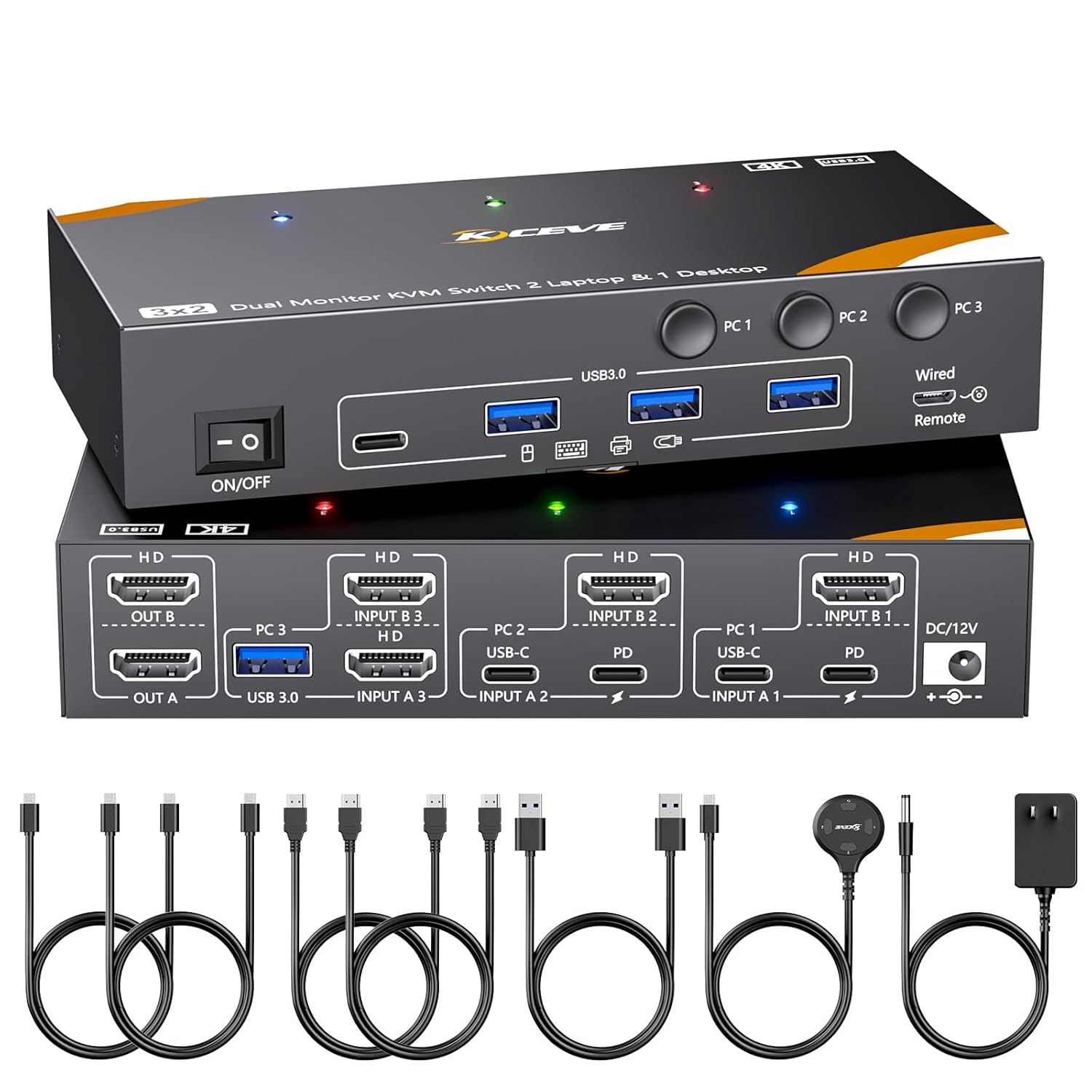
Obraz: przód i tył view of the KCEVE KVM Switch unit, showing all connection ports and buttons.
Porty na panelu przednim:
- Przełącznik włącz / wyłącz: Power control for the KVM switch.
- Porty USB 3.0 (x4): For connecting USB peripherals like keyboard, mouse, printer, USB drives, etc.
- PC1, PC2, PC3 Buttons: Manual selection buttons for switching between connected computers.
- Wired Remote Port: For connecting the external wired remote control.
Porty na tylnym panelu:
- 12V DC: Port wejściowy zasilania.
- PC1 (USB-C + HDMI): Input for Laptop 1 (USB-C for data/video/PD, HDMI for video).
- PC2 (USB-C + HDMI): Input for Laptop 2 (USB-C for data/video/PD, HDMI for video).
- PC3 (USB 3.0 + HDMI x2): Input for Desktop (USB 3.0 for data, two HDMI for dual video output).
- OUT A / OUT B (HDMI): Output ports for connecting two HDMI monitors.
4. Instrukcje konfiguracji
Follow these steps to correctly set up your KCEVE KVM Switch:
4.1 Podłączanie komputerów
Przed podłączeniem upewnij się, że wszystkie urządzenia są wyłączone.
- For Desktop (PC3): Connect two HDMI cables from your desktop's graphics card to the 'INPUT A 3' and 'INPUT B 3' HDMI ports on the KVM switch. Connect one USB 3.0 cable from your desktop's USB port to the 'USB 3.0 INPUT A 3' port on the KVM switch.
- For Laptops (PC1 & PC2): For each laptop, connect one HDMI cable from the laptop's HDMI output to the corresponding 'INPUT A' and 'INPUT B' HDMI ports (e.g., 'INPUT A 1' and 'INPUT B 1' for PC1). Connect one USB-C cable from the laptop's USB-C port to the corresponding 'USB-C IN' port (e.g., 'USB-C IN 1' for PC1). Ensure your laptop's USB-C port and HDMI can output video simultaneously.

Image: A visual guide illustrating how to connect desktop and laptop computers to the KVM switch using HDMI, USB 3.0, and USB-C cables.
4.2 Connecting Monitors
- Connect an HDMI cable from your first monitor to the 'OUT A' HDMI port on the KVM switch.
- Connect an HDMI cable from your second monitor to the 'OUT B' HDMI port on the KVM switch.
4.3 Podłączanie urządzeń peryferyjnych
- Plug your USB keyboard, mouse, and other USB 3.0 devices (e.g., printer, scanner, webcam) into the USB 3.0 ports on the front panel of the KVM switch.
- If desired, connect the wired remote control to the 'Wired Remote' port on the front panel.

Image: Close-up of the KVM switch's front panel, showing USB 3.0 ports connected to a mouse, keyboard, and USB drive, highlighting 5Gbps data transfer.
4.4 Połączenie zasilania
- Connect the DC 12V power adapter to the 'DC 12V' port on the rear panel of the KVM switch.
- Podłącz zasilacz do gniazdka ściennego.
The KVM switch also provides 85W Power Delivery (PD) for laptops connected via USB-C. For optimal charging, use a 100W PD charger with the KVM switch.

Image: A laptop connected to the KVM switch, illustrating 85W Power Delivery for charging.
5. Instrukcja obsługi
5.1 Przełączanie się między komputerami
You can switch between the connected computers using two methods:
- Przyciski panelu: Press the 'PC1', 'PC2', or 'PC3' button on the front panel of the KVM switch to select the desired computer. The LED indicator above the button will light up to show the active computer.
- Pilot przewodowy: Use the included 1.5m wired remote control to switch between computers by pressing its button.

Image: Demonstrates switching between computers using both the KVM switch's front panel buttons and the wired remote control.
5.2 Tryby wyświetlania
The KVM switch supports various display modes for your dual monitors:
- Tryb rozszerzony: Displays different content on each monitor, extending your desktop workspace.
- Tryb lustrzany: Duplicates the content of one monitor onto the other.
You can typically switch between these modes by pressing 'Windows + P' on your keyboard (for Windows OS). Please note that Apple M1/M2 chips only support single-screen output, and MacBook Pro (M3) cannot output images through both USB-C and HDMI ports simultaneously.

Image: Two monitors connected to the KVM switch, illustrating both extended desktop and mirrored display configurations.
6. Specyfikacje
| Funkcja | Opis |
|---|---|
| Numer modelu | KC-302HX-CA |
| Porty wejściowe | 2 x USB-C (for Laptops), 1 x USB 3.0 (for Desktop), 4 x HDMI (2 for Laptops, 2 for Desktop) |
| Porty wyjściowe | 2 x HDMI (OUT A, OUT B), 4 x USB 3.0 |
| Rozdzielczość wideo | Up to 4K@60Hz, 4K@30Hz, 2K@144Hz, 1080P@144Hz (backward compatible) |
| Transfer danych USB | Do 5 Gb/s (USB 3.0) |
| Dostarczanie mocy (PD) | 85W for USB-C connected laptops (requires 100W PD charger for KVM) |
| Metody przełączania | Panel Button, Wired Remote |
| Tworzywo | Metal Shell |
| Wymiary | Wymiary 15.24 x 5.08 x 2.54 cm |
| Objętość operacyjnatage | 12 wolty |

Image: Visual representation of 4K@60Hz and 2K@144Hz resolution support.
7. Rozwiązywanie Problemów
Jeśli napotkasz problemy, zapoznaj się z poniższymi typowymi problemami i rozwiązaniami:
- Brak obrazu na monitorach:
- Ensure all HDMI and USB-C/USB 3.0 cables are securely connected to both the KVM switch and your computers/monitors.
- Verify the KVM switch is powered on and the correct computer input is selected.
- Check if your laptop's USB-C port and HDMI output can function simultaneously for video.
- Try restarting the KVM switch and connected computers.
- Klawiatura/mysz nie odpowiada:
- Ensure the USB cables from the computers to the KVM switch are properly connected.
- Try plugging the keyboard/mouse into different USB 3.0 ports on the KVM switch.
- Some specialized keyboards/mice may require direct connection to the computer or specific drivers.
- Intermittent Connection/Flickering Screen:
- Use high-quality HDMI and USB cables. Longer cables may require active extenders.
- Ensure the KVM switch is receiving adequate power from the DC 12V adapter.
- Check for updated graphics drivers on your computers.
- Laptop Not Charging via USB-C PD:
- Verify that your USB-C cable supports Power Delivery.
- Ensure the KVM switch is powered by the DC 12V adapter and that you are using a 100W PD charger for the KVM switch itself.
8. Konserwacja
To ensure the longevity and optimal performance of your KCEVE KVM Switch, please follow these maintenance guidelines:
- Czyszczenie: Do czyszczenia zewnętrznej części urządzenia należy używać miękkiej, suchej ściereczki. Unikaj stosowania płynnych środków czyszczących lub aerozoli, ponieważ mogą one uszkodzić urządzenie.
- Wentylacja: Ensure the KVM switch is placed in a well-ventilated area to prevent overheating. Do not block any ventilation openings.
- Zarządzanie kablami: Utrzymuj kable w porządku i bez splątania, aby zapobiec ich uszkodzeniom i zapewnić stabilne połączenia.
- Składowanie: Jeśli urządzenie nie będzie używane przez dłuższy czas, należy je przechowywać w chłodnym i suchym miejscu, z dala od bezpośredniego światła słonecznego i ekstremalnych temperatur.
9. Gwarancja i wsparcie
KCEVE provides 12 months of after-sales service and lifetime technical support for your KVM switch. If you have any questions or require assistance, please do not hesitate to contact our customer support team.
Informacje kontaktowe: Please refer to the contact details provided on the product packaging or the official KCEVE webwitryna zawierająca najbardziej aktualne informacje dotyczące pomocy technicznej.