
1. Koniec produktuview
The UPERFECT 24.5" Portable Monitor (Model MT03) is designed to enhance your visual experience, whether for work, gaming, or entertainment. Featuring a 24.5-inch IPS matte screen with 1080P Full HD resolution and 100% sRGB color gamut, it offers a broad and vivid display. With a 240Hz refresh rate, FreeSync technology, and a 0.1ms response time, it delivers smooth and tear-free visuals, particularly beneficial for fast-paced gaming. Its portable design includes a built-in 180° adjustable stand and VESA compatibility, providing flexible placement options. Connectivity is simplified with two USB Type-C ports and one Mini HDMI port, ensuring wide compatibility with various devices.
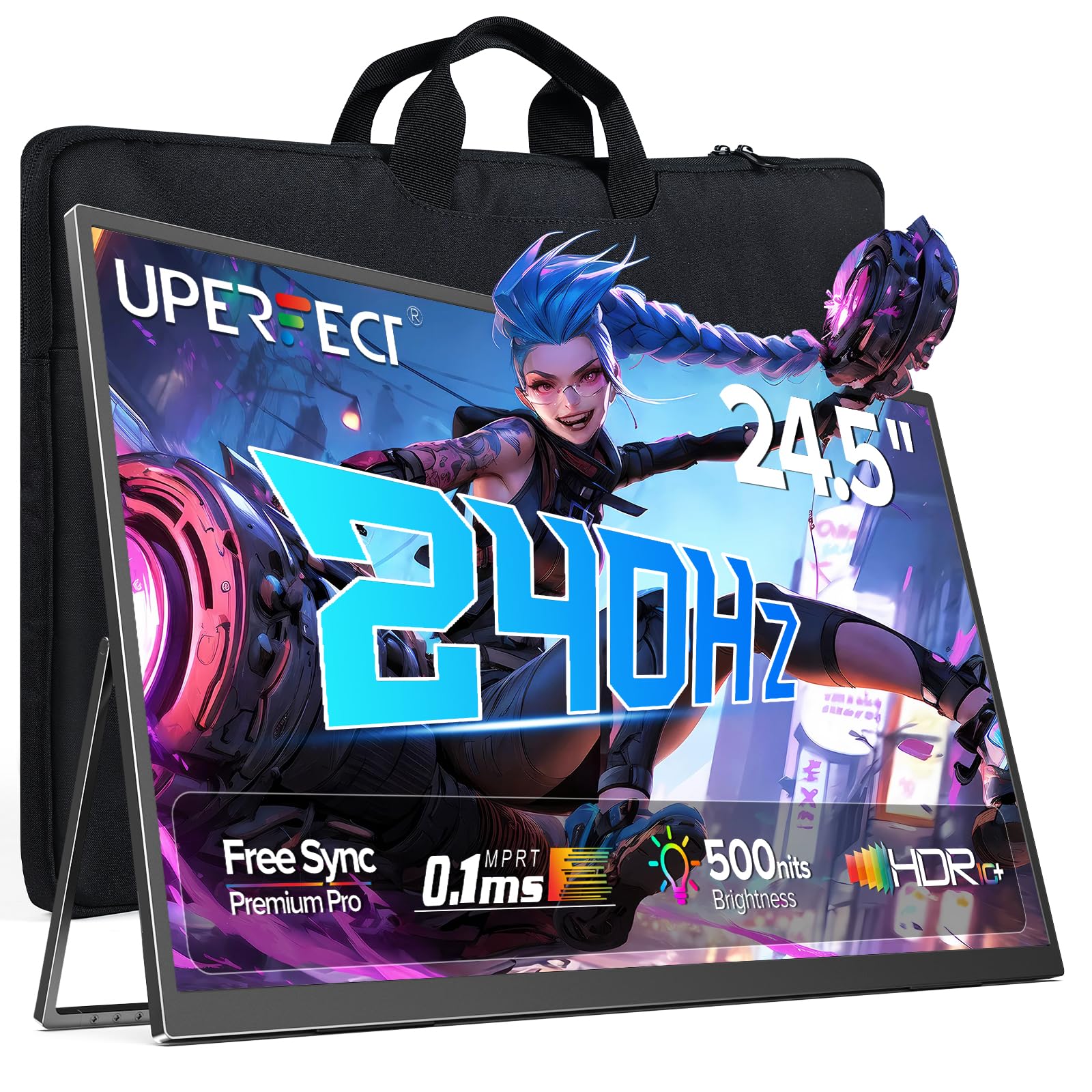
Figure 1: UPERFECT 24.5" Portable Monitor (Model MT03)
2. Zawartość opakowania
Przed przystąpieniem do instalacji sprawdź, czy w opakowaniu znajdują się wszystkie elementy.
- UPERFECT 24.5" Portable Monitor (Model MT03)
- USB Type-C to Type-C Cable (for power and video signal)
- Mini HDMI to HDMI Cable (for video signal)
- Zasilacz
- Torba do przechowywania
- Instrukcja obsługi (ten dokument)
Video 1: Unboxing and initial setup of the UPERFECT Portable Monitor, showing included accessories.
3. Instrukcje konfiguracji
3.1. Konfiguracja fizyczna
- Rozpakuj monitor: Ostrożnie wyjmij monitor i wszystkie akcesoria z opakowania.
- Dostosuj stojak: The monitor features a built-in 180° adjustable stand. Gently pull out the stand from the back of the monitor and adjust it to your desired viewkąt.

Figure 2: Adjusting the built-in 180° kickstand for optimal viewing.
- Montaż VESA (opcjonalnie): For alternative mounting solutions, the monitor supports VESA standard wall mounting (75x75 mm, M4x5 mm screws). Ensure the stand is folded back before mounting.

Figure 3: UPERFECT monitor mounted on a VESA-compatible arm.
3.2. Łączenie się z urządzeniami
The monitor offers versatile connectivity options. Always ensure the monitor is powered via the provided adapter for optimal performance, especially when connecting to devices that do not supply sufficient power.

Rysunek 4: Koniecview portów wejścia/wyjścia monitora.
- Połączenie USB typu C: Use the included USB Type-C to Type-C cable to connect to compatible laptops, smartphones, or game consoles (e.g., Nintendo Switch). This single cable can transmit both power and video signal if your device supports it. If your device does not provide enough power, connect the monitor to the power adapter.
- Złącze mini HDMI: Use the included Mini HDMI to HDMI cable to connect to devices such as PCs, Xbox, PlayStation 4/5, or other HDMI-enabled devices. An additional USB Type-C cable connected to the power adapter will be required for power.
- Wyjście audio: Connect headphones or external speakers to the 3.5mm audio jack for private listening or enhanced sound.

Rysunek 5: Examples of widely compatible devices and their connection methods.
4. Obsługa monitora
4.1. Podstawowe sterowanie
The monitor's controls are typically located on the side or back panel.
- Przycisk zasilania: Press and hold to turn the monitor On or Off. A short press may activate/deactivate the OSD menu or confirm selections.
- Przycisk Menu/Potwierdź: Accesses the On-Screen Display (OSD) menu. Also used to confirm selections within the menu.
- Głośność +/-: Reguluje głośność wyjścia audio.
- Jasność +/-: Dostosowuje jasność ekranu.
- Return/Signal Source: Used to go back in the OSD menu or to switch between input sources (USB-C 1, USB-C 2, Mini HDMI).
4.2. Menu ekranowe (OSD)
Menu OSD umożliwia dostosowanie różnych ustawień wyświetlania.
- Naciśnij Menu/Potwierdź przycisk, aby otworzyć menu OSD.
- Użyj Objętość +/- or Jasność +/- przyciski służące do poruszania się po opcjach menu.
- Naciśnij Menu/Potwierdź button to select an option or enter a sub-menu.
- Użyj przycisków nawigacyjnych, aby dostosować ustawienia.
- Naciśnij Return/Signal Source button to exit a sub-menu or the main OSD menu.
Główne ustawienia OSD:
- Ustawienia obrazu: Dostosuj jasność, kontrast, ostrość i temperaturę barw.
- Ustawienia kolorów: Dopasuj balans kolorów, gamma i nasycenie.
- Źródło sygnału wejściowego: Manually select between USB-C 1, USB-C 2, and Mini HDMI inputs.
- Ustawienia audio: Dostosuj głośność i wycisz.
- Ustawienia systemowe: Język, limit czasu OSD, przywracanie ustawień fabrycznych.
- FreeSync: Enable or disable FreeSync for adaptive synchronization with compatible graphics cards.

Figure 6: FreeSync technology ensures a seamless gaming experience by eliminating screen tearing and stuttering.
5. Konserwacja
5.1. Czyszczenie monitora
- Zawsze wyłączaj monitor i odłączaj go od zasilania przed czyszczeniem.
- Delikatnie użyj miękkiej, niestrzępiącej się szmatki dampCzyścić wodą lub nieściernym środkiem do czyszczenia ekranów.
- Nie rozpylać środka czyszczącego bezpośrednio na ekran.
- Unikaj stosowania alkoholu, amoniaku i środków czyszczących zawierających substancje ścierne, ponieważ mogą one uszkodzić powierzchnię ekranu.
5.2. Składowania i stosowania
- When not in use, store the monitor in its provided storage bag to protect it from dust and scratches.
- Unikaj umieszczania ciężkich przedmiotów na monitorze.
- Nie narażaj monitora na działanie ekstremalnych temperatur lub wilgoci.
- Handle the monitor by its edges to avoid touching the screen directly.

Figure 7: The monitor is designed for easy portability and comes with a storage bag for protection.
6. Rozwiązywanie Problemów
If you encounter issues with your UPERFECT portable monitor, refer to the following common problems and solutions.
| Problem | Możliwa przyczyna | Rozwiązanie |
|---|---|---|
| Brak wyświetlacza/Brak sygnału |
|
|
| Migotanie ekranu lub niestabilny obraz |
|
|
| Brak dźwięku |
|
|
| Monitor się nie włącza |
|
|
7. Specyfikacje
Detailed technical specifications for the UPERFECT 24.5" Portable Monitor (Model MT03).
| Funkcja | Szczegół |
|---|---|
| Numer modelu | MT03 |
| Rozmiar ekranu | 24.5 cali |
| Typ panelu | IPS |
| Rezolucja | 1920 x 1080 pikseli (FHD 1080p) |
| Częstotliwość odświeżania | 240 Hz |
| Czas reakcji | 0.1 ms |
| Współczynnik kontrastu | 2000:1 |
| Gama kolorów | 100% sRGB |
| Powierzchnia ekranu | Matowy |
| Proporcje obrazu | 16:9 |
| Łączność | 2 x USB Type-C, 1 x Mini HDMI, 1 x 3.5mm Audio Jack |
| Wymiary produktu | 21.65 x 11.81 x 0.31 cala |
| Waga przedmiotu | 5.4 funta |
| Zgodność ze standardem VESA | 75x75 mm |
8. Gwarancja i wsparcie
UPERFECT is committed to providing quality products and customer satisfaction.
- Rozszerzona gwarancja: Information regarding extended warranty options and screen break replacement can be found on the warranty card included with your product.
- Points Program: Participate in the UPERFECT Points Program to earn rewards. Details are available on the warranty card or UPERFECT's official webstrona.
- Earth-Care Plan: UPERFECT supports environmental sustainability through its Earth-Care Plan, encouraging reduction, reuse, and recycling.
- Obsługa klienta: For any inquiries, technical assistance, or warranty claims, please refer to the contact information provided on your warranty card or visit the official UPERFECT webwitryna zapewniająca całodobowe wsparcie.