
1. Wprowadzenie
The Portta HDMI Video Capture Card (Model HCC101-BK) is designed to capture and stream HDMI video signals up to 1080p at 60Hz via a USB 3.0 connection. It supports 4K HDMI input and loop-out, and includes 3.5mm audio output and microphone input ports. This device is ideal for various applications including gaming, live broadcasts, and content creation, offering ultra-low latency for a smooth experience.
2. Zawartość opakowania
Sprawdź, czy w przesyłce znajdują się wszystkie elementy wymienione poniżej:
- Portta HDMI Video Capture Card x1
- USB-C Male to USB 3.0 Female Adapter x1
- USB-A to USB-A 3.0 Data Cable x1
- Kabel HDMI x1
- Instrukcja obsługi x1
3. Koniec produktuview
The Portta HDMI Video Capture Card features a compact design with clearly labeled ports for easy connectivity. Below is a diagram illustrating the various components and their functions.

Image 3.1: Portta HDMI Video Capture Card Port Layout
This image displays the capture card with its various ports labeled. On the front, from left to right, are the USB 3.0 port, a power indicator light, a 3.5mm audio output jack, and a 3.5mm microphone input jack. On the rear, from left to right, are the HDMI loop output port, an IN/OUT indicator light, and the HDMI input port.
Opisy portów:
- Port USB 3.0: Łączy się z komputerem w celu przesyłu danych i zasilania.
- Wskaźnik zasilania: Świeci się, gdy urządzenie jest włączone.
- Wyjście audio 3.5 mm: Connect headphones or speakers for audio monitoring. Note: Headphones (TRS Only)/Speaker and HDMI OUT cannot receive microphone audio.
- Wejście mikrofonowe: Connect an external microphone for audio input.
- Wyjście pętli HDMI: Connects to a display (monitor, TV) to view the HDMI input signal without latency.
- Wskaźnik WEJŚCIA/WYJŚCIA: Indicates the status of HDMI input and output.
- Wejście HDMI: Connect your HDMI source device (e.g., game console, camera).
4. Instrukcje konfiguracji
Follow these steps to connect your Portta HDMI Video Capture Card:
- Podłącz źródło HDMI: Use an HDMI cable to connect your source device (e.g., game console, camcorder, PC) to the Wejście HDMI port na karcie przechwytującej.
- Podłącz wyświetlacz (opcjonalnie): If you wish to monitor your source signal on a separate display, use another HDMI cable to connect your monitor or TV to the Wyjście pętli HDMI port on the capture card. This provides a pass-through signal without additional latency.
- Połącz z komputerem: Connect the provided USB-A to USB-A 3.0 Data Cable to the USB 3.0 port on the capture card and to an available USB 3.0 port on your computer. If your computer only has USB-C ports, use the included USB-C Male to USB 3.0 Female Adapter. The device is plug-and-play and does not require driver installation.
- Podłącz urządzenia audio (opcjonalnie): Do monitorowania dźwięku podłącz słuchawki lub głośniki do Wyjście audio 3.5 mm. To use an external microphone, connect it to the Wejście mikrofonowe port.

Image 4.1: Typical Connection Setup
This image illustrates a common setup where the Portta HDMI Video Capture Card is connected between a gaming console (HDMI source) and a laptop (for capture/streaming). An HDMI cable connects the console to the capture card's input, and a USB 3.0 cable connects the capture card to the laptop. An optional HDMI loop-out to a separate display is also implied.
5. Instrukcja obsługi
Once the hardware is connected, the Portta HDMI Video Capture Card will be recognized by your computer as a standard UVC (USB Video Class) and UAC (USB Audio Class) compliant device. You will need compatible software to capture or stream your video and audio.
Główne cechy:
- 4K HDMI Input & Loop-Out: Supports resolutions up to 4K@60Hz (YUV 4:2:0), 3D, and HDCP 1.4 (input only). Compatible with devices like PS4, PS5, Xbox Series X, and PC. Note: Does not support HDR or CEC.
- 1080p 60Hz Capture Quality: Records and streams video at 1080p resolution and 60 frames per second via USB 3.0, ensuring smooth and high-quality output.
- Ultra-niska latencja: Designed for minimal delay between the source and the captured signal, crucial for live streaming and gaming.

Image 5.1: Simultaneous Play and Capture
This image demonstrates the capability of the capture card to allow a user to play a video game on a large display via the HDMI loop-out, while simultaneously capturing the gameplay footage to a connected laptop for recording or live streaming.
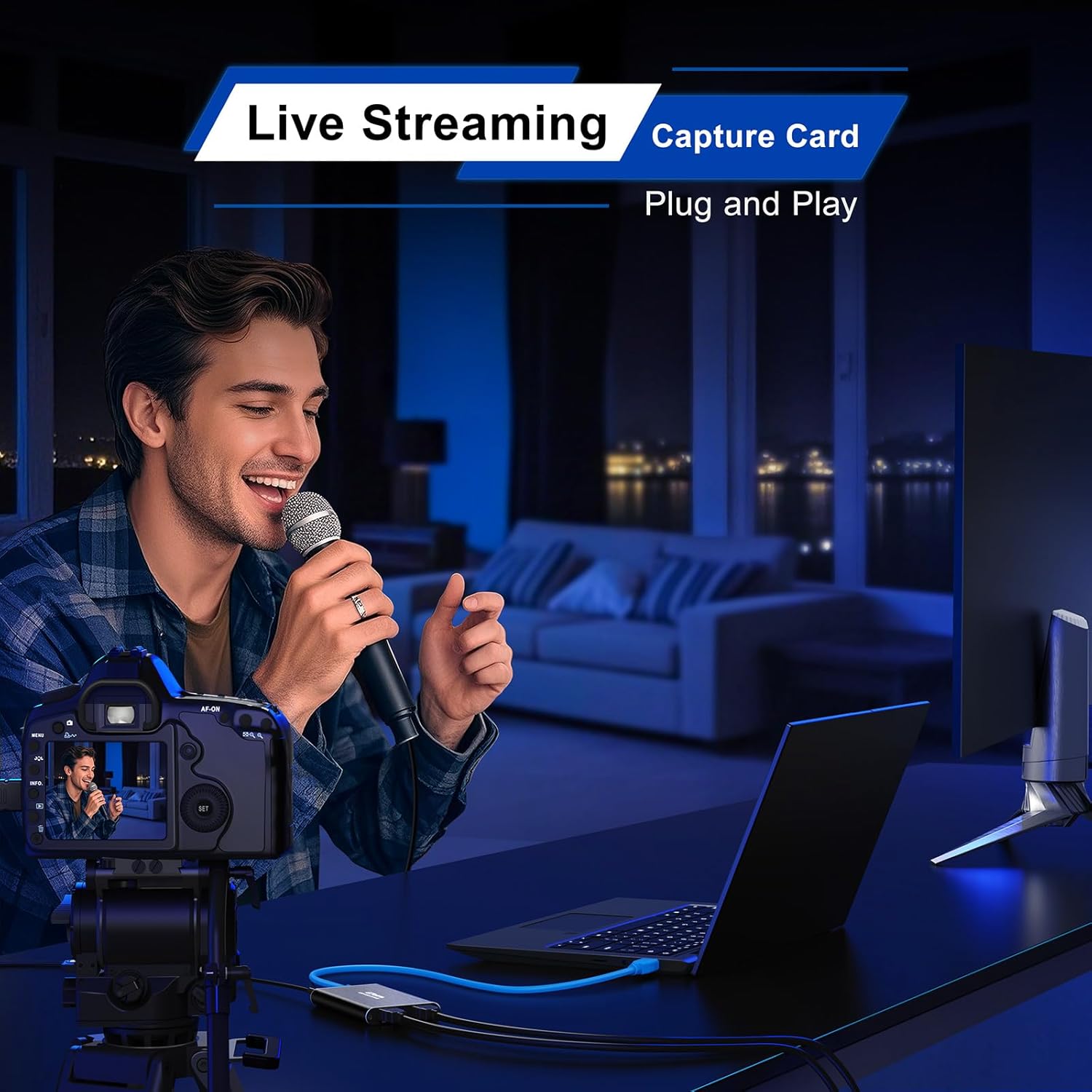
Image 5.2: Live Streaming Setup
This image shows a content creator using the Portta HDMI Video Capture Card to facilitate a live stream. A camera is connected to the capture card, which then feeds the video signal to a laptop running streaming software. A microphone is also in use, indicating comprehensive audio-visual capture.
6. Software Compatibility and OBS Studio Setup
The Portta HDMI Video Capture Card is compatible with various UVC/UAC-compliant applications. OBS Studio is a popular free and open-source software for video recording and live streaming. Below are instructions for setting up the capture card with OBS Studio.

Image 6.1: Adding Video/Audio Sources in OBS Studio
This image provides a four-step visual guide for adding the capture card as a video or audio source in OBS Studio. It shows clicking the '+' button in the 'Sources' panel, selecting 'Video Capture Device', creating a new device, and then selecting 'USB3 Video' or 'USB3 Digital Audio' from the device list.
6.1. Adding Video or Audio Sources in OBS Studio:
- In the 'Sources' panel, click the '+' button in the lower left corner.
- Wybierać 'Urządzenie przechwytujące wideo' for video or 'Przechwytywanie wejścia audio' for audio.
- Choose to 'Create new' and give it a name, then click 'OK'.
- In the properties window, select 'USB3 Video' for video or 'Cyfrowy dźwięk USB3' for audio from the 'Device' dropdown menu. Configure resolution and FPS as needed (e.g., 1920x1080, 60 FPS). Click 'OK'.

Image 6.2: Adjusting Advanced Audio Properties in OBS Studio
This image illustrates the process of configuring advanced audio settings in OBS Studio. It shows clicking the left dot of an audio input capture source, selecting 'Advanced Audio Properties', and then setting 'Audio Monitoring' to 'Monitor and Output' to hear the audio while streaming or recording.
6.2. Adjusting Advanced Audio Properties:
- In the 'Audio Mixer' panel, click the gear icon next to your audio source (e.g., 'USB3 Digital Audio').
- Wybierać 'Zaawansowane właściwości dźwięku'.
- For 'Audio Monitoring', select 'Monitorowanie i wyjście' if you want to hear the audio while it's being recorded/streamed.
- Once configured, click 'Rozpocznij transmisję strumieniową' Lub 'Rozpocznij nagrywanie' in the 'Controls' panel to begin.

Image 6.3: macOS OBS Operation Notes - Enabling Permissions
This image provides a guide for macOS users to enable necessary permissions for OBS Studio. It shows navigating to OBS Studio's 'Settings', then 'Review App Permissions', and granting access for 'Screen Recording', 'Camera', and 'Microphone' until 'Access Granted' appears for each.
6.3. macOS OBS Operation Notes:
On macOS, you may need to grant OBS Studio specific permissions to access your screen, camera, and microphone. Follow these steps:
- Otwórz OBS Studio.
- Go to 'OBS Studio' > 'Settings...' > 'Review App Permissions'.
- Follow the system prompts to grant required access for 'Screen Recording', 'Camera', and 'Microphone' until 'Access Granted' appears for each.

Image 6.4: Wide Compatibility Overview
This image visually summarizes the broad compatibility of the Portta HDMI Video Capture Card. It lists compatible software such as OBS, Zoom, Microsoft Teams, VLC Media Player, and Google Meet. It also shows various input devices like PS5, Xbox Series X, STB, Phone, and DSLR Camera, and supported operating systems including macOS, Windows, and Linux.
7. Konserwacja
To ensure the longevity and optimal performance of your Portta HDMI Video Capture Card, please follow these maintenance guidelines:
- Utrzymywać w suchości: Unikaj narażania urządzenia na działanie wilgoci lub cieczy.
- Czyść delikatnie: Do czyszczenia zewnętrznej części urządzenia należy używać miękkiej, suchej ściereczki. Nie należy używać silnych środków chemicznych ani ściernych środków czyszczących.
- Unikaj ekstremalnych temperatur: Przechowuj i używaj urządzenie w zalecanym zakresie temperatur.
- Zachowaj ostrożność: Unikaj upuszczania i narażania urządzenia na silne uderzenia.
8. Rozwiązywanie Problemów
If you encounter issues with your Portta HDMI Video Capture Card, refer to the following common problems and solutions:
- Brak sygnału / Czarny ekran:
- Ensure all HDMI cables are securely connected to both the source device and the capture card.
- Sprawdź, czy urządzenie źródłowe HDMI jest włączone i wysyła sygnał.
- Check if the source device's resolution is supported by the capture card (up to 4K@60Hz input).
- Confirm that the HDMI source is not protected by HDCP 2.2, as the capture card supports HDCP 1.4 only.
- Ensure the capture software (e.g., OBS Studio) is correctly configured to select the 'USB3 Video' device.
- Brak dźwięku:
- Check that your headphones or speakers are properly connected to the 3.5mm Audio Output port.
- In your capture software, ensure 'USB3 Digital Audio' is selected as the audio input device and that audio monitoring is enabled (e.g., 'Monitor and Output' in OBS Studio).
- Verify the audio settings on your source device.
- Note: Microphone audio is not routed to the 3.5mm Audio Output or HDMI Loop Output.
- Lag or Stuttering Video:
- Ensure the capture card is connected to a USB 3.0 port on your computer. USB 2.0 ports may not provide sufficient bandwidth.
- Check your computer's system requirements: Quad-core Intel Core i5 / Ryzen 5 or higher CPU, 8 GB RAM or more, DirectX 10.1 or OpenGL 3.3 compatible GPU (DirectX 11 / Metal recommended).
- For high-bitrate recording, an SSD (Solid State Drive) is recommended for storage.
- Zamknij niepotrzebne aplikacje działające w tle, aby zwolnić zasoby systemowe.
- Urządzenie nierozpoznane:
- Try connecting the capture card to a different USB 3.0 port on your computer.
- Uruchom ponownie komputer.
- Ensure your operating system is up to date (Windows 7/8/10/11+, macOS 10.8+, Linux kernel 2.6.38+).
9. Specyfikacje
| Funkcja | Specyfikacja |
|---|---|
| Numer modelu | HCC101-BK |
| Wymiary produktu (dł. x szer. x wys.) | 4.02 x 2.72 x 0.49 cala |
| Waga przedmiotu | 2.4 uncji |
| Kolor | Czarny |
| Kompatybilne urządzenia | Gaming Console, PC, Television |
| Typ złącza | HDMI, USB 3.0 |
| Rozdzielczość wejścia HDMI | Up to 4K@60Hz (YUV 4:2:0) |
| Rozdzielczość przechwytywania | 1080p@60Hz via USB 3.0 |
| Wsparcie HDCP | HDCP 1.4 (input only) |
| Porty audio | 3.5mm Audio Out, 3.5mm Mic In |
| Zgodność z systemem operacyjnym | Windows 7/8/10/11+, macOS 10.8+, Linux (kernel 2.6.38+) |
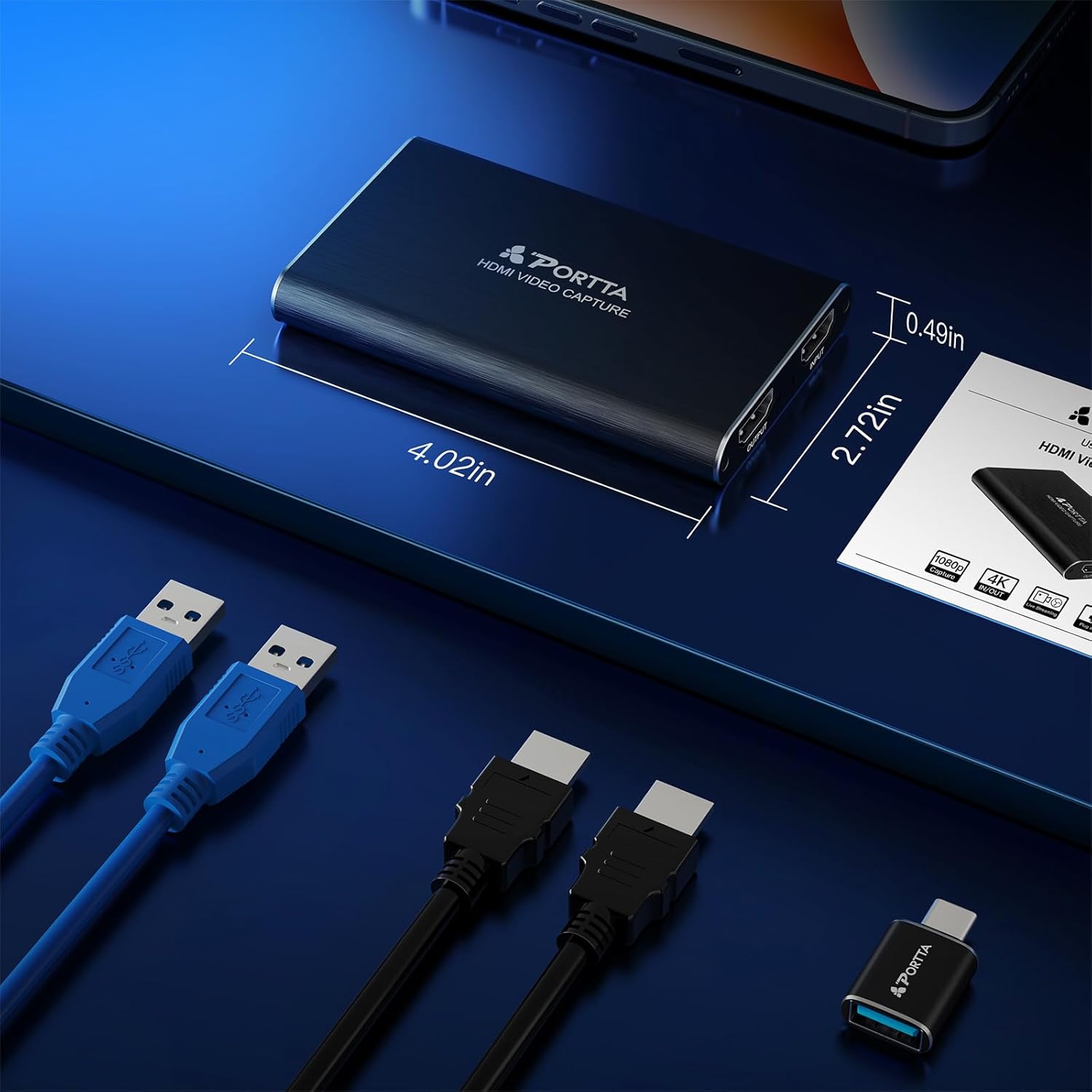
Ilustracja 9.1: Wymiary produktu
This image provides a visual representation of the Portta HDMI Video Capture Card's physical dimensions, indicating its length as 4.02 inches, width as 2.72 inches, and height as 0.49 inches.
10. Gwarancja i wsparcie techniczne
Portta stands behind the quality of its products. The Portta HDMI Video Capture Card comes with a 2-letnia gwarancja, obejmując wady produkcyjne i gwarantując niezawodną pracę.
Additionally, we offer dożywotnie wsparcie techniczne to assist you with any questions or issues you may encounter during the setup or operation of your device. Our friendly customer service team is available to provide guidance and solutions.
For technical assistance or warranty claims, please contact Portta customer service through the official webwitrynę lub platformę zakupową.