
1. Wprowadzenie
This user manual provides detailed instructions for the setup, operation, and maintenance of your BOXPUT Q11 Android TV Box. The Q11 is a high-performance streaming media player featuring the Amlogic S905X4 Quad-Core processor, Android 11.0 operating system, and support for 8K and 4K UHD video streaming. It includes dual-band Wi-Fi (2.4/5GHz) and a 1000M Ethernet port for stable network connectivity, along with an IRI Voice Remote for convenient control. Please read this manual thoroughly to ensure proper use and to maximize your viewzdobywania doświadczenia.

Image: The BOXPUT Q11 Android TV Box, its IRI Voice Remote, and the product packaging, showcasing the device's sleek design and included accessories.
2. Zawartość opakowania
Sprawdź, czy w opakowaniu produktu znajdują się wszystkie elementy wymienione poniżej:
- 1 x BOXPUT Q11 Android TV Box
- 1 x IRI BT Voice Remote Control
- Zasilacz 1 x US
- 1 x kabel HDMI
- 1 x Instrukcja obsługi

Image: A visual representation of the BOXPUT Q11 TV Box and its included accessories: the TV box, remote controller, user guide, power adapter, and HDMI cable.
3. Koniec produktuview
The BOXPUT Q11 features a compact design with essential ports for connectivity. Familiarize yourself with the device's layout and available connections.
Device Ports and Interfaces:
- LAN 1000M: Port Gigabit Ethernet do przewodowego połączenia sieciowego.
- Wyjście AV: For connecting to older televisions.
- Optical Audio Output (SPDIF): Do cyfrowego połączenia audio.
- HDMI: For connecting to modern displays.
- 5V DC: Port wejściowy zasilania.
- Gniazdo kart Micro SD: Supports up to 128GB for expanded storage.
- USB 2.0: Standardowy port USB dla urządzeń peryferyjnych.
- USB 3.0: Szybki port USB zapewniający szybszą transmisję danych.
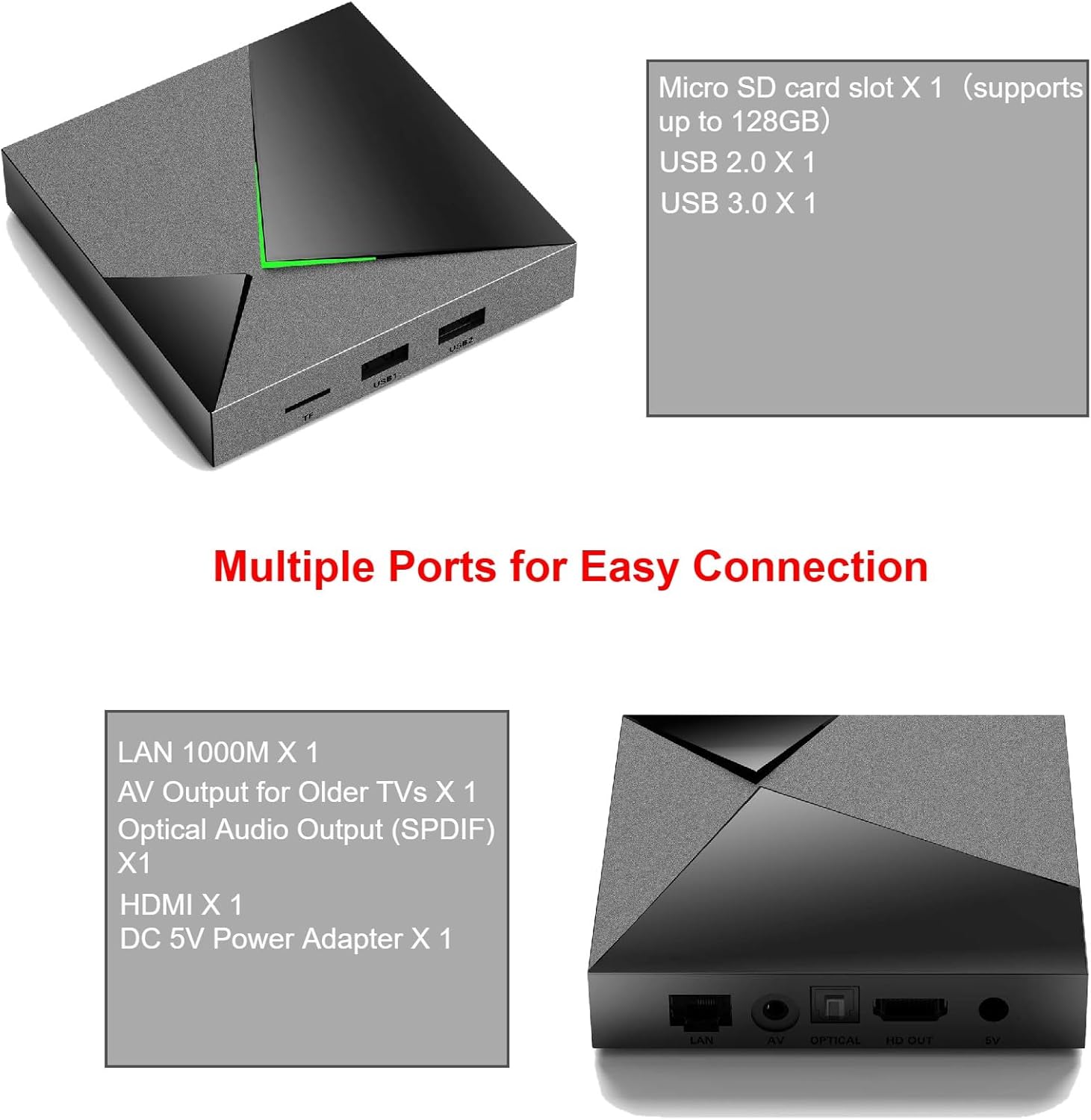
Image: A detailed diagram illustrating the various input and output ports on the BOXPUT Q11 Android TV Box, including LAN, AV, Optical, HDMI, DC 5V, Micro SD, USB 2.0, and USB 3.0.
4. Konfiguracja
Follow these steps to set up your BOXPUT Q11 Android TV Box:
- Połącz z telewizorem: Connect one end of the provided HDMI cable to the HDMI port on the Q11 TV Box and the other end to an available HDMI input on your television.
- Podłącz zasilanie: Plug the US power adapter into the DC 5V port on the Q11 TV Box, then plug the adapter into a wall outlet.
- Połączenie sieciowe (opcjonalnie):
- wired: For a stable connection, connect an Ethernet cable from your router to the LAN 1000M port on the Q11 TV Box.
- Bezprzewodowy: If using Wi-Fi, you will configure this after the initial boot-up.
- Włączanie: Turn on your television and select the correct HDMI input source. The Q11 TV Box should automatically power on and display the boot-up screen.
- Konfiguracja wstępna: Follow the on-screen prompts to complete the initial setup, including language selection, Wi-Fi connection (if not using Ethernet), and Google account login.

Image: The BOXPUT Q11 TV Box positioned in front of a television screen, illustrating a typical setup for home entertainment, highlighting its Android 11 OS, S905X4 processor, Dual WiFi, and Bluetooth 4.2 capabilities.
5. Instrukcja obsługi
Once set up, navigate the Android TV interface using the IRI BT Voice Remote Control. The remote allows for intuitive control and voice commands.
Podstawowa nawigacja:
- Use the directional pad (up, down, left, right) to move between menu items.
- Naciśnij OK przycisk, aby wybrać element.
- Naciśnij Z powrotem przycisk, aby powrócić do poprzedniego ekranu.
- Naciśnij Dom button to go to the main Android TV home screen.
Sterowanie głosowe:
Press the dedicated voice button on your IRI BT Voice Remote to activate voice commands. Speak clearly into the remote to search for content, open applications, or control playback.
Dublowanie ekranu (Miracast):
The Q11 supports one-click screen mirroring, allowing you to cast games or live sports from your compatible phone or tablet directly to your TV. Access the Miracast feature from the device's settings or a dedicated app.
6. Łączność
The BOXPUT Q11 offers robust connectivity options to ensure a smooth streaming experience.
Połączenie Wi-Fi:
The device supports dual-band 2.4GHz and 5GHz Wi-Fi, providing flexibility and improved performance in congested wireless environments. To connect to Wi-Fi:
- Idź do Ustawienia na ekranie głównym.
- Wybierać Sieć i Internet.
- Wybierz interesującą Cię sieć Wi-Fi z listy.
- Wprowadź hasło Wi-Fi, jeśli zostaniesz o to poproszony.
Połączenie Ethernet:
For the most stable and fastest connection, use the built-in 1000M Gigabit Ethernet port. Simply connect an Ethernet cable from your router to the LAN port on the Q11 TV Box. The device will automatically detect and use the wired connection.
Bluetooth:
The Q11 features Bluetooth connectivity, primarily used for the IRI BT Voice Remote Control. It can also be used to connect other compatible Bluetooth accessories.
7. 8K/4K UHD Streaming
Experience ultra-high-definition content with the BOXPUT Q11, designed to deliver stunning visuals.
Wyjście 8K@60fps:
The Q11 streaming box supports 8K resolution at 60 frames per second, providing exceptional detail and clarity. This requires an 8K-compatible television and 8K content.
HDR (wysoki zakres dynamiki):
Enjoy brighter, more realistic colors and greater detail with HDR support. This technology enhances the contrast and color accuracy of compatible content.

Image: A visual comparison demonstrating the enhanced clarity and detail of 8K HDR compared to HD and 4K resolutions, highlighting the vibrant colors and sharper image quality.
Advanced Video Formats:
The Q11 is compatible with advanced video codecs including H.265, VP9, and AV1, ensuring efficient decoding of high-quality video streams.

Image: An illustration detailing the efficiency of the AV1 codec (50% more efficient than H.264, 20% more efficient than HEVC) and a comparison of 60 frames per second playback on the Q11 versus standard TV boxes, showing smoother motion.
8. Zaawansowane funkcje
VPN Sharing:
The Q11 TV Box supports sharing VPN internet access. You can log in to your VPN application via an Ethernet connection, and the Q11 can then function as a software Wi-Fi router to share the VPN-protected internet with other devices in your home.

Image: A diagram illustrating how the BOXPUT Q11 can share a VPN connection. The Q11 connects to the internet via a 1G cable Ethernet, runs a VPN app, and then broadcasts a 2T2R Wi-Fi signal to other devices, effectively acting as a VPN router.
9. Konserwacja
To ensure the longevity and optimal performance of your BOXPUT Q11 Android TV Box, follow these maintenance guidelines:
- Czyszczenie: Do czyszczenia zewnętrznej części urządzenia należy używać miękkiej, suchej ściereczki. Unikaj stosowania płynnych środków czyszczących i materiałów ściernych.
- Wentylacja: Upewnij się, że urządzenie znajduje się w dobrze wentylowanym miejscu, aby zapobiec przegrzaniu. Nie blokuj otworów wentylacyjnych.
- Wyłączone: Jeśli urządzenie nie będzie używane przez dłuższy czas, zaleca się odłączenie zasilacza od źródła zasilania.
- Aktualizacje oprogramowania: Okresowo sprawdzaj dostępność aktualizacji systemu w ustawieniach urządzenia, aby mieć pewność, że posiadasz najnowsze funkcje i poprawki zabezpieczeń.
10. Rozwiązywanie Problemów
If you encounter issues with your BOXPUT Q11, refer to the following common problems and solutions:
- Brak zasilania/brak wyświetlacza:
- Upewnij się, że zasilacz jest prawidłowo podłączony do urządzenia i do działającego gniazdka elektrycznego.
- Verify that the HDMI cable is properly connected to both the TV Box and the TV, and that the correct HDMI input is selected on your TV.
- Brak połączenia z internetem:
- For Wi-Fi, check your network settings and ensure the correct password is entered. Try restarting your router.
- For Ethernet, ensure the cable is securely connected and your router is functioning correctly.
- Pilot nie odpowiada:
- Sprawdź baterie w pilocie i wymień je w razie potrzeby.
- Upewnij się, że między pilotem a dekoderem TV nie ma żadnych przeszkód.
- If it's a Bluetooth remote, try re-pairing it in the device's Bluetooth settings.
- Słaba jakość wideo:
- Ensure your internet connection is stable and fast enough for high-resolution streaming.
- Verify that your TV supports the resolution (e.g., 4K or 8K) you are trying to stream.
- Check the video output settings on the Q11 TV Box.
11. Specyfikacje
| Funkcja | Specyfikacja |
|---|---|
| Marka | BOXPUT |
| Numer modelu | Pytanie 11 |
| System operacyjny | Android 11.0 |
| Edytor | Amlogic S905X4 Quad-Core |
| BARAN | 4 GB |
| ROM | 32 GB |
| Wyjście wideo | 8K@60fps, H.265, VP9, AV1 |
| Łączność | Dual-band 2.4GHz/5GHz Wi-Fi, 1000M Ethernet, Bluetooth |
| Porty | HDMI, USB 2.0, USB 3.0, Micro SD, LAN, AV, Optical (SPDIF), DC 5V |
| Wymiary | 7.8 x 5.6 x 2.2 cala |
| Waga | 1.21 funta (0.55 kilograma) |
| Kolor | Czarny |
| Cechy specjalne | Convenient control, Easy to install, Miracast |
12. Gwarancja i wsparcie
BOXPUT is committed to providing quality products and customer satisfaction. While specific warranty details are not provided in this manual, the product includes access to a friendly after-sales support team.
For any questions, technical assistance, or support needs, please refer to the contact information provided with your purchase or visit the official BOXPUT website. Our support team is available to assist you with any issues or inquiries regarding your Q11 Android TV Box.

Image: A person seated at a desk, using a computer, with the BOXPUT Q11 TV Box and remote control nearby, symbolizing readily available customer support and assistance.