
ApoloSign FA1569T
ApoloSign Digital Calendar User Manual
Model: FA1569T
Produkt ponadview
The ApoloSign Digital Calendar is a 15.6-inch smart touchscreen interactive display designed for organizing family schedules, chore charts, and personal tasks. It features a dual operating system, allowing seamless switching between a dedicated Calendar Mode for focused planning and an Android Mode for extended functionality through Google Play apps. The device supports syncing with various calendar services and can also function as a smart photo frame.

Figure 1: ApoloSign 15.6-inch Digital Calendar (Teak)
Co jest zawarte
Upon unboxing your ApoloSign Digital Calendar, verify that all components are present:
- ApoloSign Digital Calendar (15.6-inch)
- Zasilacz
- Upper Desk Stand
- Lower Desk Stand
- Uchwyt do montażu na ścianie
- Instrukcja użytkownika
- Śrubokręt
- Wiertło
- Śruby montażowe
- Kotwice

Rysunek 2: Dołączone komponenty
Organizować coś
Rozpakowywanie i wstępna inspekcja
Carefully remove the digital calendar and its accessories from the packaging. Inspect all items for any signs of damage. It is recommended to retain the original packaging for future transport or storage.
Video 1: Unboxing the ApoloSign Digital Calendar, showing the careful removal of the device and its accessories from the packaging.
Opcje montażu
The ApoloSign Digital Calendar offers both desktop and wall-mounting options.
Montaż podstawki na biurko
- Assemble the Upper and Lower Desk Stand components using the provided screwdriver and screws.
- Securely attach the assembled stand to the back of the ApoloSign Digital Calendar.
- Place the calendar on a stable, flat surface.

Figure 3: ApoloSign Digital Calendar on its desktop stand.
Montaż na ścianie
- Choose a suitable wall location, ensuring it is free from obstructions and has access to a power outlet.
- Use the provided wall mounting bracket as a template to mark drill holes on the wall.
- Drill pilot holes and insert the anchors.
- Secure the wall mounting bracket to the wall using the mounting screws.
- Carefully align the digital calendar with the mounted bracket and slide it into place until it is securely fastened.

Figure 4: ApoloSign Digital Calendar mounted on a wall.
Powering On and Wi-Fi Connection
- Connect the power adapter to the digital calendar and plug it into a power outlet.
- The device will automatically power on. Follow the on-screen prompts to select your language and connect to your Wi-Fi network. A stable Wi-Fi connection is required for full functionality.
Instrukcja obsługi
The ApoloSign Digital Calendar operates with a dual OS, offering a dedicated Calendar Mode and a versatile Android Mode.
Tryb kalendarza
Calendar Mode is optimized for family organization and task management, providing a clear, focused interface.
- Calendar Syncing: Seamlessly sync and display schedules from multiple platforms including Google Calendar, iCloud, Outlook, and Yahoo. This consolidates all family events into one central view.
- Chore Chart & Routine Planning: Create and manage interactive chore charts and daily routines. Assign tasks to family members, set reminders, and track progress using color-coded labels. This feature supports building consistent habits.
- To-Do Lists: Manage personal and family to-do lists directly from the calendar screen. Add, check off, and prioritize tasks to stay organized.
- Tryb prywatności: Hide private events with a single tap, ensuring only essential information is visible when needed.

Figure 5: Syncing multiple calendars.
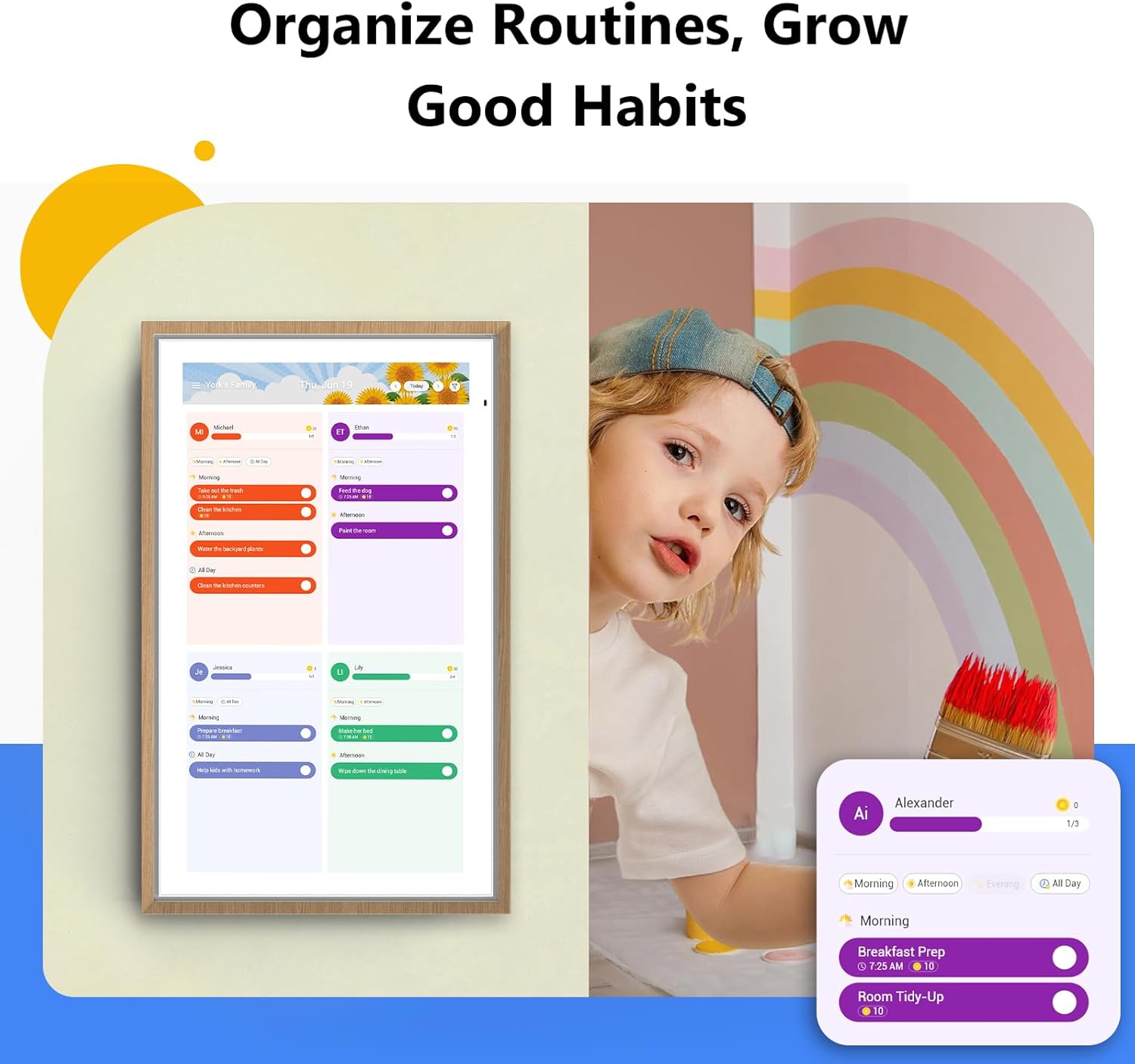
Figure 6: Interactive chore chart and routine planning.

Figure 7: Managing to-do and shopping lists.
Tryb Android
Android Mode transforms your calendar into a versatile smart display, offering access to a wide range of applications and customization options.
- Google Play Integration: Download and install various apps from the Google Play Store, including additional calendar tools, entertainment apps, and productivity tools.
- Custom Dashboard Widgets: Personalize your display with customizable widgets for weather, notes, to-dos, and routines. Drag, resize, and arrange widgets to create your ideal dashboard.
- Asystent Google: Utilize built-in quad microphones for hands-free voice control. Set alarms, check the weather, organize tasks, and interact with your calendar using voice commands.
- Gotowy do inteligentnego domu: Connect and control compatible smart home devices such as video doorbells and security cameras directly from the display.
- Smart Photo Frame: Transform your calendar into a digital photo frame. Display photos from Google Photos or upload them directly to the device. No subscriptions are required for this feature.
- Energy-Saving Sleep Mode: The device features an energy-saving sleep mode for restful nights, automatically dimming or turning off the display during specified hours.
- Auto Portrait/Landscape Rotation: The display automatically adjusts its orientation based on how it is positioned.

Figure 8: Android Dashboard with Google Play apps.

Figure 9: Using the calendar as a smart photo frame.
Specyfikacje
| Funkcja | Szczegół |
|---|---|
| Marka | ApoloSign |
| Numer modelu | FA1569T |
| Rozmiar ekranu | 15.6 cali |
| Kolor | Tek |
| Waga przedmiotu | 9.06 funta |
| Wymiary produktu | 9.91 x 9.91 x 15.83 cala |
| Technologia wyświetlania | HD Touchscreen with Incell + AG anti-glare tech |
| System operacyjny | Dual OS (Calendar Mode & Android Mode) |
| Wsparcie Asystenta Głosowego | Built-in quad microphones for voice assistants (e.g., Google Assistant) |
| Łączność | Wi-Fi |

Figure 10: Size comparison of ApoloSign Digital Calendars.
Rozwiązywanie problemów
For any issues encountered with your ApoloSign Digital Calendar, please refer to the following general guidance:
- Brak zasilania: Upewnij się, że zasilacz jest prawidłowo podłączony do urządzenia i do działającego gniazdka elektrycznego.
- Problemy z łącznością Wi-Fi: Verify your Wi-Fi network is active and the password is correct. Try restarting your router and the digital calendar.
- Nieprawidłowe działanie aplikacji: If an app is not functioning correctly, try restarting the device. If the issue persists, consider uninstalling and reinstalling the app from Google Play.
- Reakcja ekranu: If the touchscreen is unresponsive, restart the device. Ensure the screen is clean and free of debris.
If you require further assistance or encounter problems not covered here, our expert support team is available around the clock to assist you. Your satisfaction is our top priority.
Gwarancja i wsparcie
ApoloSign is committed to providing high-quality products and customer satisfaction. While specific warranty details are provided with your purchase documentation, our dedicated support team is available 24/7 to assist with any questions, setup guidance, or troubleshooting needs. Please refer to the contact information provided in your user guide or on the ApoloSign official webwitryna wsparcia.
Powiązane dokumenty - FA1569T
 |
Apolosign Smart Digital Calendar User Guide Comprehensive user guide for the Apolosign Smart Digital Calendar, covering setup, features, specifications, wall mounting, and troubleshooting. Learn how to use your dual-mode calendar for home organization. |
 |
Instrukcja obsługi inteligentnej ramki do zdjęć Apolosign 10.1" — konfiguracja, funkcje i pomoc techniczna Kompleksowy podręcznik użytkownika inteligentnej ramki do zdjęć Apolosign o przekątnej 10.1 cala. Dowiedz się, jak skonfigurować urządzenie, nawiązać kontakt ze znajomymi i rodziną, wysyłać zdjęcia i filmy oraz znaleźć informacje dotyczące pomocy technicznej. Zawiera informacje o zgodności z przepisami FCC i wytyczne dotyczące utylizacji. |
 |
Instrukcja obsługi ekranu Apolosign Smart Screen: konfiguracja, funkcje i obsługa Kompleksowy przewodnik po ekranie Apolosign Smart Screen, obejmujący konfigurację, specyfikację, instrukcje użytkowania i rozwiązywanie problemów dla modeli SW2499T, SW249AT, SW3299T i SW329AT. Dowiedz się więcej o jego funkcjach, łączności i obsłudze. |
 |
Instrukcja obsługi i przewodnik użytkownika telewizora przenośnego Apolosign Smart TV UHD 4K z ekranem dotykowym Gen 2 Niniejsza instrukcja obsługi zawiera szczegółowe instrukcje dotyczące telewizora Apolosign Smart Portable TV, 32-calowego urządzenia z ekranem dotykowym UHD 4K i systemem Android. Obejmuje ona konfigurację, specyfikację produktu, połączenia portów, obsługę przycisków, zużycie baterii, dublowanie ekranu, instalację oprogramowania, przywracanie ustawień fabrycznych, parowanie pilota oraz zgodność z normami FCC. |
 |
Instrukcja obsługi i przewodnik po ekranie inteligentnym Apolosign STANDME Incell Kompleksowa instrukcja obsługi inteligentnego ekranu Apolosign STANDME Incell, obejmująca konfigurację, specyfikację, obsługę i rozwiązywanie problemów. Dowiedz się, jak zainstalować, podłączyć i używać inteligentnego ekranu. |
 |
Instrukcja obsługi inteligentnej ramki do zdjęć Apolosign 15.6 cala Kompleksowy podręcznik użytkownika inteligentnej ramki do zdjęć Apolosign o przekątnej 15.6 cala, obejmujący informacje na temat konfiguracji, łączenia się ze znajomymi, udostępniania zdjęć i filmów, zawartości opakowania, zgodności z przepisami FCC oraz dane kontaktowe pomocy technicznej. |