
1. Wprowadzenie
The EPOMAKER EK21 is a versatile and highly functional numeric keypad designed for enhanced productivity and gaming. It features a 20-key layout with an aluminum alloy knob, hot-swappable switches, and customizable RGB lighting. The EK21 supports triple connectivity modes (wired, Bluetooth 5.0, and 2.4GHz wireless) and is programmable via VIA software, offering seamless compatibility across Windows, Mac, and Android operating systems.
2. Zawartość opakowania
Sprawdź, czy w przesyłce znajdują się wszystkie elementy:
- EPOMAKER EK21 VIA Gasket Number Pad
- 2-in-1 Keycap-and-Switch Puller
- 1.8m Detachable USB A-to-C Braided Cable
- 2.4Ghz Wireless Dongle
- Instrukcja obsługi
- Extra “Back” Keycap
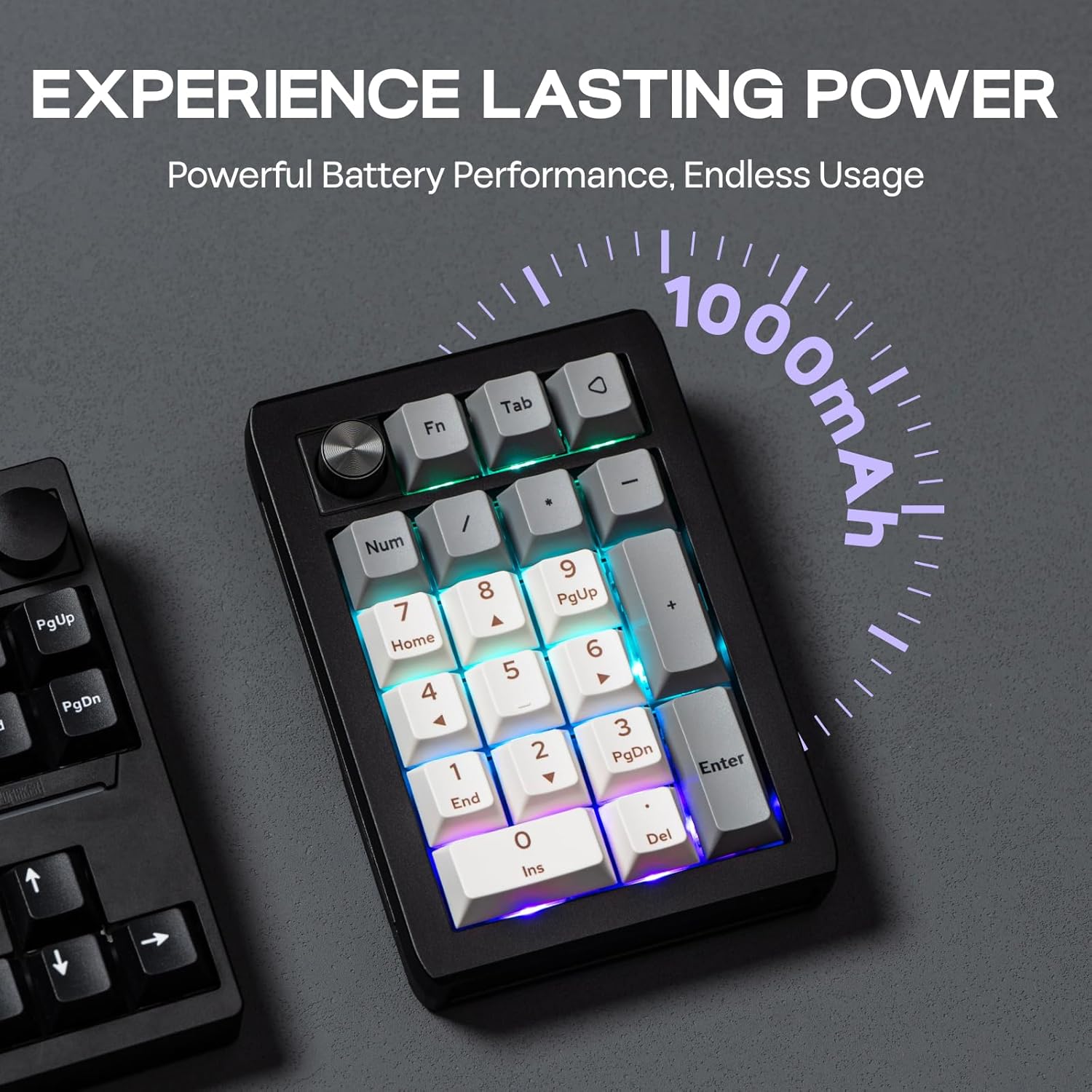
Figure 2.1: Contents included in the EPOMAKER EK21 package.
3. Koniec produktuview
The EK21 is a 20-key mechanical number pad featuring a gasket-mounted design for a comfortable typing experience. It includes an aluminum alloy knob for versatile control and per-key RGB backlighting. The device supports hot-swappable switches, allowing users to easily change switches without soldering.

Rysunek 3.1: Koniecview of the EPOMAKER EK21 Number Pad and its key features.
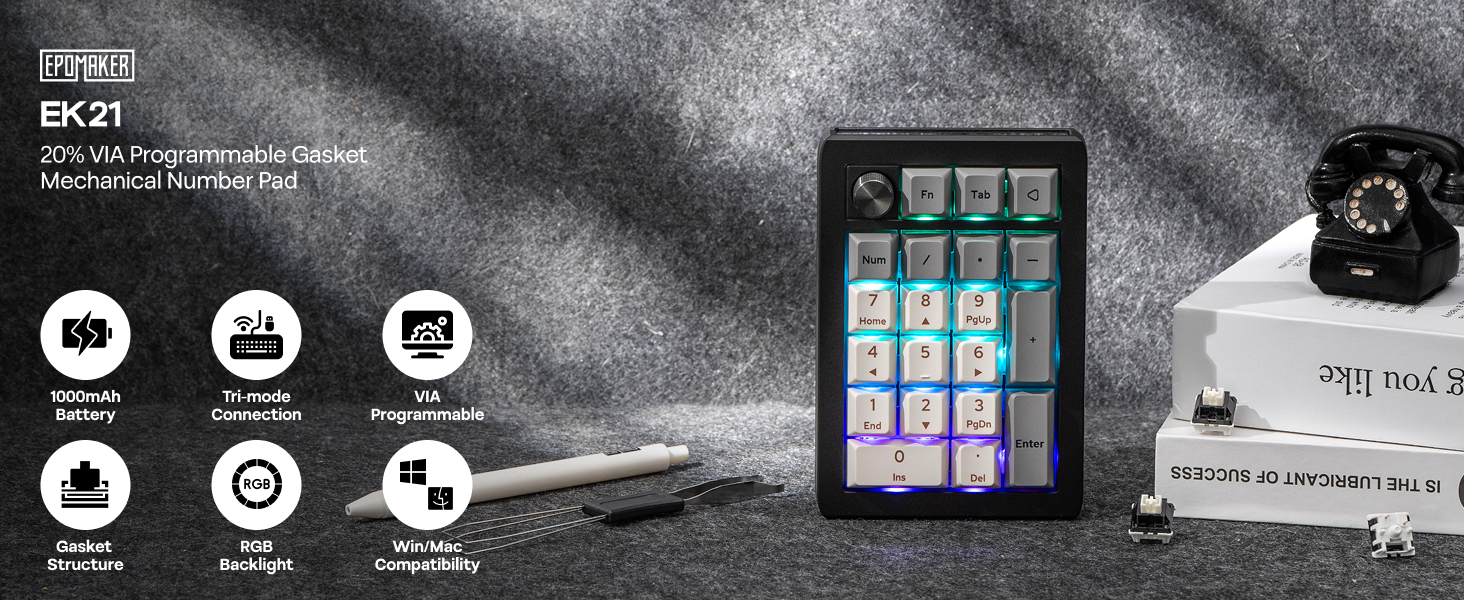
Figure 3.2: EPOMAKER EK21 VIA Mechanical Numpad.
4. Konfiguracja
The EK21 offers three connectivity options: wired, 2.4GHz wireless, and Bluetooth. Choose the method that best suits your needs.
4.1. Połączenie przewodowe
- Connect the provided USB A-to-C cable to the USB-C port on the EK21.
- Podłącz końcówkę USB-A kabla do wolnego portu USB w komputerze.
- Ensure the mode switch on the side of the numpad is set to 'USB'. The device will be recognized automatically.
4.2. Połączenie bezprzewodowe 2.4 GHz
- Locate the 2.4GHz wireless dongle in the package.
- Podłącz klucz sprzętowy do wolnego portu USB w komputerze.
- Set the mode switch on the side of the numpad to '2.4G'. The device should connect automatically.
4.3. Połączenie Bluetooth 5.0
- Set the mode switch on the side of the numpad to 'BT'.
- Włącz Bluetooth na swoim komputerze lub urządzeniu i wyszukaj nowe urządzenia.
- Select 'EPOMAKER EK21' from the list of available devices to pair.
- The EK21 supports up to three Bluetooth devices. Switch between paired devices using Fn + Q/W/E.

Figure 4.1: Tri-Mode Connectivity options for the EK21.

Figure 4.2: Convenient Connectivity Hub on the EK21.
5. Instrukcja obsługi
5.1. Podstawowe funkcje klawiszy
The EK21 functions as a standard numeric keypad. Keys are pre-programmed for numerical input, arithmetic operations, and navigation (Home, End, PgUp, PgDn, Ins, Del).
5.2. Multi-functional Aluminum Alloy Knob
The aluminum alloy knob provides quick access to various functions. By default, it controls volume:
- Obróć w prawo: zwiększanie głośności
- Obrót przeciwnie do ruchu wskazówek zegara: Zmniejszenie głośności
- Naciśnij: Wycisz/Wyłącz wyciszenie
The knob's functionality can be customized using the VIA software (see Section 6).

Figure 5.1: Functions of the Multi-functional Aluminum Alloy Knob.
5.3. Kombinacje klawiszy funkcyjnych
Utilize the 'Fn' key for additional controls:
- Fn + . (dot key): Sprawdzenie baterii
- Fn + Enter: Przełącz efekt podświetlenia
- Fn + - / +: Dostosuj jasność podświetlenia

Figure 5.2: Dynamic RGB Backlight and Function Key Combinations.
6. Customization with VIA Software
The EK21 is fully programmable via VIA software, allowing you to customize key assignments, create macros, and fine-tune the knob's functionality. This feature enables you to adapt the numpad to your specific workflow or gaming setup.
- Pobierz oprogramowanie VIA: Visit the official EPOMAKER webstrona lub VIA website to download the latest version of the VIA software.
- Pobierz pliki JSON File: Obtain the specific JSON keymap file for the EK21 from the EPOMAKER webstrona. Ten file is necessary for VIA to recognize and configure your numpad.
- Load Keymap: Open the VIA software. If the EK21 is not automatically detected, load the downloaded JSON file manually within the software.
- Dostosuj: Once recognized, you can remap any key, create complex macros, and assign custom functions to the aluminum alloy knob. Changes are applied in real-time.
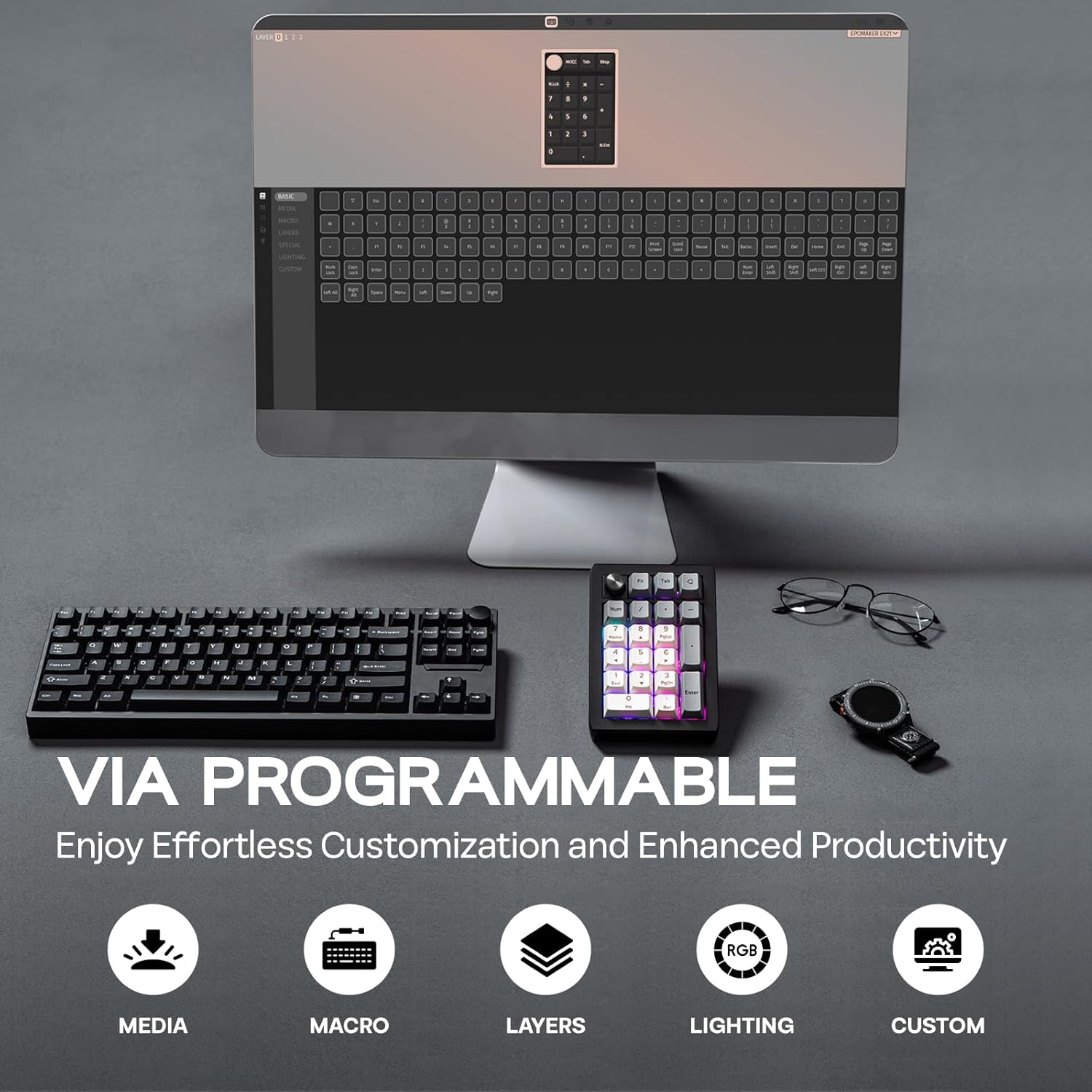
Figure 6.1: VIA Programmable features for effortless customization.
7. Dynamic RGB Backlight
The EK21 features per-key RGB backlighting, allowing for various lighting effects and colors. You can adjust these settings directly on the numpad using function key combinations or through the VIA software for more advanced customization.
- Toggle Effects: Use Fn + Enter to cycle through different backlight effects.
- Dostosuj jasność: Use Fn + - (minus) and Fn + + (plus) to increase or decrease backlight brightness.

Figure 7.1: Per-Key RGB Backlight in action.
Video 7.1: Demonstration of the EK21 VIA Numeric Keypad's lighting display.
8. Zarządzanie baterią
The EK21 is equipped with a 1000mAh battery, providing extended usage in wireless modes. The battery status can be checked using a function key combination.
- Sprawdzenie baterii: Press Fn + . (dot key) to check the current battery level. The RGB lighting may indicate the charge status.
- Ładowanie: Connect the numpad to a power source using the provided USB-C cable. The device can be used while charging.

Figure 8.1: The EK21 features a 1000mAh battery for extended use.

Figure 8.2: The 1000mAh battery ensures powerful and lasting performance.
9. Comfort and Ergonomics
The EK21 is designed with user comfort in mind, incorporating several features to enhance the typing experience and reduce fatigue.
- Struktura uszczelki: The gasket-mounted design provides a cushioned and flexible typing feel, reducing harsh impacts and improving sound profile.
- Poron Bottom Layer & Sandwich Foam: These internal layers absorb sound and vibrations, contributing to a quieter and more pleasant typing sound.
- IXPE Switch Pad: Further enhances the typing feel by providing a soft landing for switches.
- Finely Tuned Stabilizers: Ensures consistent and stable key presses, especially for larger keys like 'Enter' and '0'.
- PC Plate with CNC Cutting: Offers a robust and aesthetically pleasing finish, contributing to the overall durability.

Figure 9.1: Internal structure and components contributing to comfort and sound.
Rysunek 9.2: Eksplodowany view of the EK21's gasket-mount construction.
10. Konserwacja
10.1. Czyszczenie
To maintain the longevity and appearance of your EK21, regular cleaning is recommended:
- Use a soft, dry cloth to wipe the surface of the numpad.
- For deeper cleaning, remove keycaps using the provided keycap puller.
- Za pomocą sprężonego powietrza usuń kurz i zanieczyszczenia spomiędzy przełączników.
- Keycaps can be cleaned with mild soap and water, ensuring they are completely dry before reattaching.
10.2. Przełączniki z funkcją wymiany na gorąco
The EK21 features hot-swappable sockets, allowing you to change mechanical switches without soldering. Use the provided switch puller for this process:
- Gently grip the switch with the switch puller and pull upwards until it detaches from the PCB.
- Dopasuj piny nowego przełącznika do otworów na płytce PCB.
- Press down firmly until the switch clicks into place. Ensure the pins are not bent during insertion.

Figure 10.1: Hot-swappable switches allow for easy customization and maintenance.
11. Rozwiązywanie Problemów
If you encounter issues with your EK21, try the following troubleshooting steps:
- Problemy z łącznością:
- Ensure the mode switch is set correctly (USB, 2.4G, or BT).
- W przypadku częstotliwości 2.4 GHz należy upewnić się, że klucz sprzętowy jest prawidłowo podłączony.
- For Bluetooth, ensure your device's Bluetooth is enabled and the numpad is paired. Try re-pairing if necessary.
- Spróbuj podłączyć się za pomocą kabla USB-C, aby wykluczyć problemy z łącznością bezprzewodową.
- VIA Software Not Recognizing Device:
- Ensure the numpad is connected via USB-C cable. VIA typically requires a wired connection for initial setup and flashing.
- Verify you have downloaded and loaded the correct EK21 JSON file in the VIA software.
- Uruchom ponownie oprogramowanie VIA i/lub komputer.
- Podświetlenie RGB nie działa:
- Check backlight brightness using Fn + + (plus).
- Toggle backlight effects using Fn + Enter.
- Ensure the numpad is sufficiently charged if in wireless mode.
- Klawisze nie reagują:
- If only specific keys are affected, try hot-swapping the switch with a known working one to check if the switch is faulty.
- Upewnij się, że przełączniki są prawidłowo osadzone w gniazdach.
12. Specyfikacje
| Funkcja | Szczegół |
|---|---|
| Wymiary produktu | 3.66 x 5.43 x 1.14 cala (9.3 x 13.8 x 2.9 cm) |
| Waga przedmiotu | 13.4 uncji (0.38 kg) |
| Technologia łączności | Bezprzewodowa łączność 2.4 GHz, Bluetooth 5.0, przewodowa łączność USB-C |
| Pojemność baterii | 1000mAh |
| Opis klawiatury | Mechaniczny |
| Cechy specjalne | Backlit (RGB), Ergonomic, Hot-Swappable PCB, Lightweight, VIA Programmable |
| Kompatybilne urządzenia | Laptop, PC, Smartphone, Tablet (Windows, Mac, Android) |
| Materiał nasadek klawiszy | Barwnik PBT |
| Materiał płyty | PC (Polycarbonate) with CNC Cutting |
| Struktura wewnętrzna | Gasket Mount with Poron bottom layer, sandwich foam, IXPE switch pad |

Figure 12.1: Dimensions and Weight of the EK21 Number Pad.

Figure 12.2: Switch Specifications for the EK21.
13. Gwarancja i wsparcie
EPOMAKER products come with a standard manufacturer's warranty. For specific warranty details, duration, and terms, please refer to the warranty information provided with your purchase or visit the official EPOMAKER webW przypadku jakichkolwiek problemów lub potrzeby pomocy technicznej prosimy o kontakt z obsługą klienta EPOMAKER za pośrednictwem oficjalnych kanałów.
EPOMAKER Support: https://www.epomaker.com/pages/contact-us