
Wstęp
This manual provides essential information for the setup, operation, and maintenance of your Minifire MFG27C1 27-inch Curved Gaming Monitor. Please read this manual thoroughly before using the product and retain it for future reference.
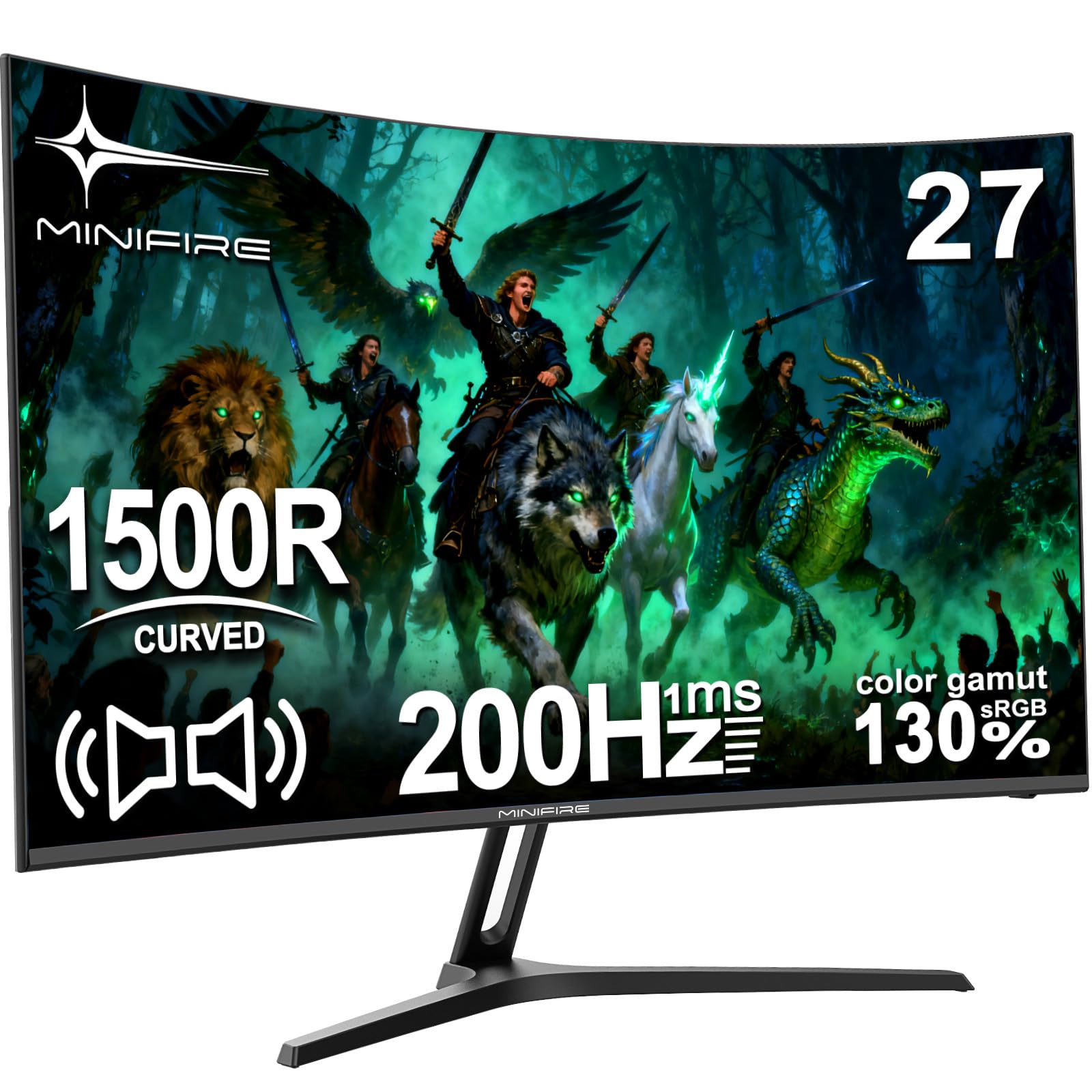
Image: The Minifire MFG27C1 27-inch Curved Gaming Monitor, showcasindzięki smukłemu wzornictwu i zakrzywionemu ekranowi.
Zawartość opakowania
Sprawdź, czy w opakowaniu Twojego produktu znajdują się wszystkie elementy wymienione poniżej:
- Minifire MFG27C1 27-inch Curved Gaming Monitor
- Kabel HDMI
- Zasilacz/ładowarka
- Elementy podstawy monitora
- Instrukcja obsługi (ten dokument)
Informacje dotyczące bezpieczeństwa
Aby zapewnić bezpieczną obsługę i zapobiec uszkodzeniom, należy przestrzegać następujących środków ostrożności:
- Aby uniknąć pożaru lub porażenia prądem, nie wystawiaj monitora na działanie deszczu i wilgoci.
- Nie otwierać monitora casing. Wewnątrz nie ma żadnych części, które mogłyby być naprawiane przez użytkownika. Wszelkie prace serwisowe należy zlecać wykwalifikowanemu personelowi.
- Aby zapobiec jego upadkowi, ustaw monitor na stabilnej, płaskiej powierzchni.
- Zapewnij odpowiednią wentylację wokół monitora. Nie blokuj otworów wentylacyjnych.
- Należy używać wyłącznie zasilacza dołączonego do monitora.
- Odłączaj kabel zasilający podczas burzy z piorunami lub jeśli urządzenie nie jest używane przez dłuższy czas.
- Unikaj umieszczania ciężkich przedmiotów na przewodzie zasilającym.
- Trzymaj monitor z dala od bezpośredniego światła słonecznego, źródeł ciepła i ekstremalnych temperatur.
Organizować coś
1. Montaż stojaka
Attach the stand base to the stand neck, then secure the assembled stand to the back of the monitor. Ensure all screws are tightened securely.
2. Podłączanie kabli
Connect the provided HDMI cable from your computer's graphics card to the HDMI 2.0 port on the monitor. For power, connect the power adapter to the DC input port on the monitor, then plug the adapter into a power outlet.
The monitor also features a DisplayPort 1.4 for alternative video input and a 3.5mm audio output for external speakers or headphones.

Obraz: szczegółowy view of the monitor's rear panel, highlighting the HDMI 2.0, DisplayPort 1.4, 3.5mm audio output, and DC power input ports, along with the joystick control button.
3. Pierwsze włączenie zasilania
Press the power button located on the back of the monitor to turn it on. The monitor will automatically detect the active input source. If no signal is detected, ensure your computer is powered on and the video cable is securely connected.
Instrukcja obsługi
1. Włączanie/wyłączanie zasilania
Press the joystick button (power button) on the back of the monitor to turn it on. Press and hold the joystick button for a few seconds to turn it off.
2. Nawigacja po menu OSD
The monitor's On-Screen Display (OSD) menu is controlled using the joystick button on the back.
- Push the joystick button: Umożliwia wejście do menu OSD lub potwierdzenie wyboru.
- Przesuń joystick w górę/w dół: Navigates through menu options or adjusts brightness/volume.
- Przesuń joystick w lewo/prawo: Navigates through menu options or adjusts contrast/input source.
Image: A diagram illustrating the joystick button functions for menu navigation, brightness, contrast, and input source selection.
3. Dostosowywanie ustawień wyświetlania
Access the OSD menu to adjust various display settings:
- Jasność/Kontrast: Adjust these settings to your preference for optimal viewing.
- Ustawienia kolorów: Modyfikuj temperaturę barwową, współczynnik gamma i inne parametry związane z kolorem.
- Tryb obrazu: Select from predefined modes (e.g., Standard, Game, Movie) or customize your own.
- Źródło sygnału wejściowego: Manually select between HDMI and DisplayPort inputs if auto-detection fails.
- Częstotliwość odświeżania: Ensure your graphics card settings match the monitor's 200Hz refresh rate for the smoothest experience.
- FreeSync: Enable FreeSync in the OSD menu and your graphics card control panel for tear-free gaming.
4. Wyjście audio
The monitor includes built-in speakers. You can also connect external speakers or headphones to the 3.5mm audio output port for enhanced audio.
Główne cechy
1. Immersive Curved Display
The Minifire MFG27C1 features a 27-inch VA panel with a 1500R curvature, designed to provide an immersive viewing experience, especially for gaming. This curvature helps reduce eye strain and enhances peripheral vision.

Image: The monitor displaying a vibrant gaming scene, emphasizing its 1500R curvature for an immersive experience.
2. High Refresh Rate and Fast Response Time
Experience smooth, fluid visuals with a 200Hz refresh rate and a rapid 1ms (MPRT) response time. This combination minimizes motion blur and ghosting, crucial for fast-paced gaming.

Image: A graphic highlighting the monitor's 200Hz refresh rate and 1ms MPRT response time, with a racing car visual.
3. Vibrant Color Reproduction
The VA panel offers a 130% sRGB color gamut, delivering rich, accurate colors and deep blacks for a high contrast ratio (2000:1). This enhances visual fidelity for both gaming and multimedia content.

Obraz: Wyświetlacz monitoraasing a colorful image, demonstrating its ability to display vivid details and a wide color spectrum.
4. AMD FreeSync Technology
With AMD FreeSync technology, the monitor synchronizes its refresh rate with your graphics card's frame rate, eliminating screen tearing and stuttering for a smoother gaming experience.

Image: A visual comparison demonstrating the benefits of FreeSync technology, showing a smooth image with FreeSync enabled versus stuttering and ghosting when disabled.
5. Funkcje pielęgnacji oczu
The monitor incorporates features to protect your eyes during extended use, including anti-flicker technology, an anti-glare screen surface, and a low blue light mode to reduce eye strain.

Image: A graphic explaining the monitor's eye care features, including anti-flicker, anti-glare, and low blue light, with visual examples of their effects.
6. Game Assist Functions
Enhance your gaming performance with built-in game assist features such as Black Level Adjustment for improved visibility in dark scenes, Pinpoint Strike for aiming assistance, and an on-screen Timer.
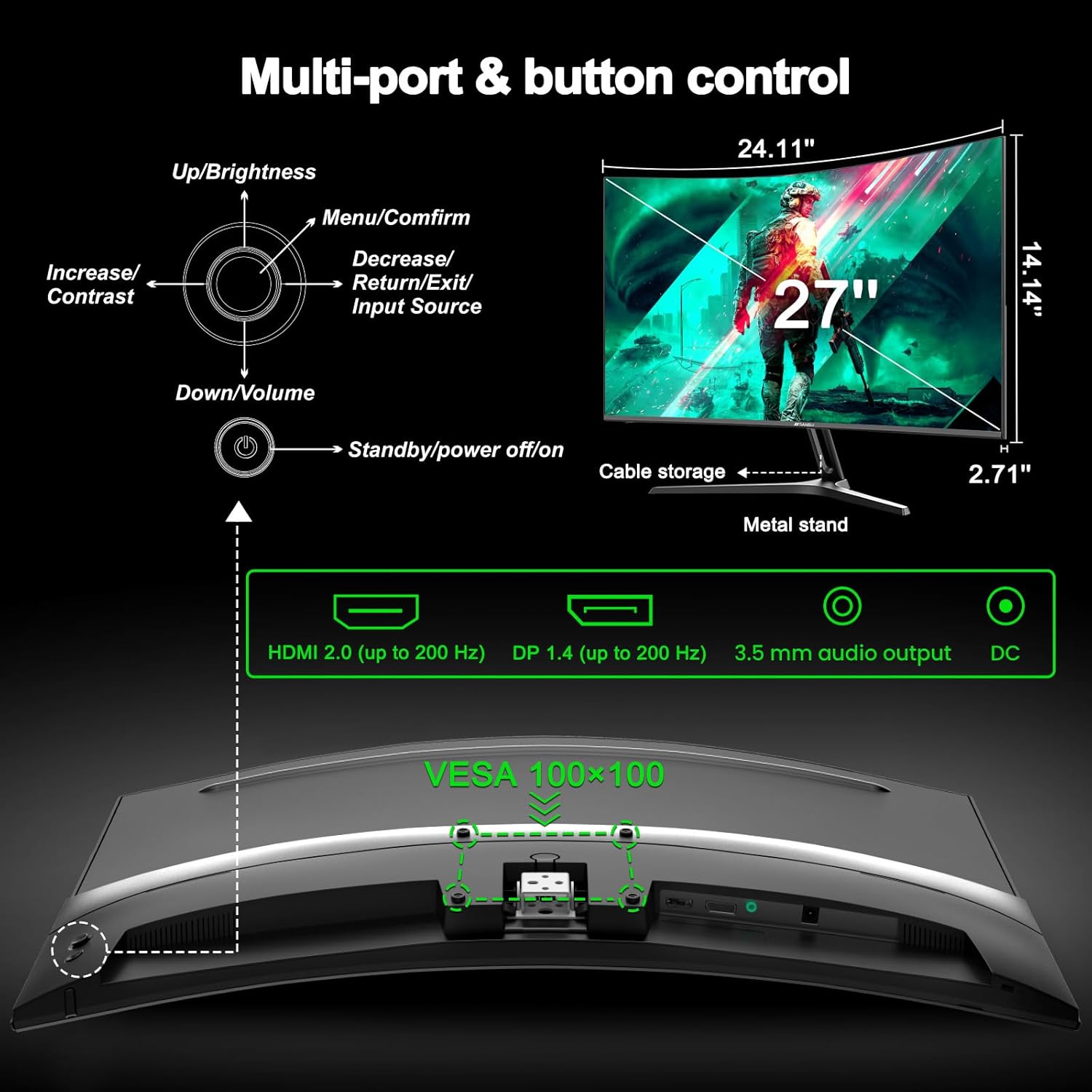
Image: A graphic detailing the monitor's game assist features, including Black Level Adjustment, Pinpoint aiming, and an on-screen Timer, shown in a first-person shooter context.
Konserwacja
Czyszczenie monitora
Aby wyczyścić ekran monitora, delikatnie przetrzyj go miękką, niepozostawiającą włókien ściereczką. W przypadku uporczywych zabrudzeń,ampDelikatnie zwilż ściereczkę wodą lub nieściernym środkiem do czyszczenia ekranów. Nie rozpylaj środka czyszczącego bezpośrednio na ekran.
Do monitora casing, use a soft, dry cloth. Avoid using harsh chemicals or abrasive materials.
Składowanie
If storing the monitor for an extended period, disconnect all cables and pack it in its original packaging if possible. Store in a cool, dry place away from direct sunlight and extreme temperatures.
Rozwiązywanie problemów
If you encounter issues with your Minifire MFG27C1 monitor, refer to the following common problems and solutions:
Brak zasilania
- Upewnij się, że kabel zasilający jest prawidłowo podłączony do monitora i do działającego gniazdka elektrycznego.
- Sprawdź, czy zasilacz działa prawidłowo.
- Naciśnij mocno przycisk zasilania.
Brak sygnału
- Check that the HDMI or DisplayPort cable is securely connected to both the monitor and your computer.
- Upewnij się, że komputer jest włączony i nie znajduje się w trybie uśpienia.
- Wybierz właściwe źródło sygnału wejściowego za pomocą menu OSD.
- Jeśli to możliwe, spróbuj użyć innego kabla wideo lub portu.
Migotanie lub rozrywanie obrazu
- Ensure AMD FreeSync is enabled in both the monitor's OSD menu and your graphics card settings.
- Sprawdź, czy sterowniki Twojej karty graficznej są aktualne.
- Check the refresh rate setting in your operating system's display settings; it should be set to 200Hz.
Brak dźwięku z wbudowanych głośników
- Check the volume level in the monitor's OSD menu and your computer's sound settings.
- Sprawdź, czy w ustawieniach dźwięku komputera wybrano właściwe urządzenie wyjściowe audio.
- If using HDMI/DisplayPort, ensure your graphics card is sending audio.
- If using the 3.5mm audio output, ensure external speakers/headphones are properly connected and powered.
Przyciski nie odpowiadają
- Unplug the monitor's power cable, wait 30 seconds, then plug it back in to reset the monitor.
- Ensure no objects are obstructing the buttons.
Specyfikacje
| Funkcja | Specyfikacja |
|---|---|
| Marka | Miniognisko |
| Numer modelu | MFG27C1-200 |
| Rozmiar ekranu | 27 cali |
| Rezolucja | FHD 1080p (1920x1080) |
| Proporcje obrazu | 16:9 |
| Typ panelu | VA |
| Powierzchnia ekranu | Matowy |
| Krzywizna | 1500R |
| Częstotliwość odświeżania | 200 Hz |
| Czas reakcji | 1 milisekunda (MPRT) |
| Współczynnik kontrastu | 2000:1 |
| Kolorowa wartość gamutowa | 130% sRGB |
| Technologia adaptacyjnej synchronizacji | FreeSync |
| Łączność | HDMI 2.0 (up to 200 Hz), DisplayPort 1.4 (up to 200 Hz), 3.5mm Audio Output |
| Wbudowane głośniki | Tak |
| Moc Objętośćtage | 240 wolty |
| Wymiary przedmiotu (gł. x szer. x wys.) | 68.5 x 43.5 x 12.6 centymetra |
| Waga przedmiotu | 3.3 kilograma |
| Kolor | Czarny |
Bardziej szczegółowe informacje na temat energii można znaleźć w bazie danych UE EPREL: https://eprel.ec.europa.eu/qr/2074259
Gwarancja i wsparcie
Minifire is committed to providing high-quality products and customer satisfaction. Your Minifire MFG27C1 monitor comes with the following:
- 24 miesięcy gwarancji: Enjoy peace of mind with a comprehensive 24-month warranty covering manufacturing defects.
- 14-Day Money-Back or Return Guarantee: If you are not satisfied with your purchase, you may be eligible for a return or refund within 14 days.
- Profesjonalna obsługa klienta: Our dedicated support team is available to assist you with any product-related inquiries.
- Lifetime Free Technical Support: Benefit from complimentary technical assistance for the lifetime of your product.
For further assistance, please visit the official Minifire webstronie internetowej lub skontaktuj się z naszym zespołem obsługi klienta.

Image: An infographic detailing the warranty and support services offered by Minifire, including a 24-month warranty and lifetime technical support.