
1. Koniec produktuview
The CITLLA PRO MAX E510 is an ergonomic wireless mouse designed for comfort and efficiency across multiple devices. It features dual Bluetooth and 2.4G wireless connectivity, adjustable DPI settings, and a unique smart flying scroll wheel with a side thumb wheel for enhanced navigation.

Image: The CITLLA PRO MAX E510 Wireless Bluetooth Mouse in white, showcasindzięki ergonomicznej konstrukcji i wielu przyciskom.
2. Instrukcje konfiguracji
2.1 Pierwsze ładowanie
Before first use, fully charge the mouse using the provided USB-C cable. The charging port is located at the front of the mouse. A full charge can last up to 60 days. The mouse features an auto-sleep mode after 15 minutes of inactivity to conserve battery life.
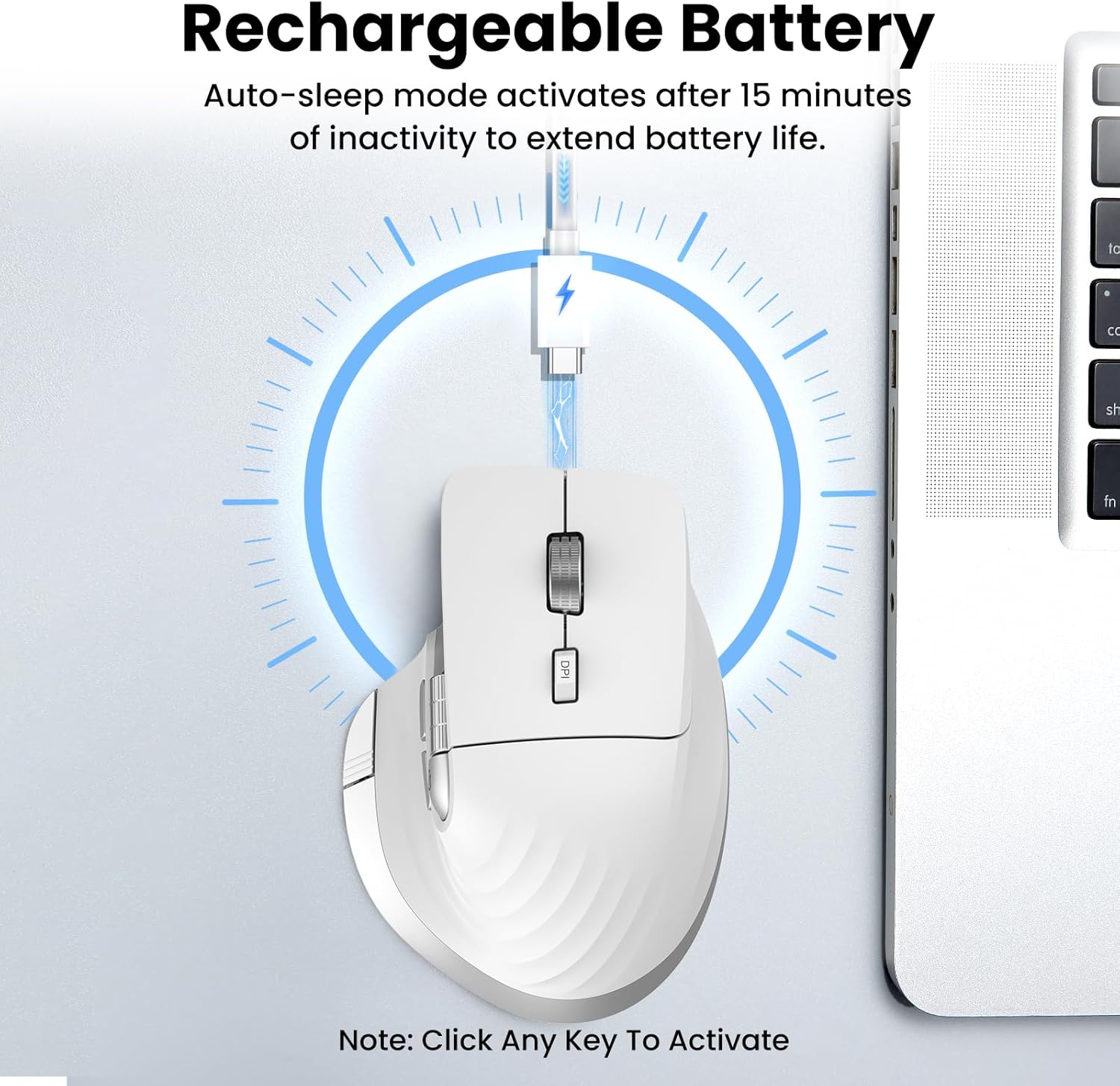
Image: The mouse connected to a USB-C charging cable, illustrating the rechargeable battery feature.
2.2 Łączenie się z urządzeniami
The mouse supports connection to up to three devices via 2.4G wireless (USB receiver) and two Bluetooth channels (Bluetooth 1, Bluetooth 2).
- Połączenie bezprzewodowe 2.4G:
- Znajdź odbiornik USB znajdujący się w schowku na spodzie myszy.
- Podłącz odbiornik USB do dostępnego portu USB w komputerze.
- Włącz mysz za pomocą przełącznika Wł./Wył. znajdującego się na spodzie.
- Press the 'Devices Switch Button' (labeled 6 in the button diagram) until the white indicator light for 2.4G (labeled 7) illuminates. The mouse should now be connected.
- Bluetooth Connection (Bluetooth 1 / Bluetooth 2):
- Włącz mysz za pomocą przełącznika Wł./Wył.
- Press the 'Devices Switch Button' (6) to select either Bluetooth 1 (blue indicator) or Bluetooth 2 (green indicator).
- Press and hold the 'Devices Switch Button' for 3-5 seconds until the selected Bluetooth indicator light starts flashing rapidly. This indicates pairing mode.
- Na swoim urządzeniu (laptopie, tablecie, smartfonie) przejdź do ustawień Bluetooth i wyszukaj nowe urządzenia.
- Select "CITLLA E510" (or similar name) from the list of available devices to pair.
- Po sparowaniu lampka kontrolna przestanie migać i pozostanie światłem ciągłym.

Image: Diagram showing the mouse wirelessly connected to a laptop, desktop monitor, and tablet, illustrating its multi-device capability.
3. Instrukcja obsługi
3.1 Funkcje przycisków

Image: Detailed diagram of the mouse buttons and their corresponding functions.
- 1. Lewy przycisk: Standardowa funkcja lewego kliknięcia.
- 2. Prawy przycisk: Standardowa funkcja prawego przycisku myszy.
- 3. Inteligentne latające kółko przewijania: For ultra-fast, nearly silent vertical scrolling.
- 4. DPI Button: Press to cycle through 4 adjustable DPI levels (1000/1600/2400/3200).
- 5. Side Wheel: For fast horizontal scrolling.
- 6. Devices Switch Button: Press to switch between connected devices (2.4G, Bluetooth 1, Bluetooth 2). Press and hold to enter Bluetooth pairing mode.
- 7. Devices Indicators: White for 2.4G, Blue for Bluetooth 1, Green for Bluetooth 2. Also includes a low power indicator.
- 8. Forward/Back Buttons: Navigate forward/back in web browsers or switch applications (macOS).
- 9. Return to Desktop Button: Instantly minimizes all windows to show the desktop (Windows only). For macOS, this button can be used for Full Screen (Control+Command+F).
3.2 Scrolling Functions
The mouse features two distinct scrolling mechanisms:
- Ten Inteligentne latające kółko przewijania (3) on top provides smooth and rapid vertical scrolling, ideal for long documents or web stron.
- Ten Koło boczne (5) allows for horizontal scrolling, which is particularly useful for navigating wide spreadsheets or timelines.
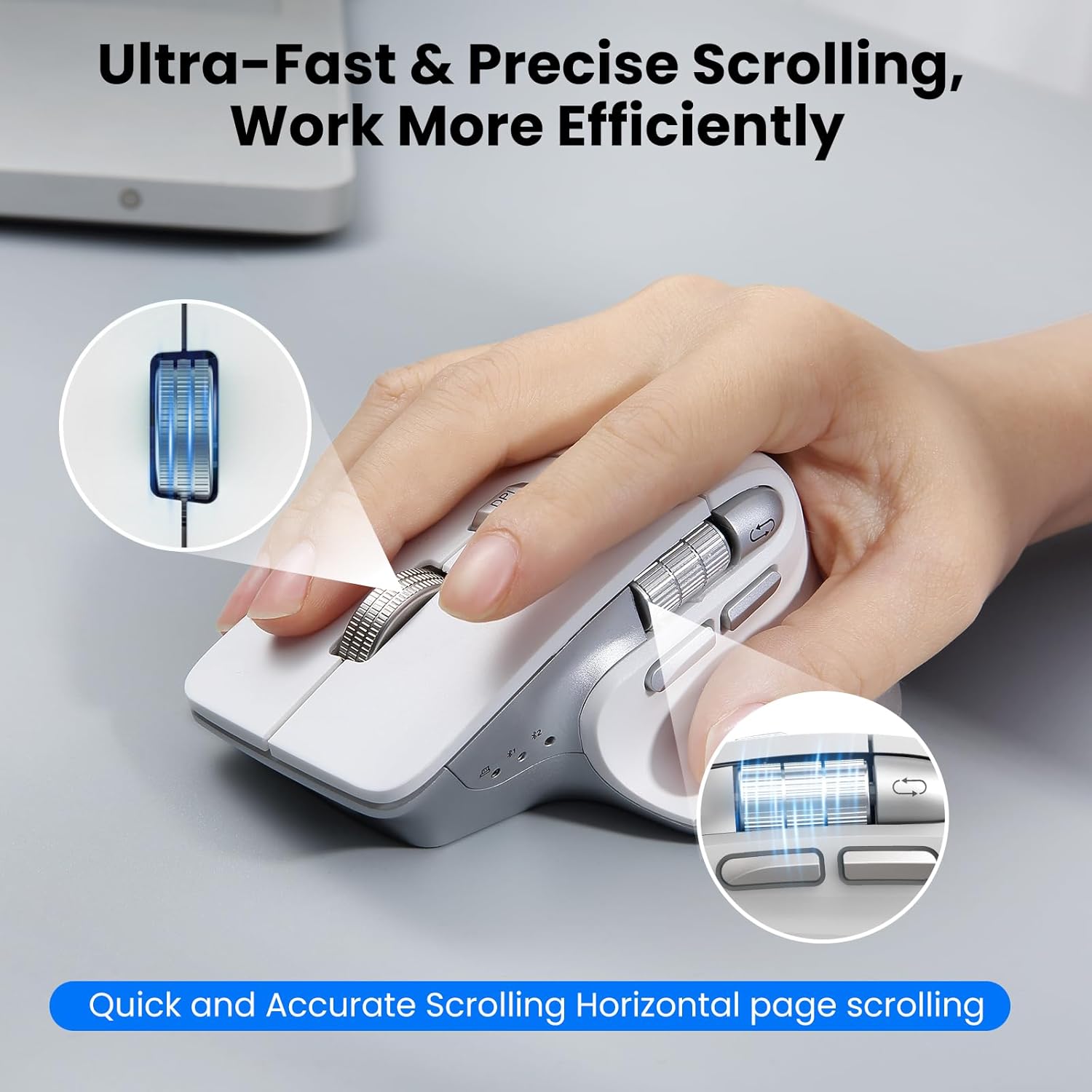
Image: A hand operating the mouse, highlighting the smart flying scroll wheel and the side thumb wheel for efficient navigation.
3.3 Regulacja DPI
The DPI (Dots Per Inch) button (4) allows you to adjust the cursor sensitivity. Press the DPI button to cycle through the four available settings: 1000, 1600, 2400, and 3200 DPI. Choose a setting that best suits your task, whether it's precise graphic design or fast-paced gaming.

Image: A visual representation of the 4-level adjustable DPI settings (1000, 1600, 2400, 3200 DPI).
3.4 Funkcje specjalne
- Konstrukcja Silent Click: The mouse is engineered for quiet operation, making it suitable for shared workspaces and quiet environments.
- Return to Desktop (Windows Only): The dedicated button (9) provides a quick way to minimize all open windows and display your desktop. This feature is specific to Windows operating systems.

Image: A laptop screen showing multiple open windows, with an arrow indicating the 'Return to Desktop' button on the mouse minimizing them.
3.5 Wideo z funkcjami produktu
Video: An official product video from CITLLA showcasing the key features and functionality of the PRO MAX E510 Wireless Bluetooth Mouse, including its ergonomic design, multi-device connectivity, and smart scrolling.
4. Konserwacja
4.1 Czyszczenie
To maintain optimal performance, regularly clean your mouse. Use a soft, dry cloth to wipe the exterior. For stubborn dirt, a slightly damp Można użyć ściereczki, aby zapobiec przedostaniu się wilgoci do wnętrza podzespołów. Unikaj agresywnych środków chemicznych i materiałów ściernych.
4.2 Pielęgnacja baterii
The mouse is equipped with a rechargeable battery. Charge it using a standard USB-C cable. The low power indicator will alert you when charging is needed. To prolong battery life, the mouse enters an auto-sleep mode after 15 minutes of inactivity. Click any button to reactivate it.
5. Rozwiązywanie Problemów
- Mysz nie odpowiada:
- Upewnij się, że mysz jest włączona.
- Sprawdź poziom naładowania akumulatora i w razie potrzeby naładuj.
- Verify the correct connection mode (2.4G, BT1, BT2) is selected using the Devices Switch Button.
- W przypadku sieci 2.4G należy upewnić się, że odbiornik USB jest prawidłowo podłączony.
- For Bluetooth, re-pair the mouse with your device.
- Ruch kursora jest nieregularny lub powolny:
- Adjust the DPI setting using the DPI button (4) to a higher sensitivity.
- Upewnij się, że czujnik myszy jest czysty i nie ma w nim żadnych przeszkód.
- Use the mouse on a suitable surface (e.g., a mouse pad).
- Nie można przełączać się między urządzeniami:
- Sprawdź, czy wszystkie urządzenia są prawidłowo sparowane/połączone z odpowiednimi kanałami (2.4G, BT1, BT2).
- Press the Devices Switch Button (6) firmly to cycle through the connections.
- Return to Desktop button not working:
- This feature is only supported on Windows systems.
- Upewnij się, że Twój system operacyjny Windows jest aktualny.
6. Specyfikacje
| Wymiary produktu | 4.6 x 2.6 x 0.04 cala |
| Waga przedmiotu | 6.7 uncji |
| Baterie | 1 niestandardowa bateria (w zestawie) |
| Technologia łączności | Bluetooth, 2.4G USB Bezprzewodowy |
| Cechy specjalne | 4 Way Scrolling, Ergonomic Design, Rechargeable, Silent Click, Wireless |
| Technologia wykrywania ruchu | Optyczny |
7. Zgodność
The CITLLA PRO MAX E510 Wireless Bluetooth Mouse is compatible with a wide range of operating systems:
- Okna
- Mac OS
- System operacyjny Chrome
- Linux
- iOS
- Android

Image: Icons for Android, Linux, Windows, Chrome OS, and Mac OS, indicating wide compatibility.
8. Co znajduje się w pudełku
- CITLLA PRO MAX E510 Wireless Bluetooth Mouse
- Kabel ładujący USB-C
- 2.4G USB Receiver (stored in mouse)
- Instrukcja obsługi
9. Gwarancja i wsparcie
For warranty information, technical support, or any inquiries regarding your CITLLA PRO MAX E510 Wireless Bluetooth Mouse, please refer to the contact information provided in the packaging or visit the official CITLLA website. Our customer service team is available to assist you with any product-related concerns.