
Wstęp
Thank you for choosing the Rapoo 9390M Wireless Multi-Mode Keyboard and Mouse Combo. This ultra-slim set offers versatile connectivity options, including 2.4 GHz wireless and Bluetooth 4.0/5.0, allowing seamless switching between multiple devices. Designed for efficiency and comfort, this combo features a full-size QWERTZ keyboard with multimedia keys and an ambidextrous optical mouse.
This manual provides essential information for setting up, operating, and maintaining your new Rapoo 9390M combo. Please read it carefully before use.
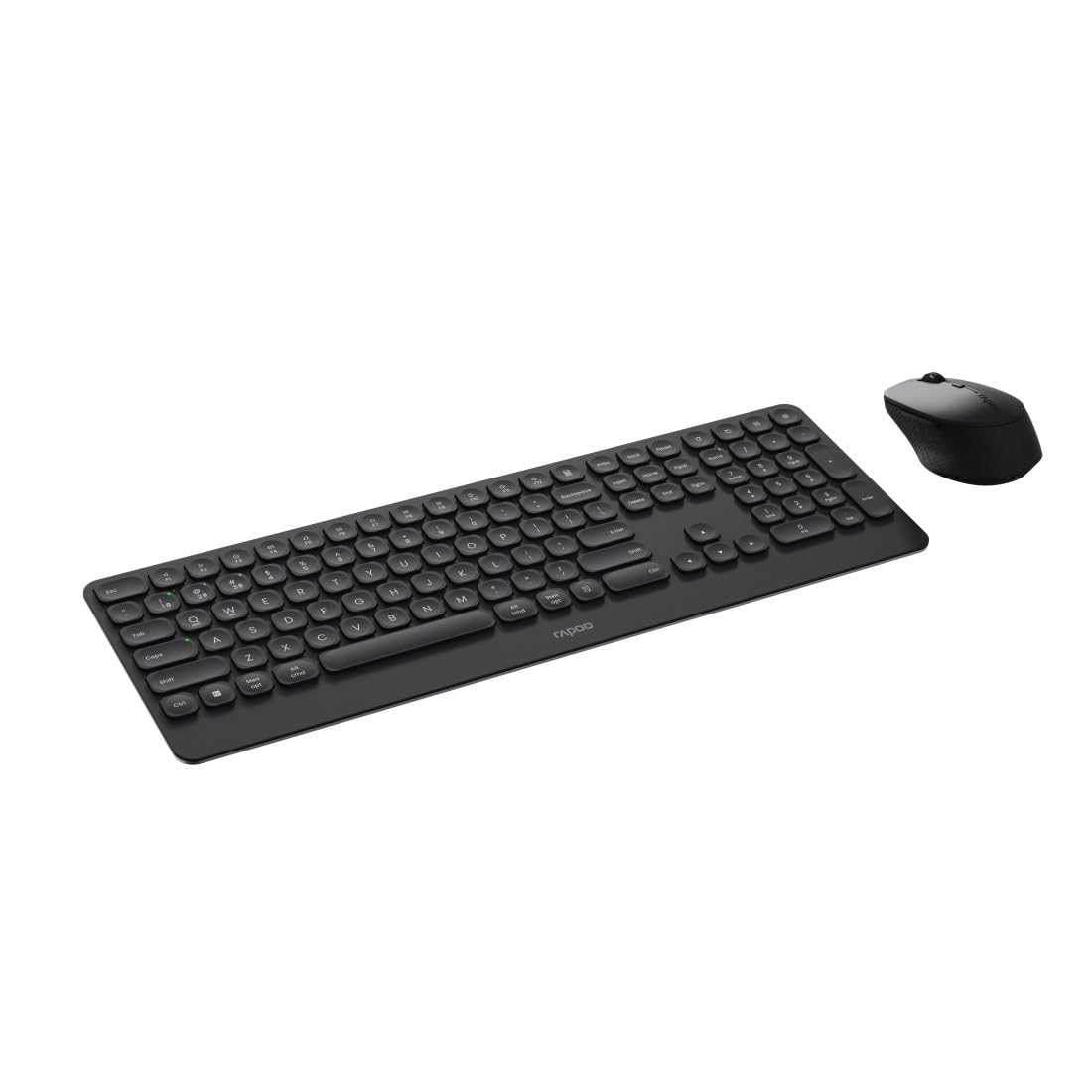
Image: The Rapoo 9390M wireless keyboard and mouse combo, showcasing its sleek design and full QWERTZ layout.
Organizować coś
1. Instalacja baterii
The Rapoo 9390M combo requires batteries for operation. Ensure correct polarity when inserting.
- Klawiatura: Requires 2 x AAA alkaline batteries.
- Mysz: Requires 1 x AA alkaline battery.
Batteries are included in the package.

Obraz: Profesjonalista z bokufile of the Rapoo 9390M keyboard and mouse, illustrating their ultra-slim design. Battery compartments are typically located on the underside of each device.
2. Podłączanie urządzeń
The Rapoo 9390M supports multi-mode connectivity: 2.4 GHz wireless via USB receiver and Bluetooth 4.0/5.0.
2.1. Połączenie bezprzewodowe 2.4 GHz
- Insert the USB receiver into an available USB Type-A port on your computer or device.
- Włącz klawiaturę i mysz za pomocą odpowiednich przełączników zasilania.
- Urządzenia powinny automatycznie połączyć się z komputerem.
2.2. Połączenie Bluetooth
The keyboard can pair with up to 3 Bluetooth devices, and the mouse with up to 2.
Parowanie klawiatury Bluetooth:
- Włącz klawiaturę.
- Naciśnij i przytrzymaj Fn + 1, Fn + 2, Lub Fn + 3 for 3 seconds to select a Bluetooth channel. The indicator light will flash slowly.
- Open Bluetooth settings on your device (PC, laptop, tablet, TV).
- Szukaj "Rapoo BT3.0 Keyboard" or "Rapoo BT5.0 Keyboard" and select to pair.
- Po sparowaniu kontrolka przestanie migać.
Parowanie myszy Bluetooth:
- Włącz mysz.
- Press the Bluetooth pairing button on the underside of the mouse. The indicator light will flash slowly.
- Otwórz ustawienia Bluetooth na swoim urządzeniu.
- Szukaj "Rapoo BT3.0 Mouse" or "Rapoo BT5.0 Mouse" and select to pair.
- Po sparowaniu kontrolka przestanie migać.
Instrukcja obsługi
1. Przełączanie między podłączonymi urządzeniami
The Rapoo 9390M allows you to switch between multiple connected devices (up to 4 for keyboard, 3 for mouse, including 2.4 GHz).
- Klawiatura: Naciskać Fn + 1, Fn + 2, Fn + 3 (for Bluetooth devices) or Fn + 4 (for 2.4 GHz USB receiver) to switch between paired devices.
- Mysz: Press the mode switch button on the underside of the mouse to cycle between Bluetooth 1, Bluetooth 2, and 2.4 GHz modes.
2. Funkcje klawiatury
The keyboard features a full QWERTZ layout with 110 keys, including a numeric keypad and dedicated function keys.
- Klucze multimedialne: Użyj klawiszy funkcyjnych (F1-F12) w połączeniu z Fn key to access multimedia controls (e.g., volume, play/pause, browser).
- Przyciski przeglądarki: Dedicated keys for browser functions may be present.

Obraz: widok z góry view of the Rapoo 9390M keyboard and mouse, highlighting the QWERTZ key layout and mouse button configuration.
3. Funkcje myszy
The optical mouse features 5 buttons, including a scroll wheel, and adjustable DPI.
- Regulacja DPI: The mouse supports a DPI range of up to 2400. A dedicated DPI button (often located near the scroll wheel) allows you to cycle through different sensitivity levels.
- Oburęczna konstrukcja: The mouse is designed for comfortable use by both right-handed and left-handed users.
Konserwacja
1. Czyszczenie
To ensure optimal performance and longevity, keep your keyboard and mouse clean.
- Użyj miękkiej, niestrzępiącej się ściereczki, lekko wyczyśćampwodą lub łagodnym roztworem czyszczącym.
- Avoid harsh chemicals, abrasive cleaners, or excessive moisture.
- W przypadku klawiatury należy użyć sprężonego powietrza, aby usunąć kurz i zanieczyszczenia spomiędzy klawiszy.
2. Wymiana baterii
When the battery indicator light flashes or performance degrades, it's time to replace the batteries.
- Open the battery compartment on the underside of the keyboard (2x AAA) and mouse (1x AA).
- Wyjmij stare baterie i zutylizuj je w sposób odpowiedzialny, zgodnie z lokalnymi przepisami.
- Insert new alkaline batteries, ensuring correct polarity.
- Dokładnie zamknij komorę baterii.
Rozwiązywanie problemów
Problemy z połączeniem
- No connection (2.4 GHz): Ensure the USB receiver is securely plugged into a working USB port. Try a different USB port. Ensure the keyboard and mouse are powered on.
- No connection (Bluetooth): Ensure Bluetooth is enabled on your device. Re-initiate the pairing process as described in the Setup section. Ensure the keyboard/mouse is in Bluetooth mode and not 2.4 GHz mode.
- Przerywane połączenie: Move the devices closer to the receiver/device. Avoid placing the devices near other wireless interference sources (e.g., Wi-Fi routers, other wireless peripherals).
Input Not Registering / Lag
- Sprawdź baterie: Low batteries can cause performance issues. Replace them if necessary.
- Tryby przełączania: Ensure the keyboard and mouse are set to the correct connection mode (2.4 GHz or Bluetooth) for the device you are using.
- Uruchom ponownie urządzenia: Turn off and on the keyboard, mouse, and your computer/device.
Specyfikacje
| Funkcja | Opis |
|---|---|
| Model | 9390 mln |
| Łączność | 2.4 GHz RF (USB Type-A receiver), Bluetooth 4.0, Bluetooth 5.0 |
| Układ klawiatury | QWERTZ (niemiecki) |
| Klawisze klawiatury | 110 keys, Scissor mechanism, Laser engraved keycaps |
| Funkcje klawiatury | Multimedia keys, Browser buttons, Ultra-slim design, Aluminum base |
| Czujnik myszy | Optyczny |
| DPI myszy | Do 2400 DPI |
| Przyciski myszy | 5 buttons (including scroll wheel) |
| Projekt myszy | Ambidextrous, High-quality plastic |
| Zasięg działania | Do 10 metrów |
| Zgodność z systemem operacyjnym | Windows XP / Vista / 7/8 / 10 / 11 |
| Źródło zasilania | Battery powered (Alkaline) |
| Baterie w zestawie | Yes (2x AAA for keyboard, 1x AA for mouse) |
| Keyboard Dimensions (W x D x H) | Wymiary 42.6 x 14.3 x 2 cm |
| Waga klawiatury | 409 gramów |
| Mouse Dimensions (W x D x H) | Wymiary 6.6 x 10.4 x 3.7 cm |
| Waga myszy | 60 gramów |
Gwarancja i wsparcie
For warranty information and technical support, please refer to the warranty card included in your product packaging or visit the official Rapoo webZachowaj dowód zakupu na wypadek roszczeń gwarancyjnych.