
1. Wprowadzenie
This manual provides detailed instructions for the installation, operation, and maintenance of your Ctronics 4K Outdoor Security Camera (Model 550C-Z30B-4K). This camera features a 4K sensor, 30x optical zoom, AI-powered human/vehicle/pet detection with auto-tracking, advanced night vision, dual-band Wi-Fi, and flexible storage options. Please read this manual thoroughly before use to ensure proper setup and functionality.
2. Informacje dotyczące bezpieczeństwa
- Ensure the power adapter is suitable for your local voltagi aktualnych wymagań.
- Nie wystawiaj aparatu na działanie ekstremalnych temperatur, wilgoci ani środowiska powodującego korozję.
- Avoid direct exposure of the lens to strong light sources to prevent damage.
- Przed przystąpieniem do prac konserwacyjnych lub instalacyjnych należy odłączyć zasilanie.
- Przechowuj aparat i akcesoria poza zasięgiem dzieci.
3. Zawartość opakowania
Sprawdź, czy w przesyłce znajdują się wszystkie elementy:
- Ctronics 4K Outdoor Security Camera
- Instrukcja obsługi
- Śruby montażowe
- Zasilacz
- Stand (for mounting)
4. Koniec produktuview
The Ctronics 4K Outdoor Security Camera is designed for robust outdoor surveillance, featuring a durable full-metal body and advanced imaging capabilities.
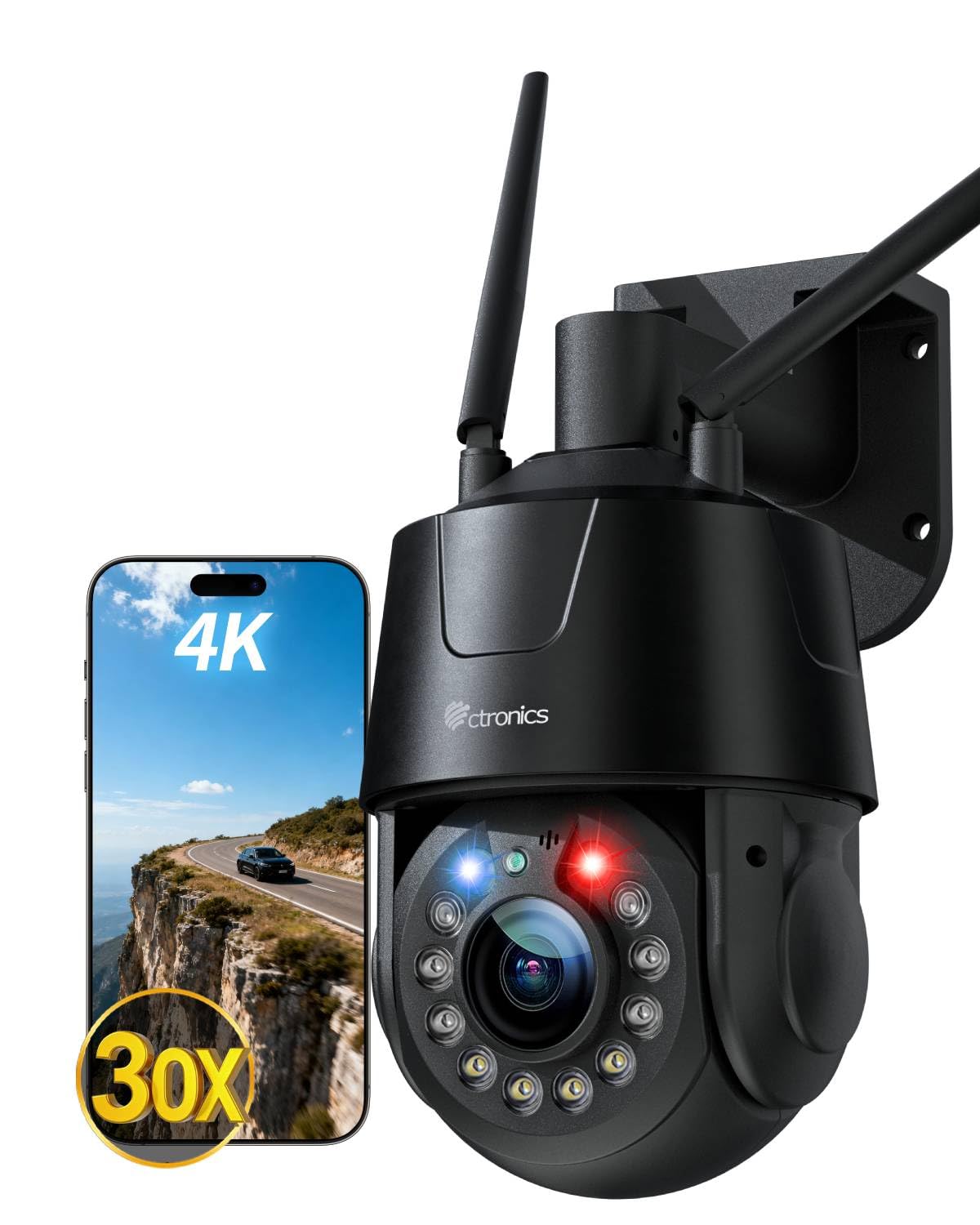
Obraz: Ponadview of the Ctronics 4K Outdoor Security Camera, highlighting its 4K resolution and night vision features.
5. Konfiguracja
5.1 Fizyczna instalacja
Kamerę można zamontować zarówno na ścianie, jak i na suficie. Wybierz miejsce zapewniające optymalny montaż. viewing coverage and is within reach of a power source.
- Wybierz miejsce montażu: Identify a suitable outdoor location, ensuring a clear line of sight and protection from direct impact.
- Wiercenie otworów: Use the provided mounting template (if applicable) or the camera base to mark and drill pilot holes for the mounting screws.
- Zabezpiecz stojak: Attach the camera stand securely to the wall or ceiling using the provided mounting screws.
- Podłącz kamerę: Mount the camera onto the secured stand. Adjust the angle as needed.
5.2 Połączenie zasilania
Connect the provided power adapter to the camera's power input port and then plug it into a standard electrical outlet. Ensure the connection is secure and protected from weather elements.
5.3 Połączenie sieciowe
The camera supports both wired Ethernet and dual-band (2.4G/5G) Wi-Fi connectivity.

Image: The camera illustrating its support for both 2.4G/5G Wi-Fi and wired Ethernet connections for flexible setup.
- Połączenie przewodowe: Connect an Ethernet cable from your router to the camera's Ethernet port.
- Połączenie bezprzewodowe (Wi-Fi):
- Bluetooth Quick Pairing: For initial setup, use the Ctronics APP and follow the on-screen instructions for Bluetooth quick pairing. This simplifies connecting the camera to your Wi-Fi network.
- Manual Wi-Fi Setup: If Bluetooth pairing is not used, connect your smartphone to the same Wi-Fi network (2.4GHz or 5GHz) you intend to use for the camera. Open the Ctronics APP, add the camera, and follow the prompts to enter your Wi-Fi credentials.
5.4 Instalacja aplikacji i konfiguracja początkowa
- Pobierz aplikację: Szukaj "Ctronics APP" in your mobile app store (iOS or Android) and install it.
- Zarejestruj Konto: Otwórz aplikację i zarejestruj nowe konto lub zaloguj się, jeśli już je posiadasz.
- Dodaj urządzenie: Tap the "+" icon to add a new device. Select your camera model and follow the in-app instructions for pairing.
- Konfiguruj ustawienia: After successful pairing, you can configure basic settings such as device name, time zone, and initial recording preferences.
6. Obsługa aparatu
6.1 Na żywo View i odtwarzanie
Uzyskaj dostęp do transmisji wideo na żywo iview nagrano footage through the Ctronics APP or compatible PC client.

Image: Demonstrating the flexible compatibility of the camera with both mobile applications and PC client software for live streaming and playback.
- Na żywo View: Select the camera from your device list in the app to view transmisja w czasie rzeczywistym.
- Odtwarzanie nagranego dźwięku: Navigate to the playback section in the app to access recorded videos stored on your microSD card, NVR, FTP, or cloud storage.
6.2 Wykrywanie sztucznej inteligencji i automatyczne śledzenie
The camera utilizes advanced AI to distinguish between humans, vehicles, and pets, reducing false alarms. It can automatically track detected subjects.

Image: The camera's smart detection feature identifying and tracking a person and a pet within its field of view.
- Włącz wykrywanie: In the app settings, enable AI detection for humans, vehicles, or pets as required.
- Activate Auto Tracking: Turn on the auto-tracking feature. When a detected subject moves, the camera will automatically pan and tilt to follow it, keeping it centered.
6.3 30x Optical Zoom
The camera features a 30x optical zoom lens, allowing for clear magnification of distant objects without loss of image quality.

Image: A visual representation of the camera's 30x optical zoom capability, showing a distant car magnified clearly.
- Ręczny zoom: Use the zoom controls in the live view interface of the app to manually adjust the optical zoom.
- Smart 3D Zoom: When auto-tracking is active, the camera can automatically adjust its zoom level to maintain a clear view of the tracked subject.
6.4 Tryby widzenia nocnego
The camera offers multiple night vision modes for clear surveillance in low-light conditions.

Image: The camera's night vision capabilities, including 50m full-color mode and 150m infrared (IR) mode for comprehensive nighttime coverage.
- Pełnokolorowa wizja nocna: Six high-brightness LEDs provide full-color vision up to 50 meters.
- Widzenie nocne w podczerwieni (IR): Provides black and white vision up to 150 meters in complete darkness.
- Tryb inteligentny: The camera can automatically switch between IR and full-color modes based on detected motion or ambient light.
6.5 Red-Blue Alarm Lights and Custom Sounds
The camera features red-blue warning lights and customizable siren sounds to actively deter intruders.
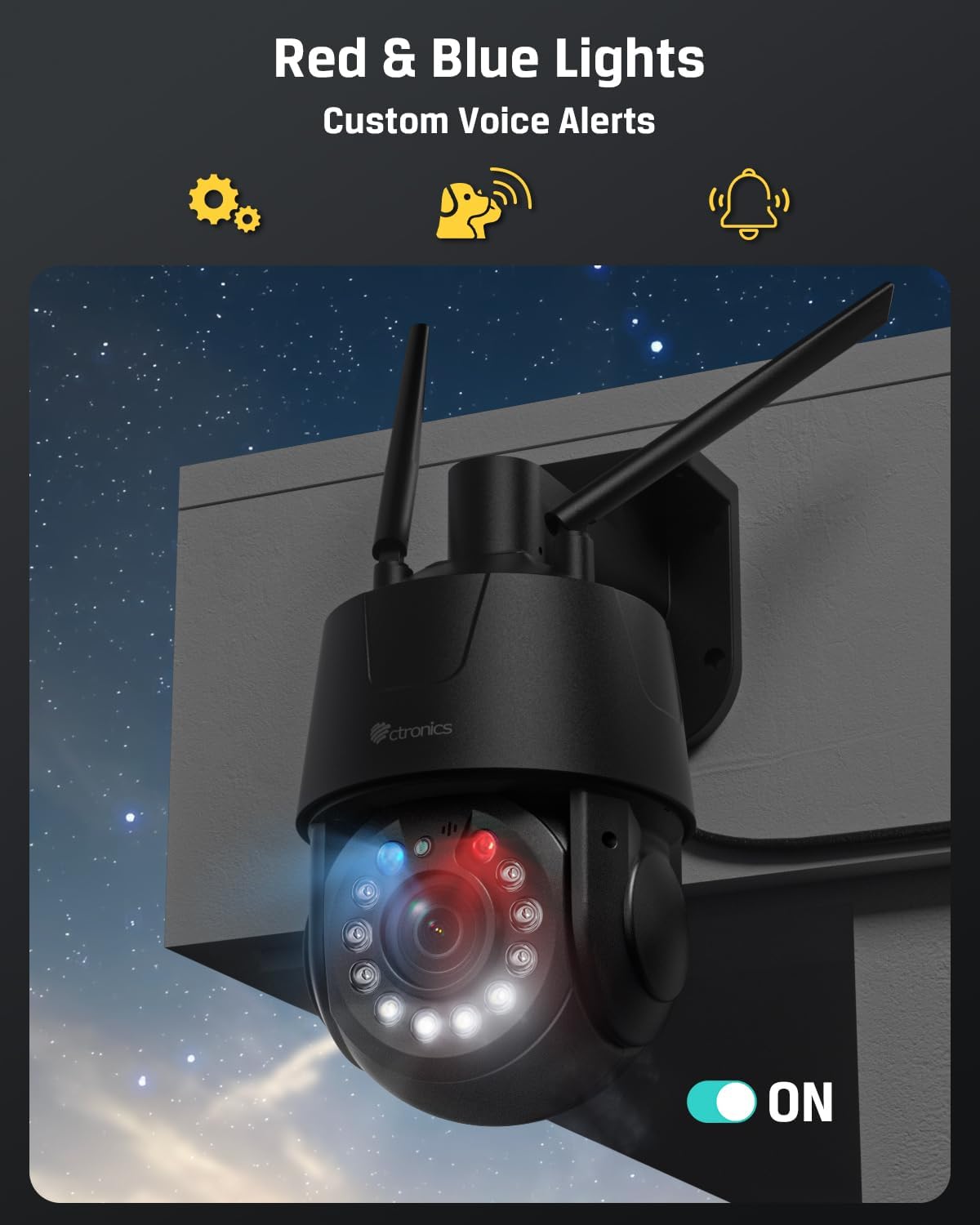
Image: The camera's red and blue alarm lights activated, indicating an alert or deterrent function.
- Włącz alarm: In the app settings, configure the camera to activate red-blue lights and/or siren sounds upon detection of motion or specific AI events.
- Customize Sounds: Upload or record custom alarm sounds through the app.
6.6 Preset Positions and Patrol Routes
Define specific viewing angles and automated patrol paths for comprehensive area coverage.

Zdjęcie: Zdjęcie lotnicze view illustrating the camera's ability to cover a large area using 32 preset points and 2 programmable patrol routes.
- Ustaw presety: Manually adjust the camera to a desired position, then save it as a preset point in the app. Up to 32 preset positions can be configured.
- Create Patrol Routes: Define a sequence of preset points to create a patrol route. The camera will automatically cycle through these points. Up to 2 patrol routes can be configured.
6.7 Opcje przechowywania
Kamera obsługuje różne metody przechowywania nagranych zdjęćtage.

Image: The camera showcasing its multiple storage options, including cloud, FTP, NVR/ONVIF, and support for a 256GB TF (microSD) card.
- Karta MicroSD: Insert a microSD card (up to 256GB, not included) into the designated slot for local storage.
- FTP/NAS: Configure FTP or NAS storage settings in the app to save recordings to a network server.
- Rejestrator NVR: Connect the camera to a compatible Network Video Recorder (NVR) for centralized recording.
- Przechowywanie w chmurze: Subscribe to Ctronics cloud storage services for off-site backup of your recordings.
6.8 Zgodność
The camera is compatible with various protocols and systems for integration into existing security setups.
- ONVIF: Supports ONVIF protocol for compatibility with third-party NVRs and surveillance software.
- RTSP: Provides an RTSP stream for integration with media players and custom surveillance solutions.
7. Konserwacja
- Czyszczenie: Regularnie czyść obiektyw aparatu miękką, suchą ściereczką, aby zapewnić wysoką jakość obrazu. Nie używaj silnych środków chemicznych.
- Aktualizacje oprogramowania układowego: Check the Ctronics APP periodically for available firmware updates. Keeping the firmware updated ensures optimal performance and access to new features.
- Cykl zasilania: If the camera experiences issues, try power cycling it by disconnecting and reconnecting the power adapter.
8. Rozwiązywanie Problemów
8.1 Kamera nie łączy się z siecią Wi-Fi
- Upewnij się, że kamera znajduje się w zasięgu routera Wi-Fi.
- Sprawdź, czy hasło Wi-Fi jest wpisane prawidłowo w aplikacji.
- Check if your router is broadcasting on 2.4GHz or 5GHz, and ensure the camera is attempting to connect to the correct band.
- Uruchom ponownie router i kamerę.
8.2 Brak obrazu lub słaba jakość obrazu
- Ensure the power adapter is properly connected and the camera is powered on.
- Wyczyść obiektyw aparatu, usuwając wszelkie zabrudzenia i smugi.
- Sprawdź prędkość swojego połączenia sieciowego. Wolne połączenie może mieć wpływ na transmisję na żywo. view jakość.
- Sprawdź, czy ustawienia rozdzielczości kamery w aplikacji odpowiadają przepustowości Twojej sieci.
8.3 Automatyczne śledzenie nie działa
- Ensure AI detection for humans/vehicles/pets is enabled in the app settings.
- Verify that the auto-tracking feature is activated.
- Sprawdź, czy w polu widzenia kamery nie ma żadnych przeszkód. view that might interfere with detection.
8.4 Recordings Not Saving
- If using a microSD card, ensure it is properly inserted, formatted, and has sufficient free space.
- If using cloud storage, verify your subscription status and network connection.
- For FTP/NAS/NVR, check network connectivity and configuration settings.
9. Specyfikacje
| Funkcja | Specyfikacja |
|---|---|
| Nazwa modelu | 550C-Z30B-4K |
| Zastosowanie wewnątrz/na zewnątrz | Plenerowy |
| Rozdzielczość przechwytywania wideo | 3840 (4 tys.) |
| Efektywna rozdzielczość obrazu nieruchomego | 8 MP |
| Zoom optyczny | 30x |
| Zakres noktowizora | 150 metrów (IR), 50 metrów (kolor) |
| Technologia łączności | Wired, Wireless (2.4G/5G Wi-Fi, Bluetooth, Ethernet) |
| Protokół łączności | Ethernet, ONVIF, RTSP, Wi-Fi |
| Opcje przechowywania | Micro SD (max 256GB), FTP, NAS, Cloud, NVR |
| Typ kontrolera | Aplikacja Ctronics |
| Typ montażu | Montaż ścienny, montaż sufitowy |
| Tworzywo | Metal |
| Poziom wodoodporności | Wodoodporny (IP66) |
| Źródło zasilania | Elektryczny przewodowy (12 V, 12 W) |
| Pozycja Wymiary (dł. x szer. x wys.) | 5.91 x 5.51 x 11.02 cala |
| Waga przedmiotu | 3.78 funta |
| Szybkość klatek | 15 klatek na sekundę |
| Kodowanie wideo | H.265 |
| Tryb pracy | Dźwięk i ruch |
| Cechy specjalne | 2-Way Audio, All-Metal Construction, HD Resolution, PTZ Technology |
10. Gwarancja i wsparcie
10.1 Informacje o gwarancji
Ctronics products typically come with a limited warranty covering manufacturing defects. Please refer to the warranty card included in your package or visit the official Ctronics website for specific warranty terms and conditions applicable to your region and purchase date.
10.2 Obsługa klienta
For technical assistance, troubleshooting, or any questions regarding your Ctronics 4K Outdoor Security Camera, please contact Ctronics customer support. Contact details can usually be found on the official Ctronics website or within the Ctronics APP.
- Wsparcie online: Odwiedź oficjalną stronę Ctronics webwitryna z odpowiedziami na często zadawane pytania, artykułami pomocy i formularzami kontaktowymi.
- Wsparcie e-mailowe: Refer to your product packaging or the Ctronics webstrona zawierająca adres e-mail działu obsługi klienta.


