
Drukarka Xprinter XP-420B
Instrukcja obsługi drukarki etykiet termicznych USB Xprinter XP-420B
Model: XP-420B
1. Koniec produktuview
The Xprinter XP-420B is a high-speed direct thermal label printer designed for various applications, including shipping labels. It offers a maximum print speed of 152 mm/s (6 inches/second) and a resolution of 203 DPI, ensuring clear and precise prints. Its robust double-walled clamshell design enhances durability, and the intelligent print head temperature control system ensures stable output. This printer is compatible with both Windows and Mac operating systems, making it a versatile solution for your labeling needs.
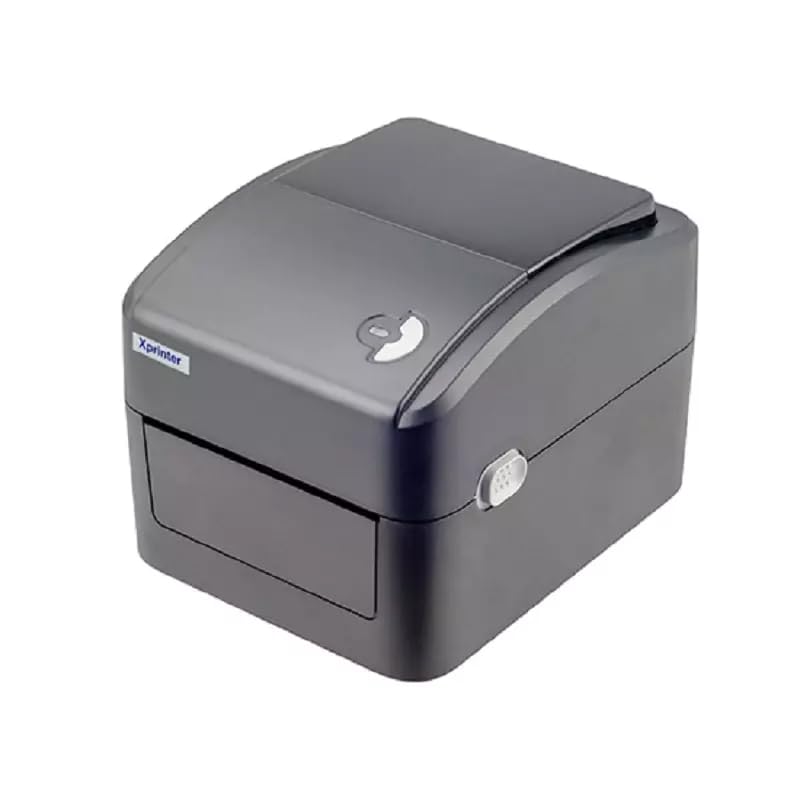
Rycina 1: Przód view of the Xprinter XP-420B thermal label printer.
2. Przewodnik konfiguracji
2.1 Rozpakowanie i wstępna kontrola
- Ostrożnie wyjmij drukarkę i wszystkie akcesoria z opakowania.
- Verify that all components are present: printer unit, power adapter, USB cable, and user manual.
- Inspect the printer for any visible damage that may have occurred during transit.
2.2 Podłączanie drukarki
- Podłącz zasilacz do portu zasilania drukarki, a następnie do gniazdka sieciowego.
- Connect one end of the provided USB cable to the printer's USB port and the other end to an available USB port on your computer.
- Power on the printer using the power switch, usually located on the side or rear.

Figure 2: Xprinter XP-420B showing USB connectivity.
2.3 Ładowanie etykiet
- Otwórz górną pokrywę drukarki, naciskając zatrzaski po obu stronach.
- Place the roll of thermal labels onto the label spindle, ensuring the labels feed from the bottom of the roll.
- Feed the leading edge of the labels through the label guide until it extends slightly past the print head.
- Adjust the movable label guides to fit the width of your labels snugly, without pinching them.
- Close the top cover firmly until it latches securely.
- The printer will automatically calibrate and detect the label size.
2.4 Instalacja sterownika
Before printing, you must install the appropriate printer drivers on your computer. Drivers are typically provided on a CD included with the printer or can be downloaded from the official Xprinter website. The XP-420B supports both Windows and Mac operating systems.
- Dla systemu Windows: Run the setup executable from the driver CD or downloaded file i postępuj zgodnie z instrukcjami wyświetlanymi na ekranie.
- Dla komputerów Mac: Download the Mac driver from the Xprinter website and follow the installation prompts.
3. Instrukcja obsługi
3.1 Podstawowe drukowanie
- Sprawdź, czy drukarka jest włączona i podłączona do komputera.
- Otwórz dokument lub aplikację, z której chcesz drukować (np. oprogramowanie do wysyłki, edytor tekstu).
- Wybierz „Drukuj” z menu aplikacji.
- Choose "Xprinter XP-420B" as your printer.
- In the printer settings or preferences, ensure the correct label size is selected. The printer supports adjustable label sizes.
- Kliknij „Drukuj”, aby wysłać zadanie do drukarki.
3.2 Adjusting Label Size
The XP-420B allows for adjustable label sizes. This adjustment is primarily done through the printer driver settings on your computer and by physically adjusting the label guides within the printer.
- Software Adjustment: In your printing application or printer driver settings, navigate to the "Page Setup" or "Paper Size" options. Select or define the custom dimensions for your labels (e.g., 4x6 inches for shipping labels).
- Regulacja fizyczna: As described in Section 2.3, ensure the internal label guides are set correctly to the width of your loaded labels.
4. Konserwacja
4.1 Czyszczenie głowicy drukującej
Regular cleaning of the print head is crucial for maintaining print quality and extending the printer's lifespan. It is recommended to clean the print head after every roll of labels or if print quality degrades.
- Wyłącz drukarkę i odłącz przewód zasilający.
- Otwórz górną pokrywę drukarki.
- Jeśli drukarka była niedawno używana, odczekaj kilka minut, aż głowica drukująca ostygnie.
- Gently wipe the print head surface with an alcohol swab or a lint-free cloth lightly dampnasączone alkoholem izopropylowym.
- Przed zamknięciem pokrywy i ponownym podłączeniem zasilania należy odczekać, aż głowica drukująca całkowicie wyschnie.
4.2 Ogólne czyszczenie
- Do czyszczenia zewnętrznej części drukarki należy używać miękkiej, suchej ściereczki.
- Remove any dust or label debris from the inside of the printer using a soft brush or compressed air.
- Nie należy używać środków czyszczących o właściwościach ściernych ani rozpuszczalników.
5. Rozwiązywanie Problemów
| Problem | Możliwa przyczyna | Rozwiązanie |
|---|---|---|
| Drukarka nie odpowiada | Power off; USB cable disconnected; Driver issue. | Ensure power is on and connected. Check USB cable. Reinstall printer driver. |
| Słaba jakość wydruku (wyblakły, linie) | Zabrudzona głowica drukująca; Nieprawidłowy typ etykiety; Zbyt niskie ustawienie gęstości druku. | Clean the print head (Section 4.1). Ensure you are using direct thermal labels. Adjust print density in driver settings. |
| Etykiety nie są podawane prawidłowo | Labels improperly loaded; Label guides not adjusted; Sensor obstruction. | Reload labels correctly. Adjust label guides. Clean any dust or debris from sensors. |
| Drukarka drukuje puste etykiety | Labels loaded upside down; Not a direct thermal label. | Ensure labels are loaded with the printable side facing up. Verify labels are direct thermal. |
6. Specyfikacje produktu
| Funkcja | Szczegół |
|---|---|
| Marka | Drukarka X |
| Nazwa modelu | XP-420B |
| Technologia łączności | USB |
| Technologia druku | Termiczny bezpośredni |
| Rezolucja | 203 DPI |
| Maksymalna prędkość druku | 152 mm/s (6 cali/sekundę) |
| Pamięć | 8MB SDRAM, 8MB Flash |
| Wyjście drukarki | Monochromia |
| Waga przedmiotu | 3 kilograma |
| Wymiary produktu | 20D x 6W x 10H centymetrów |
| Zgodność | Windows, Mac |
7. Gwarancja i wsparcie
7.1 Informacje o gwarancji
Drukarka Xprinter XP-420B jest wyposażona w: 1-letnia gwarancja od daty zakupu. Niniejsza gwarancja obejmuje wady produkcyjne i usterki powstałe w wyniku normalnego użytkowania. Prosimy zachować dowód zakupu na wypadek roszczeń gwarancyjnych.
7.2 Obsługa klienta
For technical assistance, troubleshooting beyond this manual, or warranty service, please contact Xprinter customer support. Refer to the contact information provided with your product packaging or visit the official Xprinter webna tej stronie znajdziesz najnowsze informacje dotyczące pomocy technicznej.
Ask a question about this manual
Ask about setup, troubleshooting, compatibility, parts, safety, or missing instructions. Manuals+ will review the question and use this page’s manual context to help answer it.