
1. Ważne informacje dotyczące bezpieczeństwa
Please read all safety instructions carefully before using the Aurzen BOOM Air projector. Keep this manual for future reference.
- Źródło zasilania: Use only the provided power adapter or a compatible USB-C power bank (65W+ output) to prevent damage.
- Wentylacja: Zapewnij odpowiednią wentylację wokół projektora. Nie blokuj otworów wentylacyjnych.
- Bezpieczeństwo oczu: Nie patrz bezpośrednio w obiektyw projektora, gdyamp is on. The bright light can cause eye strain or damage.
- Woda i wilgoć: Nie wystawiaj projektora na działanie deszczu, wilgoci ani żadnych płynów.
- Ciepło: Unikaj umieszczania projektora w pobliżu źródeł ciepła lub w bezpośrednim świetle słonecznym.
- Czyszczenie: Przed czyszczeniem odłącz zasilanie. Użyj miękkiej, suchej ściereczki. Nie używaj środków czyszczących w płynie ani aerozolu.
- Serwisowanie: Nie próbuj samodzielnie naprawiać tego produktu. Wszelkie czynności serwisowe należy powierzyć wykwalifikowanemu personelowi serwisowemu.
2. Zawartość opakowania
Sprawdź, czy w przesyłce znajdują się wszystkie elementy:
- 1 × Aurzen BOOM Air Smart Projector
- 1 × Power Cord & Adapter
- 1 × pilot zdalnego sterowania
- 1 × Cleaning Kit
- 1 × Instrukcja obsługi (ten dokument)
Note: An HDMI cable is not included.
3. Koniec produktuview
The Aurzen BOOM Air is a portable Google TV projector designed for versatile entertainment. It features native 1080P resolution with 4K support, 300 ANSI Lumens brightness, ToF real-time focus, Dolby Audio, and a flexible adjustable stand. It is powered via USB-C, allowing for use with compatible power banks.
Elementy projektora
Familiarize yourself with the main components of your projector:
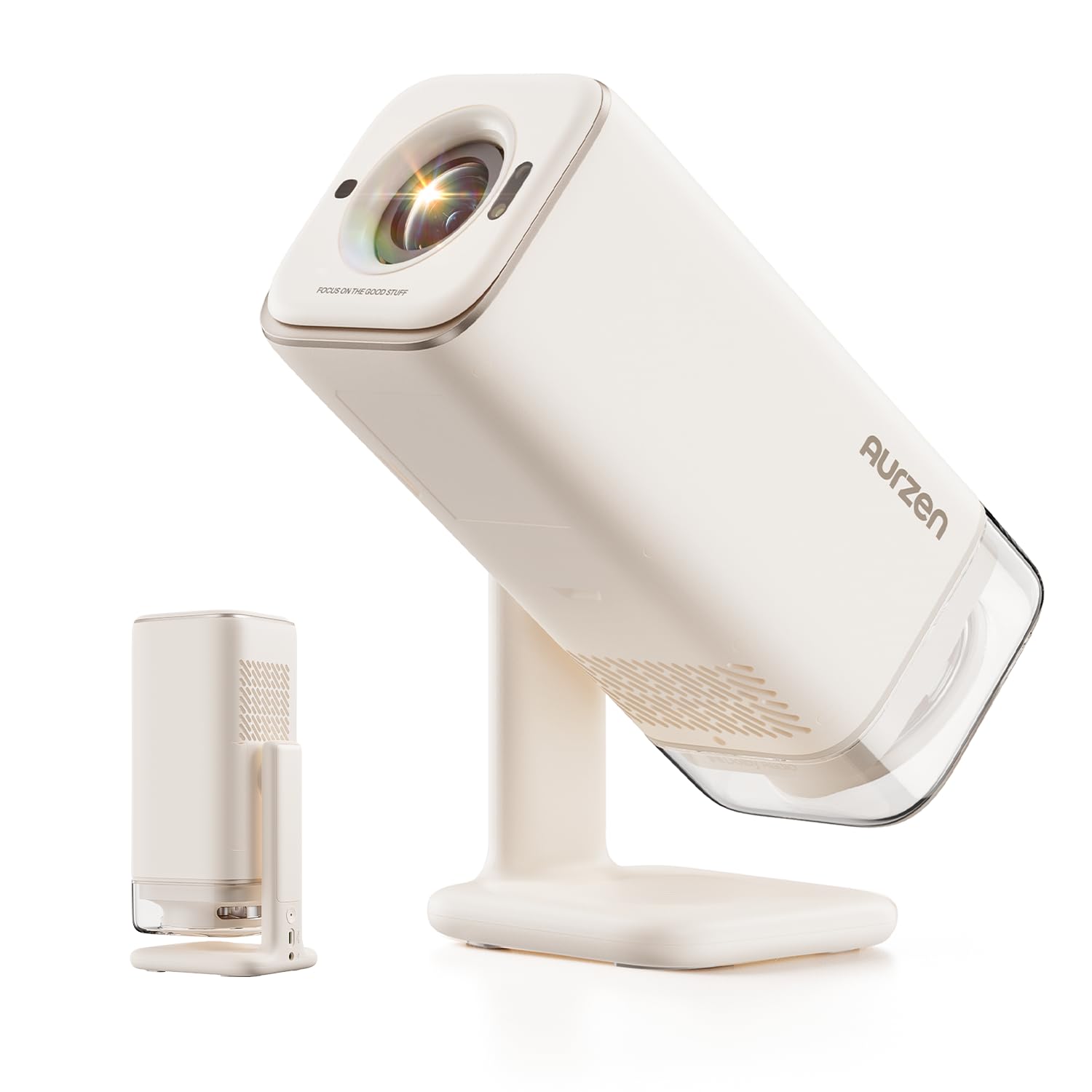
Obraz: Przód view of the Aurzen BOOM Air Portable Projector, showing the lens and compact design.

Image: Close-up of the Aurzen BOOM Air Projector, highlighting the USB and HDMI ports, and the overall compact design.
4. Konfiguracja
4.1 Włączanie
- Connect the provided power adapter to the projector's DC input port.
- Plug the power adapter into a wall outlet. Alternatively, connect a compatible USB-C power bank (65W or higher output) to the projector's USB-C power input.
- Naciśnij przycisk zasilania na projektorze lub pilocie, aby go włączyć.
4.2 Początkowa konfiguracja Google TV
Upon first use, you will be guided through the Google TV setup process:
- Postępuj zgodnie z instrukcjami wyświetlanymi na ekranie, aby wybrać swój język i region.
- Połącz się ze swoją siecią Wi-Fi, wybierając ją z listy i podając hasło.
- Zaloguj się za pomocą konta Google, aby uzyskać dostęp do funkcji i aplikacji Google TV.
Video: Instructions on how to pair the Bluetooth remote control with the projector. This is a crucial step for initial setup and navigation.
4.3 Umiejscowienie i projekcja
Position the projector on a stable surface. The adjustable stand allows for flexible projection angles, including ceiling projection.
- Zalecana odległość: For a 60-inch image, a projection distance of approximately 5.58 feet (1.78 meters) is recommended. Adjust the distance as needed for your desired screen size.
- Środowisko: For optimal clarity and brightness, use the projector in a dim or dark environment.

Image: The Aurzen BOOM Air Projector demonstrating its adjustable stand for various projection angles, including wall and ceiling projection.
Video: Demonstrates the recommended optimal viewing size and distance for the projector, showing a 60-inch image at 5.58 feet.
4.4 Korekcja ostrości i zniekształceń trapezowych
The BOOM Air features ToF (Time-of-Flight) technology for real-time focus and automatic keystone correction, ensuring a clear and properly shaped image even when the projector is moved or placed at an angle.
- Automatyczna regulacja: The projector will automatically adjust focus and keystone.
- Regulacja ręczna: If needed, you can manually adjust the focus using the dedicated focus buttons on the remote control.
Video: Shows how the electric focus function works, including manual adjustment using the remote control.
5. Instrukcja obsługi
5.1 Nawigacja w Google TV
Use the remote control to navigate the Google TV interface. The directional pad and select button are used for menu navigation, while dedicated buttons provide quick access to home, back, and app functions.
5.2 Aplikacje do strumieniowania
The projector comes with official Google TV built-in, providing access to over 10,000 streaming applications such as Netflix, YouTube, Prime Video, Hulu, HBO, Peacock, and Paramount+. Ensure a stable Wi-Fi connection for optimal streaming performance.

Image: The projector displaying the Google TV home screen, featuring various streaming application icons like Paramount+, YouTube, HBO Max, Peacock, Prime Video, and Hulu.
5.3 Sterowanie głosowe Google
Utilize the built-in Google Assistant for voice control. Press the dedicated voice button on your remote and speak commands to search for content, control playback, or adjust settings.
5.4 Przesyłanie treści
The projector supports Google Cast, allowing you to stream content wirelessly from Android, iOS, or laptop devices.
Video: A step-by-step guide on how to cast content from an Android phone to the projector.
5.5 Łączność z urządzeniami zewnętrznymi
Projektor oferuje różne porty umożliwiające podłączanie urządzeń zewnętrznych:
- HDMI: Connect laptops, PCs, TV sticks, or gaming consoles (e.g., PS5).
- USB: Connect USB disk drives for media playback or charge compatible devices.
- Wyjście audio (gniazdo 3.5 mm): Podłącz zewnętrzne głośniki lub słuchawki.
- Bluetooth: Connect wireless headphones or Bluetooth speakers for audio output, or use the projector as a Bluetooth speaker (two-way Bluetooth).

Image: A visual guide illustrating the various input and output connections available on the BOOM Air projector, including HDMI, USB, Audio Out, and USB-C Power.
Video: Explains the different input source interfaces available on the projector and their uses.
5.6 Tryb dziecięcy
The projector includes a Kids Mode feature that allows for managing screen time, filtering age-appropriate content, and supporting multi-user accounts for a safe viewdoświadczenie dla dzieci.
6. Konserwacja
Regularna konserwacja pomaga zapewnić długowieczność i optymalną wydajność projektora.
6.1 Czyszczenie obiektywu
Użyj dołączonego zestawu czyszczącego lub miękkiej, niepozostawiającej włókien ściereczki przeznaczonej specjalnie do soczewek optycznych. Delikatnie przetrzyj powierzchnię soczewki, aby usunąć kurz i smugi. Unikaj stosowania materiałów ściernych i silnych środków chemicznych.
6.2 Czyszczenie otworów wentylacyjnych
Periodically check and clean the air vents to prevent dust buildup, which can affect cooling and performance. Use a soft brush or compressed air to clear any obstructions.

Image: A visual representation of the projector's air filter cover and air outlet, indicating areas for maintenance.
7. Rozwiązywanie Problemów
If you encounter issues with your Aurzen BOOM Air projector, refer to the following common problems and solutions:
| Problem | Możliwa przyczyna | Rozwiązanie |
|---|---|---|
| Projektor się nie włącza. | No power, loose connection, insufficient power bank output. | Ensure power adapter is securely connected and plugged in. If using a power bank, confirm it provides 65W or higher output. |
| No image or blurry image. | Lens cap on, incorrect focus, incorrect input source, projector too far/close. | Remove lens cap. Allow auto-focus to engage or manually adjust focus. Verify correct input source (HDMI, USB). Adjust projection distance. |
| Brak dźwięku. | Zbyt niska głośność, zewnętrzne urządzenie audio nie jest podłączone, nieprawidłowe ustawienia wyjścia audio. | Increase volume. Check connections to external speakers/headphones. Ensure Bluetooth audio is correctly paired or 3.5mm jack is fully inserted. |
| Problemy z połączeniem Wi-Fi. | Weak signal, incorrect password, router issues. | Ensure projector is within Wi-Fi range. Re-enter password carefully. If Wi-Fi status is "Limited Connection," contact your Internet Service Provider. |
| Pilot nie odpowiada. | Low batteries, not paired. | Replace batteries. Re-pair the Bluetooth remote control (refer to Section 4.2). |
8. Specyfikacje
Detailed technical specifications for the Aurzen BOOM Air Projector (Model D004):
| Funkcja | Specyfikacja |
|---|---|
| Marka | Aurzen |
| Nazwa modelu | D004 |
| Rozdzielczość natywna | 1920 x 1080 (Pełna rozdzielczość HD) |
| Obsługa 4K | Tak |
| Jasność | 300 ANSI Lumen |
| Współczynnik kontrastu | 500:1 |
| Typ wyświetlacza | LCD |
| Technologia Focus | ToF (Time-of-Flight) Real-time Focus |
| Korekcja trapezowa | Automatyczny |
| Audio | Dolby Audio, 10W Visible Speakers |
| Łączność | 3.5mm Jack, Bluetooth (2-Way), HDMI, USB, Wi-Fi (2.4G & 5G) |
| Moc wejściowa | USB-C (requires 65W+ output for optimal performance) |
| Maksymalny rozmiar obrazu | 200 cali |
| Minimalna odległość rzutu | 3.71 stóp |
| Maksymalna odległość rzutu | 18.6 stóp |
| Wymiary (dł. x szer. x wys.) | 3.9" dł. x 3.9" szer. x 10.2" wys. |
| Waga | 2.7 funtów |
| System operacyjny | Oficjalny Google TV |
9. Gwarancja i wsparcie
9.1 Gwarancja na produkt
The Aurzen BOOM Air Projector comes with a 2-letnia gwarancja producentaNiniejsza gwarancja obejmuje wady materiałowe i wykonawcze powstałe w wyniku normalnego użytkowania. Prosimy zachować dowód zakupu na potrzeby roszczeń gwarancyjnych.
9.2 Obsługa klienta
For technical assistance, troubleshooting, or warranty inquiries, please contact Aurzen customer support. Refer to the contact information provided on the official Aurzen webwitryny lub dokumentacji zakupu.
Oficjalną instrukcję obsługi znajdziesz również w formacie PDF Tutaj.